
Learn how to remove “Get Outlook for iOS” in Outlook email with this quick guide. Follow simple steps to delete the default Outlook iOS signature and stop the message from appearing in emails on iPhone or iPad.
If you’ve ever sent an email from the Outlook mobile app, you may have noticed a line at the bottom that says “Get Outlook for iOS” or “Sent from Outlook for iOS.” This message is automatically added to emails sent from the Outlook app on iPhone or iPad.

While it’s harmless, many users prefer to remove it because it looks promotional or unnecessary in professional emails. The good news is that removing the “Get Outlook for iOS” message takes less than a minute and only requires editing the signature inside the Outlook app.
In this guide, you’ll learn how to remove “Get Outlook for iOS” from email, disable the Outlook iOS signature, and replace it with your own custom signature on iPhone, iPad, or the Outlook mobile app.
What Does “Get Outlook for iOS” Mean in Emails and Why It Appears in Outlook Email Signatures
The “Get Outlook for iOS” message is a default email signature automatically added by the Outlook mobile app. Whenever you send an email using Outlook on an iPhone or iPad, the app inserts this line at the bottom of your message.
The purpose of this signature is simple. It acts as a small promotional tag encouraging recipients to download the Outlook app if they don’t already use it.
Although this marketing approach helps Microsoft promote the app, many users feel the message makes their emails look less professional. Because of that, people often search for ways to remove the “Get Outlook for iOS” tag or message from their emails.
Important: The “Get Outlook for iOS” line is not an error, bug, or system issue. It is simply part of the Outlook mobile app’s built-in signature feature.
Just like some smartphones automatically add “Sent from my iPhone”, Outlook uses a similar approach by adding “Sent from Outlook for iOS” or “Get Outlook for iOS.”
This signature is applied at the client level, meaning it is controlled directly inside the Outlook mobile application on your device rather than through your email provider.
Why Outlook Automatically Adds the “Get Outlook for iOS” Signature to Emails Sent From the Outlook App
Outlook includes this message as part of its default mobile email signature system. Similar to how some devices add lines like “Sent from my iPhone,” Outlook uses the signature to promote its mobile application.
The goal is simple: when recipients see the message, they may be encouraged to download Outlook from the Apple App Store and start using the app themselves.
However, many users prefer removing the message for several reasons.
Professional Communication
A promotional signature like “Get Outlook for iOS” may look informal in professional communication. In business environments, emails typically include signatures with employee information rather than promotional text.
Branding Consistency
Companies often require employees to use standardized email signatures that include details such as:
- Full name
- Job title
- Company name
- Website
- Phone number
Leaving the default Outlook signature may conflict with these branding guidelines.
Cleaner Email Appearance
Removing the extra line keeps emails shorter and more focused, especially in long conversations.
Personal Preference
Some users simply prefer a cleaner email without automatic tags.
Fortunately, Outlook allows users to turn off the automatic signature or replace it with a custom one.
How to Remove “Get Outlook for iOS” From Email Signature in Outlook Mobile App
If you’re wondering how to remove “Get Outlook for iOS” from email or how to delete the Outlook iOS signature, the solution is straightforward. You only need to modify the signature settings inside the Outlook app.
This process typically takes less than a minute.
The Outlook mobile app allows users to fully customize their signature, meaning you can:
- Delete the default message
- Replace it with your own signature
- Disable signatures entirely
Steps to Remove “Get Outlook for iOS” on iPhone Using Outlook App Signature Settings
Follow these simple steps.
- Open the Outlook app on your iPhone.
- Tap your profile icon located in the top-left corner.
- Scroll down and tap the Settings gear icon.
- Navigate to the Signature section.
- Locate the text that says “Get Outlook for iOS” or “Sent from Outlook for iOS.”
- Delete the text from the signature box.
- Exit the settings page — the changes are automatically saved.
Once you remove the text, Outlook will stop attaching the “Get Outlook for iOS” message to outgoing emails.
Tip: After removing the signature, send yourself a test email to confirm that the message no longer appears.
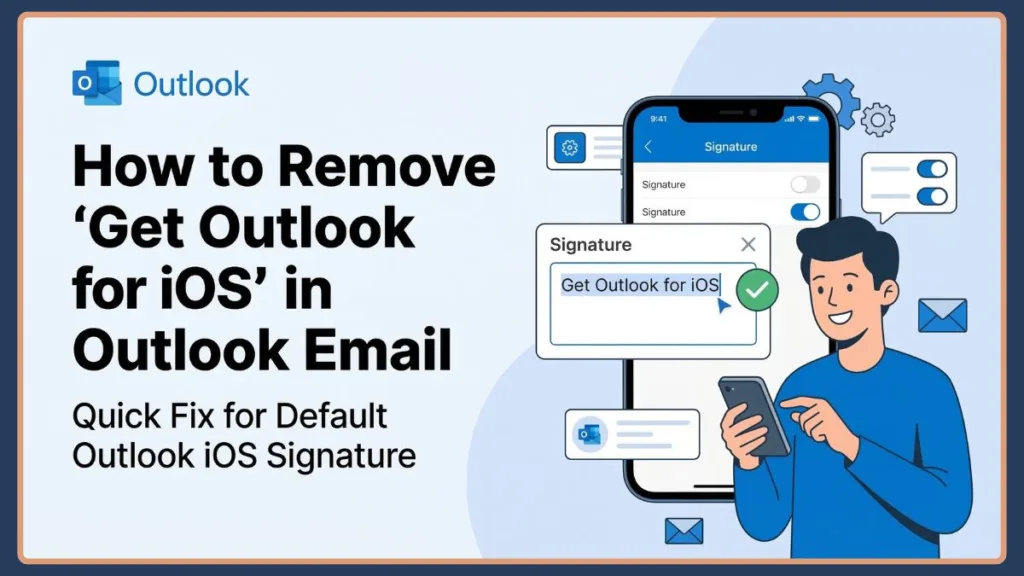
How to Remove “Get Outlook for iOS” on iPad and Stop Outlook iOS Signature From Appearing in Emails
The process is almost identical on an iPad. Since the Outlook mobile app works the same way on both devices, the steps remain the same.
To remove the message on iPad:
- Launch the Outlook app on your iPad
- Tap the profile icon
- Open Settings
- Select Signature
- Delete the text “Get Outlook for iOS.”
After removing the message, your emails will no longer include the Outlook iOS promotional signature.
Because the signature settings are device-specific, you may need to repeat this process on each device where you use Outlook.
How to Remove “Get Outlook for iOS” From the Outlook App Settings on iPhone and iPad
One common mistake users make is searching for this option in iPhone settings. The signature is actually controlled inside the Outlook mobile app itself.
To remove the message from the Outlook app:
- Open the Outlook app
- Tap your profile icon
- Go to Settings
- Select Signature
- Delete the default text
This method works whether you want to remove “Get Outlook for iOS” from emails, delete the Outlook iOS message, or disable the Outlook mobile signature completely.
How to Replace “Get Outlook for iOS” With a Custom Outlook Email Signature on iPhone or iPad
Instead of removing the signature entirely, many users prefer replacing it with a professional email signature. If you want more detailed steps for desktop, web, and mobile versions, you can also follow this guide on how to change your signature in Outlook.
A custom signature can help you present your identity clearly in every email you send.
A typical professional signature might include:
- Your full name
- Job title
- Company name
- Phone number
- Website or LinkedIn profile
For example:
John Smith
Marketing Manager
Example Company
www.example.com
This gives your emails a more professional appearance while ensuring your contact information is included in every message.
To create a custom signature:
- Open Outlook settings
- Tap Signature
- Replace the existing text
- Save the changes
Tips for Creating a Professional Outlook Mobile Email Signature After Removing “Get Outlook for iOS”
When creating your custom email signature, keep a few best practices in mind.
Keep It Short and Clear
Mobile email signatures should remain concise to ensure readability on smartphones.
Include Key Contact Information
A good signature typically includes:
- Your name
- Your role
- Your company
- Your preferred contact method
Avoid Complex HTML
The Outlook mobile app has limited support for advanced HTML formatting. Simple formatting such as bold text or line breaks works best.
Test Your Signature
Send test emails to yourself or colleagues to confirm the signature displays correctly across devices.
Why “Get Outlook for iOS” Signature Keeps Coming Back After Removing It
Sometimes users notice that the Outlook iOS signature returns even after removing it. If this happens, there are several possible explanations.
Multiple Email Accounts
If you have several email accounts connected to Outlook, you may have edited the wrong one. Each account can have its own signature settings.
App Not Refreshed
Occasionally the Outlook app needs to be restarted before changes apply correctly.
Organizational Policies
In corporate environments, organizations may enforce signatures through Mobile Device Management (MDM) tools such as:
- Microsoft Intune
- VMware Workspace ONE
- Citrix Endpoint Management
These systems allow administrators to apply organization-wide email signature policies.
App Updates
In rare situations, an Outlook update may reset the default signature. If this happens, simply return to the signature settings and remove the text again.
Managing Outlook Email Signatures Across Devices Including Windows, Mac, Web, and iOS
Outlook supports signatures across several platforms, including:
- Outlook for Windows
- Outlook for Mac
- Outlook on the Web
- Outlook Mobile App
Each platform has its own signature settings. For example:
Outlook for Windows
You can manage signatures by navigating to: File > Options > Mail > Signatures
Outlook for Mac
Go to: Outlook > Preferences > Signatures
Outlook Web App
Open Outlook Web and go to: Settings > Mail > Compose and Reply
Because each platform manages signatures independently, changing the signature on one device does not automatically update it on others.
While managing your Outlook settings, you might also want to improve your email workflow. For example, learning how to create an email group in Outlook 365 can help you send messages to multiple contacts faster.
Can Organizations Control or Disable the “Get Outlook for iOS” Signature Using MDM Tools
Yes. Many companies enforce email signatures using Mobile Device Management (MDM) solutions. Popular enterprise tools include:
- Microsoft Intune
- VMware Workspace ONE
- Citrix Endpoint Management
These tools allow administrators to:
- Disable default signatures
- Enforce company-wide signatures
- Prevent users from modifying signatures
This ensures consistent branding across all employee emails.
Troubleshooting Outlook iOS Signature Issues When Removing “Get Outlook for iOS”
If your Outlook signature does not update correctly, try the following solutions.
- Restart the Outlook App: Close the Outlook app completely and reopen it.
- Update the App: Ensure you are running the latest version of Outlook from the Apple App Store.
- Check Account Settings: Verify that you are editing the correct email account.
- Remove Duplicate Signatures: If both an MDM policy and user signature exist, multiple signatures may appear.
Sometimes email settings fail to update properly if Outlook is not syncing correctly. In that case, you may need to fix Outlook sync not working automatically before your changes appear across devices.
Can You Disable or Permanently Remove “Get Outlook for iOS” From Emails
Yes. The easiest way to disable or permanently remove the “Get Outlook for iOS” message is simply to delete the signature text in Outlook settings.
Once the signature field is empty, Outlook will stop adding the automatic tag to your emails.
You can also replace it with a custom signature if you want to maintain a consistent email footer.
Removing the Outlook iOS Signature vs Removing the Outlook App From iPhone
Some users confuse removing the signature with removing the Outlook app itself. These are completely different actions.
Removing the signature only deletes the “Get Outlook for iOS” message from emails. The Outlook app will continue working normally.
Uninstalling Outlook from your device will remove the entire application and its associated email accounts.
In most cases, editing the signature is all you need.
Frequently Asked Questions About How to Remove “Get Outlook for iOS” From Emails
How do I remove “Get Outlook for iOS” from my emails?
Open the Outlook app, go to Settings, tap Signature, and delete the text that says “Get Outlook for iOS.” This will stop the message from appearing in your emails.
How do you delete “Get Outlook for iOS” on Mail?
The message is controlled inside the Outlook mobile app. You must edit the signature in Outlook settings to remove it.
Why does Outlook keep adding “Get Outlook for iOS”?
Outlook adds it as a default mobile signature. If it keeps returning, check your email account settings or restart the Outlook app.
Can I remove the Outlook iOS signature permanently?
Yes. Deleting the signature text in the Outlook app settings permanently removes the message unless the app resets it after an update.
Final Thoughts on How to Remove “Get Outlook for iOS” Signature From Outlook Emails
The “Get Outlook for iOS” message is simply a default email signature added by the Outlook mobile app. While it helps promote the app, many users prefer removing it to maintain a more professional or personalized email style.
Fortunately, turning it off is quick and simple. By editing the signature settings inside the Outlook app, you can remove the message completely or replace it with your own custom email signature.
Once you make the change, your emails will look cleaner, more professional, and tailored to your personal or business communication style.