
Is printer error 0x00000709 stopping printers on Windows 11? How to fix printer error 0709 in Windows 11 for shared and network printers.
Printer error 0x00000709 in Windows 11 usually occurs after a system update, especially versions 22H2 and above. It appears when Windows fails to register or communicate with a printer, most often a network or shared printer.
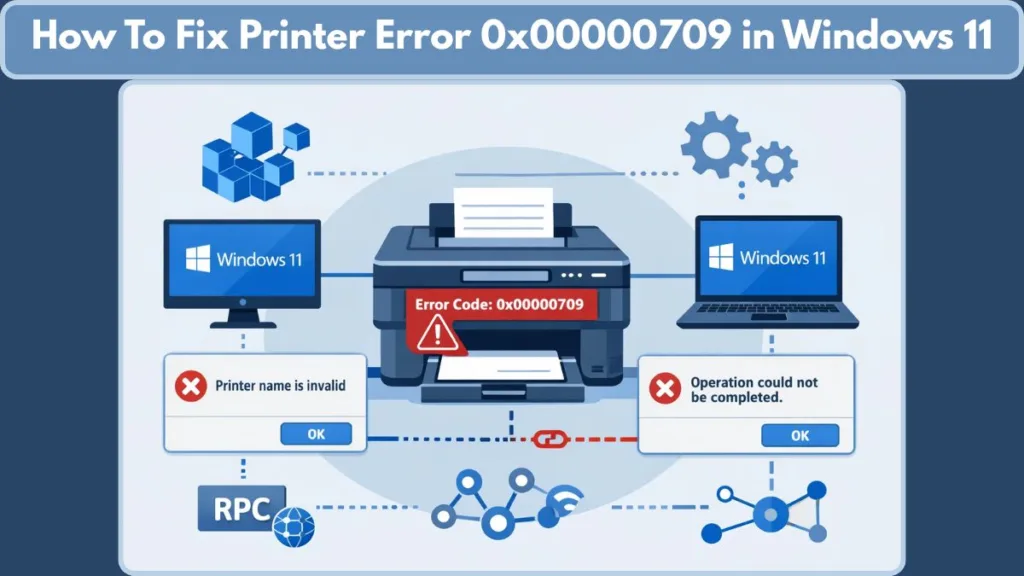
As a result, users cannot set a default printer, add a new printer, or even discover printers on the network. In many environments, this error is closely linked with 0x00000bc4 (printer not found), particularly after recent Windows updates.
What Is Printer Error 0x00000709 in Windows 11?
Error 0x00000709 occurs when Windows fails to complete a printer-related operation. Users typically see messages stating “Operation could not be completed (error 0x00000709)”, “The printer name is invalid”, or “No printers were found.”
At a technical level, this happens because Windows cannot successfully complete Remote Procedure Call (RPC) communication with a remote print spooler or cannot update the registry value that stores the default printer. In real-world scenarios, 0x00000709 and 0x00000bc4 often appear together, especially when users attempt to add or reconnect network printers after upgrading to Windows 11 22H2.
Symptoms You’ll See With Error 0x00000709
Before the error code appears, Windows usually shows clear warning signs:
- Network or shared printers disappear after a system restart, even though they were working previously.
- Adding a printer fails even when the printer path and name are correct.
- Windows displays “No printers were found” during network discovery.
- The system shows “The printer name is invalid” when setting or selecting a printer.
- Users cannot set or change the default printer, even though the printer is installed.
- Printer installation appears successful, but the printer fails silently afterward.
Important: These symptoms are most common in shared printer environments, office networks, and domain-based setups, but they can also affect home networks.
Why Windows 11 22H2 & 24H2 Break Network Printers
The RPC Policy Change That Caused the Issue
Starting with Windows 11 version 22H2, Microsoft introduced a new Group Policy called Configure RPC connection settings. This policy controls how Windows communicates with remote print spoolers.
The issue is not the policy itself, but its default configuration.
By default, Windows 11 22H2 and later versions force RPC over TCP, which breaks printer discovery and authentication in many environments. As a result, existing network printers may be removed, new printers fail to install, and Windows throws 0x00000709 or 0x00000bc4 errors.
Key takeaway: Many shared printer setups still rely on RPC over named pipes, which is why this default change causes widespread failures.
Method 1 — Fix Error 0x00000709 Using RPC Over Named Pipes (Primary Solution)
This is the main and most effective fix for error 0x00000709. The goal is to force Windows to use RPC over named pipes, restoring proper communication with network and shared printers.
Windows 11 Pro & Enterprise (Group Policy Fix)
- Press Win + R, type
gpedit.msc, and press Enter to open the Local Group Policy Editor. - Navigate to Computer Configuration → Administrative Templates → Printers.
- Locate and double-click Configure RPC connection settings.
- Set the policy to Enabled.
- In the options dropdown, select RPC over named pipes.
- Click Apply, then OK, and restart your PC.
Once applied, Windows can again communicate with remote print spoolers using the expected protocol.
Windows 11 Home (Registry Method)
Windows 11 Home does not include Group Policy, but the same configuration can be applied through the Registry.
- Press Win + R, type
regedit, and press Enter to open Registry Editor. - Navigate to
HKEY_LOCAL_MACHINE\Software\Policies\Microsoft\Windows NT\Printers\RPC. - If the Printers or RPC keys do not exist, create them manually.
- Create a new DWORD (32-bit) Value named
RpcUseNamedPipeProtocol. - Set its value to 1, which forces RPC over named pipes instead of the default TCP.
- Restart your computer to apply the change.
After rebooting, network printers should reappear and function normally.
If the Primary RPC Fix Doesn’t Work, Try These Solutions
If the RPC fix does not fully resolve error 0x00000709, the problem is usually caused by registry permissions, shared printer authentication, or a stalled Print Spooler service.
Method 2 — Fix Registry Permissions & Default Printer Name
Windows stores the default printer configuration in the registry. If Windows does not have permission to update this value, it cannot change the default printer and throws error 0x00000709.
- Open Registry Editor by typing
regeditin the Run dialog. - Navigate to
HKEY_CURRENT_USER\Software\Microsoft\Windows NT\CurrentVersion\Windows. - Right-click the Windows key, select Permissions, and grant Full Control to both Administrator and your user account.
- In the right pane, locate the Device value and edit it so the printer name exactly matches the printer you want to set as default.
- Save the changes and close Registry Editor.
With proper permissions in place, Windows can update the default printer correctly.
Method 3 — Fix Shared Printer Error Using RpcAuthnLevelPrivacyEnabled
This method applies only to shared or network printers and should be performed on both the printer host PC and the client PC.
- Open Registry Editor and navigate to
HKEY_LOCAL_MACHINE\SYSTEM\CurrentControlSet\Control\Print. - Create a new DWORD (32-bit) value named
RpcAuthnLevelPrivacyEnabled. - Set its value to 0 to relax RPC authentication requirements.
- Restart the Print Spooler service or reboot the system.
This fix resolves shared printer authentication failures that persist after applying the primary RPC fix.
Method 4 — Restart the Print Spooler Service
Sometimes the Print Spooler service is stuck and refuses to apply new settings.
- Press Win + R, type
services.msc, and press Enter. - Locate Print Spooler in the list of services.
- Right-click it and select Restart.
Restarting the service ensures that recent registry and RPC changes take effect.
Which Fix Should You Try First? (Quick Decision Guide)
If the issue started after a Windows update and involves a network or shared printer, start with Method 1. However, if Windows cannot change the default printer, move to Method 2. If the printer is shared between PCs and still fails, use Method 3. If the printer appears stuck or unresponsive, apply Method 4.
Does Error 0x00000709 Affect USB Printers?
In most cases, no. USB printers do not rely on RPC networking. If a USB printer shows this error, the cause is usually incorrect registry permissions or a malfunctioning Print Spooler service, not the RPC policy change.
FAQ — Windows 11 Printer Error 0x00000709
What causes error 0x00000709 in Windows 11?
It is typically caused by a change in RPC communication behavior introduced in Windows 11 22H2 and later updates.
Is error 0x00000709 the same as 0x00000bc4?
They are different error codes but often share the same underlying cause: failed printer discovery or connection.
Does Windows 11 Home support the RPC fix?
Yes. The registry-based method applies the same fix used by Group Policy.
Do I need to restart after applying these fixes?
Yes. Restarting is required to ensure all registry and RPC changes take effect.
Official Microsoft Resources
- Microsoft Learn — RPC connection updates for printing in Windows 11: This explains the root cause and how to configure RPC settings for printers via Group Policy or registry, including using RPC over named pipes to fix connectivity issues.
- Microsoft Answers — 0x00000709 error while connecting to shared printers: Community troubleshooting from Microsoft’s official support forum showing how the RPC Group Policy flag works in practice.
- Microsoft Answers — Connecting to a shared/network printer returns error: Additional examples of the core RPC/GPO fix being referenced directly in Microsoft’s troubleshooting guidance.
Visit Our Post Page: Blog Page