
Struggling with Facebook cropping your profile picture? Discover 3 easy ways on how to upload a full profile picture on Facebook without cropping.
Uploading a profile picture on Facebook should be the easiest thing in the world—but then the platform’s automatic circle crop jumps in and cuts off the best parts of your photo. If your image keeps getting zoomed in or awkwardly chopped, you’re definitely not alone. In an era where your digital presence acts as your modern-day business card, having a perfectly framed profile picture is more important than ever for personal branding, networking, and making a great first impression.
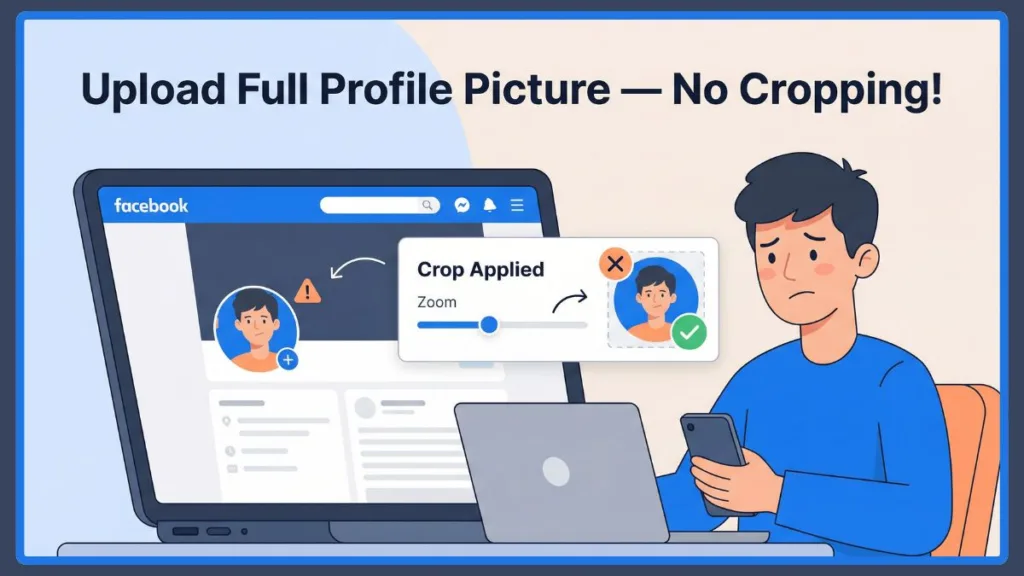
Fortunately, there are a few simple workarounds to bypass the crop.
The Quick Answer: You can upload a full profile picture on Facebook by using the mbasic Facebook browser trick, selecting “Skip Crop” on your desktop, or adding a background to convert your image into a perfect square (1080×1080) before uploading.
In this guide, we’ll walk you through each method step-by-step so your profile photo looks exactly the way you want it to—on mobile and desktop! We will also dive deep into the technical reasons behind Facebook’s image compression, the best third-party apps to use, and professional tips to make your photo stand out.
Understanding Why Facebook Automatically Crops Your Profile Picture
Facebook displays profile pictures in a circular frame, but images are usually uploaded as squares or rectangles. This mismatch is exactly what causes automatic cropping.
Here’s what’s happening behind the scenes:
- Facebook forces your image into a 1:1 aspect ratio and then applies a circular mask on top.
- If your photo is rectangular or the subject is near the edges, Facebook automatically zooms in, cutting off parts of the image.
Common issues this causes include the profile picture not showing the full image, important edges getting cut off, the photo appearing too zoomed in, or an inability to adjust the crop properly on the mobile app. Understanding this helps you fix the problem more effectively.
From a user interface (UI) perspective, UI designers utilize circular profile pictures because they naturally draw the human eye to the center—where a face usually is—and they save valuable screen real estate on mobile news feeds. However, Facebook’s auto-cropping algorithm isn’t always smart enough to detect exactly where the main focal point of your specific image lies, especially if it is a group photo, a landscape shot, or an image with text.
The Best Facebook Profile Picture Size & Ratio to Prevent Cropping
Before jumping into the methods, it’s important to make sure you are using the correct image size. Ensuring your base image meets Facebook’s technical requirements is the first line of defense against pixelation and bad cropping.
- Recommended Size: 1080 × 1080 pixels (For Retina and high-DPI mobile displays, you can even go up to 2048 × 2048 pixels for maximum crispness).
- Aspect Ratio: 1:1 (Square)
- Minimum Size: 320 × 320 pixels (Anything lower than this will result in a “File too small” error or extreme blurriness).
Why this matters: Square images fit perfectly into Facebook’s crop system. A higher resolution ensures better clarity after Facebook applies its compression, and it keeps your subject centered and visible.
Pro Tip: Always keep the main subject in the center of the frame to avoid edge cropping! Additionally, save your image in the sRGB color space and use the PNG format if your image contains a logo or text, as PNGs suffer less from Facebook’s aggressive JPEG compression artifacts.
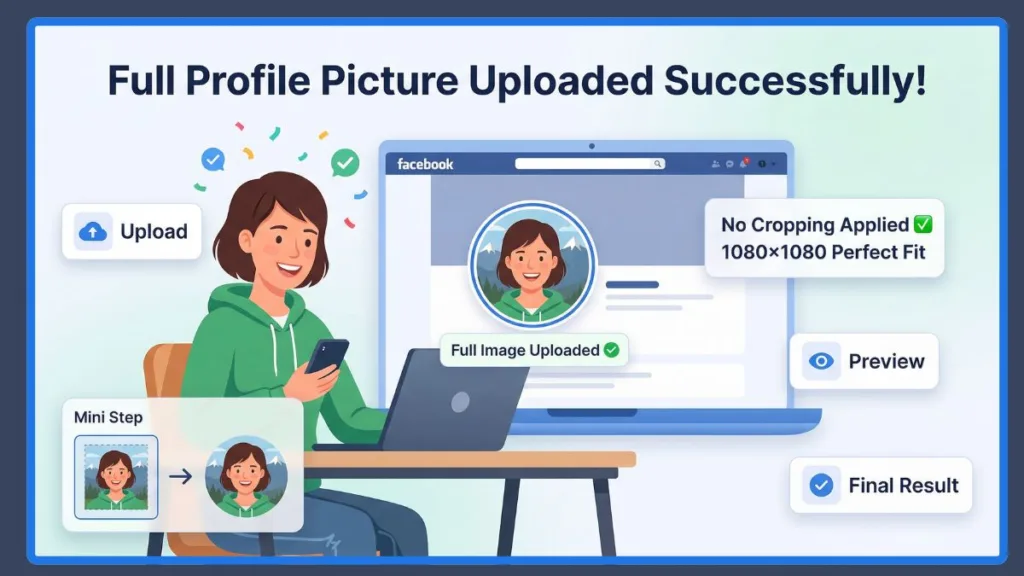
Method 1: The Mobile Browser Hack—How to Upload a Full Profile Picture Using mbasic Facebook
This is one of the most effective hidden tricks to upload your Facebook profile picture without cropping. Facebook’s basic mobile web version doesn’t always enforce the strict cropping rules found in the main app. This version of the site was originally designed for older phones and slower internet connections, meaning it lacks the JavaScript-heavy cropping overlay tools.
Here is how to do it:
- Open your mobile browser (like Chrome, Safari, or Firefox).
- Go to mbasic.facebook.com and log in to your account.
- Navigate to your profile page by tapping your name.
- Tap Upload Profile Picture (or the current image placeholder).
- Select your image from your phone’s gallery and upload it.
This works brilliantly because the mbasic version skips the advanced cropping tools, often uploading the full-size image directly. It’s the best quick workaround for mobile users (both Android and iPhone) who don’t want to edit their photos.
Troubleshooting Tip: If typing mbasic.facebook.com forces your phone to automatically open the Facebook App, simply open a new “Private” or “Incognito” tab in your mobile browser, go to the URL, and log in manually.
Method 2: The Desktop Precision Trick—How to Skip Cropping Using the Zoom-Out Feature
Using Facebook on a desktop computer gives you much more control when uploading your profile picture. The desktop interface provides access to precision tools that the mobile app hides to save space.
Here are the steps:
- Log in to Facebook on your computer’s web browser (Chrome, Edge, or Firefox).
- Go to your profile and click Update Profile Picture (the small camera icon on your current photo).
- Upload your desired photo from your hard drive.
- In the crop window that appears, drag the zoom slider all the way to the left to zoom out fully.
- Look for and click Skip Crop (if the option is available to you).
Your profile picture will still appear circular in the thumbnail, but when someone clicks on it, it will show the full image in its original size.
Note: Not all accounts see the “Skip Crop” option. If you are managing a Facebook Business Page, navigating to the Meta Business Suite first and changing the picture from the page settings there often yields better uncropped results.
Method 3: The Square Canvas Method—The 100% Guaranteed Fix for Uncropped Photos
If you want a reliable, permanent solution, this is the absolute best method. Instead of fighting Facebook’s crop system, you adapt your image to fit perfectly inside it. By utilizing third-party tools, you take total control of the final output.
Here is how to do it:
- Open a photo editing app like Canva, Snapseed, or any “Square Fit” app.
- Create a 1080 × 1080 pixel canvas.
- Import your photo onto the canvas and center your image.
- Add padding around the image (you can use a white background, a blurred version of the photo, or a solid color).
- Export the image and upload it to Facebook normally.
Key Benefit: Because your image is already a perfect square, there is no forced cropping. All the details remain visible, and the final result looks clean and professional.
Top Apps and Services for the Square Canvas Method in 2026
To execute Method 3 perfectly, here are the most reliable tools available in 2026:
Canva (Web, iOS, Android): The undisputed king of easy formatting. Simply search for “Instagram Post (Square)” which defaults to 1080×1080.
Photoroom (iOS, Android): Excellent for AI-driven background padding. It can automatically detect your subject and place it on a square canvas.
Snapseed (iOS, Android): Google’s editor has an “Expand” tool that uses content-aware fill to literally guess and draw what the rest of your background should look like to make the image a perfect square.
InstaSize / Square Pic: Dedicated mobile apps specifically designed to add blurred, colored, or patterned borders to rectangular photos so they fit perfectly into 1:1 aspect ratios.
How to Adjust Your Photo for Facebook Before Uploading
Editing your image before uploading can make a huge difference. Small tweaks ensure your full-image profile pic looks professional and complete.
- Center the subject: Keep the most important part of the photo in the middle. The dead-center is the only part completely safe from the circular mask.
- Add background padding: Use a white background for a minimal look, or blur the background for depth.
- Increase brightness & contrast: A slight boost helps it pop. Facebook’s dark mode can make dull photos look even darker.
- Maintain high resolution: Always export at the highest quality possible. If your photo is old, use AI upscaling apps like Remini to restore details before resizing.
Common Facebook Profile Picture Problems & Fixes
- Profile picture not showing the full image: Use the square canvas method (Method 3) to ensure a 1:1 aspect ratio.
- Profile picture zoom issue: Zoom out fully during the upload process or try the desktop method.
- Cannot upload full-size image: Resize your image to 1080 × 1080 pixels or use the mbasic workaround.
- Image quality becomes blurry: Upload a high-resolution image and avoid sending photos via WhatsApp or Messenger, which ruin quality. Always use the original camera file.
- Syncing issues from Instagram: Unlink the profile picture sync in the Meta Accounts Center to gain manual control over your Facebook upload.
Mobile vs. Desktop: Which Upload Method Works Best for You?
- Mobile: Easy to use and great for the mbasic trick, but offers limited control. The native Facebook app relies heavily on auto-formatting algorithms.
- Desktop: Provides better control, more flexibility, and the potential option to skip cropping entirely.
- Best overall: The Square Canvas Method works flawlessly everywhere because you are hard-coding the dimensions into the image file itself.
FAQ: Everything About Facebook DP
How do I upload a full-size profile picture on Facebook? Use mbasic.facebook.com, try skipping the crop on your desktop, or upload a square image (1080×1080).
Why does Facebook crop my profile picture? Because Facebook uses a square upload and a circular display system, which automatically trims the edges to make it fit.
What is the best size to upload a Facebook profile picture? 1080 × 1080 pixels with a 1:1 aspect ratio is ideal.
Can I stop Facebook from compressing my profile picture? You cannot stop it entirely, but you can minimize it by uploading a PNG file instead of a JPEG and ensuring the file is under 1MB.
The Complete Visual Presence: Mastering the Facebook Cover Photo vs. Profile Picture
Many users confuse these two! Your profile picture is a square that displays as a circle. Your cover photo is the wide rectangular banner at the top.
- Cover photo recommended size: 820 × 312 pixels (desktop) and 640 × 360 pixels (mobile).
Pro Tip: Because Facebook scales the cover photo differently per device, always keep important text or logos in the “safe zone” (the very center) of the cover photo.
Final Thoughts: Post Your Perfect, Uncropped Profile Picture with Confidence
Getting your full profile picture to display correctly on Facebook isn’t difficult once you know the right approach. Whether you use the guaranteed square canvas method, the quick mbasic browser trick, or the desktop skip crop, these methods ensure your profile photo looks complete, clear, and perfectly framed.
Pick the method that best suits your device, give your image a quick brightness boost, and upload with confidence!
Visit Our Post Page: Blog Page