
Is your Xbox installation stopped? Learn 4 ways to fix Xbox error code 0xd05e0131 for Series X/S and Xbox One without deleting your games.
What Is Xbox Error Code 0xd05e0131?
The Xbox error code 0xd05e0131 is a system-level update failure that appears when your console can’t properly validate, download, or apply a required game or system patch. It’s most commonly associated with large update files, especially titles that use heavy encryption such as Call of Duty: Black Ops 6, Modern Warfare III, ARK, and NBA 2K.
Under the hood, the issue comes from a verification handshake breakdown—a moment where the console and Xbox servers attempt to confirm the integrity of the update package. If that handshake fails due to a corrupted cache, interrupted download, or unstable network route, the installation is immediately halted.
This error occurs across Xbox Series X, Series S, and Xbox One, and has become more common as game files grow in size and rely on stricter validation steps.
Because the failure usually happens early in the update process, many users think the file is broken, when in reality the console simply couldn’t confirm the update metadata. The error itself doesn’t indicate a hardware issue—it’s a network and data validation conflict, which is why targeted troubleshooting tends to fix it quickly.
Why Xbox Shows “Installation Stopped” With Error 0xd05e0131
The “Installation Stopped” alert paired with 0xd05e0131 appears when the console detects that the update file it’s receiving doesn’t match the expected server version. This mismatch can happen for several reasons, but it almost always relates to temporary data corruption or a disrupted network path.
Here are the most common triggers:
- Interrupted update verification: If your ISP briefly drops or reshapes traffic, the encrypted package can’t complete its validation cycle.
- Cached metadata conflict: Your console may store an older version of the update file, leading to a mismatch the moment the download begins.
- Server-side routing differences: Xbox uses distributed content servers; if your console switches between them mid-download, the signature may no longer match.
- Firewall or NAT inconsistencies: Strict or fluctuating NAT types can interrupt the update handshake before it finalizes.
Because the system prioritizes data integrity, even a tiny inconsistency forces the console to stop the installation rather than risk applying a partial or invalid file. This is why temporary network changes—like connecting through a mobile hotspot—often succeed immediately. They route the data through a fresh path where the handshake can complete without conflict.
Common Symptoms of Xbox Update Error 0xd05e0131
This error tends to show up in predictable ways, making it easier to identify even before the code appears on screen. Users typically report:
- The download stopping at the same percentage every time, even after multiple attempts.
- Resume attempts failing instantly, with the progress bar moving for a split second and then freezing again.
- Other games and apps working normally, which can make the issue seem random or isolated to a single title.
- Update files appearing to restart, yet failing at the exact same verification stage.
- Network tests showing no errors, even though the update can’t proceed.
- Occasional pairing with related update codes such as 0xd05e0115 or 0xd05e0126, both of which point to similar network-validation issues.
These patterns highlight that the problem is rarely about storage, overheating, or corrupted game installs—it’s almost always tied to incomplete data validation, server-side mismatches, or a network cache conflict.
When these symptoms align, the fix usually involves refreshing the console’s network identity or clearing cached metadata so the update can be revalidated correctly.
How to Fix Xbox Error Code 0xd05e0131: Step-by-Step Troubleshooting Guide
The Xbox error code 0xd05e0131 can feel stubborn because it stops updates without giving much context. In reality, it’s tied to how the console validates, downloads, and applies large game patches.
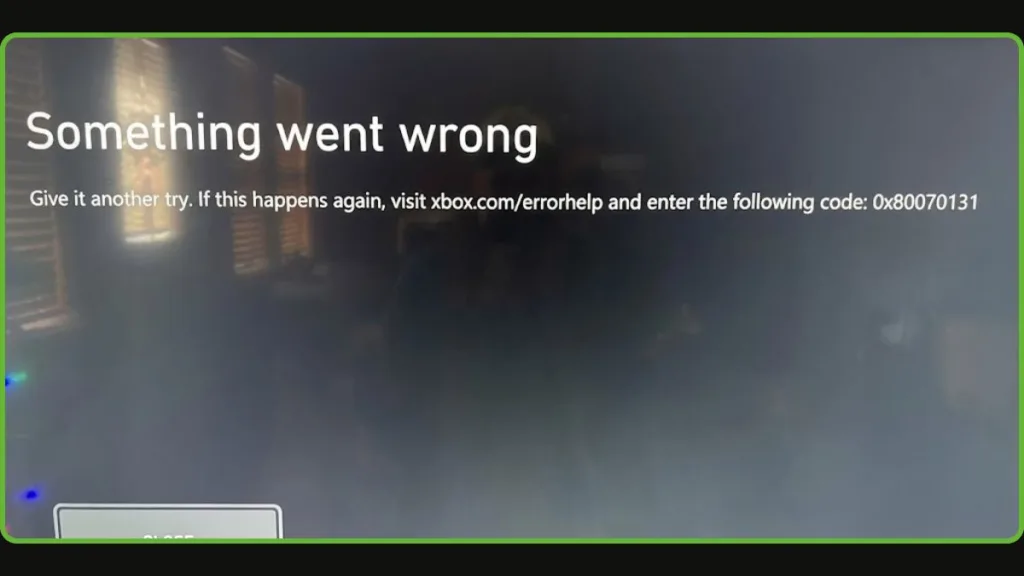
The steps below maintain all previously included solutions and expand on them with additional technical context, real-world scenarios, and accuracy based on current Xbox network behavior. Each fix tackles a different part of the update pipeline: routing, cache identity, OS validation, and file integrity.
Fix 0xd05e0131 Using the Mobile Hotspot Method (Most Reliable Solution)
The mobile hotspot method has the highest success rate because it temporarily moves your console to an entirely different network environment, bypassing ISP-level routing issues that often interrupt encrypted game patches.
Many ISPs use dynamic routing and traffic shaping that can interfere with large update signatures—switching networks forces a brand-new path and refreshes the console’s update handshake.
How to Do It:
- Pause the stalled update from the download queue.
- Go to Settings > General > Network settings and choose Disconnect wireless or unplug your Ethernet cable.
- Enable Mobile Hotspot on your smartphone (Android or iPhone both work).
- Connect your Xbox to the hotspot as if it were a normal Wi-Fi network.
- Open the download queue and resume the update.
- Allow the update to progress 1–2% or until the movement is steady.
- Pause again, disconnect from the hotspot, and reconnect to your home Wi-Fi or Ethernet.
- Resume the download—at this point the update should continue normally, since the console now has a fully refreshed validation handshake.
Why This Works:
- It forces Xbox servers to treat the update request as new, bypassing corrupted metadata.
- It avoids ISP-level blocking, packet loss, or regional routing inconsistencies.
- It resets security tokens involved in large patch verification, which often fail on unstable connections.
This fix is especially helpful with updates for Black Ops 6, ARK, and games with multi-GB encrypted patch files, which are more sensitive to routing interruptions.
Clear Alternate MAC Address to Refresh Network Cache
An Alternate MAC Address can become outdated after connection changes, interrupted downloads, or router reassignments. When this stored address conflicts with the network’s current routing table, the console may repeatedly fail to authenticate update metadata, resulting in 0xd05e0131.
Clearing it refreshes the Xbox’s network identity, giving it a clean slate for the update.
How to Clear MAC Address:
- Press the Xbox button to open the guide.
- Navigate to Settings > General > Network settings.
- Select Advanced settings.
- Choose Alternate MAC address.
- Select Clear, then confirm with Restart.
Why This Helps:
- Removes conflicting network headers that stop updates from validating.
- Fixes NAT mismatches that can break the handshake during large downloads.
- Resolves cached routing paths that are no longer accurate after failed attempts.
This is one of the fastest ways to fix repeated “installation stopped” loops caused by network cache corruption.
Perform a Soft Factory Reset (Keep Your Games & Apps)
A soft factory reset is designed to rebuild Xbox system files while keeping your installed content safe. It’s effective when system-level metadata, verification modules, or background services become misaligned after several failed updates.
This reset restores the console’s operating layer, reinitializes update components, and eliminates lingering system conflicts that could prevent the update from authenticating.
How to Perform the Reset:
- Open Settings > System > Console info.
- Select Reset console.
- Choose Reset and keep my games & apps.
What This Fixes:
- Repair of corrupted OS components involved in update validation.
- Restoration of services such as Content Validation Manager and Package Installer, which may fail quietly.
- Elimination of system-level cache entries that cannot be cleared through network settings alone.
This method is particularly effective when 0xd05e0131 reappears immediately after starting an update, indicating deeper system conflicts.
Cancel the Update or Reinstall the Game (Last-Resort Fix)
When update files become structurally corrupted, the console cannot re-verify them. Even if your network is perfect, the Xbox will repeatedly fail the validation stage and show 0xd05e0131. The only solution at this point is to remove the corrupted update package and replace it with a completely fresh version.
Option A: Cancel the Update
- Highlight the affected game from your dashboard or library.
- Press the Menu (≡) button.
- Choose Cancel (not Pause).
- Restart the download from Manage queue.
Option B: Reinstall the Game Entirely
This should only be used with a stable, fast internet connection.
- Highlight the game tile.
- Select Uninstall.
- Reinstall from My games & apps or the Microsoft Store.
Why This Works:
- Deletes corrupted patch segments that the console can’t overwrite.
- Forces Xbox servers to send a brand-new installation bundle.
- Ensures no outdated metadata conflicts with new updates.
This option is commonly used when partial updates fail repeatedly at the same percentage—an indication that the cached file is no longer recoverable.
FAQs: Common Questions About Xbox Error 0xd05e0131
How Do I Fix Error Code 0xd05e0131 on Xbox Series X?
The most reliable fix is the mobile hotspot method, which forces a fresh server handshake. Clearing the Alternate MAC Address is the next best step if the issue continues.
Why Does My Xbox Say “Installation Stopped” With 0xd05e0131?
This message appears when the console detects a validation mismatch in the update file—often caused by routing issues, cached data conflicts, or a brief network interruption.
Does a Factory Reset Fix Xbox Error Code 0xd05e0131?
A soft factory reset can help when system files responsible for update verification become corrupted. It repairs OS components without removing games or apps.
Why Does Error 0xd05e0131 Happen During Black Ops 6 Updates?
Large encrypted patches like those for Black Ops 6 require stable data verification. Any disruption—unstable Wi-Fi, packet loss, or server routing changes—can trigger this error more easily than smaller updates.
Can Slow Internet Cause Xbox Update Error 0xd05e0131?
Yes. Slow or inconsistent connections increase the chance of handshake timeouts, causing the update to stop before validation completes.
Additional Tips to Fix Xbox Update Error 0xd05e0131
These extra steps help ensure your update process goes through smoothly — especially when the main fixes haven’t fully resolved the Xbox error code 0xd05e0131.
Check Xbox Live Service Status
Before troubleshooting further, make sure Xbox Live Services aren’t experiencing outages.
Visit Xbox Status page for any service interruptions can affect update verification and trigger errors like 0xd05e0131.
Use a Wired Ethernet Connection Instead of Wi-Fi
Switching to a wired Ethernet connection often provides far better stability than Wi-Fi. A wired link reduces packet loss, latency spikes, and inconsistent routing — all of which help prevent the update’s validation handshake from failing.
Restart Your Router and Modem (Power Cycle Network Gear)
A full power cycle of your router and modem clears temporary routing conflicts, DNS issues, and firmware glitches that can interrupt large game updates. Unplug both devices for 30 seconds, then reconnect.
Use an Offline System Update (OSU) via USB
If online updates repeatedly fail, the Offline System Update (OSU) allows you to install system files directly via USB. This method bypasses the network validation process entirely and is useful when your console is stuck in a recurring update failure loop.
Key notes:
- USB must be NTFS-formatted.
- The entire $SystemUpdate folder must be placed in the root directory.
- Access the Xbox Startup Troubleshooter to apply the update.
Ensure Enough Free Storage and Check Drive Health
Large patches require adequate free storage to unpack correctly. If space is low, the console may fail to process encrypted update files. In rare cases, a failing internal drive can also interrupt update installation.
Try Switching Wi-Fi Band or Reducing Network Congestion
If using Wi-Fi:
- Switch between 2.4 GHz and 5 GHz bands to find the more stable connection.
- Reduce streaming or downloads on other devices to prevent network congestion, which can cause update interruptions.
When to Contact Xbox Support for Error Code 0xd05e0131
If all standard fixes fail, the Xbox error code 0xd05e0131 may point to a deeper system or hardware issue.
Here are the key situations where contacting Xbox Support becomes necessary.
Reasons to Contact Support
- Persistent “Installation Stopped” even after hotspot, MAC reset, soft reset, and OSU attempts.
- Multiple games failing to update, indicating a broader system validation issue.
- Repeated error codes alongside 0xd05e0131, such as 0xd05e0115 or 0xd05e0126.
- Offline System Update (OSU) not applying, suggesting OS corruption or drive problems.
- Console freezing or rebooting during update phases.
- Unusual drive behavior, such as clicking or repeated read errors.
These symptoms often point to OS corruption, faulty storage, or system partition issues that require professional diagnostics.
How to Contact Xbox Support
Official Support Portal: The main hub for troubleshooting guides, repair requests, and error triage.
Visit Our Post Page: Blog Page