
Facing the DBD initialization error on PC? Discover 6 proven, step-by-step solutions to fix Dead by Daylight and get back into your match quickly.
Facing the DBD initialization error on PC can be incredibly frustrating—especially when it appears right at launch with the message:
“The game has initialized incorrectly and may not save your game properly.”
What makes it worse? You try the usual fixes—restart, reinstall, verify files—and nothing works. You might spend your entire evening off just watching a loading screen fail over and over again. Whether you bought a new DLC, just installed a major patch, or simply tried to log in for a quick match, this error completely blocks your progress.
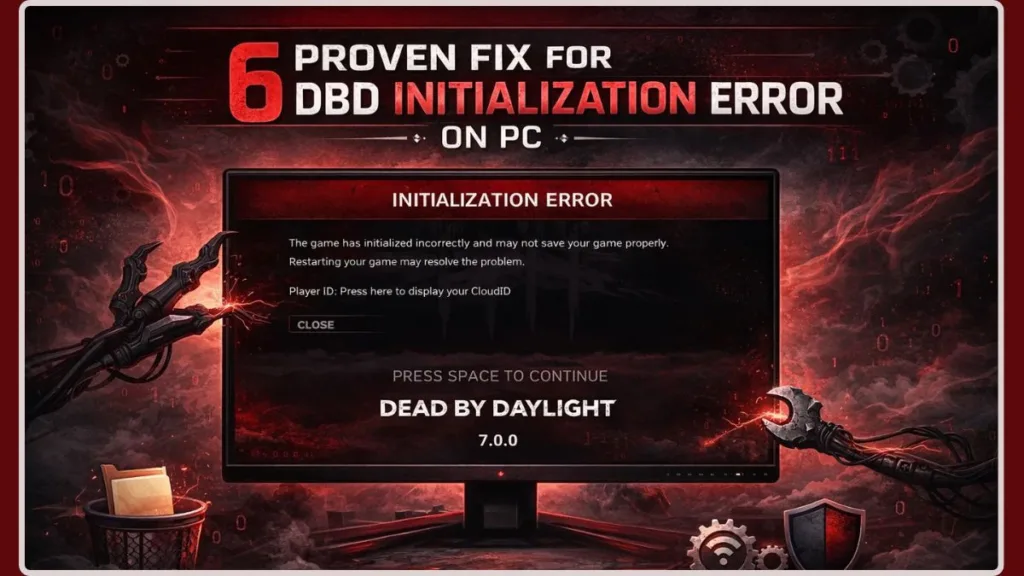
If that sounds familiar, you’re in the right place. This guide goes beyond generic advice and focuses on real, proven fixes based on actual player experiences, including the one solution that consistently works when everything else fails. We will also dive into advanced network troubleshooting, Easy Anti-Cheat (EAC) repairs, and deep-level system tweaks to ensure you get back into the game as quickly as possible.
What Does the “DBD Initialization Error” Mean in Dead by Daylight on PC?
To better understand the problem, we must first define what the error actually signals.
The initialization error in Dead by Daylight typically occurs when the game fails to properly load essential local data during startup. This message means the Unreal Engine or game client was unable to process your specific session request at that exact moment. It can prevent:
- Game progress from saving
- Connection to game servers
- Access to the main menu or gameplay
- Synchronization with Behaviour Interactive’s master servers
In most cases, the error appears immediately after launching the game, blocking you from playing entirely. When you launch Dead by Daylight, the game attempts to verify your local configuration files, communicate with Easy Anti-Cheat, and handshake with the matchmaking servers. If any link in this chain breaks—due to file corruption, a firewall block, or a network desync—the game throws the “initialized incorrectly” warning to protect your account data from being overwritten with bad information.
Why Does the DBD Initialization Error Happen? Top Causes Explained
Based on real usage patterns and technical analysis, this error usually stems from one or more of the specific reasons below.
1. Corrupted Local Game Files (Most Common Cause) This is the number one reason behind the error. Even if your main game files are intact, Dead by Daylight stores additional data locally on your PC. If these files become corrupted, the game fails to initialize. These files live in your AppData folder, safely hidden away from normal Steam or Epic Games uninstalls.
2. Easy Anti-Cheat (EAC) Failures Sometimes, the game itself is fine, but the anti-cheat software fails to boot. If you see an error like “EAC client cannot be instantiated,” your security software or a broken update has stopped EAC from authenticating your game session.
3. Game Updates or DLC Conflicts Many players report this issue after a new patch or installing DLCs. Updates can sometimes leave behind incompatible or outdated files. When the new game version tries to read the old cached data, the system panics and throws an initialization error.
4. Server or Connection Issues Although less common, server-side downtime can also cause initialization errors. Furthermore, your local DNS (Domain Name System) cache might be pointing the game to an outdated or dead server IP address.
5. Antivirus or System Interference Security software like Windows Defender can mistakenly block game files, preventing proper initialization. False positives are incredibly common after major game updates.
Quick Checks Before You Try Advanced DBD Initialization Error Fix
Before you dive deep into troubleshooting settings, you should quickly run through this diagnostic checklist to save time:
- Restart your PC and the game launcher: A fresh boot clears your system memory and stops background tasks that might be interfering.
- Relaunch the game as an administrator: Right-click the Dead by Daylight executable or your launcher shortcut and select “Run as Administrator.” This gives the game the necessary permissions to read and write local save data.
- Check online server status: Use sites like Downdetector or check the official Dead by Daylight X (formerly Twitter) support account to see if the servers are currently down.
- Restart your internet connection: Unplug your router for 30 seconds, plug it back in, and let your network reset.
If you answered these checks and the error still persists, move on to the proven fixes below.
How to Fix DBD Initialization Error on PC: Complete 6-Step Troubleshooting Guide
To resolve this efficiently, follow these steps in order. We strongly recommend that you do not skip ahead, as the simpler local file fixes often work best.
Step 1: Fix Corrupted Files by Deleting the PersistentDownloadDir Folder (Most Effective Solution)
This is the most reliable fix reported by players—and it works even when reinstalling doesn’t.
- Press Windows + R to open the Run dialog.
- Type the following path exactly and press Enter:
%localappdata%\DeadByDaylight\Saved\ - Locate the folder named: PersistentDownloadDir
- Delete this folder completely.
- Restart your PC (recommended).
- Launch the game again.
Why this works: The PersistentDownloadDir folder contains temporary downloaded data used by the game. Over time, or after a broken update, this data can become corrupted. Deleting it forces the game to recreate fresh, clean files. Because this folder is hidden in your AppData directory, standard uninstallers miss it entirely.
Step 2: Delete the Entire Dead by Daylight Saved Folder for a Deep Reset
If the main fix doesn’t solve the issue, try a deeper reset.
- Go to:
%localappdata%\DeadByDaylight\ - Delete the entire Saved folder.
- Restart your PC and launch the game.
Why this works: This will reset your local settings (like custom keybinds and graphics preferences) and force the game to rebuild everything from scratch. Don’t worry—your online game progress is safe, as it is stored on the Dead by Daylight servers. This includes your Bloodpoints, unlocked characters, Iridescent Shards, and Auric Cells.
Pro Tip: Copy the GameUserSettings.ini file from Config -> WindowsNoEditor to your desktop as a backup before deleting to save your custom keybinds!
Step 3: Resolve “EAC Client Cannot Be Instantiated” by Repairing Easy Anti-Cheat via Command Line
If your initialization error is accompanied by a message stating that the “EAC client cannot be instantiated,” your anti-cheat software is the culprit.
- Open your Dead by Daylight installation folder. (In Steam, right-click the game > Manage > Browse local files).
- Open the EasyAntiCheat folder and locate
EasyAntiCheat_EOS_Setup.exe. - Hold the Shift key on your keyboard, right-click that file, and select “Copy as path”.
- Press Windows + R to open the Run dialog and paste the path.
- Add a single space at the end of the pasted path, and type the following command exactly:
install 2b2299be8ae84d679d4dc57c55af1510 - Press Ctrl + Shift + Enter to run this command as an Administrator. Click Yes if Windows prompts you.
- Restart your PC and launch the game.
Why this works: The long string of numbers and letters is Dead by Daylight’s unique App ID for the EAC network. Running this command forces the EAC installer to completely wipe and rebuild the specific anti-cheat certificate for the game.
Step 4: Fix Connection Issues—Flush DNS and Change to Google IPv4
Sometimes the game initializes incorrectly because your computer cannot establish a secure handshake with the game servers due to a routing issue.
- Click your Windows Start menu, type
cmd, right-click Command Prompt, and select Run as administrator. - Type
ipconfig /flushdnsand press Enter. - Next, press Windows + R, type
ncpa.cpl, and hit Enter. - Right-click your active internet connection and select Properties.
- Double-click on Internet Protocol Version 4 (TCP/IPv4).
- Select “Use the following DNS server addresses” and enter 8.8.8.8 for Preferred, and 8.8.4.4 for Alternate. Click OK and launch the game.
Step 5: Verify Game Files and Clear Cache on Steam or Epic Games Launcher
Different launchers can sometimes contribute to the issue. Ensure your launcher files are synced properly.
- For Steam Users: Open Steam, right-click on Dead by Daylight > Properties > Installed Files > click Verify integrity of game files. Next, go to Steam Settings > Downloads > click Clear Cache. Restart Steam.
- For Epic Games Users: Close the Epic Games Launcher completely. Press Win + R, type
%localappdata%, and hit Enter. Delete the EpicGamesLauncher folder to clear the cache. Restart the launcher, verify your game files via the three dots in your library, and launch.
Step 6: Prevent Antivirus or Windows Security from Blocking Game Initialization Files
If your antivirus is interfering with the initialization process:
- Open Windows Security.
- Go to Virus & Threat Protection > Manage Settings.
- Under Exclusions, click Add or remove exclusions.
- Add your entire Dead by Daylight installation folder. You should also specifically add
DeadByDaylight.exeandEasyAntiCheat_EOS_Setup.exe.
Why Reinstalling Dead by Daylight Often Doesn’t Fix the Initialization Error
This is where many players get stuck and frustrated.
Reinstalling the game only removes the core game files. It DOES NOT delete the local data stored deep in your Windows AppData folder. If your issue is caused by corrupted local cache, broken EAC certificates, or bad network routing files, reinstalling leaves the broken files right where they are. That is exactly why manually deleting the PersistentDownloadDir or Saved folder is crucial. Relying entirely on the “Uninstall” button in Steam gives a false sense of a “clean slate.”
Is Dead by Daylight Down Right Now?
How to Identify Server-Side Initialization Errors Dead by Daylight can experience partial service issues where some features fail while others remain accessible. You might still load the intro cinematic, but the main menu won’t process.
Strong signs of a wider server issue include:
- The error appears for every player in your Discord group at the same time.
- None of the local fixes work across any of your devices.
- The issue starts suddenly and persists without change.
When this happens, waiting is often the only effective solution, as the engineering team at Behaviour Interactive works to restore the service.
How to Prevent the DBD Initialization Error on PC in the Future
While you cannot prevent all service-side issues, you can significantly reduce the chances of seeing this error again by maintaining good system hygiene.
To keep your connection and files stable:
- Never interrupt game updates: Let patches finish installing and verifying completely. Pausing halfway through corrupts file architecture.
- Keep drivers updated: Ensure your graphics and system drivers are current. Outdated GPU drivers clash with the Unreal Engine rendering pipeline.
- Update Visual C++ Redistributables: Download the latest x64 package from Microsoft to ensure your system has the correct runtime libraries.
- Don’t force-close: Avoid using Alt+F4 or Task Manager to close the game while it’s loading or saving. Let the game close naturally through the “Exit Game” button.
- Install on an SSD: Ensure Dead by Daylight is installed on a fast SSD to prevent mechanical hard drives from “timing out” during data loads.
Frequently Asked Questions (FAQs) About the DBD Initialization Error
Why does Dead by Daylight say “initialized incorrectly”?
Because the game server or local client could not process the request at that moment. This usually happens when the game cannot properly load or verify local data, almost always due to corrupted temporary files.
Is the DBD initialization error a server issue?
Sometimes, but not usually. Access varies by region, and local network routing can affect availability. If multiple people in the community are reporting it simultaneously, it’s a server issue. Otherwise, it is local file corruption.
Will deleting the local Saved folder delete my game progress or characters?
No. Your account progress, unlocked characters, and bloodpoints are stored securely on the game’s servers. The only things you will lose are local configurations.
What does the “EAC client cannot be instantiated” error mean?
This means that Easy Anti-Cheat failed to launch alongside Dead by Daylight. Without EAC running, the game refuses to connect you to online matchmaking.
Can an outdated Windows OS version cause the initialization error?
Yes. Dead by Daylight requires certain modern Windows API features to run. Make sure you check Windows Update and install any pending security or feature updates.
What to Do If the DBD Initialization Error Fixes Don’t Work
If you have tried every fix listed above and the error still appears, the best option is to stop retrying and wait.
Repeated attempts during a temporary master-server issue won’t speed things up and may make the experience more frustrating. We recommend you come back later and try again once conditions stabilize. If the error persists into the next day, submitting a support ticket to Behaviour Interactive with your player ID and a description of the steps you’ve already taken (like deleting PersistentDownloadDir and flushing your DNS) is your best next step.
Visit Our Post Page: Blog Page