
Stuck on Transferring Server? Fix the Failed to Get Minecraft Access error and Too Many Requests issue with proven step-by-step solutions.
Minecraft Java Edition is designed to start quickly and connect seamlessly to servers, whether you’re joining a multiplayer world or switching servers through a network setup. Under normal conditions, the authentication process happens quietly in the background, and you never notice it.
However, many players suddenly run into a frustrating roadblock: “Failed to get Minecraft access”, “Transferring Server”, or “Too Many Requests”. If you are stuck on this screen, the game never actually launches. Instead, it fails during the login and verification stage.
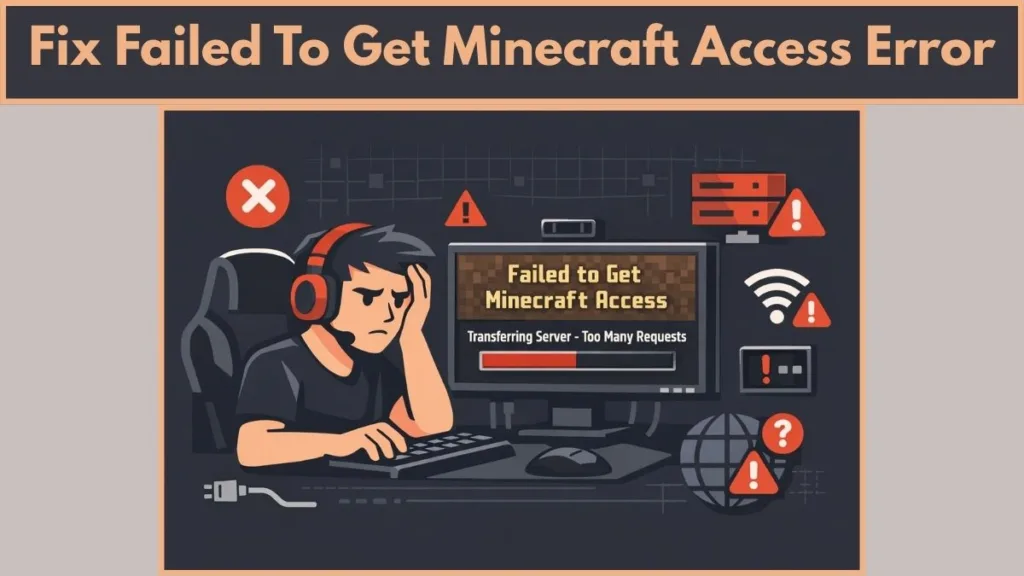
This issue is most common on Prism Launcher and MultiMC, but we have found that it can also affect the official Minecraft Launcher, especially for Minecraft Java Edition players. So even if you’re not using a third-party launcher, this guide is still relevant to you.
In most cases, this error maps directly to Status Code 429, which means the authentication servers are temporarily blocking your connection due to too many failed or repeated requests. The good news is that this block is almost always temporary and fixable.
This guide explains what the error means, why it happens, and provides clear, step-by-step solutions to get you back into the game without guesswork.
What Is the “Failed to Get Minecraft Access” Error?
If you are seeing this message, the problem occurs before the game launches, during the authentication handshake between your launcher and Minecraft’s backend services.
Here’s what happens behind the scenes when you click Play:
- Your launcher requests a Microsoft authentication token
- That token is exchanged with Minecraft Java Edition services
- The exchange fails, often repeatedly
- Microsoft applies rate limiting, returning Status Code 429 (Too Many Requests)
When this process breaks, you may see messages such as:
- “Failed to get Minecraft access”
- “Error transferring server”
- “Service Unavailable”
- “Server replied: Too Many Requests”
Many players also report errors involvingapi.minecraftservices.com/launcher/login.
We have found that these errors usually appear when cached authentication data expires, becomes corrupted, or repeatedly fails validation, causing the launcher to retry too aggressively.
Why Does Minecraft Get Stuck on Transferring Server?
Understanding the cause helps you fix the problem faster and avoid making it worse.
Authentication Rate Limiting (Too Many Requests / Status Code 429)
If you repeatedly try to log in while authentication is failing, Minecraft’s backend interprets this as excessive traffic. Once rate limiting kicks in:
- Every login attempt fails
- Correct credentials stop working
- Rapid retries extend the block
Many players also report that simply waiting after fixing the root cause is critical for the block to clear.
Corrupted Launcher Authentication Data
Third-party launchers store authentication metadata locally. Over time—or after a failed sign-in—this data can become stale or corrupted.
When this happens:
- The launcher keeps retrying with bad data
- Each retry increases throttling
- It feels like nothing is changing
We have found this is why clearing metadata and resetting account files works so consistently.
Microsoft Account Token Mismatch
Microsoft authentication tokens can break after:
- Backend or security updates
- Interrupted login flows
- Partial sign-ins
When your launcher continues using expired or mismatched tokens, authentication fails until those tokens are fully reset.
Network, DNS, and IP Reputation Issues
Minecraft authentication relies heavily on IP-based rate limiting. This explains why:
- VPNs help some players
- VPNs break it for others
- Mobile hotspots often work instantly
If you are stuck despite correct credentials, your IP address or DNS path, not your account, may be the real issue.
Launcher Update Lag
Third-party launchers must keep up with Microsoft’s changing authentication endpoints. Stable builds sometimes lag behind, while development builds often receive fixes first.
Many players report instant success after switching update channels.
Which Launchers Are Most Affected by This Error?
This issue is reported most often on:
- Prism Launcher
- MultiMC
- Other Microsoft-auth third-party launchers
If the official Minecraft Launcher works at the same time, that confirms:
- You are not banned
- The server is not blocking you
- This is not a gameplay or world issue
How to Fix Failed to Get Minecraft Access Error (Step-by-Step)
If you are stuck, follow these solutions in order. Skipping steps or retrying too quickly can keep the rate limit active longer.
Solution 1: Log In on the Official Minecraft Website First
Before touching any launcher settings:
- Log in at minecraft.net
- Confirm your Microsoft account is valid
If you recently failed login multiple times, Microsoft may apply a temporary lock. We have found that waiting 24–48 hours without retrying often clears it automatically.
If available, choose “send code to my email” instead of entering a password. Many players report this bypasses rate limits.
Solution 2: Switch Networks, Flush DNS, or Test a VPN
Start by clearing your local DNS cache.
Flush DNS:
- Open Command Prompt as Administrator
- Type:
ipconfig /flushdns - Press Enter
- Restart your launcher
If that doesn’t work:
- Try a mobile hotspot
- Or temporarily enable or disable a VPN
Changing your public IP often bypasses blocked authentication routes immediately.
Avoid rapid retries. Wait a few minutes between attempts.
Solution 3: Clear Metadata Cache (Prism Launcher)
This removes corrupted authentication data without affecting your worlds.
Steps:
- Open Prism Launcher
- Click Help
- Select Clear Metadata Cache
- Restart the launcher
- Try logging in again
Solution 4: Rename accounts.json to Reset Login State
This forces a clean authentication cycle.
Steps:
- Press Win + R
- Type
%appdata%and press Enter - Open the Prism Launcher folder
- Enable View > File name extensions
- Rename
accounts.jsontoaccounts.bak - Restart the launcher and sign in
If login fails, rename it back and continue.
Solution 5: Change Your Microsoft Account Password
This invalidates all existing tokens.
Steps:
- Log into your Microsoft account
- Open Security
- Go to Two-Step Verification
- Select Add a new way to sign in or verify
- Choose Enter Password
- Set a new password
- Restart your launcher and try again
Solution 6: Use the “Send Code to My Email” Sign-In Method
Many players succeed by:
- Entering their email
- Choosing “send code to my email”
- Avoiding password login entirely
We have found this avoids certain backend throttles.
Solution 7: Switch MultiMC to the Development Build
Steps:
- Open MultiMC
- Go to Settings
- Change Update Channel > Development
- Apply updates
- Restart and log in again
Development builds often receive authentication fixes first.
Solution 8: Use the Prism Launcher Portable Version
Portable builds bypass:
- Corrupted AppData
- Permission conflicts
- Broken registry entries
Steps:
- Uninstall the standard Prism Launcher
- Download the portable version
- Extract it to a new folder
- Launch and sign in fresh
Additional Steps Many Players Overlook
Synchronize your system clock: Incorrect date or time can break secure token validation. Enable automatic time and timezone sync.
Sign in to the Xbox app first: Logging into the Xbox app refreshes Microsoft tokens used by Minecraft authentication.
What You Should NOT Do When You See This Error
If you are stuck, avoid these mistakes:
- Rapid login retries every few seconds
- Reinstalling Minecraft instead of fixing authentication
- Assuming a permanent ban
- Ignoring launcher updates
Is This a Minecraft Server Outage?
If you are stuck on “Failed to get Minecraft access” or “Transferring Server”, it’s important to confirm whether the problem is actually on your side or if the Minecraft server itself is down. We have found that checking the server status first can save you a lot of unnecessary troubleshooting.
You can check the status of a Minecraft server using three main methods, depending on how deep you want to go. The fastest and easiest option is using an online status checker.
Use an Online Minecraft Server Status Checker (Easiest)
This is the quickest way to see if a server is offline for everyone or just for you. These tools show whether the server is reachable, along with useful details like player count, version, and response status.
Reliable options include:
- mcsrvstat.us – Highly recommended if you want detailed debug information, including ping results and server response data.
- mcstatus.io – A good option that supports both Java Edition and Bedrock Edition servers.
How to check:
- Open one of the server status checker websites.
- Enter the server IP address (for example,
play.hypixel.netor a local IP like192.168.1.5). - Click “Get Status” or “Check”.
- Review the results to see if the server is online or unreachable.
Important note:
If you are checking a Bedrock server on a website that defaults to Java Edition, you may need to:
- Select Bedrock manually, or
- Add the port number explicitly (usually 19132).
If the status checker shows the server as offline or unreachable, the issue is not your launcher or account. In that case, waiting is the correct move. Retrying login attempts while the server is down can still trigger Too Many Requests errors on the authentication side.
If the server shows as online and responding normally, then the problem is likely related to authentication, rate limiting, cached data, or network issues, and continuing with the troubleshooting steps in this guide is the right approach.
FAQ: Failed to Get Minecraft Access Error
Why does Minecraft say “Too Many Requests” when transferring servers?
Because the authentication endpoint received too many failed requests and applied Status Code 429.
Does this mean your account is banned?
No. If the website or official launcher works, your account is fine.
Can VPNs cause this error?
Yes. VPNs change your IP, which can either bypass or trigger throttling.
Why does the official launcher work but MultiMC doesn’t?
Third-party launchers cache authentication data and may lag behind backend changes.
How long should you wait before trying again?
Wait 15–60 minutes after fixing local issues, or 24–48 hours after temporary locks.
Will clearing cache delete your worlds?
No. It only affects authentication data.
Final Takeaway
If you are stuck on “Failed to get Minecraft access” or “Transferring Server”, you are facing an authentication problem, not a gameplay issue. The most common causes are rate limiting, corrupted auth data, token mismatches, and network or IP issues.
We have found that resetting authentication state, flushing DNS, avoiding rapid retries, and keeping your launcher updated resolves this issue for most players. Follow the steps calmly and in order, and the Too Many Requests block will clear.
Visit Our Post Page: Blog Page