
Facing the “AntiGravity Agent terminated due to error” message? Learn why it happens and how to fix it step-by-step in this complete 2026 troubleshooting guide.
Seeing the message below can instantly interrupt your workflow and derail a productive coding sprint:
Error Log:
[Error] Antigravity Agent terminated due to error.Action: You can prompt the model to try again or start a new conversation.
A task fails. The agent stops responding. The app may close or return nothing at all. Whether you’re working on automation, background syncing, or AI-powered execution using the latest Google Antigravity IDE, this error can feel sudden and confusing. It specifically targets the “flow state” that developers rely on, forcing a hard stop when you need to be moving fast.
The good news is that in most cases, this issue is fixable.
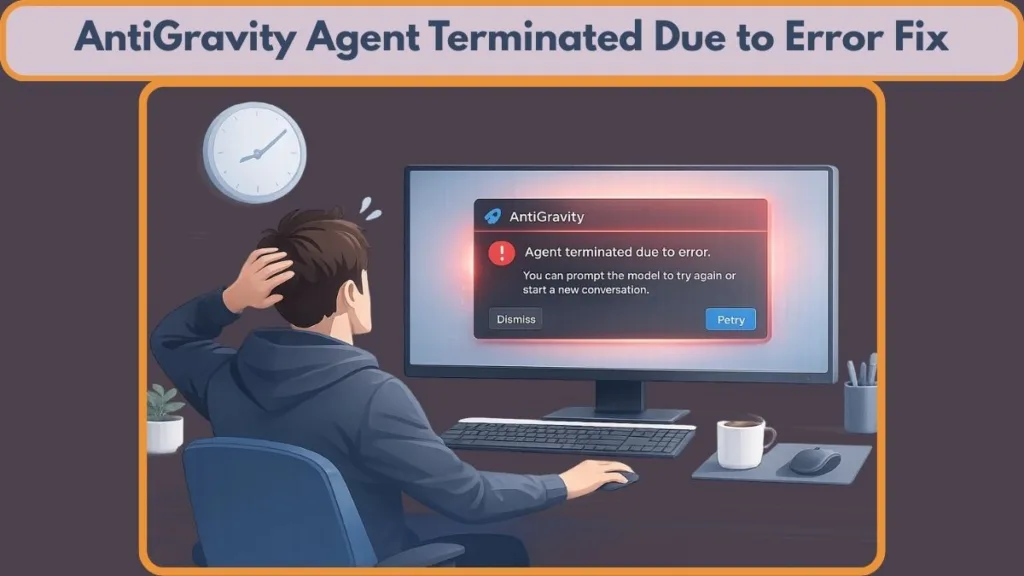
This complete 2026 guide explains what this error actually means, why it happens covering both system-level conflicts and AI model constraints, step-by-step fixes that work, and how to prevent it from happening again.
Let’s break it down clearly and safely.
What Does “Antigravity Agent Terminated Due to Error” Mean?
This message appears when a background process called the Antigravity Agent stops running unexpectedly.
An “agent” is typically a helper process that runs behind the main application. It acts as the bridge between your code editor (likely a VS Code fork or similar AI-first environment) and the large language model (LLM), handling essential duties such as task execution, file processing, model responses, sync operations, and external server communication. When this bridge collapses, the IDE loses its “brain,” resulting in the termination error. The agent is essentially a localized server running on your machine that marshals requests between the heavy frontend interface and the remote AI inference engine. If this marshal process dies, the frontend has no way to communicate your intent to the backend, resulting in a silent failure or the explicit termination message you are seeing.
When the agent terminates, it means the operating system or platform stopped it because something failed during execution. There are two main interpretations of this error.
System Level Agent Failure – Local Machine Issue
On Windows systems, background agents depend on a fragile ecosystem of proper permissions, required runtime dependencies, stable configuration files, available system memory, and strict security software rules.
If something interferes with these requirements—such as a strict Firewall exclusion missing for the agent—Windows may terminate the process to protect system stability. You might notice that the app closes unexpectedly, no output is generated despite a successful prompt, a crash report appears, or the Event Viewer and IDE logs show a critical error related to the antigravity-agent.exe process. This is often an ungraceful exit, comparable to a SIGKILL command in Linux, where the process is given no time to save its state or close connections properly, leading to potential data corruption in your local cache or workspace settings.
AI and Backend Level Execution Failure – Platform Issue
In AI-powered environments, this error can also mean the problem lies outside your local machine. It often indicates that the AI model exceeded token limits, large file inputs overloaded the context window, an authentication token failed to refresh, or a global quota limit was reached. It can also stem from an MCP server conflict (Model Context Protocol) or a backend service outage interrupting execution.
In these cases, your system may be fine, but the request was rejected or failed server-side. The API connection essentially hangs up on the client because the payload was too large, the handshake failed, or the server encountered an internal 500 error. Understanding which category your issue falls into is the key to fixing it efficiently because troubleshooting a server-side rejection with local driver updates will simply waste your valuable development time.
Why Does AntiGravity Agent Keep Terminating?: Common Causes
Let’s examine the most frequent triggers in detail, ranging from local configuration drifts to cloud-side API rejections.
System Level Causes – Windows and Local Machine
These causes relate directly to your device’s environment and how it hosts the Antigravity IDE.
Missing or Corrupted Runtime Dependency Some agents require specific runtimes (like Python environments, C++ Redistributables, or Node.js versions) to function correctly as a bridge between the editor and the operating system. If these files are missing or damaged—perhaps due to a recent system restore or an aggressive disk cleanup utility—the process may fail immediately upon launch because it cannot find the shared libraries it needs to execute JSON-RPC commands. Without these dependencies, the agent is like a car without an engine; the chassis is there, but it cannot move or perform any work.
Lack of Administrator Permissions If the agent attempts to write to protected system areas, such as the Program Files directory or specific registry keys, or modify system files without the necessary privileges, Windows User Account Control (UAC) may block the action and kill the process. This is particularly common in corporate environments with strict IT policies where standard user accounts are sandboxed to prevent unauthorized software changes. The agent may try to auto-update itself or write a log file, be denied access, and subsequently crash due to an unhandled permission exception.
Antivirus or Firewall Blocking the Agent Security software often flags unknown background agents as suspicious behavior because they frequently open network ports and execute scripts. If your antivirus aggressively monitors background processes, it may falsely identify the heuristic behavior of the AI agent as a threat and terminate it automatically. This is known as a “false positive,” where the security layer perceives the legitimate actions of the developer tool—such as analyzing code files or connecting to a cloud server—as malicious activity similar to malware or ransomware.
Corrupted Configuration File A broken settings file, such as a malformed config.json or settings.json, can prevent the agent from parsing its startup instructions properly, leading to an immediate crash. This often happens after a failed auto-update where the writing process was interrupted, leaving the file with incomplete JSON syntax. When the agent attempts to read this file on the next boot, the parser fails, and the application creates a fatal exception that terminates the process to avoid running with undefined parameters.
Incomplete Installation If the software installation was interrupted due to a power failure, a system crash, or a user cancelling the process, essential binary components may be missing. This leaves the agent unable to start because it cannot locate its own executable files or helper scripts. In this state, the IDE might load the visual interface, but the background “brain” is lobotomized, resulting in immediate errors whenever you attempt to interact with the AI features.
Low System Memory or CPU Overload When system resources are critically low, Windows prioritizes active foreground windows and may terminate background processes—like your AI agent—to free up RAM. This is frequent when running heavy Docker containers, virtual machines, or multiple browser tabs alongside the IDE. The operating system’s kernel invokes an “Out of Memory” (OOM) killer mechanism that sacrifices the most resource-intensive background tasks to keep the core system stable, and unfortunately, AI agents are often high on that hit list due to their memory footprint.
Compatibility Issue After a Windows Update Updates to the operating system, especially major feature updates, can sometimes change how background services are managed or how network stacks are implemented. This can lead to compatibility conflicts with older agent versions that were designed for a previous iteration of Windows. For example, changes to the Windows firewall APIs or background task scheduling policies can render an older agent obsolete, causing it to crash whenever it tries to perform deprecated system calls.
AI and Backend Level Causes – Platform Side
These causes occur on the service side or within the API connection to models like Gemini 3 Pro or Ultra.
Large File or Long Response Overload Uploading extremely large files or requesting commands that return massive text outputs can exceed the model’s context window, causing the connection to time out or crash. The agent simply cannot process the volume of data being returned within the allowable timeframe. While modern models have massive context windows, the local agent must still serialize and deserialize this data; if the buffer overflows, the process will panic and terminate to prevent a system-wide freeze.
MCP Server Conflict External integrations, known as Model Context Protocol (MCP) servers, allow the agent to interface with tools like PostgreSQL databases or Slack. If one of these integrations fails or returns a malformed response, it can bring down the entire agent process. Because the agent relies on these sub-servers to provide context, a critical failure in a sub-server (like a database connection timeout) can propagate up the chain and cause the main agent supervisor to crash.
Model Quota or Usage Limit Reached If you have exceeded your daily or monthly allowed usage for a specific model tier (e.g., the high-compute Gemini Ultra tier), the system may reject further requests, resulting in an abrupt error message rather than a polite warning. This is a hard stop enforced by the API gateway; when the agent receives a 429 Too Many Requests error that it isn’t programmed to handle gracefully, it may simply interpret it as a fatal connection loss and terminate itself.
Authentication Token Failure Your session relies on a secure OAuth token to communicate with the cloud. If this login token expires or fails to refresh automatically, the agent may terminate instantly due to a lack of authorization (often creating a 401 Unauthorized error in the logs). Security protocols require these tokens to cycle frequently; if your system clock is out of sync or if the refresh endpoint is unreachable, the agent is effectively locked out and will shut down.
Subscription Tier Backend Issue Some users report this issue specifically affecting certain subscription levels, indicating a potential configuration error on the account management side where the provisioned resources do not match the user’s tier. This can cause a mismatch between what the local agent thinks it can do (e.g., access a specific model) and what the server allows, leading to an immediate rejection and termination.
Temporary Service Outage If many users experience the error simultaneously, it is likely a backend infrastructure issue. In this scenario, the agent is functioning correctly, but the Google Cloud server it talks to is down or experiencing high latency. The agent attempts to connect, times out, retries, and eventually hits a maximum failure threshold, at which point it terminates to save local resources rather than spinning in an infinite wait loop.
How to Fix AntiGravity Agent Terminated Due to Error
Follow these steps in order. Avoid changing multiple settings at once — test one fix at a time to isolate the problem.
Fix #1: Prompt the Model to Try Again
Sometimes the failure is a temporary network glitch or a momentary service overload. Your first step should simply be to click “Try again.” If that fails, try reducing the size of your prompt or breaking large tasks into smaller, more manageable steps. If it works, the issue was likely just a temporary API overload.
This is the digital equivalent of blinking—sometimes the connection just needs a second to reset. By simplifying the prompt, you reduce the computational load on the model and the data serialization load on your local agent, increasing the chances of a successful round-trip transaction.
Fix #2: Start a New Conversation
A corrupted session state can cause persistent failures that a simple retry won’t fix. To resolve this, start a brand new chat session and re-enter your request. It is crucial to avoid copying massive blocks of prior context or pasting entire codebases again, as this might re-introduce the same token overflow error that caused the crash in the first place. This process clears the token buffer and resets the agent’s working state.
Think of a conversation session as a temporary cache of memory. If a piece of that memory becomes corrupted—perhaps due to a weird character encoding or a logic error in a previous turn—the agent will trip over it every time it tries to reference that history. Starting fresh wipes the slate clean, ensuring that no “ghosts” from the previous error are haunting the new attempt.
Fix #3: Restart the Host Application – Or Reload Window
A clean restart is often enough to reset hung background processes and clear memory leaks.
Method A: The Fast Way – Command Palette You can often fix this without fully closing the app.
- Press the
Ctrlkey, theShiftkey, and thePkey simultaneously on Windows, or useCmd,Shift, andPon a Mac to open the Command Palette. - Type the phrase “Developer: Reload Window” into the search bar that appears at the top of the editor.
- Select the command from the list to restart the agent environment and UI in seconds without closing your open files, effectively refreshing the connection to the AI model.
This method is superior to a full restart because it keeps your workspace context (open tabs, terminal history) largely intact while forcing the underlying Electron process to re-initialize the extension host and the Antigravity agent.
Method B: The Full Restart If the quick reload fails, perform a full cold boot of the app.
- Close the application completely by clicking the X in the top right corner.
- Open Task Manager by pressing
Ctrl,Shift, andEscto ensure all related background processes (look forantigravity-agentorcode-helper) have ended. - Wait about 30 seconds to ensure the system memory is cleared and any lingering file locks are released.
- Reopen the app to see if the fresh start resolved the issue.
Waiting those 30 seconds is critical because operating systems often take a moment to fully release file handles after a process closes. If you reopen the app too quickly, the new agent might try to access a file that the old, dying agent still has locked, causing an immediate crash.
Fix #4: Disable MCP Servers – If Enabled
External servers are a common point of failure. The Model Context Protocol (MCP) allows the agent to talk to external tools, but if one crashes, the agent often dies with it.
- Open your application settings or locate your
antigravity_config.jsonfile in the root directory. - Navigate to the MCP server management section within the settings interface.
- Disable all entries by toggling them off or commenting them out in the JSON file.
- Restart the agent to see if stability returns.
- If the problem disappears, you can re-enable them one by one to identify the specific tool causing the conflict.
This isolation technique is standard troubleshooting practice. If you have ten different tools connected to your agent—a GitHub tool, a Postgres tool, a Slack tool—any one of them could be sending bad data. By stripping the agent down to its bare essentials, you can verify if the core functionality is working before re-introducing complexity.
Fix #5: Switch AI Models and Check Auth
If a specific model quota or overload is the issue, switching your configuration can help.
- Select another available model from the dropdown menu, such as switching from the high-capacity Gemini Ultra to the faster Pro or Flash models.
- Retry the task with the new model to see if the error persists.
- If the issue persists across all models, your authentication token may be stale, so run the command “Antigravity: Sign Out” or “Reset Onboarding” via the Command Palette to force a fresh login and token refresh.
Switching models forces the system to initiate a new handshake with a different API endpoint. If the “Ultra” endpoint is experiencing latency or if your account is rate-limited on that specific tier, switching to “Flash” bypasses that bottleneck entirely. Additionally, signing out and back in flushes the local keychain, replacing potentially corrupted or expired OAuth tokens with fresh credentials.
Fix #6: Run the Application as Administrator – Windows
To rule out permission issues, try running the application with elevated privileges.
- Close the application completely to ensure no processes are running.
- Right-click the app icon on your desktop or in the start menu.
- Select “Run as administrator” from the context menu.
- Approve the User Account Control prompt by clicking “Yes.”
- If the agent runs correctly in this mode, the issue was likely permission-related, indicating that the agent was struggling to access necessary system files or write to the local cache.
Running as administrator gives the agent “superpower” access to the file system. While this isn’t a recommended long-term solution due to security best practices, it is an excellent diagnostic step. If it works as admin but fails as a standard user, you know for a fact that the problem is a permissions conflict in your file system, likely involving the folder where the agent tries to store its logs or temporary files.
Fix #7: Check System Logs and IDE Output
This step provides factual error details rather than guesswork.
Method A: IDE Output Panel (Recommended for Developers) For the most accurate diagnosis, check the internal IDE logs.
- Press
Ctrl,Shift, andUon Windows orCmd,Shift, andUon Mac to open the Output panel. - Select “Antigravity Agent” from the dropdown menu in the Output panel to view the specific log stream.
- Look for specific Python or API errors, such as
401 Unauthorized(auth issues) orECONNRESET(network drops).
This panel is the agent’s direct line of communication to you. It prints out exactly what it was doing the millisecond before it died. You might see a stack trace indicating a Python library failure, a JSON parsing error, or a network timeout—all of which point you to a specific solution rather than generic troubleshooting.
Method B: Windows Event Viewer If the IDE won’t open, check the OS logs.
- Press
WinandRkeys to open the Run dialog. - Type
eventvwrand press Enter to launch the Windows Event Viewer. - Open the Windows Logs folder and select Application Logs.
- Look for entries timestamped at the moment of the crash, specifically searching for Access denied errors, missing DLL files, or memory exceptions related to the agent executable.
The Event Viewer is the “black box” recorder of your operating system. Even if the application crashes silently without showing an error message, Windows recorded the death. Look for “Error” level events with a red exclamation mark source from .NET Runtime or Application Error.
Fix #8: Temporarily Disable Antivirus or Firewall
Security tools may be aggressively blocking the agent’s execution.
- Pause your antivirus protection temporarily through its system tray icon.
- Disable your firewall briefly via the Windows Security settings.
- Launch the app and test its functionality to see if the error recurs.
- If the agent works while security is disabled, re-enable your security software immediately.
- Add the
antigravity-agent.exeto your exclusions or allowlist in both the antivirus and firewall settings to prevent future blocking.
This is a binary test: is it the antivirus or not? By removing the variable entirely, you get a clear answer. If the app works perfectly the moment the firewall is down, you don’t need to reinstall software or update drivers—you just need to configure a firewall rule. Remember that AI agents often use obscure network ports to communicate with local servers, which can look very suspicious to a strict firewall policy.
Fix #9: Repair or Reinstall the Software
If configuration files are deeply corrupted, a fresh start is necessary.
- Uninstall the software completely via the “Add or Remove Programs” menu in Windows settings.
- Restart your system to clear any locked files or registry keys.
- Download the official installer from the vendor’s website to ensure you have the latest version.
- Reinstall the application following the on-screen prompts.
- Test again to see if the fresh installation resolves the persistent crashes caused by broken update files or missing libraries.
Sometimes, software just rots. Files get moved, permissions get jumbled, or an update applies partially. A clean reinstall wipes away all that entropy. It ensures that every file is exactly where the developer intended it to be, with the correct checksum and permissions.
Fix #10: Check for Service Outages
If the error appears instantly, multiple users are reporting similar issues online (check forums like Reddit or the official Discord), and switching devices doesn’t help, it is likely a backend issue. In this case, the problem is not on your machine. Wait a few hours and retry later, as platform-side outages usually resolve without any local changes required.
Cloud services are incredibly reliable, but they aren’t magic. They have downtime, maintenance windows, and unexpected outages. If Google’s Gemini API is down globally, no amount of reinstalling your IDE will fix it. Checking a status page or a community forum can save you hours of frustration.
How to Prevent This Error in the Future: Avoid AntiGravity Agent Execution Error
Prevention reduces the likelihood of repeat failures and workflow interruptions.
System Level Prevention
To maintain a healthy environment, you must keep Windows fully updated to ensure compatibility with the latest agent frameworks. You should avoid force-closing background processes via Task Manager unless absolutely necessary, as this can corrupt the agent’s state. It is crucial to ensure your system has sufficient RAM available for heavy AI tasks, especially if you run local models alongside cloud agents. Always run apps with the correct permissions, complete installations fully before the first launch, and regularly back up your configuration files to a separate location. Regular maintenance, such as disk cleanup and registry optimization, can also prevent the buildup of “digital cruft” that might interfere with sensitive background processes.
AI and Platform Level Prevention
Smart context management is key to stability in an AI-first IDE. You should avoid pasting thousands of lines of code directly into the chat interface, as this bloats the context window immediately. Instead, use @ references (e.g., @main.py) to let the agent read the file directly from the disk only when needed. You should break complex tasks into smaller, iterative parts rather than one massive prompt to keep the cognitive load on the agent manageable. Monitor your usage quotas to avoid hitting hard limits unexpectedly, limit unnecessary MCP integrations to reduce potential points of failure, and start fresh conversations for complex new tasks to keep the context window clean and efficient. Treat the AI context like a limited resource—use it wisely, and the agent will remain responsive and stable.
When to Contact Support for Persistent AntiGravity Agent Error
You should reach out to the official vendor support team if logs show repeated authentication failures that a reset doesn’t fix, if reinstalling does not resolve the issue, if the error appears across multiple devices, or if you suspect a subscription-related backend mismatch.
Before opening a ticket, check the Google Cloud Status Dashboard to rule out active outages. If the system is operational, you can submit a detailed bug report via the Issue Tracker or ask for peer assistance on the Google Cloud Community Forums.
When contacting support, provide:
- Error logs from the Output Panel or Event Viewer.
- The exact timestamp of the failure.
- System details (OS version, IDE version).
- Steps that consistently reproduce the issue.
Avoid manually editing system files or registry keys unless explicitly directed by a support engineer, as this can void your support eligibility or cause further system instability. A well-documented support ticket with logs and reproduction steps will get a faster resolution than a vague “it’s not working” complaint.
FAQ About AntiGravity Agent Terminated Due to Error
Why does AntiGravity Agent keep terminating?
The most common causes are insufficient permissions, overloading the model with large inputs, authentication token expiration, or interference from security software. It is rarely a single cause but rather a combination of environmental factors.
Is this a virus?
No, this error message is not a virus. It usually indicates a standard software crash or a system configuration conflict. The term “agent” in this context refers to a helper program, not a malicious actor.
Does this mean my system is damaged?
No, permanent damage to your hardware or OS is extremely unlikely. The error is typically confined to the application layer. Once the software is fixed or reinstalled, your system will function normally.
Can antivirus cause this error?
Yes, aggressive security software can mistake the background agent for a threat and block it, causing the termination error. Whitelisting the application is the standard solution.
What does “prompt the model to try again” mean?
This suggestion implies that the system detected a transient or temporary failure—like a network timeout—and believes that simply retrying the execution request might work the second time. It is the system’s way of saying “I tripped, but I’m okay to keep walking.”
Final Thoughts on Fixing AntiGravity Agent Terminated Due to Error
“Antigravity Agent terminated due to error” means a background helper process stopped unexpectedly. The cause may be System-level (permissions, runtime, antivirus, memory) or AI-level (quota limits, authentication failure, large inputs, server outage).
Most cases are resolved with careful, step-by-step troubleshooting. Start with simple resets like “Reload Window”. Move toward deeper diagnostics only if necessary. And if the issue persists, vendor support is the safest next step. By understanding the underlying mechanics of how the agent interacts with your system and the cloud, you can turn a panic-inducing error into a manageable troubleshooting task.
If this guide helped you, consider sharing it with others who may face the same issue.
Visit Our Post Page: Blog Page