
Looking for Audible for PC in 2026? Learn how to download Audible books, enable offline listening, and discover the best ways to listen on Windows 10/11. Even with the Audible app discontinued. A complete guide to streaming and downloading audiobooks on your PC.
Why Audible on PC Is So Confusing Now
If you’ve tried using Audible on PC lately and ended up confused — you’re not alone.
Over the past years, a lot has changed: the Audible Windows app was removed from official stores, support for it ended, and the way users are expected to listen on PC shifted dramatically.
These updates left many listeners scratching their heads — especially when previously downloadable .aax files now refuse to play, or the usual “install + play” setup just doesn’t exist.
The good news? You can still enjoy Audible on Windows 10 and Windows 11 — you just need to know the updated paths that actually work.
In this guide, we’ll walk through the real solutions people are using today: which ones are official, which are legacy, and which rely on community-driven workarounds.
By the end, you’ll have a clear, frustration-free plan for listening to Audible audiobooks on PC, whether you’re streaming, downloading, or trying to keep things offline.
Does Audible Still Work on PC? (Short Answer: Yes — But Not How You Expect)
Yes — Audible does still work on PC.
The catch: it works differently than before. Because the native desktop app is gone, the experience has shifted.
Today, PC users have a mix of official methods and community/alternate workflows.
On the official side, there’s the Audible Web Player (streaming in your browser) and AudibleSync (for downloading audiobooks, mainly for transfer to supported MP3 or accessibility devices).
On the unofficial side, some users rely on tools or old workflows to get DRM-protected files playable on PC — but that comes with trade-offs.
What complicates things is Audible’s use of DRM-protected .aax files, which don’t open in standard media players. That’s why many users feel stuck when “download” doesn’t mean “play immediately.”
So yes — Audible works on PC. It just works differently now. If you expect the old, seamless desktop-app experience, you’ll need to adjust expectations or use alternate methods.
Why the Audible App Is Gone on Windows 10 & Windows 11
Why is the native PC app no longer around? There are clear, documented reasons.
The original Audible for Windows (Microsoft Store) app was discontinued. The listing was removed and after a sunset date the app stopped being supported.
For Windows 11, the Android-based version that could be installed via the Amazon Appstore became unavailable as of March 6, 2024.
There is no official Audible app for Windows.
What this means today: the company’s focus shifted toward mobile apps (iOS / Android) and web/browser access.
For listeners in 2026 — especially those on PC — this change means adaptation. If you expected an app to sit in your taskbar and play audiobooks, you’ll want to follow this guide carefully.
The 4 Real Ways to Use Audible on PC in 2026
With the original desktop app discontinued, navigating Audible on PC can feel overwhelming — especially if you’re used to the older Windows experience that allowed true desktop playback.
Audible officially retired its Windows 10 app and discontinued support for the Amazon Appstore version on Windows 11 as of March 6, 2024, leaving users with several different methods that each solve a different need.
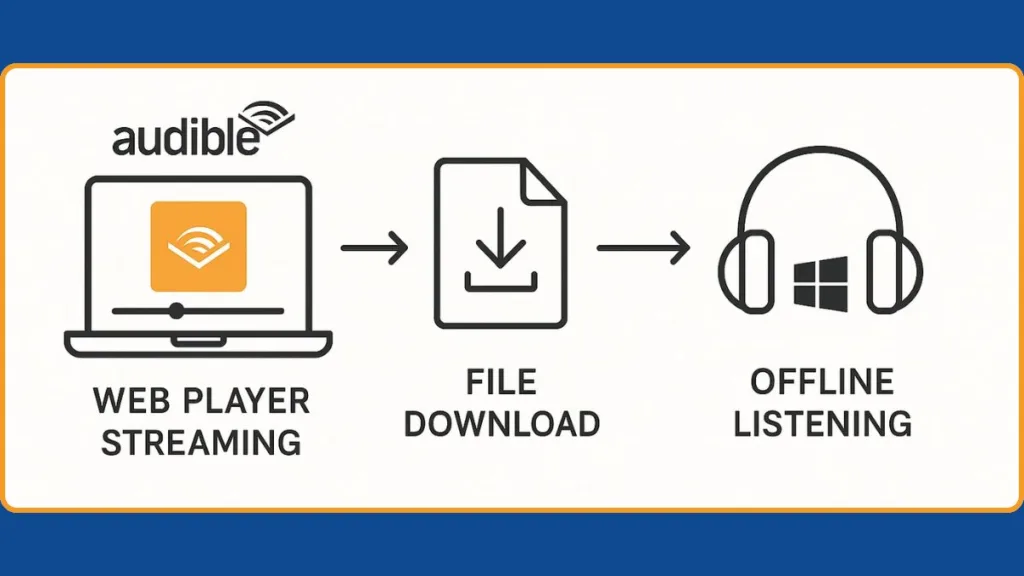
These four methods below are the only functional and widely used ways to use Audible on a PC in 2026.
They reflect Audible’s current ecosystem, where streaming and file-based workflows have replaced the traditional desktop player.
| Method | Best For… | Offline Listening | Difficulty |
|---|---|---|---|
| 1. Audible Web Player | Instant listening without installing anything | No | Easy |
| 2. AudibleSync | Downloading .aax files to transfer to MP3 or supported devices | No (Downloads only) | Medium |
| 3. iTunes for Windows | Playing Audible DRM files directly on PC | Yes | Medium |
| 4. Libation + VLC | Exporting MP3/M4B files & full library control | Yes | Advanced |
These four paths reflect how Audible officially expects PC users to listen today (via browser streaming) and how the community fills the gaps for offline playback and file control.
Method 1: Use Audible Web Player (Official & Simple)
The Audible Web Player remains the primary and most supported method for PC listeners. Audible directs all Windows users to the Web Player now that desktop app support has ended. The Cloud Player is compatible with all modern browsers and continues to receive feature updates directly from Audible.
You can log in from Chrome, Edge, or Firefox, then click “Listen Now” to begin streaming instantly. This method aligns with Audible’s shift toward cloud-based listening, which also powers its mobile and smart speaker integrations.
What You Get with Audible Web Player
- Adjustable playback speed (up to 3.5x)
- Automatic syncing between PC, Alexa devices, Android apps, and iOS apps
- Bookmarks and chapter navigation with real-time progress tracking
- Large library support, even for accounts with hundreds of audiobooks
- No installation required, reducing compatibility issues on Windows systems
Audible has publicly acknowledged that this browser experience is now their “official recommendation” for all PC users.
Limitations to Know
- A consistent internet connection is required because the Web Player performs real-time streaming.
- Browser “sleep mode” or energy-saving features in Windows 11 can pause playback during long sessions.
- Since the player streams audio, downloads are not available through the Web Player.
This method is ideal for users who want the fastest, zero-setup way to listen on a PC.
Method 2: Use AudibleSync to Download Audiobooks (But Not Play Them)
AudibleSync is Audible’s official Windows tool for downloading audiobook files now that the former desktop app and Audible Download Manager have been discontinued. AudibleSync is the only supported method in 2026 for downloading .aax files directly from Audible onto a Windows PC.
The app is primarily used for transferring audiobooks to supported MP3 players, many of which rely on Audible’s DRM system. AudibleSync is required for devices such as:
- SanDisk Clip Jam
- Sony Walkman models that support Audible
- Certain Garmin wearables
- Accessibility devices like Victor Reader
What AudibleSync Can Do
- Download all purchased Audible titles in AAX format
- Quickly authenticate your Audible account using Amazon login
- Transfer audiobooks to compatible devices via USB
- Store audiobooks in the secure Windows AppData directory, following Audible policy
How to Use AudibleSync
- Install AudibleSync on Windows.
- Sign in using your Amazon/Audible credentials.
- Open your library inside the app.
- Click Download on any audiobook.
- Access the AAX file inside AppData (or the custom folder set in app settings).
Why This Method Confuses People
- AudibleSync does not include playback controls because Audible removed desktop playback support entirely.
- AAX files are encrypted using Audible’s DRM and therefore cannot open in Windows Media Player, VLC, or most PC apps.
- To play these files on PC, users must rely on Method 3 (iTunes) or Method 4 (Libation).
This method is essential when you want local copies of your audiobooks but do not need direct PC playback from Audible itself.
Method 3: Play Audible Books on PC Using iTunes for Windows
iTunes for Windows is currently the only official desktop software that can authenticate and play Audible’s DRM-protected AAX files. Apple continues to maintain DRM compatibility for Audible titles within iTunes, even though updates to the Windows app are infrequent.
Because AAX files cannot be downloaded from the Audible website anymore, this method requires AudibleSync first.
Important Prerequisite
You must download the audiobook file using AudibleSync (Method 2) before you can use iTunes.
How to Use iTunes for Audible Playback
- Install iTunes for Windows.
- Go to Account > Authorizations > Authorize This Computer.
- When prompted, sign in with your Audible credentials to authenticate your device.
- Navigate to your downloaded AAX file from AudibleSync.
- Drag the file into iTunes.
- Find the book in the Audiobooks section and begin offline playback.
Why Use iTunes?
- It provides true offline listening, which the Web Player does not.
- It supports chapter markers, speed adjustments, and playlist-style management.
- It doesn’t require converting or decrypting files — it handles Audible DRM legitimately.
Notes to Consider
- Some users report the need to reauthorize Audible inside iTunes if they reinstall Windows.
- iTunes may struggle with extremely large libraries, though most users experience smooth playback.
- The interface is older, but functionally it remains the only official desktop listener for Audible.
This method is ideal for users who need offline playback but prefer to stay within official, supported tools.
Method 4: The Community Method (Libation + VLC / Other Players)
For advanced users who want complete control of their audiobook files, Libation has become the community’s most trusted option in 2026. It is open-source software maintained by volunteers and widely recommended within audiobook communities for personal backups.
Libation uses your Audible account to securely authenticate your purchases, then decrypts your audiobooks into formats like M4B or MP3, which can be used with any media player.
This makes it extremely popular among power listeners who want more flexibility than Audible’s official tools provide.
What Libation Does
- Logs into Audible using secure credentials
- Scans (“traverses”) your full library
- Downloads titles directly to your PC
- Decrypts AAX files using your account key
- Exports clean files compatible with all major players
The Workflow
- Install Libation (open-source).
- Sign in with your Audible account.
- Allow Libation to scan the entire audiobook library.
- Download & convert selected titles into MP3 or M4B.
- Open the files in VLC, Winamp, MusicBee, or any preferred player.
Why Many Users Prefer It
- Provides complete offline listening without DRM restrictions
- Works even when official tools like iTunes become unreliable
- Ideal for large collections and listeners who want long-term library control
- Supports metadata tagging and chapter preservation, improving playback experience
Important Note
Libation is not affiliated with Audible, but it is widely trusted for personal-use backups. It fills a gap left by the removal of Audible’s own desktop playback solutions.
This method offers the most flexibility for users who value ownership-style control over their audiobook files.
Which Method Should You Choose? (Simple Recommendation Guide)
Choosing the right way to use Audible on PC really comes down to how you prefer to listen. Each method solves a different problem — whether you want quick streaming, offline playback, or full control over your Audible audiobooks.
Here’s a simple, friendly guide to help you pick the option that fits your routine without overthinking it.
If you want the fastest and easiest way to listen – Use the Audible Web Player
This is the perfect choice if you just want to open your browser and start listening immediately. It works beautifully for everyday listening and doesn’t require you to download anything.
Because the native Windows desktop app was discontinued (and the Amazon-store version on Windows 11 was removed), the Web Player is now Audible’s main supported option for PC users.
Best for: Simple streaming, no setup, no file handling.
Ideal if you don’t need offline listening on your PC and prefer a straightforward experience.
If you want offline backups or need to move files to a device – Use AudibleSync
Choose AudibleSync if your goal is to download Audible books and store them on your PC or transfer them to a supported MP3 player or accessibility device.
This method lets you save the .aax files, which is helpful if you’re building a long-term collection or want to listen on devices that don’t support streaming.
Best for: Users who want local downloads but don’t need direct PC playback.
If you want real offline listening on PC using official tools – Try iTunes for Windows
Use iTunes if you want to listen to Audible DRM-protected files directly on your Windows desktop — without relying on streaming or advanced tools. Once your .aax files are downloaded through AudibleSync, iTunes can handle the playback smoothly.
This remains one of the few officially supported ways to play downloaded Audible files offline on PC — thanks to iTunes’s continued support for Audible DRM.
Best for: Listeners who want an official way to play Audible books offline on Windows.
This method keeps things simple while giving you full offline control.
If you want full control and freedom from DRM – Choose Libation + VLC
This option is ideal for users who want their Audible audiobooks in open formats like MP3 or M4B, and want to use their favorite media players. Libation gives you long-term flexibility and lets you organize your library however you like.
Because Audible’s official support currently does not offer a dedicated desktop player, many seasoned listeners rely on Libation for an uninterrupted offline experience.
Best for: Power users who want ownership-style access and complete offline playback on PC.
It’s the most advanced route — but also the most customizable and future-proof (barring any DRM-policy change from Audible).
Quick Takeaway
- Use the Web Player for quick streaming.
- Use AudibleSync for downloads.
- Use iTunes for official offline playback.
- Use Libation if you want total control.
Each method helps you use Audible on Windows 10 and Windows 11 in a way that fits your listening habits — and once you pick the one that matches your needs, the whole Audible-on-PC experience becomes a lot smoother.
Common Problems & Fixes (Based on Real Reddit Reports + Verified Details)
Even after choosing a method to use Audible on PC, many listeners run into issues — especially around .aax files, AudibleSync, and the Web Player.
These problems show up often in Reddit threads and user reports. Below are the common ones along with real-world fixes that users have found helpful in 2026.
Problem 1: “I downloaded my audiobook with AudibleSync, but I can’t play it.”
This happens because the downloaded files are DRM-protected .aax files. By design, these files don’t open in standard media players like VLC, Windows Media Player, or default Windows apps.
Fix: Use iTunes or Libation — depending on what you want
- For an official, DRM-supported playback, open the file using iTunes for Windows — it is still one of the few desktop apps that correctly handles Audible’s DRM.
- For a flexible, DRM-free playback, use Libation to decrypt and convert the file into MP3 or M4B — then play it in VLC or any other preferred player.
Important: Normal media players will never successfully play a raw .aax file — you need DRM-aware playback or conversion.
Problem 2: “The Audible Web Player keeps pausing, freezing, or stopping during playback.”
Some Windows users (especially on Windows 11) report that the Web Player randomly pauses or audio cuts out mid-listen — often due to browser tab sleep, power-saving settings, or background activity management.
Fix: Adjust browser and Windows power settings
- In browsers like Chrome or Edge, disable “tab sleeping” / “tab suspension.”
- In Windows settings, check privacy / background apps permissions — ensure the browser is allowed to run audio in background.
- Try switching browsers; some users find Edge or Chrome more stable than others.
- Consider closing unnecessary tabs or browser extensions that might interfere with audio playback (especially ad-blockers or heavy plugins).
The Web Player is reliable — but modern OS/browser power features sometimes interfere with smooth audio playback.
Problem 3: “My downloaded .aax file won’t open anywhere — even after downloading correctly.”
This often means that the file was downloaded improperly (e.g. by older deprecated tools) or the DRM licensing metadata is missing or corrupted.
Fix: Re-download using AudibleSync, then use a supported player
- Ensure you downloaded the file using AudibleSync (the current official downloader).
- Avoid using old or deprecated tools like older “Audible Manager” or third-party downloaders that may produce incomplete files.
- Once you have a clean .aax file, open it in iTunes for DRM playback or convert it with Libation for universal playback.
A properly downloaded .aax file from AudibleSync is necessary — if the source is outdated, playback issues are almost guaranteed.
Problem 4: “iTunes says the file is not authorized or won’t play.”
Sometimes after Windows reinstall, OS upgrade, or switching Audible accounts — iTunes can lose its authorization for Audible content, blocking playback.
Fix: Re-authorize your computer in iTunes
- Open iTunes for Windows.
- Navigate to Account > Authorizations > Authorize This Computer.
- Sign in with the correct Audible/Amazon credentials — matching the account used in AudibleSync.
- Restart iTunes.
- Drag and re-import the .aax file.
If it still fails:
- Double-check you used the same Audible account that purchased the audiobook.
- Redownload the book via AudibleSync and re-import.
Authorization must match the Audible account used for purchase — mismatches or outdated credentials often block playback.
Problem 5: “AudibleSync won’t download my audiobook.”
This can happen if there’s an authentication error, network instability, or corrupted cache.
Fix: Refresh AudibleSync and check your environment
- Sign out and back into AudibleSync to refresh credentials.
- Close AudibleSync, restart your PC, and reopen the app.
- Temporarily disable VPNs, firewalls, or antivirus software — these sometimes interfere with download requests.
- Ensure stable internet connectivity.
- Delete the app’s cache folder (in Windows AppData) if present, then retry download.
Some users in 2026 report that running AudibleSync as administrator (right-click > “Run as administrator”) resolves download permission issues on Windows 10/11.
A clean download environment — stable net, correct credentials, and updated app — usually solves most AudibleSync problems.
Problem 6: “The Web Player doesn’t save my listening progress or resets to the start.”
This tends to happen when the browser fails to sync playback data with Audible’s servers — often due to cookies or session problems.
Fix: Refresh session sync
- Within the Web Player, hit the “Refresh / Sync” button (if available).
- Clear cookies only for audible.com (not the whole browser).
- Sign out and back into your Audible account.
- Try a different browser to rule out browser-specific cache issues.
If progress still doesn’t save:
- Check your account devices — if you’ve been using multiple devices, sometimes Audible’s sync system can get confused.
- Wait a few minutes, then reopen the book — sometimes the sync operates with a small delay.
Sync reliability depends partly on your browser session state — fresh cookies and proper sign-in often restore progress tracking.
FAQ: Audible for PC
is there an Audible app for Windows 11 in 2026?
No. Audible’s Amazon Appstore version was discontinued in March 2024, and the old Windows 10 app was removed earlier. PC users must use the Web Player or AudibleSync.
Can I still use Audible on Windows 10 and Windows 11?
Yes. Audible works on both versions using the Web Player, AudibleSync, iTunes, or Libation.
Can I listen to Audible offline on my PC?
Yes — but not with the Web Player. You can only listen offline using iTunes (official) or Libation (converted files).
Why won’t my .aax file open in VLC or Windows Media Player?
Because .aax is DRM-protected. Standard players cannot decode Audible DRM. Use iTunes or convert with Libation.
Is Libation safe to use?
Yes. It’s an open-source, community-trusted tool for personal backups. Not official, but widely used for converting AAX > MP3/M4B.
How do I move Audible books to an MP3 player?
Use AudibleSync to download the .aax file, connect your device, and transfer it. Only Audible-approved MP3 players can play these files.
Can I convert Audible books to MP3?
Officially, no. Practically, Libation can convert your books to MP3 or M4B for personal offline listening.
Why does the Audible Web Player reset my progress?
Usually due to browser cache issues, expired cookies, or sync conflicts. Refreshing the player or clearing Audible cookies often fixes it.
Can I still install the old Windows 10 Audible app?
No. The Microsoft Store listing was removed, and the app is no longer supported or downloadable.
Which method is best for most PC users?
Web Player > Fast streaming
AudibleSync > Downloading files
iTunes > Official offline playback
Libation > Full control & universal formats
Final Thoughts: The Best Way to Use Audible on PC Today
Using Audible on PC in 2026 looks very different from the older days of the Windows desktop app — but once you understand the new landscape, it’s surprisingly easy to find a setup that works for you. The key is choosing the method that matches how you prefer to listen.
If you want something quick, reliable, and hassle-free, the Audible Web Player is still the smoothest way to enjoy your books on Windows 10 or Windows 11. It works right in your browser and gives you instant access to your entire library without installing anything.
If your focus is saving audiobooks for the future or using them on external devices, AudibleSync is the most direct route. It’s perfect for downloading .aax files and keeping your collection organized locally.
For listeners who value offline playback on PC, iTunes for Windows offers a simple, official way to play DRM-protected Audible files without converting anything. It’s a dependable option if you want to listen without an internet connection.
And if you like having full flexibility — from file ownership to playing audiobooks in your favorite media player — the community method using Libation + VLC gives you the most control. It’s especially helpful if you want MP3 or M4B formats for long-term use.
The best method is the one that fits your listening style, not the one that used to exist.
Whether you’re streaming, downloading, or organizing your audiobook library, you now have clear, effective ways to use Audible on your PC — even without the old app. And once you pick the path that fits your workflow, the whole experience becomes much simpler, smoother, and more enjoyable.
Visit Our Post Page: Blog Page