
Don’t have WhatsApp access and a locked Facebook account, stuck on the verification screen? Discover 4 proven methods to change your Facebook password without WhatsApp and quickly recover your account access in 2026.
You’re here because something feels off. You try to do what should be a simple task—changing your Facebook password—and suddenly you’re blocked by a screen that insists on sending a code to WhatsApp. You pause, reread it, refresh the page, and maybe even try again, hoping another option will appear. It doesn’t. You don’t use WhatsApp, or you don’t have access to that number anymore, or you never linked it intentionally. At that moment, it feels like Facebook has shut the door on you.
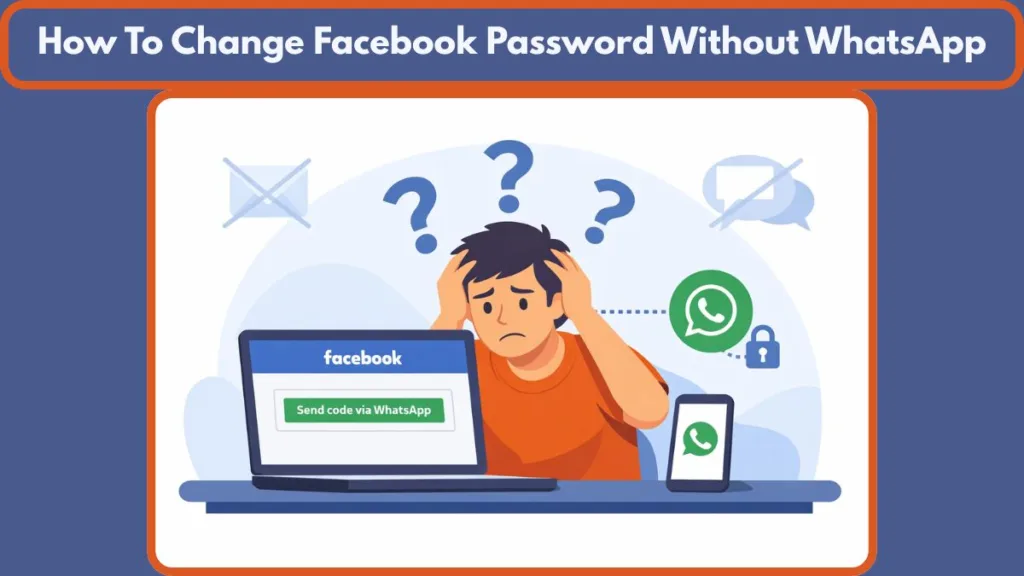
Pause for a moment. This situation is far more common than you think. Thousands of users land on this exact screen every day. This guide walks you through how you can change your Facebook password without WhatsApp by using four working methods that real users have relied on to regain access. As you read, imagine yourself following each step slowly, understanding why Facebook behaves this way and how you can work around it without panic.
Important: WhatsApp is not mandatory to use Facebook, even if the interface makes it feel that way.
The Reality: Stuck Because Facebook Keeps Asking for WhatsApp?
Picture this clearly. You open Facebook with the intention of securing your account. You expect a simple email link or a text message. Instead, the screen offers only one option: “Send code via WhatsApp.”
No email! No SMS! No alternative button! Just WhatsApp.
That moment can trigger anxiety, especially if your account holds years of photos, conversations, memories, business pages, or ad accounts. You may start wondering if Facebook has quietly made WhatsApp compulsory. You may even worry that you’ll never get back in.
Here’s the truth:
This screen feels final, but it usually isn’t.
Facebook’s systems are automated, layered, and often inconsistent. What you’re seeing is not a rule—it’s a system preference based on your account data. Once you understand that, you can start navigating around it.
System Logic: Why Is Facebook Asking for WhatsApp When You Change Your Password?
To make sense of this, you need to understand how Facebook handles security today. Facebook operates inside a larger ecosystem owned by Meta, which also owns WhatsApp and Instagram. Because these platforms share infrastructure and identity signals, Facebook often treats WhatsApp as a high-trust verification channel.
When you attempt to change your password, Facebook silently evaluates your account in the background. It looks at your email status, your phone numbers, your login history, your devices, and whether there have been any security flags. If your email is outdated or unverified and a phone number linked to WhatsApp exists, Facebook may default to WhatsApp automatically.
- Key point: Facebook chooses what it believes is the fastest verification method, not the best one for you.
- The Cost Factor: From a business perspective, sending an OTP (One Time Password) via WhatsApp is virtually free for Meta because they own the infrastructure. Sending an SMS costs them money per message. While security is the primary driver, system defaults often lean toward the proprietary, integrated platform (WhatsApp) over external carriers (SMS).
This doesn’t mean you asked for WhatsApp. It doesn’t mean you agreed to it. It simply means the system found it convenient—even if it’s completely unusable for you.
Shared Struggle: What Most People Are Running Into Right Now
If you feel isolated in this experience, you shouldn’t. Many users report the same patterns. They open the password reset page and see only WhatsApp. They click back, refresh, try again, and land on the same screen. Some notice that the options change depending on whether they use a phone, a laptop, or a different browser.
This inconsistency creates stress because you can’t predict the outcome. You might follow the same steps twice and get two different results—or none at all. This behavior is systemic. It reflects how Facebook’s automated recovery system works, not something you did wrong.
Step Zero: Reset Your Starting Point Completely
Before you attempt any fix, reset your starting point completely. If you’re logged in, log out fully. Close the app or browser. Then reopen Facebook and land directly on the main login page.
This step matters more than it seems. Facebook offers different recovery paths depending on your session state. Starting from the login page allows you to access the full account recovery flow (facebook.com/login/identify), rather than the limited password-change option inside settings.
Think of this as telling Facebook: “I can’t log in. Show me every recovery option you have.”
Pro Tip: Clearing your browser cache and cookies specifically for Facebook can also assist here. Sometimes, a browser “remembers” that you previously preferred a mobile method, causing the loop to repeat. A fresh start forces the algorithm to re-evaluate your available contact points.
The Blueprint: 4 Working Methods to Get Back Your Facebook Account
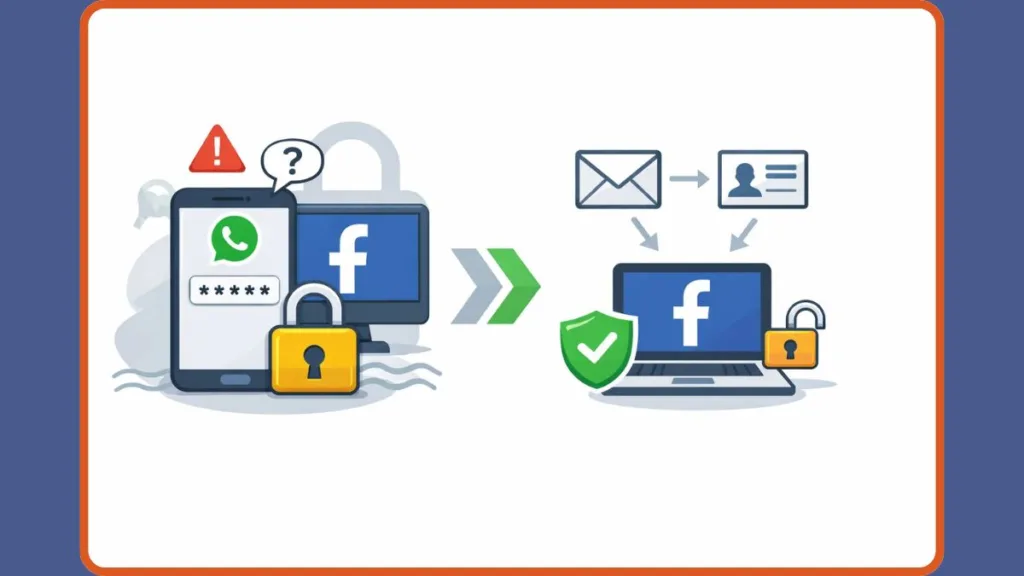
This is where you actively start working your way out of the WhatsApp loop. These methods are practical, realistic, and based on how Facebook’s system actually behaves in 2025-2026.
Method 1: Trigger Options Using “Forgot Password” via the Identify Page
Best for: Users who are currently locked out.
When you select “Forgot Password?” on the login page, you trigger a deeper recovery mechanism. This flow is designed for users who genuinely cannot access their account, which is why it sometimes unlocks options you won’t see elsewhere.
Step-by-Step Instructions:
- Open a web browser and go to facebook.com/login/identify.
- Enter your search criteria: Type in your email address or your full name.
- Crucial Tip: Do not enter your phone number here yet. Entering a number triggers the SMS/WhatsApp logic immediately. Searching by name is often safer if you are trying to avoid a phone-based prompt.
- Click the blue Search button.
- Identify your account from the list. If you search by name, you may see a list of users with similar names. Click “This is my account” next to your profile picture.
- On the next screen, you will likely see the WhatsApp option again. Do not click Continue.
- Look for a link (usually in smaller text) that says “Try Another Way” or “Cannot access my email/phone?”.
- Select the Email option if it appears and click Continue.
Real-Life Insight: As you move through this flow, WhatsApp may still appear initially. If it does, slow down. Read the screen carefully. Look for a small link at the bottom that says “No longer have access to these?” Selecting that option can prompt Facebook to ask for alternative contact details, such as an email address.
Case Example: One user, “Sarah,” was traveling internationally and lost her SIM card. Facebook kept trying to send a code to her old number via WhatsApp. By using the Identify page and searching by her name rather than her number, she was eventually presented with an option to identify friends’ photos (a legacy feature that occasionally reappears for older accounts) and eventually reset via email.
Method 2: Execute The “Active Session” Swap (Using Meta Accounts Center)
Best for: Users who are still logged in on an old phone, tablet, or work computer.
If you can still access your account on any device, do not log out! You are in the strongest possible position. You can use this active session to force Facebook to recognize a new verification method.
In the past, you would go to “Settings.” Now, you must navigate the Meta Accounts Center.
Step-by-Step Instructions:
- Access Settings: Open Facebook on the device where you are still logged in. Tap the Menu (three lines) icon.
- Scroll down and tap Settings & Privacy, then tap Settings.
- Locate Accounts Center: Look for the box labeled Meta Accounts Center (usually at the very top of the settings menu) and click the blue link that says See more in Accounts Center.
- Navigate to Contact Info: Click on Personal Details and then select Contact Info.
- Add New Method: Tap the “Add new contact” button. Select “Add Email”.
- Enter & Verify: Type in a fresh email address that you have never used on Facebook before.Warning: Do not use an email linked to another Instagram or Facebook account, as this can confuse the merging logic.
- Enter Code: Go to your email inbox, find the code from Facebook, and enter it to verify the new address immediately.
- The Trick (Crucial Step): Once the email is verified, stay in the Contact Info menu. Tap on the phone number associated with WhatsApp and select Delete Number.
Why this works: By removing the number triggering the WhatsApp prompt, you force Facebook’s security system to default to your newly added email address for the next password reset. The system cannot send a code to a number that is no longer in the database.
Method 3: The “Nuclear Option” for Total Lockout (Identity Verification)
Best for: Users who have lost their phone, cannot access WhatsApp, AND cannot access their email.
This is the most difficult scenario, but it is the official path back in. If you have absolutely no access to the methods Facebook is offering, you must prove you are the owner of the account.
Step-by-Step Instructions:
- Go to the login page and click Forgot password?.
- Click Try another way when prompted with the WhatsApp option.
- Select the link that says “No longer have access to these?”. (This usually appears at the bottom after you have tried and failed one method).
- Facebook will redirect you to a page starting with
facebook.com/recover/id/orfacebook.com/hacked. - Start the Process: Click Start or Verify Identity.
- Enter New Contact: You will be asked to provide a new email address or phone number where Facebook can contact you about the case.
- Upload ID: You will be asked to upload a photo of a government ID (Driver’s License, Passport, or National ID).
Tips for a Successful Upload:
- Lighting: Ensure the room is well-lit. Avoid using flash, as it creates glare on plastic cards.
- Background: Place the ID on a black or dark surface for high contrast.
- Framing: Ensure all four corners of the ID are visible in the photo.
What If You Don’t Have a Government ID? Facebook does accept non-government IDs in some cases, provided they contain your name and date of birth (or name and photo). This can include:
- Student IDs.
- Library cards combined with a birth certificate.
- Utility bills (to prove name and address match).
- Facebook allows you to upload two different forms of non-government ID if you lack a passport or license.
Case Study: The “ID” Success Story A user on Reddit reported being stuck in a loop where the hacker changed their email and phone. They used this method to upload a photo of their driver’s license.
- The result: It took 48 hours, but Facebook sent a special “one-time recovery link” to a new email address they provided during the upload process.
- Lesson: Ensure your ID photo is well-lit and clearly shows your name and date of birth exactly as they appear on your Facebook profile. If your Facebook name is a nickname (e.g., “Jimmy” instead of “James”), this process may be harder, but manual reviewers often make the connection.
Method 4: Force a Reset With The “Device & Network Switch” Technique
Best for: Users stuck in a glitch loop where Facebook refuses to show email options.
This method sounds simple, but it works surprisingly often. Facebook’s security bot flags “suspicious behavior” based on your IP address and device ID. If you have been spamming the “Resend Code” button from your iPhone, Facebook might lock down options on that specific device.
Try these specific switches (in this order):
- Switch Networks: If you are on Wi-Fi, disconnect and use mobile data (4G/5G). This gives you a new IP address.
- Switch Browsers: If you are using Chrome, download and try Edge, Safari, or Firefox.
- Switch Mode: Open an Incognito/Private window in your browser. This prevents cookies from previous failed attempts from interfering.
- Switch Devices: This is the most effective. If you usually use your phone, go to a library computer or a friend’s laptop.
Why it works: A fresh device signals a different login environment. The system may decide, “This is a new context, let’s offer email verification instead of just WhatsApp.” This is known as “Pattern Interrupt.” When the security algorithm sees the exact same request from the exact same device ID repeatedly, it assumes a brute-force attack and locks down options. Changing variables resets this assumption.
Prevention: Already Logged In? Turn Off WhatsApp-Based Verification First
If you are reading this and you are currently logged in, take action now to prevent this nightmare later.
- Go to Settings & Privacy > Settings.
- Click on Password and Security (inside Accounts Center).
- Select Two-Factor Authentication and choose your Facebook account.
- If WhatsApp is listed, turn it off.
- Enable an App: Switch your method to an Authenticator App (like Google Authenticator, Microsoft Authenticator, or Authy).
Why Authenticator Apps are Better: Authenticator apps are far more reliable than WhatsApp or SMS because they work even if you have no cell service, and they don’t depend on Meta’s internal messaging servers working correctly. They generate codes locally on your device based on time, meaning you are never at the mercy of a delivery failure.
Troubleshooting: What If Facebook Still Shows Only WhatsApp?
This is the most emotionally draining scenario. The reality is that Facebook does not offer guaranteed manual support for most users. Recovery options can change over time, and sometimes the smartest move is to pause.
Waiting 24-48 hours before trying again is a legitimate strategy. Continuous attempts can trigger a “spam lock,” where Facebook hides recovery options to protect the account. Stepping away allows the security flags to reset. During this wait time, do not attempt to log in. Leave the account completely dormant to let the security timers expire.
Reality Check: Persistence and timing matter more than speed.
FAQ: Common Questions People Ask About Recovery
Can I use “Trusted Contacts” to get back in?
No. As of 2023, Facebook deprecated (removed) the Trusted Contacts feature. You may see old articles recommending this, but the feature no longer exists. Do not fall for scams where people claim they can be your “trusted contact” to unlock your account.
Is there a way to contact Facebook support directly?
Generally, no. Facebook does not have a support phone number or email for general users. Be extremely wary of anyone on Twitter, Instagram, or Reddit claiming they can “hack” your account back for a fee. These are recovery scammers. They will ask for money upfront and steal your data. The only way to recover an account is through the official Facebook interface.
Q: Why does the SMS code never arrive?
This is often a carrier issue or a shortcode block. Text “On” or “Fb” to 32665 (Facebook’s shortcode) from your mobile phone. This resets the SMS delivery connection and can sometimes force a pending code to come through. Additionally, check your phone’s “Spam and Blocked” folder; sometimes automated verification texts are aggressively filtered by Android or iOS.
Q: My account was hacked and the email was changed. What now?
Use the dedicated compromised account tool at facebook.com/hacked. This flow asks you to enter an old password that you remember. When you enter an old password, Facebook’s system recognizes it as a security breach (“You entered an old password”) and will often trigger the “Secure my Account” workflow, which may bypass the current hijacker’s WhatsApp/email settings.
Final Takeaway: How to Regain Access Without Using WhatsApp
At its core, changing your Facebook password without WhatsApp is about understanding the system, preparing your account, and staying patient. By keeping your email updated, removing outdated phone numbers via the Accounts Center, using the correct recovery flow, and switching devices when needed, you dramatically increase your chances of success.
The process may take time. It may test your patience. But it is possible. Stay calm, follow each method carefully, and remember this:
The WhatsApp screen you see right now is not the final decision on your account.
You still have options—and now, you know how to use them.
Visit Our Post Page: Blog Page