
Netflix stuck in another language? Learn how to change Netflix back to English, fix menu, audio, and subtitles on mobile, TV, Roku, Firestick, and desktop.
You log into Netflix after a long day, ready to relax with your favorite series like Stranger Things or The Crown, and suddenly the entire interface is in Spanish, Arabic, or another unfamiliar language.
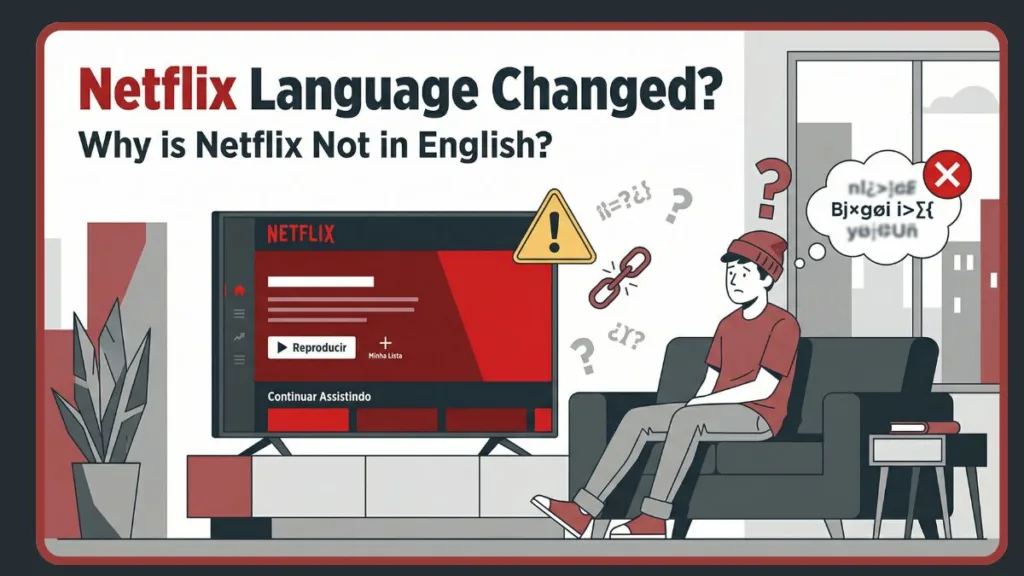
The menu text looks different, the audio is no longer English, subtitles keep changing, and even finding the Netflix language settings feels impossible. What should have been a calm moment quickly turns frustrating, leaving you staring at “Reproducir” instead of “Play” or “Minha Lista” instead of “My List.”
Here’s the good news: you’re not alone, and changing Netflix back to English is completely fixable. Once you know where the display language, audio, and subtitle settings live, restoring English takes only a few minutes.
This detailed guide walks you through every step on mobile, TV, desktop, Roku, Firestick, and Smart TVs, even if your Netflix menu is stuck in the wrong language. Whether you need to reset the Netflix user interface or troubleshoot audio tracks, this guide covers it all.
In this guide, you’ll learn how to change Netflix language back to English, how to reset Netflix language to English, how to fix Netflix audio and subtitles not in English, and what to do if your Netflix menu is in the wrong language and hard to read.
The Reasons Why Your Netflix Language Changed Unexpectedly
Before you fix the issue, it helps to understand why your Netflix language changed in the first place. In most cases, this happens because another person using your profile adjusted the language accidentally.
This is very common on shared accounts where multiple users watch from the same profile, or if a child accidentally clicks through the settings while watching cartoons.
Sometimes, a Netflix app update resets profile preferences, including the default language. In other cases, the system language of your TV, phone, or streaming device changes, and Netflix automatically follows that setting.
If you’ve traveled recently or switched networks, Netflix may also adjust language preferences based on content availability and geo-location data. For example, if you use a VPN service or proxy to access content from Japan or France, the platform might assume you prefer the local language.
The most important thing you need to know is this: Netflix language settings are profile-based, not account-wide. That means you must fix the language on the specific profile you’re using. Changing it on one profile won’t affect anyone else, ensuring that your personalized recommendations and settings remain intact.
Change Netflix Display Language Back to English for Menu and Interface
If your Netflix menu is in the wrong language, this section is your starting point. The display language controls all on-screen text, including menus, buttons, movie descriptions, and account settings.
Instructions for Android Phone or iPhone
To change the language on an Android or iPhone, begin by opening the Netflix app and tapping My Netflix in the bottom-right corner (this tab replaced the old “More” or “Downloads” tabs in recent updates).
Next, tap the Menu (☰) icon located in the top-right corner—this is the standard “hamburger menu” used in most iOS and Android apps—and choose the Manage Profiles option.
Select the profile you are currently using to open its specific settings. From there, tap Display Language and choose English from the list.
It is helpful to note that each language appears in its own script (for example, “English” is written as “English” and “Español” as “Español”), which makes it easier to recognize the correct option even if you cannot read the current interface language.
Finally, tap Done to save your changes. If the Netflix menu doesn’t switch immediately, close the app completely by swiping it away from your recent apps and then reopen it to force the update on your specific device model, whether it is a Samsung Galaxy, Google Pixel, or the latest iPhone.
Steps for TV or Streaming Devices like Smart TV and Chromecast
To change the Netflix language on a TV, open the app and navigate to the profile selection screen (often accessed by pressing “Back” repeatedly until you see the “Who’s Watching?” screen).
Highlight your specific profile and select the Edit (pencil) icon, which serves as the universal visual cue for profile settings across platforms like Samsung Tizen, LG WebOS, and Sony Bravia.
Inside the profile options menu, choose Language and then select English. Once you have made your selection, select Done to save it.
If navigating the TV interface feels confusing because the language is unreadable, you can change the Netflix profile language more easily using a phone or computer browser. Once saved, the English display language will sync across devices.
If the TV app still shows the old language after you change it on your phone, you can go to the Netflix Get Help menu, usually found at the bottom of the main menu, and select Reload Netflix to force a refresh of the cached data.
Guide for Desktop on Windows Mac and Chromebook
To change the language on Netflix using a web browser like Google Chrome, Safari, or Microsoft Edge, start by signing in to Netflix on your computer. You can also go directly to netflix.com/YourAccount to skip navigation steps.
Click your profile icon in the top-right corner and select Account from the dropdown menu. Scroll down to the Profiles section, choose your profile, and click the arrow to expand the settings.
Click the Change link next to Language, then select English as your display language. Finally, click Save.
If the Netflix interface doesn’t update right away, signing out and signing back in usually resolves the issue, as it forces the server to reload your user preferences.
Fix Netflix Audio or Subtitles Not in English Permanently
Sometimes the Netflix menu is already English, but the audio starts in Spanish, or the subtitles keep switching languages. This happens because audio and subtitle settings are separate from the display language. This is frequently seen in international hits like Money Heist (La Casa de Papel) or Dark, where the original audio might take precedence.
You may notice that every new episode resets the language, or subtitles reappear even after you turn them off. These problems are tied to Netflix profile language settings and can be fixed permanently.
Change Audio and Subtitles While Watching a Show
The quickest way to change Netflix audio language or change Netflix subtitle language is during playback. Start watching a movie or show and pause the video.
Select the speech bubble icon labeled Audio & Subtitles, which is often found at the bottom or top of the screen depending on your device. From this menu, choose English for audio and English for subtitles, or turn subtitles off entirely.
If you hear a narrator describing visual actions (e.g., “He walks through the door”), you have likely selected English – Audio Description, which is a separate track for the visually impaired; simply switch back to standard “English.”
If you don’t see English listed, select Other… to view the full list of available languages. Keep in mind that not all titles support all languages, as some international content may have limited options depending on availability and licensing agreements in your region.
Set English as the Default for a Permanent Fix
If Netflix keeps switching languages, setting English as your default audio and subtitle language is the best long-term solution.
On Mobile (Android / iPhone) Start by opening Netflix and going to the My Netflix tab. Tap the Menu (☰) icon and select Manage Profiles.
Choose your profile and open the Audio & Subtitles section. Set both the audio language and subtitle language to English. Finally, Save your changes and restart the app to ensure the settings apply correctly.
On Desktop On your computer, navigate to the Account page. Select your profile to expand its options and click on Languages. Set English for both audio and subtitles, then click Save.
Your profile language controls how Netflix selects default audio and subtitles across most content.
If your audio settings keep resetting, a useful troubleshooting tip from Netflix support is to try playing a title with a maturity rating of Teen or above for at least 5 minutes. Netflix sometimes fails to save language preferences if you are only watching Kids’ content like Cocomelon or Paw Patrol.
Change Netflix Back to English on Roku Firestick and Smart TVs
Some devices apply their own language rules, which can override Netflix’s internal settings. This is why Netflix may appear in English on one device but not another.
Roku Settings
To change the Netflix language on Roku, press the Home button on your remote and go to Settings.
Open the Accessibility menu and choose Captions preferred language, then set it to English. This setting affects subtitles on Roku devices, including the Roku Stick and Roku Ultra, but does not change your Netflix profile language.
Amazon Firestick Settings
To change the Netflix language on Firestick, start playing a video and press the Menu button on your Fire TV remote.
Open the Subtitles & Audio menu and select English. This change usually applies to the current video and carries over to future playback on your Amazon Fire TV interface.
Smart TVs System Language
Many Smart TVs follow the TV system language instead of Netflix’s profile settings. To fix this, open your TV’s System Settings.
On Samsung TVs, for example, go to General > System Manager > Language. On LG TVs, this is often under General > System > Language. Set it to English and then restart Netflix after making the change.
If Netflix still shows another language, adjusting the profile language through a browser is the most reliable fix.
How to Find Settings When You Cannot Read the Language at All
When your Netflix interface language is unreadable, visual cues are your best guide.
The profile avatar icon is usually located in the top-right corner and leads directly to profile settings. You should also look for the Edit or pencil icon, as this always indicates profile customization or account management.
When you reach the language selection screen, Language menus often display each language in its native script, making English easy to spot among the options. Additionally, the speech bubble icon universally represents Audio & Subtitles.
If all else fails, log into Netflix using a phone or computer browser, where menus are easier to recognize and navigate. You can also use the Google Translate app or Google Lens on your phone in “Camera Mode” to hover over your TV screen and instantly translate the foreign text from Spanish, French, or Japanese back to English.
Frequently Asked Questions About Netflix Language Settings
How do I get my Netflix back to English?
You can restore English by going to Manage Profiles, selecting your active profile, opening Language, choosing English, and saving. Restart the app if the change doesn’t appear immediately.
Why is my Netflix in Spanish?
This usually happens because another user changed the profile language, a Netflix update reset settings, or your device’s system language changed and Netflix followed it. It can also occur if you are using a VPN connected to a Spanish-speaking server.
Can I change Netflix language without logging in?
No. You must log in to access Netflix language settings. If the TV app is hard to use, changing the language through a browser is much easier.
How do I make Netflix subtitles stay English?
To keep subtitles in English permanently, set English under Profile > Audio & Subtitles, not just during playback. This ensures your streaming preferences are saved for all future sessions.
Final Tips to Prevent Language Changes from Happening Again
You can avoid future issues by using separate profiles for each person on the account and protecting shared profiles with a Profile Lock PIN (available in Account settings) when possible.
Always check your Netflix language settings after app updates, and keep your device’s system language set to English to prevent automatic overrides.
Changing the language on Netflix can feel overwhelming when you can’t even read the menu, but once you know exactly where to tap or click, it’s a fast and simple fix. Bookmark this guide so the next time Netflix switches languages unexpectedly, you’ll know exactly how to change Netflix back to English.
Visit Our Post Page: Blog Page