
Fix the Character AI network error with our complete troubleshooting guide. Learn why the “Please try again” message appears and how to restore your chat now.
Having an engaging session interrupted by a popup stating your messages cannot send disrupts your workflow immediately. If you are actively dealing with the Character AI network error, a straightforward, technical solution is required.
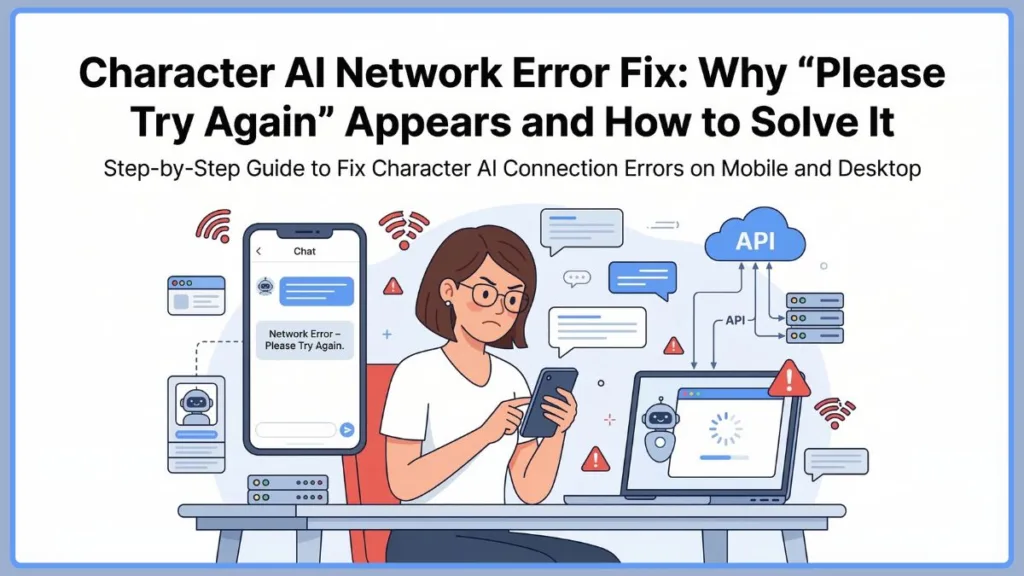
The Bottom Line Up Front (BLUF): > This error does not mean your chat history is deleted or your account is broken. Instead, it indicates your client has dropped its continuous data connection to the Character AI backend servers, resulting in an API timeout. You can fully resolve local instances of this using standard network and browser troubleshooting—no unverified third-party scripts or tools are needed!
This guide provides the exact technical steps to safely diagnose and fix the Character.AI interruption, whether you’re using the mobile app or a desktop browser.
Understanding the Root Cause: What Is the Character AI Network Error?
Before executing any fixes, understand what is actually happening behind the scenes. The Character AI network error appears when the platform fails to maintain a stable connection between your device and the Character AI servers.
Since Character AI generates responses in real time, it requires a constant stream of communication with backend servers to process messages. If that communication fails, the system stubs the request and you may see an error message such as:
“Network error – click to refresh chat” “Chat error: Please try again.”
Common Symptoms You Might See:
- Messages fail to send
- Responses stop generating halfway
- The chat stops loading
- The conversation refreshes unexpectedly
- The platform shows repeated connection errors
In most cases, this chatbot issue occurs due to server overload, network instability, or browser conflicts. Understanding the root cause makes it much easier to apply the correct fix.
Diagnosing the Problem: Why Does Character AI Keep Saying Network Error?
The problem originates either from the platform’s infrastructure or your local network environment.
Diagnosing a Character AI Server Down Status or Platform Outage
One of the most common reasons for a network error is server overload. Character AI is used by millions of people globally, and during peak traffic periods, the servers struggle to handle the number of API requests.
- The Impact: Users experience a Character.AI outage, messages failing to generate, delayed responses, and continuous connection errors.
- The Fix: If the Character AI server status shows downtime, local troubleshooting will not work. You must wait until the service becomes stable again. Confirm this by checking the Character AI status page, outage tracking websites, or community forums discussing a Character AI outage today.
Identifying an Unstable Internet Connection Causing API Timeouts
Character AI relies on continuous data exchange.
- The Cause: Your internet connection is experiencing network latency, a weak Wi-Fi signal, mobile data interruptions, or ISP throttling.
- The Impact: The chat fails to load responses. Even small micro-disconnects cause an API timeout on Character AI, which triggers the “Please try again” message.
Resolving Browser Cache or Corrupted Cookies Issues
Over time, your browser stores large amounts of cached files and cookies to speed up load times.
- The Cause: These cached files or session tokens become corrupted or mismatched with the current server build.
- The Impact: Corrupted cache leads to Character AI loading issues, chat interface glitches, and failed message requests.
Troubleshooting Conflicting Browser Extensions
Extensions that modify website scripts or block network requests prevent the chatbot from loading correctly.
- The Cause: Active ad blockers, privacy protection tools, or script-blocking extensions.
- The Impact: These interrupt the WebSocket connection used by Character AI, resulting in repeated error messages.
Identifying Mobile App or User Account Issues
Sometimes the issue is isolated to the mobile application’s directory or user session.
- The Cause: An outdated app version, corrupted app installation, login session expiration, or account restrictions.
WARNING: Why It Is Not Safe to Execute Third-Party Character AI “Fix” Scripts When a web app flags an error, the immediate reaction is often to look for bypass scripts or modified APKs. Do not do this. > Security Alert: > Attempting to install unverified third-party tools to bypass Character AI network errors routes you directly to security risks. These standalone scripts operate as a prime vector for malware and data theft. Always use native troubleshooting steps.
Proven Troubleshooting Methods: How to Fix Character AI Network Error (Step-by-Step)
Instead of forcing continuous refreshes, execute these technical steps to restore the connection.
Step 1: Verify the Current Character AI Server Status
Before attempting complex fixes, verify the platform infrastructure. Visit the Character AI status page or outage tracking sites. If Character AI is down (indicated by login errors or widespread user reports), wait until the servers recover.
Step 2: Force a Session Refresh for the Chat or Restart Character AI
Temporary packet loss causes the “please try again” error.
- Click refresh chat.
- Reopen the conversation.
- Restart the app or reload the website.
- This forces a new session handshake and often resolves regenerate message network errors.
Step 3: Check Your Internet Connection to Reduce Latency
Reduce local network latency and packet loss.
- Restart your Wi-Fi router to clear its DNS cache.
- Switch from Wi-Fi to mobile data.
- Connect to a wired Ethernet network.
- Move closer to the router.
Step 4: Clear Your Browser Cache and Cookies for a Clean Session
Purge corrupted session data to resolve loading issues. To execute this in Chrome:
- Open the browser menu and select Clear browsing data.
- Choose All time as the time range.
- Select Cookies and cached images.
- Click Clear data.
- Restart the browser and reload the application.
Step 5: Disable Browser Extensions That Block WebSockets
Stop external scripts from interfering with Character AI’s network requests.
- Open browser settings and navigate to Extensions.
- Disable all extensions temporarily.
- Reload Character AI. If it works, re-enable them one by one to isolate the conflicting extension.
Step 6: Use or Disable a VPN to Bypass Regional Routing Issues
VPNs bypass regional routing bugs but can introduce API latency.
- If you are using a VPN, try disabling it or switching to another server location. This can fix ISP blocking or regional server bottlenecks.
Step 7: Update or Reinstall the Character AI App to Fix Corrupted Files
If you experience the mobile network error, overwrite corrupted local files.
- Uninstall the Character AI app.
- Restart your device.
- Download the latest, stable version from the app store and log in again.
Step 8: Switch Your Browser or Device to Avoid Compatibility Bugs
Bypass persistent browser engine compatibility bugs. If Chrome fails, access Character AI through Firefox, Edge, or Safari. Using incognito mode also helps bypass extension conflicts and cached data.
OS and Application-Specific Fixes for Connection Glitches
Device Specifics: How to Fix Character AI Network Error on Mobile (Android & iPhone)
Mobile environments require specific configuration resets. If you experience a mobile network error:
- Update the Character AI app to the latest build.
- Clear the app cache directly via Android/iOS settings.
- Restart your phone to flush system RAM.
- Switch between Wi-Fi and mobile data bands.
- Reinstall the app.
Browser Specifics: How to Fix Character AI Network Error on Desktop
Desktop browser environments require different diagnostics:
- Clear the browser cache.
- Disable active extensions.
- Update the browser to the latest version.
- Restart the browser session completely.
- Switch to an alternate browser or Incognito mode.
Identifying Other Character AI Errors Related to Network Problems
Network timeouts often trigger secondary fail-states in the platform. You may see:
- Character AI failed to fetch
- Character AI internal server error 500
- Character AI forbidden error 403
- Character AI login error
- Character AI session expired
These indicate definitive server-side problems, API timeouts, or expired authentication tokens.
Frequently Asked Questions (FAQ) About the Character AI Network Error
Q: Why does Character AI keep saying network error?
Character AI flags this error when the platform cannot execute a data exchange with its servers. This stems from backend server overload, local internet instability, browser extension conflicts, or temporary API outages.
Q: How do I fix Character AI network error on mobile?
Execute a system refresh: restart the app, clear the native app cache in your OS settings, verify your network connection, update the app via the store, or completely reinstall the application.
Q: Is Character AI down right now?
Verify current infrastructure status by visiting the official Character AI status page or third-party outage tracking websites. A high volume of user reports confirms a platform-wide outage.
Q: What does “Please try again” mean on Character AI?
This specific syntax means the platform timed out before it could generate a response due to server overload or a network interruption. Forcing a chat refresh or waiting until server load decreases typically resolves it.
Q: How can I refresh Character AI without losing chat?
Refreshing the browser page or reopening the app does not wipe your data. Character AI continuously backs up conversations to its cloud servers, ensuring your chat history remains intact even after a forced refresh.
Visit Our Post Page: Blog Page