
Epson L3210 not working? Learn how to download the official driver for Windows 11/10 & macOS, install safely, fix scanner issues, and understand red light errors.
If your Epson L3210 printer has suddenly stopped working, shows Driver Unavailable, refuses to print, or won’t scan documents, you don’t need trial-and-error fixes. You need the right solution immediately.
This guide walks you through the official Epson L3210 driver download, explains Windows 11 compatibility, and—most importantly—clears up the most common mistake users make when the red light starts blinking.
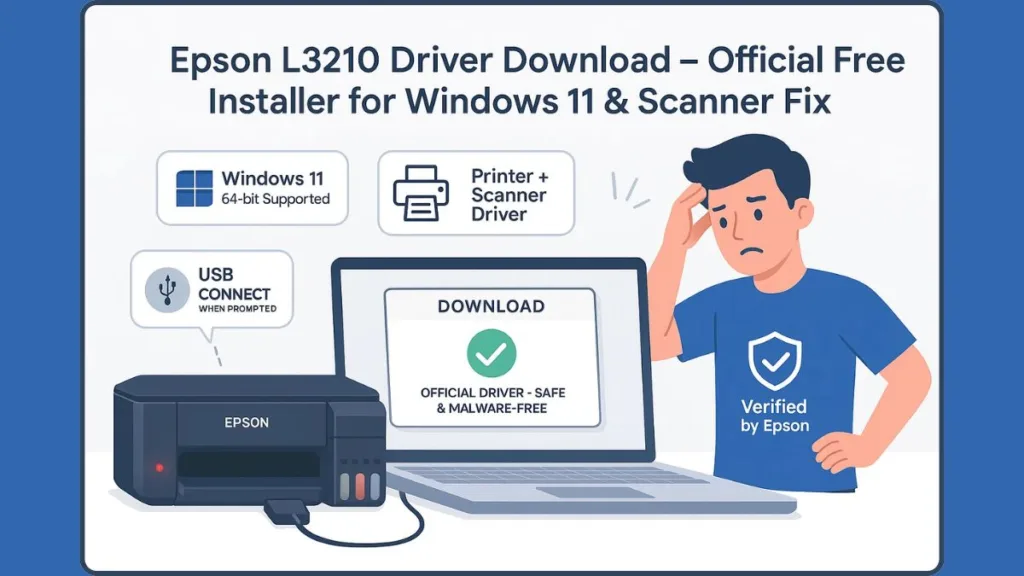
The Epson L3210 EcoTank is a high-volume all-in-one ink tank printer built for printing, scanning, and copying at low running cost. However, it relies entirely on a USB connection and correct drivers to function properly. There is no Wi-Fi, no Bluetooth, and no cloud printing support—so driver accuracy matters.
Epson L3210 Driver Download Not Working? Get the Official, Safe Driver in Minutes
If you’re dealing with any of these situations:
- Lost the original installation CD
- Recently upgraded to Windows 11
- Printer suddenly shows Offline
- Windows reports Driver Unavailable
You’re facing a driver-level communication issue, not a hardware failure.
The solution is installing the official Epson L3210 driver package, not random third-party software.
This guide uses only verified Epson sources, helping you avoid virus-infected driver sites, fake “driver updater” tools, and unstable installers that can damage your system.
Before You Download Epson L3210 Driver: Identify the Exact Problem (30-Second Check)
This quick check prevents wasted time and frustration.
Download Epson L3210 Driver If You Have These Issues
You should proceed with the driver download if:
- Epson L3210 driver unavailable on Windows 11
- You are installing Epson L3210 on a new PC or laptop
- You lost the Epson L3210 installation CD
- The printer appears Offline in Windows printer settings
In these cases, a clean driver installation usually restores printing and scanning completely.
Do NOT Download the Driver If Epson L3210 Red Light Is Blinking
Stop here if you see:
- Epson L3210 Service Required message
- Continuous red light blinking
- Error code 034004
- Message indicating waste ink pad counter reached
Important: Reinstalling the driver will NOT fix this problem. This is a hardware protection lock, not a software or driver error. Reinstalling drivers repeatedly only wastes time and increases frustration.
Epson L3210 Driver Download – Free Official Driver for Windows 11, Windows 10 & macOS
To keep your system safe and your printer stable, always use the official Epson EcoTank L3210 full driver package.
What the Full Driver Package Includes
The complete package contains:
Epson L3210 printer driver – required for printing
Epson L3210 scanner driver – required for scanning
Epson Setup / utility tools – assist with installation and diagnostics
- Free to download
- Malware-free
- Digitally signed by Epson
- Compatible with late-2025 Windows 11 updates
Downloading partial drivers or generic USB drivers often causes scanning failures and offline errors.
How to Install Epson L3210 Driver Without CD (Windows 11 & Windows 10)
Follow these steps exactly. Most installation failures occur due to incorrect USB timing.
Epson L3210 Driver Installation Steps (32-bit & 64-bit)
- Download the official Epson L3210 installer for your operating system.
- Double-click the downloaded file to start installation.
- Follow the on-screen instructions carefully.
- Do NOT connect the USB cable yet.
- Connect the USB cable only when the installer explicitly asks.
- Finish setup and restart your computer.
Critical warning: Connecting the USB cable too early forces Windows to install a generic USB printer driver, which breaks Epson’s scanner and utility features.
Install Epson L3210 Driver on macOS (Sonoma / Sequoia)
On macOS systems:
- Approve Epson software under Privacy & Security
- Allow scanner access when prompted
- Install scanner software separately if scanning does not appear automatically
macOS treats printers and scanners as separate components, so skipping permissions can block scanning entirely.
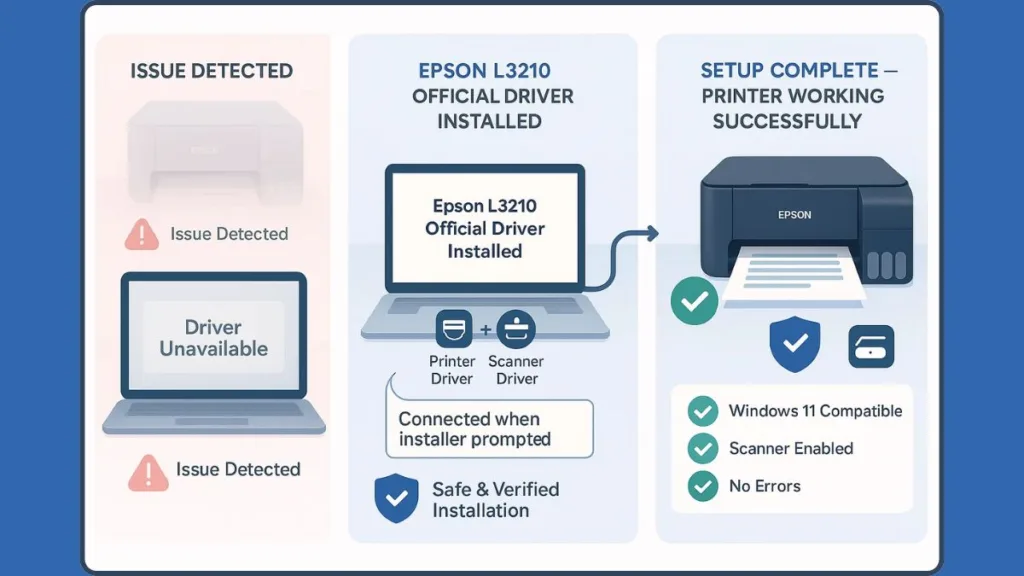
Epson L3210 Scanner Driver Download – Fix Scan Not Working Issue
A very common issue: printing works, scanning doesn’t.
This happens because:
- The printer driver alone does not enable scanning
- Scanner functions require separate Epson software
Required Scanner Software
Install one of the following:
- Epson Scan 2 – basic document scanning
- Epson ScanSmart – advanced PDF and multi-page scanning
Without these, the scanner will never appear, no matter how many times you reinstall the printer driver.
Fix Epson L3210 Driver Issues on Windows 11 (Printer Offline / Driver Unavailable)
Windows 11 updates sometimes reset printer services or USB detection.
Epson L3210 Printer Offline on Windows 11
If your printer suddenly shows Offline:
- Restart the Print Spooler service
- Remove Epson L3210 from Printers & Scanners
- Reinstall the official driver cleanly
- Reconnect the USB cable after installation completes
This restores proper communication between Windows and the printer.
Epson L3210 Printing Blank Pages or Not Printing Black Color
Before blaming the driver:
- Run a Nozzle Check
- Perform Head Cleaning
- Verify ink tank levels
Drivers control commands—not ink flow. Blocked nozzles and low ink require maintenance, not reinstallations.
Epson L3210 Red Light Blinking – Why Driver Download Will NOT Fix It
This is the single most misunderstood Epson L3210 problem.
What “Service Required” Error Means on Epson L3210
Your printer has reached the Waste Ink Pad Counter limit.
During cleaning cycles, excess ink is absorbed into internal pads. Epson programs a counter to prevent ink overflow. Once the limit is reached, the printer locks itself intentionally.
This is a safety mechanism, not a malfunction.
Epson L3210 Resetter / Adjustment Program – What Actually Fixes the Error
To unlock the printer:
- A reset / adjustment utility is required
- OR an authorized service reset
Key facts:
- Driver reinstall does nothing
- USB connection still works
- Printer remains locked until counter reset
If your Epson L3210 keeps blinking red, stop reinstalling drivers—it will not help.
Epson Printer Connection Checker Update (Dec 2025) – Do You Need to Reinstall the Driver?
In December 2025, Epson released Printer Connection Checker v3.4.2, triggering update notifications on many systems.
These alerts caused users to panic and reinstall drivers unnecessarily.
Reinstall the full driver only if:
- Printing stopped completely
- Scanner disappeared
- Windows reports driver errors
Does Epson L3210 Support Wi-Fi? How to Connect Epson L3210 to Phone
No. The Epson L3210 is a USB-only printer.
Common confusion:
- L3210 – No Wi-Fi
- L3250 – Wi-Fi enabled
Mobile Printing Option
You can print from a phone using:
- USB OTG cable
- Compatible Android devices
There is no wireless setup for this model.
Poor Print Quality After Driver Install? Check Ink & Maintenance First
If prints look faded or streaky after head cleaning:
- Ink levels may be critically low
- Repeated cleaning increases waste ink count
- Driver reinstall cannot restore ink quality
Using genuine Epson 003 ink helps maintain printhead health and reduces clogging.
Epson L3210 Driver Download FAQs
How to download Epson L3210 driver free and safely?
Use only Epson’s official support page. Avoid third-party driver tools.
Is Epson L3210 compatible with Windows 11 64-bit?
Yes. Install the latest official Epson driver version.
Why is Epson L3210 blinking red after reinstalling driver?
Because it’s a waste ink pad counter issue, not a driver problem.
How to scan documents using Epson L3210?
Install Epson Scan 2 or Epson ScanSmart.
Do I need separate Epson L3210 scanner software?
Yes. The printer driver alone does not enable scanning.
Final Fix Checklist: Epson L3210 Driver vs Hardware Problem
- Driver issue – Download & install official driver
- Red light / Service Required – Reset or service needed
- Blank or faded prints – Ink or maintenance issue
Fix the correct problem first, and your Epson L3210 will be back to printing, scanning, and copying without unnecessary downtime.
Visit Our Post Page: Blog Page