
Fix Error 0x80070570 on Windows 10/11 instantly. Whether your installation failed or files are ‘corrupted and unreadable,’ use our step-by-step guide to repair disk errors and hardware issues.
Solving Windows Error 0x80070570 – The Fork in the Road
If you’re seeing Error 0x80070570, there’s a good chance you’re frustrated. More importantly, you’re probably under time pressure. This error often appears at the worst possible moment—mid-installation, during a critical file transfer, or while cleaning up storage.
What makes this error especially confusing is that the same error code appears in two completely different situations, yet Windows gives you no explanation about which one you’re dealing with.
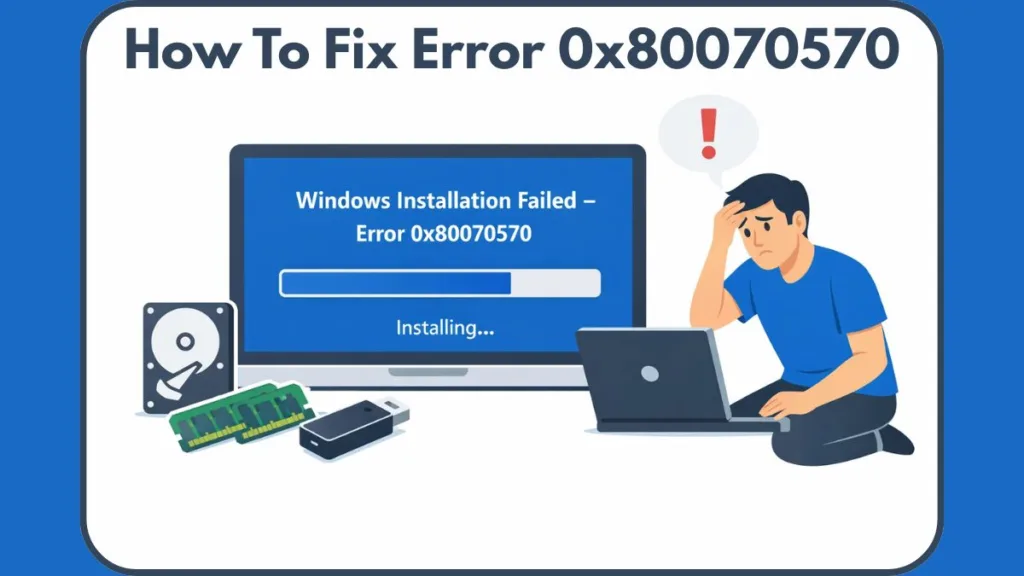
For instance, a gamer installing a fresh copy of Windows 11 might see this pop up at 70% completion, halting the setup of their new rig. Meanwhile, a photographer trying to move raw images from an SD card to an external drive encounters the exact same message, fearing their work is lost.
As a result, many users fall into a cycle of ineffective troubleshooting:
- Rebooting repeatedly with no success, hoping the error is a fluke.
- Trying random fixes from forums that don’t apply to their specific hardware.
- Panic-formatting drives during installation, erasing valuable data unnecessarily.
- Assuming their system is permanently damaged, leading to expensive and unneeded hardware replacements.
However, once you understand where the error is happening, the fix becomes logical and controlled. Furthermore, distinguishing between a software glitch (like a corrupted download) and a hardware failure (like a dying hard drive) saves you time and money.
This error can occur when you’re:
- Installing or reinstalling Windows 10/11, typically during the “Getting files ready for installation” phase.
- Trying to delete, copy, move, or access a file or folder on your system or external storage.
Because restarting your PC rarely helps, choosing the correct repair path immediately is critical. The good news is that both scenarios are solvable when handled correctly. This guide will walk you through the technical reasons behind the error and provide proven, step-by-step solutions for both installation and file management scenarios.
Understanding Error 0x80070570: The File or Directory Is Corrupted
Error 0x80070570 usually appears with the message:
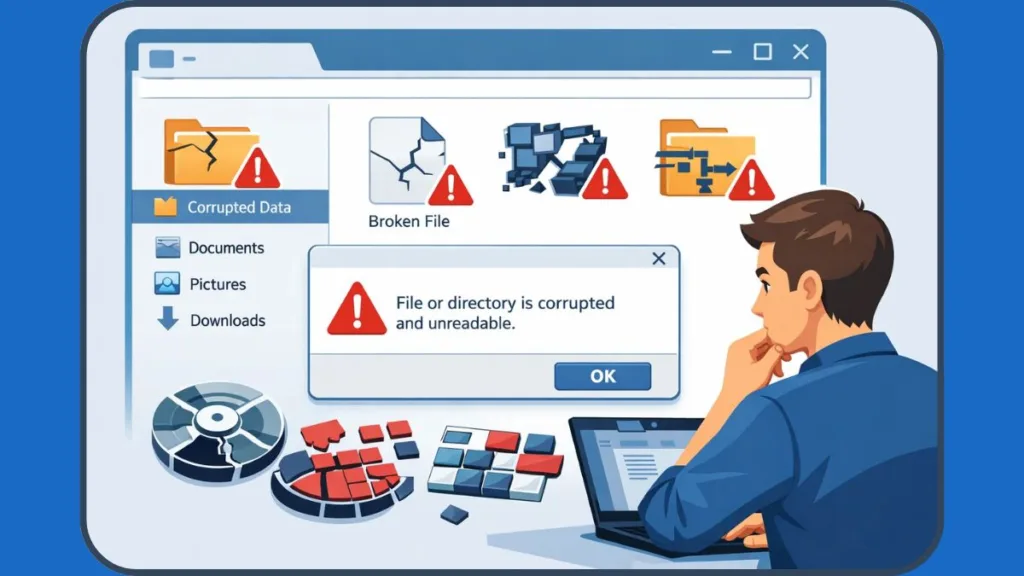
“The file or directory is corrupted and unreadable.”
In practical terms, Windows is telling you that it cannot trust the data it’s trying to read or write. Instead of risking further corruption by saving “nonsense” data to your drive, the operating system blocks the action entirely.
Think of this like a librarian refusing to let you check out a book because the pages are glued together; protecting the integrity of the library matters more than your immediate need for that specific book.
At a technical level, this error indicates a failure in the File Allocation Table (FAT) or the Master File Table (MFT) in NTFS drives. These tables act as the “map” for your hard drive, telling the computer exactly where each file starts and ends.
When this map becomes garbled—perhaps saying a file exists in a sector that is actually empty—Windows throws Error 0x80070570 to prevent a system crash.
Specifically, this error indicates:
- A broken file system index, where the directory listing doesn’t match the physical data.
- A read failure from storage media, often due to physical wear on USB contacts.
- A write failure caused by bad sectors or memory instability, where data changes during the transfer process.
That’s why the same error can appear in vastly different tasks, including:
- Windows installation errors or upgrade failures (often at the 0% or 10% mark).
- File deletion or copying operations, particularly with large files like movies or backups.
- External USB or SD card access, common with cameras and phones.
- System updates or restore attempts via Windows Update.
Understanding this shared foundation helps explain why the fixes focus on media integrity, memory stability, and disk repair rather than permissions or user actions. Consequently, tools like CHKDSK (Check Disk) and MemTest86 become your primary allies in diagnosing whether the fault lies with the software map or the physical hardware.
Root Causes: Why Does Error Code 0x80070570 Happen?
Although the symptoms differ, Error 0x80070570 always signals data integrity breakdown. Let’s look deeper at the most common triggers and how they appear in real life:
- Corrupted installation media or ISO filesThis is the most frequent cause for installation failures. For example, a Windows ISO downloaded during a brief internet drop may complete successfully but contain unreadable blocks.
The installer checks the file’s “hash” (digital fingerprint) before copying; if the hash doesn’t match the expected value, the installer halts. If you used the Windows Media Creation Tool, the write process to the USB stick might have skipped a beat due to background antivirus scanning.
- Bad sectors on a hard drive or SSDAging drives often develop weak sectors—tiny clusters of storage space that can no longer hold a magnetic charge reliably. Windows may operate normally until it tries to store or delete data in those specific areas.
This is physically similar to a scratch on a vinyl record; the needle skips whenever it hits that specific spot, disrupting the entire song.
- Faulty RAM (Random Access Memory)Even a single unstable memory module can corrupt files during Windows installation, file extraction, or compression tasks.
As data moves from your hard drive to your RAM and back, a faulty memory stick might flip a “0” to a “1”. When Windows verifies the data, the hash check fails, and the error triggers. This is why the error is common during installation, which is a highly memory-intensive process.
- Improper removal of USB drives: Pulling a USB drive without ejecting it often damages the file allocation table, making some files permanently unreadable. This frequently happens if you yank the drive while the activity light is still blinking. The computer was likely in the middle of updating the “Table of Contents” for the drive, leaving it incomplete.
- Virus or malware infectionsSome malware modifies file headers or directory structures to hide itself, which leads to corruption errors even after removal.
Security suites like Malwarebytes or Windows Defender might remove the active virus, but the structural damage to the file remains, leaving a “ghost” file that cannot be opened or deleted.
- Incorrect BIOS/UEFI drive mode: Installing Windows in RAID mode on a single drive system commonly causes write failures and unexplained setup errors. Modern systems typically prefer AHCI (Advanced Host Controller Interface) mode for standard SATA SSDs. If the BIOS expects a RAID array that doesn’t exist, the translation of data fails, causing corruption.
Because of these causes, Error 0x80070570 is rarely a random glitch. It is almost always a warning sign. Therefore, diagnosing the root cause correctly allows you to apply the right solution without guessing.
Scenario A: Troubleshooting Error 0x80070570 During Windows Installation
When this error appears during Windows setup, users often assume the installer itself is broken. In reality, Windows Setup is extremely strict about data accuracy, which is why it stops instead of continuing with corrupted files. It is protecting you from installing a broken operating system that would crash constantly.
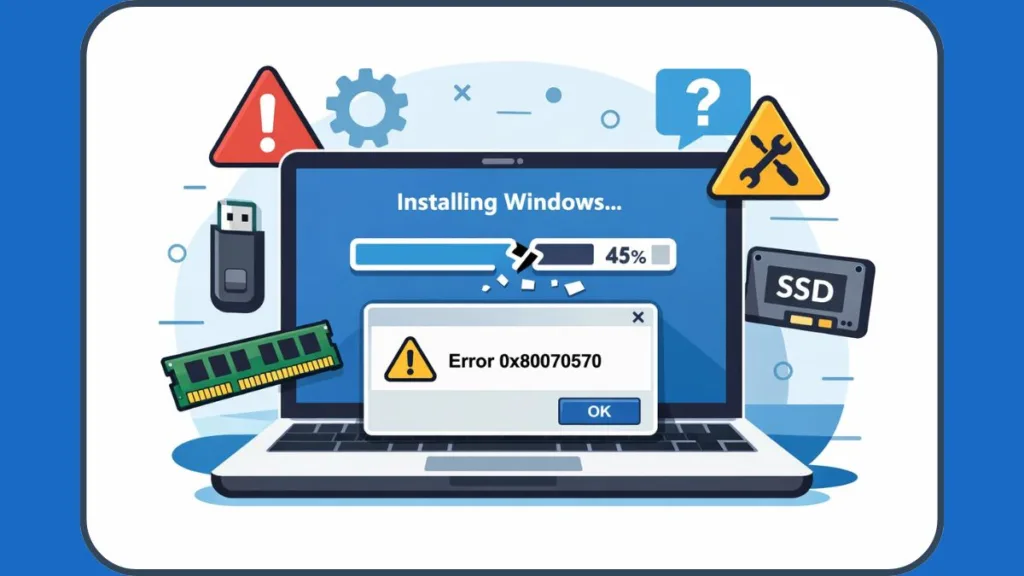
In most real-world cases, technicians find the root cause to be USB media issues, RAM instability, or firmware misconfiguration, especially on custom-built PCs or older laptops. Addressing these hardware variables often resolves the software blockage.
Fix 1: Switch USB Ports (The “USB Shuffle”) to Resolve Driver Conflicts
This fix works because Windows Setup loads limited drivers early in the process. Many older Windows installation images (especially Windows 7 or early Windows 10 builds) do not have native drivers for modern USB 3.0 or USB 3.1 controllers.
For example, many users report installation failures at the same percentage every time—often 10% or 30%. Switching USB ports immediately allows the installer to proceed past that point.
To apply this fix effectively:
- Use motherboard rear USB ports instead of front panel ports. Front ports rely on internal cabling that can degrade signal quality.
- Avoid USB hubs entirely.
- Keep only essential devices connected (disconnect printers, game controllers, webcams, or Wi-Fi dongles).
This step costs nothing and resolves a surprising number of installation failures. Additionally, moving from a blue USB 3.0 port to a black USB 2.0 port can bypass driver compatibility issues during the boot phase, as USB 2.0 drivers are generic and universally supported.
Fix 2: Re-Create Windows Installation Media to Fix Corrupted ISOs
Corrupted installation media remains the number one cause of Windows installation-related Error 0x80070570. If the source data is flawed, the installation cannot succeed regardless of your hardware’s health.
In professional repair environments, technicians almost always follow this strict protocol:
- Re-download the ISO directly from the official Microsoft Software Download page. Do not use third-party sites or torrents, as these ISOs are often modified or incomplete.
- Rebuild the USB installer using a fresh tool like Rufus (popular for its reliability) or the official Media Creation Tool. When using Rufus, ensure you select the correct partition scheme (GPT for UEFI systems, MBR for older BIOS systems).
- Test with a second, different flash drive. Flash memory wears out; a stick that works for small files might fail when reading the massive
install.wimfile required for Windows.
Doing this removes uncertainty and eliminates invisible file corruption that Windows Setup cannot repair mid-process.
Fix 3: Test System RAM to Eliminate Memory-Based Install Errors
RAM problems often go unnoticed because:
- The system boots normally.
- Applications run fine for short periods.
- Errors only appear under heavy memory use.
Windows installation is one of the most memory-intensive tasks your system performs. It uncompresses gigabytes of data into your RAM before writing it to the disk. That’s why swapping RAM sticks often resolves installation failures instantly.
How to Test:
- The Swap Method: If you have two sticks of RAM, remove one and try installing with just one stick. If it fails, swap them and try the other.
- The Software Method: For a definitive test, advanced users often run MemTest86. This free utility boots from a USB drive and stresses memory modules to find faults. If you see red lines in MemTest86, your RAM is physically defective and must be replaced.
Fix 4: Adjust BIOS/UEFI Settings for AHCI and SATA Compatibility
Firmware settings directly control how Windows communicates with storage hardware. Many users unknowingly switch SATA mode while troubleshooting performance issues, which later causes installation failures.
- SATA Operation: Ensure this is set to AHCI. If it is set to RAID On or IDE (on very old systems), the Windows installer may struggle to communicate with the drive.
- Secure Boot: Occasionally, disabling Secure Boot temporarily can help the installation media load correctly.
Consult your motherboard manual for the specific key (usually F2, F12, or Del) to access these settings during startup.
Scenario B: Resolving Error 0x80070570 When Deleting or Copying Files
In this scenario, Windows already runs—but the file system contains inconsistent or damaged records. You’ll often see this when:
- Deleting old backup folders.
- Moving large video files.
- Cleaning up external drives.
- Copying data from failing storage.
Unlike permission errors (“Access Denied”), this issue cannot be overridden by changing admin rights. The operating system literally cannot find the start or end of the file on the physical disk because the index entry points to a “black hole.”
Fix 1: Run CHKDSK /f /r to Repair Disk Errors and Bad Sectors
CHKDSK (Check Disk) is the most powerful built-in tool for this specific error. It scans the drive in 5 stages:
- Verifying Files: Checks the file records.
- Verifying Indexes: Checks the directory structure (this is where 0x80070570 is usually found).
- Verifying Security Descriptors: Checks user permissions.
- Verifying File Data: (with
/r) Scans for bad sectors. - Verifying Free Space: (with
/r) Ensures empty space is actually empty.
In real-world use, IT professionals rely on CHKDSK as the first and most trusted response to corrupted and unreadable file errors.
How to Run It:
- Type
cmdin the Windows search bar. - Right-click Command Prompt and select Run as Administrator.
- Type
chkdsk C: /f /r(replace C: with the letter of the problematic drive) and hit Enter. - If prompted to schedule the scan for the next restart, type
Yand reboot.
If the scan appears stuck (e.g., at 11%), patience matters. Interrupting CHKDSK can worsen corruption. It is actively repairing complex data structures.
Alternative Solutions If CHKDSK Fails to Fix Corruption
Fix 2: Run System File Checker (SFC) to Repair Corrupted System Files
SFC becomes useful when corrupted system files (DLLs) interfere with normal file operations—especially after malware removal or failed updates.
By running sfc /scannow in an administrator command prompt, you force Windows to compare its current files against a known good cache located in the WinSxS folder. If it finds a mismatch, it replaces the corrupted file automatically.
Fix 3: Use DISM Tool to Restore Windows Component Store Health
If SFC fails, the backup cache itself might be corrupted. DISM (Deployment Image Servicing and Management) repairs the underlying Windows image that SFC depends on. This step is particularly valuable when multiple system tools fail.
The specific command DISM /Online /Cleanup-Image /RestoreHealth connects to Windows Update servers to download fresh, healthy copies of damaged system files. This requires an active internet connection.
Fix 4: Boot into Safe Mode to Bypass File Locks and Delete Data
Safe Mode limits file locks and background services. In many cases, files that refuse deletion in normal mode disappear instantly in Safe Mode.
This strips away third-party drivers (like antivirus or cloud sync tools like Dropbox/OneDrive) that might be “locking” the file to scan or sync it.
- To enter Safe Mode: Hold the Shift key while clicking Restart > Troubleshoot > Advanced Options > Startup Settings > Restart > Press 4.
Fix 5: Monitor Drive Health and S.M.A.R.T. Status for Hardware Failure
When corruption keeps returning, it signals hardware degradation. Monitoring S.M.A.R.T. (Self-Monitoring, Analysis and Reporting Technology) values helps you decide whether repair or replacement makes sense.
Download a free tool like CrystalDiskInfo. Look specifically for:
- Reallocated Sector Count (ID 05)
- Current Pending Sector Count (ID C5)
If these values are yellow or red, your drive is physically failing. No software patch will fix this; you must replace the drive immediately.
Advanced Solutions: What to Do If the Corrupted File Still Won’t Delete
At this stage, logical repairs have failed. This usually means physical disk damage or deep magnetic corruption. Continuing to stress a physically failing drive can lead to total data loss.
Professional environments often take the following steps:
- Cloning: Clone the drive sector-by-sector to a healthy disk using software like Clonezilla. This allows you to work on the copy without stressing the dying drive.
- Data Recovery Software: Attempt to recover accessible data using specialized software like EaseUS Data Recovery Wizard, Disk Drill, or Recuva. These tools can often bypass the Windows file system index to read “raw” data directly from the platters.
- Retire the Hardware: Once data is saved, the failing hardware is physically destroyed or recycled.
Replacing a drive early prevents cascading data loss. If the data is mission-critical (business records, family photos), contacting a professional Data Recovery Service (such as DriveSavers, Ontrack, or Secure Data Recovery) is safer than attempting DIY software fixes on a clicking or buzzing drive. These services utilize Class 100 Clean Rooms to open drives without dust contamination.
Prevention Strategy: How to Avoid Error 0x80070570 in the Future
Prevention depends on consistency. By adopting a few healthy computing habits, you can avoid seeing this error code again.
- Always eject storage devices properly: Use the “Safely Remove Hardware” icon in the taskbar. This ensures all “write” operations are finished before power is cut.
- Avoid sudden power loss: Consider investing in a UPS (Uninterruptible Power Supply) for desktop PCs. Sudden shutdowns are the #1 cause of file system corruption.
- Run disk checks proactively: Schedule a monthly check-up using the command
chkdsk /scan(which scans without unmounting the drive). - Replace aging drives before failure: SSDs and HDDs typically last 3-5 years under heavy use. Check their warranty status and plan for upgrades.
- Maintain offline backups: Use cloud services like OneDrive, Google Drive, or Backblaze, but also keep a physical backup on an external drive that is not always connected to your PC (to protect against ransomware).
These habits dramatically reduce corruption-based Windows errors and ensure your data remains accessible.
Quick Summary: Causes and Solutions for Windows Error 0x80070570
| Scenario | Primary Cause | Best Fix |
| Windows Installation | Corrupted USB/ISO, faulty RAM, firmware misconfiguration | Recreate media, test RAM (MemTest86), adjust BIOS to AHCI |
| File Deletion | Bad sectors, corrupted file system index (MFT) | Run CHKDSK /f /r in Command Prompt |
| External Drive Access | Unsafe ejection, port power failure | Use “Safely Remove,” try rear USB ports, format if empty |
Frequently Asked Questions About Error Code 0x80070570
Why does setup fail at the same percentage every time?
Because the installer reaches the same corrupted file repeatedly. It hits a digital “scratch” on the USB stick or a bad memory block in RAM. For example, if the file install.wim is corrupted at the 4GB mark, the installation will always fail at roughly 70%.
Can I force delete a file showing this error?
No. Windows blocks deletion because the file index is broken. You must repair the file system (using CHKDSK) first so Windows understands what it is deleting. Using third-party “force delete” tools can sometimes cause further corruption if the underlying index is not fixed.
Does this error mean my hard drive is dying?
Not always—but frequent occurrences strongly suggest it. One-off errors usually stem from unsafe ejections or power outages. However, if you fix the error and it returns a week later, this indicates physical wear on the drive’s magnetic surface.
Why does CHKDSK take so long?
Because it scans every sector, not just visible files. On a large 4TB drive, this rigorous verification process can take several hours, or even a day, depending on the speed of the drive and the number of errors found.
Conclusion: Final Thoughts on Fixing Windows File Corruption Errors
Error 0x80070570 feels severe, but it’s usually a signal, not a catastrophe. It serves as a warning mechanism to prevent you from writing good data to a bad place.
When you respond correctly:
- Installation errors resolve with media or memory fixes, getting your new PC up and running.
- File corruption clears with proper disk repair, saving your important documents.
We recommend you act early, repair carefully, and back up consistently. With the right approach, this error becomes manageable—and often preventable. Would you like to learn more about setting up automatic backups to protect your files from future corruption?
Visit Our Post Page: Blog Page