
Getting “Error 1935: An error occurred during installation of assembly” while installing Microsoft Office? Learn how to fix Error 1935 in Office 2007.
Seeing Error 1935 while installing Office 2007 can be frustrating, especially when the setup stops midway and displays a message like:
“Error 1935. An error occurred during the installation of assembly component…”
At this point, the installation usually rolls back automatically, leaving you stuck. The good news is that this error is fixable. In most cases, it happens because of .NET Framework conflicts, missing system components, or Windows corruption issues.
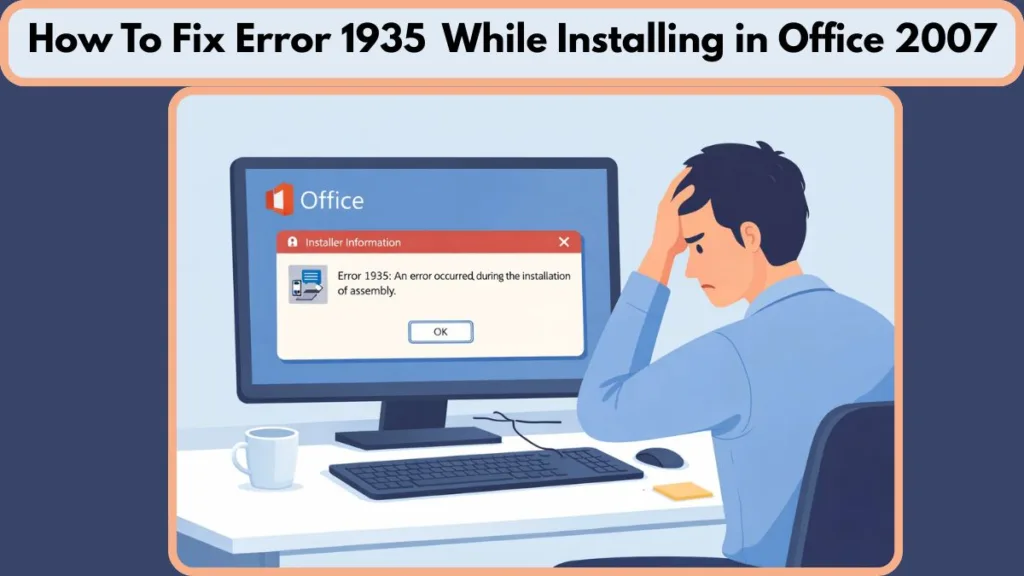
In this complete guide, you’ll learn what causes Error 1935 in Office 2007 and how to fix it step by step on Windows 7, Windows 10, and Windows 11.
What Is Error 1935 in Office 2007?
Error 1935 is an installation failure that occurs when Windows cannot properly install or register a required assembly component during Office setup.
An assembly is a software component used by applications like Microsoft Office to function correctly. When the installer attempts to register this component and fails, Windows throws Error 1935.
You may also see additional technical codes such as:
- HRESULT 0x80070BC9
- HRESULT 0x80070005
These codes usually point to permission issues, missing system files, or .NET Framework problems. Errors like these are common when the system lacks the required runtime components.
In simple terms, Office 2007 is trying to install something important, but Windows is blocking or unable to process it correctly.
What Causes Error 1935 While Installing Office 2007?
Understanding the root cause makes troubleshooting much easier. Below are the most common reasons this error appears.
.NET Framework Is Missing or Corrupted
Office 2007 depends heavily on older versions of the .NET Framework, especially versions 2.0 and 3.5. You can download the official Microsoft .NET Framework 3.5 installer from Microsoft’s site here: Download Microsoft .NET Framework 3.5 or get the full .NET Framework 3.5 Service Pack 1 here: Microsoft .NET Framework 3.5 SP1 (Full Package). (microsoft.com)
If these components are disabled, missing, or corrupted, the Office installer cannot complete the setup.
On newer systems like Windows 10 and Windows 11, older .NET components are often disabled by default, which can trigger Error 1935 during installation.
Conflict with .NET Framework 4
In several real-world cases, users discovered that having .NET Framework 4 Client Profile or Extended installed caused conflicts with the older framework versions required by Office 2007.
Corrupted Windows System Files
If critical Windows files are damaged, the system cannot properly register assemblies. Tools like System File Checker (sfc /scannow) and DISM help resolve this.
Windows Installer Service Issues
Office 2007 relies on the Windows Installer service (msiexec.exe). This component is responsible for installing and configuring software packages. If this service is disabled or malfunctioning, the installation process fails.
How to Fix Error 1935 Office 2007: Step-by-Step Solutions
Follow these solutions in order. Start with the .NET fixes, since they solve most cases.
Solution 1 – Enable or Repair .NET Framework 3.5
Since Office 2007 depends on older .NET versions, enabling .NET Framework 3.5 often resolves the issue.
Here’s how to enable it:
- Press Windows + R, type optionalfeatures, and press Enter.
- Locate .NET Framework 3.5 (includes .NET 2.0 and 3.0).
- Check the box if it’s unchecked.
- Click OK and allow Windows to install it.
- Restart your computer.
After restarting, try installing Office 2007 again.
If .NET 3.5 is already enabled, you may need to repair it by disabling it, restarting, then enabling it again.
Solution 2 – Uninstall Conflicting .NET Framework 4 Versions
If enabling .NET 3.5 does not fix the problem, try removing conflicting .NET 4 components:
- Open Control Panel.
- Go to Programs and Features.
- Locate Microsoft .NET Framework 4 Client Profile and .NET Framework 4 Extended.
- Uninstall both versions.
- Restart your computer.
Once restarted, attempt the Office installation again.
Solution 3 – Run System File Checker
Corrupted system files can prevent assembly registration:
- Open Command Prompt as Administrator.
- Type:
sfc /scannow
- Press Enter and wait for the scan to finish.
The system will automatically repair corrupted files if found. After completion, restart and try the Office setup again.
If needed, you can also run:
DISM /Online /Cleanup-Image /RestoreHealth
This targets deeper issues in Windows.
Solution 4 – Repair Windows Installer Service
If the Windows Installer service is malfunctioning, Office setup will fail.
To restart the service:
- Press Windows + R, type services.msc, and press Enter.
- Locate Windows Installer.
- Right-click and choose Restart.
You can also re-register the installer:
- Open Command Prompt as Administrator.
- Run:
msiexec /unregister
msiexec /regserver
- Restart your PC.
Solution 5 – Perform a Clean Boot
Sometimes antivirus or third-party apps interfere with installation.
To perform a clean boot:
- Press Windows + R, type msconfig, and press Enter.
- Go to Services tab.
- Check Hide all Microsoft services.
- Click Disable all.
- Restart.
Then try installing Office again.
How to Solve Error 1935 with Solution
1. Install .NET Framework Required by Office 2007
In many confirmed cases, manually installing the required .NET Framework resolved Error 1935 completely.
Office 2007 was designed to work with older .NET versions. If these are missing or damaged, installation fails.
Start with enabling the framework via Windows Features. If that doesn’t help, download and install the official .NET Framework 3.5 from Microsoft here: Microsoft .NET Framework 3.5 download page or choose the full Service Pack 1 package, which includes both .NET 2.0 and 3.0 updates: Microsoft .NET Framework 3.5 SP1.
After installing:
- Restart your PC
- Disable antivirus temporarily
- Run Office setup as Administrator
This approach works because it restores the missing assembly dependencies Office needs to install.
Error 1935 Office 2007 on Windows 10 and Windows 11
Office 2007 is no longer officially supported by Microsoft, but it can still install on newer systems with the right settings.
On Windows 10 and Windows 11, older .NET versions are often disabled or not fully supported by default. Enabling them via Windows Features or using the official installers from Microsoft helps overcome this.
Running the setup in Compatibility Mode or as Administrator may also help when installing on the latest Windows versions.
Frequently Asked Questions
What causes Error 1935 in Office 2007?
It is usually caused by missing or corrupted .NET Framework components, damaged system files, or conflicts with newer .NET versions.
Is Error 1935 related to .NET Framework?
Yes. In most cases, the error appears because Office 2007 cannot register required .NET assemblies.
Does antivirus cause Error 1935?
Sometimes. Antivirus software can block installation processes when system components are being modified.
Can Office 2007 run on Windows 11?
Yes, but you may need to enable .NET Framework 3.5 and run the installer with administrative privileges.
What is Microsoft Office error 1935?Microsoft Office Error 1935 is an installation error that occurs when Windows fails to install or register a required assembly component during the setup process. It is commonly linked to .NET Framework corruption, missing system files, or permission conflicts.
What does integratedoffice Exe error 1935 mean?
The integratedoffice.exe Error 1935 message typically appears when the Office installer executable cannot properly register required system assemblies. This usually indicates a .NET Framework issue, Windows Installer problem, or system file corruption preventing the installation from completing.
How to fix error 1935 when installing Office 365?
To fix Error 1935 when installing Office 365, you should repair or reinstall the .NET Framework, run System File Checker (sfc /scannow), ensure Windows Installer is working properly, and perform a clean boot if necessary. Although Office 365 is newer, the underlying cause is often still related to system component or framework conflicts.
Final Thoughts
Error 1935 during Office 2007 installation may look complex, but it usually comes down to a .NET Framework or system configuration issue.
Start by enabling or reinstalling .NET Framework 3.5. If that doesn’t solve the problem, repair system files and ensure the Windows Installer service is working. Try one step at a time instead of everything at once.
In most cases, one of these solutions will successfully install Office 2007. If the issue still persists, consider upgrading to a newer version of Microsoft Office, which reduces compatibility issues on modern systems.
Visit Our Post Page: Blog Page