
Getting the 502/504 error on EFT? Learn how to fix the Tarkov Bad Gateway error with 9 proven solutions to restore your connection fast.
What Is the Tarkov Bad Gateway Error?
When Escape from Tarkov (EFT) throws a Bad Gateway message — usually displayed as a 502 or 504 code — it’s the game’s way of telling you it can’t reach the backend servers properly. Instead of loading into raids or even opening the BSG Launcher, your connection hits a broken link between your system and the game’s online services.
Under the hood, a 502 Bad Gateway error means a gateway or proxy server (in this case, the server network supporting Tarkov) got an invalid response from an “upstream” server.
Meanwhile, a 504 Gateway Timeout means that server took too long to respond — the game waited, but the server never answered in time.
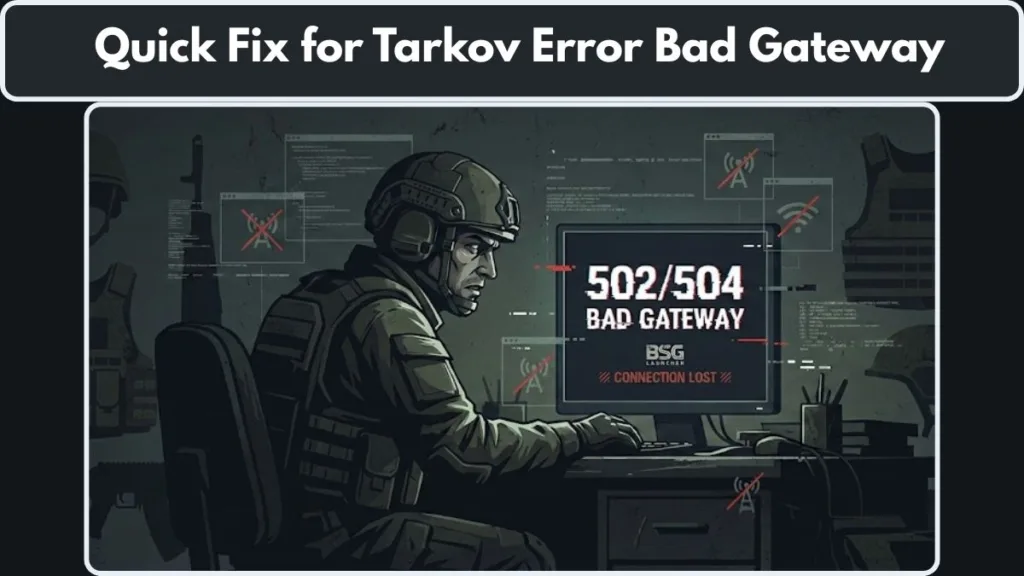
This issue shows up most often during server-heavy moments like updates, wipe events, or sudden player surges. Even though it feels like a major breakdown, it’s usually tied to temporary server overload, unstable network routes, or a mismatch between your system and Tarkov’s online infrastructure.
Think of it as Tarkov saying:
I’m ready — but the servers aren’t talking back right now.
The good news? There are reliable ways to work through it, whether it’s a launcher hiccup, a network mis-configuration, or servers simply catching their breath.
What Causes the “502/504 Bad Gateway” Error in Escape From Tarkov?
A 502/504 Bad Gateway error in Escape from Tarkov usually points to a communication breakdown between you and the game’s backend servers.
Instead of your request reaching the right place, it gets stuck, delayed, or returned with an invalid response. Several factors can trigger this issue, and understanding them helps you choose the right fix.
What 502 and 504 Actually Mean — Server-Side Gateway Issues
- A 502 Bad Gateway happens when a server acting as a gateway or proxy receives an invalid response from the upstream server it relies on.
- A 504 Gateway Timeout occurs when a gateway/server waits for a response from an upstream server — but gets no reply in time.
In simple terms: 502 = bad response, 504 = no response.
Server Overload & High-Traffic Events
Tarkov’s backend can get overwhelmed during patch releases, wipe days, or sudden spikes in players. Under heavy load, upstream servers may fail or take too long to respond — triggering 502/504 errors on the client end.
Backend or API / Proxy Failures
Internal Tarkov services like authentication, matchmaking, or the trading API may slow down, stop responding, or miscommunicate. When the gateway layer can’t complete the request, the result is a bad gateway response.
Launcher or Client-Side Issues (Cache, Permissions, etc.)
Sometimes, the issue comes from your system. A corrupted launcher cache, outdated launcher files, or missing administrator permissions can prevent the launcher from correctly communicating with Tarkov’s servers, leading to 502/504 errors.
Network-Level Problems: DNS, Routing or ISP-Side Blocks
Faulty DNS servers, unstable router configurations, or problematic ISP routing can block or misroute your connection. When requests don’t reach Battlestate’s servers cleanly, you’ll see gateway timeouts or invalid responses.
Corrupted or Missing Game Files
If crucial game or network files inside EFT are damaged or missing, the client may send malformed requests or fail to interpret responses correctly — causing bad gateway issues during login, profile loading, or matchmaking.
Developer-Side Maintenance or Outages
At times, the cause is not on your side. When Battlestate Games performs server maintenance, updates backend components, or experiences outages, players may temporarily face 502 or 504 errors until stability returns.
Escape From Tarkov Bad Gateway Fix (9 Proven Solutions)
Fix 1: Run BSG Launcher & Game as Administrator to Restore Backend Communication
Running the Tarkov launcher and game with administrator privileges ensures they can access protected system resources, open required ports, and communicate correctly with backend services.
Why this works: By granting elevated rights, you allow the launcher to perform crucial tasks such as accessing protected folders, sending authentication requests, and interacting with the Nginx gateway layer without being blocked by Windows security.
Steps:
- On the desktop shortcut, Right-click BSG Launcher > Run as Administrator,
or navigate to C:\Program Files\Escape_From_Tarkov, then Right-click escapefromtarkov.exe > Run as Administrator. - Afterwards, confirm the UAC prompt to proceed with elevated access.
Fix 2: Change Tarkov Server Region to Avoid Overloaded or Unstable Nodes
Switching your server region helps bypass overloaded nodes, especially during peak activity periods such as wipes, major patches, and weekend spikes.
Why this works: When a server cluster becomes congested, it may respond slowly—or not at all—to the gateway. As a result, the launcher returns 502/504 errors. Moving to a healthier region provides a more stable route with cleaner, faster responses.
Steps:
In the launcher, Open Settings > Change Server, then Disable Automatic Server Selection > Choose a region with the lowest stable ping.
Finally, apply the changes and relaunch the game.
Fix 3: Clear Battlestate Launcher Cache to Remove Corrupted Temporary Data
The launcher cache stores session data, authentication tokens, and update information. Once these files become outdated or corrupted, the launcher may send malformed requests.
Why this works: Refreshing the cache removes broken or mismatched data, allowing the launcher to fetch clean configuration files and reinitialize properly with Battlestate’s backend.
Steps: Inside the launcher, Click the arrow beside your username > Select Clear Cache, and then Restart the launcher to load fresh files.
Fix 4: Flush and Change DNS to Fix Routing & Gateway Timeouts
Refreshing DNS eliminates outdated routing entries, while using a reliable DNS service improves server lookups and reduces timeout delays.
Part A — Flush DNS for Fresh Routing Paths
Why this works: Clearing the DNS cache forces your system to request updated server IPs, which eliminates broken routes that cause gateway timeout errors.
Steps:
- On your system, Open Command Prompt (Admin) > type:
ipconfig /flushdns ipconfig /release ipconfig /renew - After executing, Restart your PC for clean routing.
Part B — Change DNS to Google DNS for Faster Resolution
Why this works: Switching to Google DNS offers more consistent lookup speeds and fewer routing errors than many default ISP DNS servers.
Steps: On Windows, Open Network & Internet Settings > Advanced Network Settings > More Adapter Options, then Right-click your active connection > Properties > IPv4 > Use the following DNS.
Finally, enter: Primary: 8.8.8.8 | Secondary: 8.8.4.4.
Fix 5: Reset Windows Network Settings to Remove Corrupted Network Configurations
Resetting the network restores all adapters, routing tables, firewall bindings, and proxy entries to their defaults.
Why this works: This resolves misconfigurations caused by Windows updates, VPN leftovers, and hidden routing conflicts that interfere with Tarkov’s backend handshake.
Steps: On Windows, Open Settings > Network & Internet > Advanced Network Settings > Network Reset, and afterwards Click Reset Now > Restart your PC.
Fix 6: Switch Network or Use VPN to Bypass ISP-Level Routing Issues
Routing problems often occur at the ISP level, so using a different network or tunneling through a VPN can create a cleaner route.
Option A — Switch to a Different Network to Test ISP Problems
Why this works:
Changing networks helps identify whether the issue originates from your connection or your internet provider.
Steps: Temporarily Disconnect your Wi-Fi > Restart PC > Connect via another Wi-Fi, Ethernet, or mobile hotspot.
Option B — Use a VPN to Overwrite Broken Routes
Why this works: A VPN forces your traffic through a completely different path, bypassing ISP congestion or faulty routing nodes that cause gateway errors.
Steps: Open your VPN, Connect to a nearby server, then Launch Tarkov through the BSG Launcher to test stability.
Fix 7: Run Tarkov Integrity Check to Repair Corrupted Game Files
Essential Tarkov files may corrupt after patches or incomplete updates, interfering with backend communications.
Why this works: The Integrity Check compares your files with the official database, restoring missing or damaged ones that break the launcher’s ability to load profile or match data.
Steps: In the launcher, Click the arrow below your username > Select Integrity Check, then Allow the tool to complete its scan before relaunching.
Fix 8: Reset Router or Restore Factory Settings to Fix Routing & Firmware Issues
Routers store cached DNS entries, NAT tables, and internal routing data. Over time, these components degrade or become overloaded.
Why this works: Resetting clears corrupted routes, firmware glitches, and NAT failures that prevent consistent long-lived connections required by EFT’s backend.
Steps: On your router, Hold the reset button for 10–30 seconds, then Reconfigure Wi-Fi settings > Restart your PC → Reconnect to your network.
Fix 9: Reinstall BSG Launcher to Repair Broken Backend Communication Modules
If none of the previous solutions work, the launcher itself may be corrupted.
Why this works: Reinstalling the launcher restores critical modules for authentication, patch handling, CDN communication, and profile syncing—components often responsible for persistent bad gateway errors.
Steps: On Windows, Open Task Manager > End Tarkov processes > Open Apps & Features > Uninstall BSG Launcher, then Restart your PC > Reinstall the launcher > Run as Administrator to ensure clean communication.
When the Fix Is NOT On Your Side
Sometimes, no amount of fiddling with settings or reinstalling will solve a Bad Gateway issue — simply because the problem lies on the server side, or with the broader infrastructure of Escape from Tarkov (EFT) itself.
Scheduled Maintenance or Official Updates
- High-Traffic Spikes, Wipes or Post-Patch Overload
- Regional or Backend-Service Specific Outages
- Widespread Outage or Unexpected Bugs
When the problem is on this side, the only realistic option is to wait patiently. Trying fix after fix won’t help until the backend is stable again.
How to Check Tarkov Server Status
Before troubleshooting on your end, it’s smart to quickly confirm whether the servers themselves are experiencing issues. Here’s the fastest way to do it:
Official Tarkov Server Status Page
The most accurate source is the official EFT status hub. It shows live conditions for authentication, matchmaking, inventory, trading API, and regional servers.
Visit Now: Official Tarkov Server Status Page
If any service is marked as Degraded, Unavailable, or Under Maintenance, the 502/504 Bad Gateway error is likely server-side.
Official Announcements from Battlestate Games
Battlestate posts updates whenever there’s maintenance, backend instability, or deployment of patches. Check:
- Official Website: https://www.escapefromtarkov.com/
- Official X/Twitter: https://twitter.com/bstategames
- Official Facebook: https://www.facebook.com/escapefromtarkov
If they report ongoing issues, the safest option is simply to wait.
FAQ: Tarkov Bad Gateway Error
What does the 502 Bad Gateway error mean in Tarkov?
A 502 Bad Gateway means the server acting as a gateway or proxy received an invalid response from the upstream backend. In simpler words: Tarkov attempted to connect, but the server returned a broken or unreadable response.
Why do I get a 504 Gateway Timeout in Escape from Tarkov?
A 504 Gateway Timeout occurs when the backend takes too long to respond — often due to server overload or network delays. The launcher simply gives up waiting and shows the error.
Is Tarkov down right now?
If you’re getting repeated errors and can’t login, it may be a server-side issue. Checking the official server status page confirms whether services like Authentication, Matchmaking, or Trading are down.
Can I play Tarkov with a Bad Gateway error?
No — the Bad Gateway error blocks essential backend communication, so you cannot login, load your profile, or start raids until the issue is resolved (either on your side or on the servers).
Does using a VPN fix the Tarkov Bad Gateway error?
Sometimes — if the issue comes from your ISP routing or local network problems, using a VPN to reroute your traffic can help bypass those blocks. But if the error comes from overloaded or down servers, a VPN won’t help.
How do I fix the Bad Gateway error in Escape from Tarkov?
Common successful fixes include:
- Running the BSG Launcher as Administrator
- Clearing the launcher cache
- Flushing DNS or switching to a stable DNS server
- Checking and stabilizing your internet connection or switching network
- Verifying game files via launcher’s integrity check
These steps address most client-side causes of the 502/504 error.
How can I check if the game servers are down or unstable?
All you need to do is visit the official Tarkov server status page — it lists real-time status of all backend services (login, trading, matchmaking, etc.).
Final Verdict: Can You Prevent the Tarkov Bad Gateway Error?
The Bad Gateway error in Escape from Tarkov often comes down to factors you can’t fully control — like server load, backend instability, or maintenance cycles. These root causes are external to your PC or network, so even the cleanest, most optimized setup can still run into a 502 or 504 when the game’s infrastructure is under strain.
That said, you can dramatically reduce your personal risk of encountering the issue by maintaining your end of the connection as healthy and stable as possible.
A smooth, stable internet connection and a properly configured home network make a big difference. Problems such as DNS errors, router misconfigurations, or outdated network settings are common triggers that contribute to gateway or timeout errors.
Keeping your BSG Launcher clean — clearing cache, running it with administrator privileges, and verifying game files — helps eliminate client-side faults that often behave like server-side issues. Ensuring your system and launcher stay updated improves the likelihood of a clean backend handshake.
During peak periods such as patch days, wipes, or major update rollouts, consider reducing strain on your own network. Using wired connections, avoiding heavy downloads in the background, or switching to a server region with lower latency can help create a more stable route.
In short: while you can’t guarantee the error never appears, you can build a setup that minimizes preventable gateway failures.
And when the root cause lies outside your control — massive server congestion, active maintenance, or backend outages — the best approach is to simply wait for Battlestate Games to stabilize the servers before trying again.
Visit Our Post Page: Blog Page