
Learn how to install, manage, and personalize Microsoft Edge add-ons and themes. Explore top extensions, safety tips, and customization tools to enhance your 2026 browsing experience.
Introduction to Microsoft Edge Add-ons
Microsoft Edge has grown into a browser that’s far more capable than most people realize. A big part of that transformation comes from its add-ons — small tools that help you customize how Edge works, streamline your workflow, and shape your browsing around what you need. Whether you want to boost productivity, strengthen privacy, or simply make everyday tasks easier, Edge’s wide range of extensions gives you plenty of room to personalize your experience.
“Even though Google Chrome remains the global browser market leader, Microsoft Edge is making steady gains — holding roughly 5% of the worldwide browser market share as of 2025.”
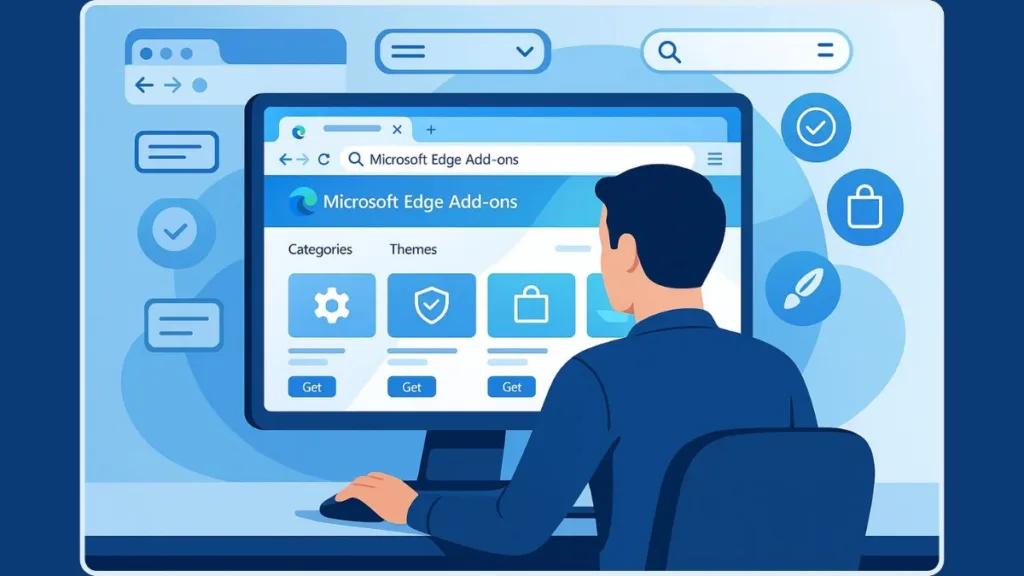
“Because Edge is built on Chromium, it supports both Microsoft’s official add-on store and Chrome’s massive extension library, giving users thousands of tools to explore.”
With support for both Microsoft’s own add-on store and a massive library of Chrome-compatible tools (thanks to its Chromium base), Edge makes it simple to explore new features and build a setup that fits your style.
This guide walks you through everything in a clear, friendly way so you can confidently get more out of the Microsoft Edge add-ons ecosystem — no technical background needed.
Understanding Microsoft Edge Add-ons
Microsoft Edge add-ons are small, lightweight tools that plug into your browser to unlock extra features, improve workflow comfort, and personalize everyday browsing. Think of them as modular upgrades — each extension adds a specific capability, whether that’s blocking pop-ups, managing passwords, translating pages, or organizing your research.
Because Edge is built on the Chromium engine, these add-ons work smoothly with modern web standards and support a wide range of productivity, privacy, and customization tools. This gives users the freedom to shape Microsoft Edge around their own habits without needing technical skills.
Add-ons come in many forms — from security tools that protect your browsing to shopping helpers, note-taking extensions, and immersive reading utilities. Each one is designed to solve a small problem or improve a specific part of your online experience, making your browser feel more tailored and efficient.
Updated Features of the New Edge Add-ons Website
The updated Edge Add-ons website introduces a more intuitive and polished environment for discovering extensions and themes. The design now focuses on speed, clarity, and easy exploration, helping you find the right tools with fewer steps.
Some of the standout improvements include:
- A modern navigation layout with clean categories and a persistent search bar for quicker browsing
- Sharper autosuggestions that display top extensions with a direct Get button for instant installation
- Smarter search filtering for ratings, types, and categories
- Better theme organization, offering curated visual styles
- Dedicated collections showcasing recommended add-ons for tasks like privacy, creativity, or focus work
“The refreshed Edge Add-ons site is designed to help users discover and install the right tools faster, with a layout that feels more modern and action-focused.”
These improvements make searching, comparing, and installing extensions more intuitive, especially for users who want a smoother way to enhance their browser without digging through long lists.
Where You Can Install Extensions From in Microsoft Edge
Microsoft Edge gives you flexible ways to expand your browser using add-ons, and each source comes with its own advantages. Whether you prefer official tools, a wider library of Chrome-compatible extensions, or custom developer builds, Edge makes the process smooth and approachable.
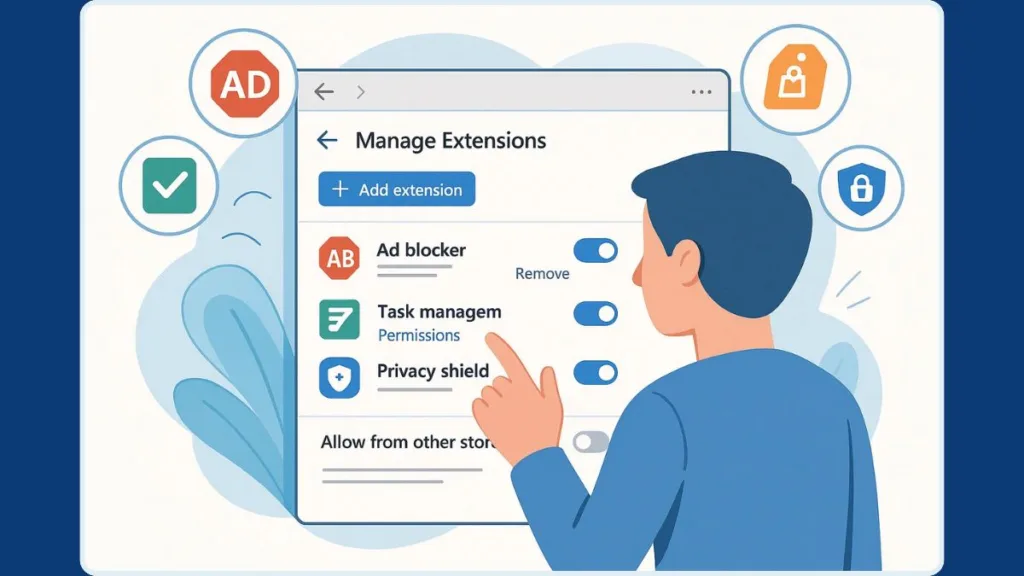
These options help you tailor your browsing setup with the extensions that fit your workflow, privacy needs, and creative preferences — all without extra complexity.
Installing Add-ons From the Official Microsoft Store (Step-by-Step Guide)
If you want the safest, most reliable way to install Microsoft Edge add-ons, the Microsoft Store is your go-to source. Every extension in this store is reviewed to meet Microsoft’s standards, offering strong peace of mind for everyday users.
Here’s how to install an extension directly from the Microsoft Store:
- Open Microsoft Edge.
- Select the three-dot menu at the top-right corner and choose Extensions.
- Click Manage extensions to open the control panel.
- Select Get extensions from Microsoft Store — this loads the official catalog.
- Browse or search for the extension you want.
- Press Get, then choose Add Extension to confirm permissions.
“Extensions from the Microsoft Store offer the most controlled, security-checked experience for Edge users.”
Once installed, the add-on’s icon appears near the address bar so you can access settings, tools, or quick actions instantly.
Installing Add-ons From the Chrome Web Store in Microsoft Edge
One major advantage of using Microsoft Edge is its Chromium foundation, which gives you access to the massive ecosystem of the Chrome Web Store. This opens the door to thousands of extensions you won’t find anywhere else, from advanced productivity tools to niche utilities.
To install Chrome extensions in Edge:
- Open the Extensions panel using the three-dot menu.
- In the sidebar, turn on Allow extensions from other stores.
- Confirm the warning — third-party extensions are not reviewed by Microsoft.
- Visit the Chrome Web Store.
- Choose an extension and click Add to Chrome.
- Select Add Extension to complete installation.
“With Chrome Web Store support, Edge users can tap into one of the largest extension libraries on the web.”
Chrome extensions work just like native Edge add-ons, making cross-platform productivity completely seamless.
Installing Local or Developer Extensions in Microsoft Edge
For creators, testers, or anyone experimenting with custom tools, Edge supports local extension installation, also known as sideloading. This gives developers a streamlined way to test add-ons before publishing them publicly.
To load an unpacked or development extension:
- Open Edge and go to Extensions.
- Press Manage extensions.
- Enable Developer mode.
- Choose Load unpacked.
- Select the folder containing the extension files (must include manifest.json).
- Click Select folder to install it locally.
Once installed, you can refresh the extension anytime using Reload, making iterative testing quick and painless.
“Local installs are essential for development, letting you update code and instantly test new features without republishing.”
How to Manage, Disable, or Remove Extensions in Microsoft Edge
Managing your Microsoft Edge extensions is just as important as installing them. Over time, your browser may accumulate tools you no longer need — or you might want to temporarily disable an add-on during troubleshooting.
Edge makes this control straightforward and transparent, giving you full control over how each extension behaves and affects your browsing experience.
To open the extensions management interface:
- Launch Microsoft Edge.
- Click the three-dot menu (⋯) at the top-right corner.
- Select Extensions > Manage extensions.
From there, you’ll see a list of all active or installed add-ons — along with toggles, permission settings, and options to remove or disable them. Use this to keep your browser light, secure, and efficient.
Efficient Extension Management: Best Practices for Edge Extension Control
When you manage your extension list, consider:
- Which add-ons you actually use — disable or remove the rest.
- Permissions each extension has — check whether access to site data, browsing history, or system APIs is really necessary.
- Extension performance — some add-ons may slow down browsing or interfere with page loading.
Disabling keeps the extension installed but inactive; an easy way to “pause” functionality without fully removing it.
Removing an extension clears it permanently and reduces background overhead.
“Removing unused extensions reduces background processes, improves performance, and strengthens privacy.”
Safety Tips Before Installing Extensions: Extension Security & Privacy Checks
Before you add a new tool to Edge, taking a moment to evaluate its safety and necessity can save you headaches down the line. Extensions are powerful — but with great power comes the need for cautious choices.
What to Check Before Installing
- Review permissions carefully — only install extensions that ask for what they need. Overboard permissions (like full website or data access) for a simple tool can signal trouble.
- Prefer trusted sources — official listings on the Microsoft Edge Add-ons store are reviewed and safer. If using the Chrome Web Store version, check developer credibility and user feedback.
- Read ratings and user reviews — they often reflect real-world stability, performance, and whether the extension has caused issues for others.
- Limit number of extensions — each extension adds memory and processing usage. Only keep those you really need to reduce chances of slowdowns or conflicts.
- Audit extensions regularly — at least once every few months, check your list: disable or remove extensions you no longer use or that seem outdated.
“Well-maintained extensions enhance your browser — outdated or unnecessary ones can compromise it.”
What Good Maintenance Looks Like
- Keep only essential add-ons active.
- Disable or remove extensions if they’re under-used or request excessive permissions.
- Review updates and changelogs for extensions before accepting them — sometimes updates may introduce unwanted behavior.
- Use built-in controls to manage permissions and restrict access to only what’s needed.
These habits help ensure your browser remains fast, secure, and focused only on what matters — not overloaded by unnecessary background tasks or risky tools.
Best Microsoft Edge Add-ons by Category: Top Edge Extensions for Productivity, Privacy & Customization
Microsoft Edge offers a broad ecosystem of extensions and add-ons — tools that let you tailor your browser for productivity, privacy, customization and much more.
As of 2025, the official Microsoft Edge Add-ons store lists over 12,000 extensions available for users. This number — combined with Edge’s ability to support extensions from the Chrome Web Store — means there’s almost no limit to how you can customize your browsing experience.
Below is a refined and updated list of some of the best add-ons, organized by category, to help you choose tools that fit your needs.
Productivity Extensions for Microsoft Edge — Best Edge Productivity Add-ons
Todoist: A powerful task-manager directly accessible from Edge. Helps you organize tasks, reminders, and to-dos without leaving your browser.
Trello: Lets you manage boards and tasks, handy for project organization, research, or team work — all from a browser tab.
Microsoft Editor: Offers real-time grammar, punctuation, and style suggestions on webpages and web apps. Great for writing emails, blog draft, or documents online.
OneNote Web Clipper: Quickly save articles, screenshots, or notes to your OneNote notebook. Handy for research, reading later, or storing ideas.
“Productivity extensions turn your browser into a multifunctional workspace.”
Privacy & Security Add-ons for Microsoft Edge — Top Security Extensions
uBlock Origin: A lightweight, open-source blocker that filters ads, trackers, and unwanted scripts. As of 2025, uBlock remains one of the most trusted ad-blockers across browsers.
LastPass: A robust password manager offering secure password storage and autofill across sites. Great for those managing multiple accounts.
DuckDuckGo Privacy Essentials: Blocks hidden trackers and enforces encrypted connections (HTTPS), improving your online privacy without much setup.
HTTPS Everywhere: Forces secure HTTPS connections on websites that support it, helping protect data during browsing.
“Security-focused extensions are essential in today’s web — they guard privacy, block malicious content, and reduce tracking.”
Shopping Add-ons for Microsoft Edge — Coupon & Cashback Extensions
Honey: Automatically finds and applies coupon codes at checkout, helping you save money with minimal effort.
Rakuten: Offers cashback on purchases when you shop through partnered retailers — useful if you shop often online.
Microsoft Shopping: Helps compare product prices across different retailers, enabling informed buying decisions before checkout.
These are especially helpful if you frequently shop online and want to save money or compare deals easily.
Reading & Accessibility Tools for Microsoft Edge — Cleaner, Readable Pages
Read Aloud — Turns webpage text into speech — very helpful if you prefer listening rather than reading or when multitasking.
Mercury Reader — Strips away clutter, ads, and distractions — giving you a clean, easy-to-read version of articles or blog posts.
Stylus — Lets you apply custom styles or themes to websites, useful for readability adjustments or a more personalized browsing look.
“Accessibility extensions ensure that browsing works for everyone — clean layout, readability, and comfort included.”
Developer & Power-User Tools for Microsoft Edge — Edge Extensions for Developers
Web Developer — Adds a toolkit for inspecting HTML/CSS, debugging, and testing pages directly inside Edge.
Page Ruler — Useful for measuring layout dimensions — handy for designers, UI testers, or anyone working on web layout.
JSON Viewer — Helps format and view JSON data neatly, useful when working with APIs or debugging JSON responses.
These tools make Edge not just a browser — but a mini-development environment for quick checks and testing.
Media & Entertainment Add-ons for Microsoft Edge — Streaming & Media Extensions
Teleparty (formerly Netflix Party) — Lets you watch streaming videos with friends in sync, with chat and shared controls.
Enhancer for YouTube — Adds advanced playback controls, ad suppression, and a distraction-free mode for a smoother YouTube experience.
Twitch Live — Alerts you when favorite streamers go live — great for frequent viewers or fans.
These make entertainment more social and tailored — perfect for relaxing or binge-watching with friends.
Customization & Browsing Experience Enhancers for Edge — Themes & Tab Management
Momentum — Replaces the new-tab page with a motivational dashboard: beautiful photos, inspiring quotes, and quick-access to to-dos.
Stylus — Lets you apply user-created themes and styles to websites for a unique browsing look.
Tab Manager Plus — Helps manage many open tabs visually, great if you do research, multitask, or keep dozens of tabs open at once.
“Customization extensions turn Edge into a browser that feels personal to you — efficient, stylish, and comfortable.”
Language & Writing Tools for Microsoft Edge — Translation & Grammar Extensions
Grammarly — Provides grammar, tone, and clarity suggestions.
Google Translate — Translates text or entire pages with a click.
Microsoft Translator — Offers cross-language translations built for accuracy.
News & Weather Extensions for Microsoft Edge — Headlines & Forecasts
- Microsoft News — Displays curated headlines from trusted outlets.
- Weather by Microsoft — Gives real-time forecasts in your toolbar.
- Feedly Mini — Lets you save articles and follow topics effortlessly.
Why This List Matters (2025 Edition)
“Extensive catalog: With thousands of official add-ons — plus support for Chrome extensions — Edge offers one of the most flexible browsing ecosystems.”
- Extensive catalog: With thousands of official add-ons — plus support for Chrome extensions — Edge offers one of the most flexible browsing ecosystems.
- Ongoing growth: New extensions continue getting added, and developers frequently update tools to match modern web standards.
- Balanced choices: The list above mixes free and trusted add-ons with a variety of use-cases — from productivity to entertainment — helping you build a balanced browser setup.
When You Should Use Themes Instead of Extensions in Microsoft Edge: Best Cases for Edge Themes
Sometimes you don’t need extra features — you just want your browser to feel more you. That’s where Microsoft Edge themes shine.
Themes let you change your browser’s visual style, color palette, and overall interface mood without installing additional tools or running background processes.
They’re lightweight, simple, and perfect for users who care about aesthetics more than added functionality.
Why Microsoft Edge Themes Are the Better Choice
Pure visual customization with zero performance impact — Themes don’t run scripts, store data, or interact with websites; they only change how Edge looks.
Personalized browsing environment — Whether you love dark mode, abstract artwork, nature-inspired visuals, or minimal themes, Edge offers hundreds of curated designs.
No added icons or clutter — Unlike extensions, themes don’t place controls in your toolbar, keeping Edge clean and distraction-free.
Better for older or low-resource devices — Since themes use minimal system resources, they’re ideal for smoother browsing on slower PCs.
Easy to apply or remove — Themes can be switched instantly, letting you refresh your browser’s look as often as you like.
“Themes personalize Edge without affecting speed — perfect when your goal is style, not added features.”
According to Microsoft’s official guide, applying a theme is as simple as visiting the Edge themes page > selecting a design > clicking Get > Add theme.
When to Use Extensions Instead of Themes in Microsoft Edge
Themes are designed purely for appearance, while extensions exist to add new capabilities. Choose an extension if you need:
- Enhanced productivity (screenshots, task managers, note tools)
- Additional privacy or security controls
- Multilingual support such as translation
- Workflow automation, research tools, or content blocking
Themes beautify. Extensions empower.
How to Explore Themes on the Updated Edge Add-ons Website
The redesigned Edge Add-ons Store includes:
- Organized theme categories like Minimal, Games, Abstract, and Nature
- Curated collections for easy discovery
- Visual theme previews before installation
- Quick installation using the Get button
These improvements make browsing and switching themes more intuitive than ever.
“The updated Add-ons website makes exploring themes faster, clearer, and more enjoyable for every Edge user.”
Final Tips to Personalize Your Microsoft Edge Experience: Best Ways to Customize Edge
Personalizing Microsoft Edge goes beyond installing a few extensions or applying a theme — it’s about shaping your browser so it supports the way you work, browse, and stay organized. With the right mix of Edge add-ons, themes, and built-in tools, you can create a setup that feels smoother, cleaner, and more aligned with your daily routine.
Here are some simple, practical ways to get the most out of your Edge experience — now enriched with accurate, up-to-date insights.
Choose Microsoft Edge Extensions That Match Your Workflow
Not every tool needs to live in your browser. Pick extensions that genuinely support your tasks — whether that’s productivity, privacy, note-taking, content saving, or online shopping. The goal is to build a setup that feels efficient, not crowded.
“A well-curated extension list boosts performance and keeps your browsing experience clutter-free.”
Microsoft’s official store also marks trusted add-ons with Featured badges, offering a quick way to identify secure, high-quality extensions.
Use Microsoft Edge Themes for Visual Comfort and Focus
A clean, calming visual layout can make long browsing sessions feel easier. If you work at night, try a dark theme.
If you enjoy creativity or inspiration, choose nature-based, abstract, or motivational designs.
Themes remain lightweight because they do not run scripts or interact with websites — making them perfect for visual customization without sacrificing speed.
Review Add-ons Regularly for Better Performance and Security
Your needs evolve, and so should your add-ons. Every few weeks, open your Extensions panel and check:
- Which tools you use daily
- Which ones slow down your tabs
- Which ones request too many permissions
This habit keeps your browser responsive, secure, and uncluttered.
Explore Curated Collections in the Edge Add-ons Store
The updated Edge Add-ons website showcases curated collections grouped by categories such as Productivity, Security, Entertainment, and Creativity. These collections are ideal for users who want reliable, purpose-built tools without browsing through thousands of options.
Curated collections help you find trusted extensions faster, without the guesswork.
Combine Complementary Tools for a Better Workflow
Pairing tools often delivers better results than installing dozens of add-ons. For example:
- A task manager + note clipper
- A translator + accessibility tools
- A reading mode extension + a minimal theme
This approach keeps your setup focused, efficient, and easier to control.
Keep Performance and Security in Mind While Personalizing Edge
Too many add-ons — even good ones — can slow down your browser. To maintain top performance:
- Stick to lightweight, highly reviewed extensions
- Disable or remove unused add-ons
- Monitor permissions to ensure your privacy stays protected
- Update extensions regularly to benefit from fixes and improvements
Smart personalization keeps Microsoft Edge fast, secure, and enjoyable no matter how you browse.
Make Microsoft Edge Work for You
Your browser should feel like a natural extension of your habits and style. With thoughtful customization using the right extensions, themes, and settings, Microsoft Edge becomes more than a browser — it becomes your workspace, your reading hub, and your everyday companion.
“The best version of Microsoft Edge is the one shaped by your habits, your goals, and your style.”
Visit Our Post Page: Blog Page