
Getting the “Error calling moderation service” on Grok? It’s not a ban. Learn why it happens and fix it with 8 easy steps on any device.
If you use AI platforms like Grok, you may have encountered messages such as “Error calling moderation service” or “Grok content moderated, try a different idea.” This issue is now widely reported by users across devices and regions, often appearing when attempting to generate complex media or during high-traffic periods.
If you’re here out of frustration—or simply to understand what’s going on—you’re in the right place.
In this guide, you’ll learn what the error really means, why it happens, and exactly what you should do to fix or work around it using proven methods.
What Does “Error Calling Moderation Service” Mean in Grok?
Grok’s moderation service is the safety layer that scans your prompts and the AI’s output before anything is generated or shown to you. This system ensures the content complies with platform safety rules and legal policies enforced by xAI.
When you see “Error calling moderation service,” it signifies that the moderation system failed to respond or complete its check, meaning Grok could not proceed with your request.
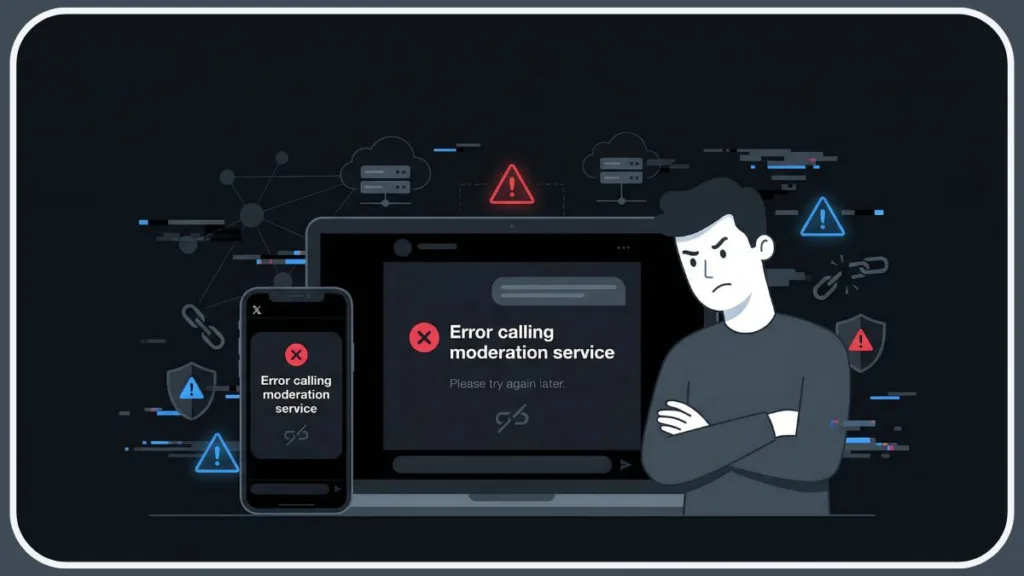
It is crucial to understand that the issue is technical, not a rejection of your content.
Important: This is not a policy block. Your prompt was not necessarily unsafe. The moderation subsystem simply couldn’t finish its job at that moment. For example, users often report this error when the server times out while processing a video request in “Spicy Mode,” even if the prompt itself is perfectly benign.
Community Reports Confirm the Cause
User discussions across forums and communities like [suspicious link removed] reveal clear patterns indicating that many users see this error during partial outages or backend instability. The issue appears on Android, iOS, and web platforms, and some users experience network errors at the same time.
These reports strongly suggest the problem is usually backend-related, not an issue with your account or prompt. Furthermore, platforms like StatusGator frequently show spikes in user reports coinciding with these specific error messages.
Why the Grok Moderation Service Fails
When Grok displays “Error calling moderation service,” it usually points to a failure in content safety processing. Here are the most common causes:
1. Stricter Moderation Rules & Timeouts
Grok filters content to prevent unsafe, illegal, or sexual material. Recent policy and legal pressure has increased moderation strictness.
Technical Note: Complex prompts can sometimes take too long to scan against these new rules. If the scan takes too long, the system times out and throws this error instead of a rejection. It adds load to the system and increases failure rates during checks.
For instance, a detailed prompt describing a “futuristic battle with intense lighting” might stall the moderation scanner longer than a simple query, triggering a timeout error rather than a content block.
2. Policy and Legal Compliance Updates
Different countries enforce different rules. Ongoing updates make moderation more complex, which can cause timeouts or failed checks.
Users in regions with strict digital safety laws, such as the UK or EU, might experience these timeouts more frequently as the system runs additional compliance checks.
3. Server or Network Issues
Moderation servers may be overloaded, temporarily down, or experiencing latency. Even a brief internet disruption on your side can trigger this error.
This is particularly common during major xAI updates or when new features, like image-to-video generation, are rolled out to the public.
4. Not a Content Rejection
This cannot be stressed enough: Your content wasn’t blocked. The system simply couldn’t verify it.
What to Do When You See “Error Calling Moderation Service”
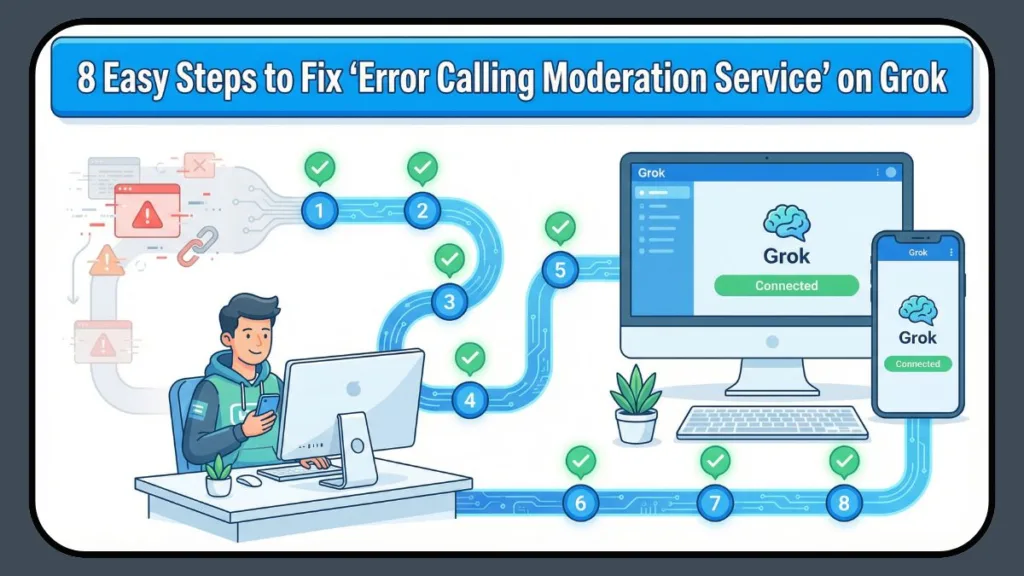
Most of the time, this issue is temporary. Follow these steps in order—we recommend you try them one by one.
1. Refresh and Retry
This is often enough. Start by closing the Grok app or browser tab, then reopen it and retry your request.
If a “Retry” button is available, use it. Many users report success after waiting just a few seconds.
2. Check Your Internet Connection
Moderation checks require stable connectivity. You should try switching between Wi-Fi and mobile data, restarting your router, or connecting to a more stable network.
Even short drops can break moderation requests. Additionally, testing your speed on a site like Fast.com can verify if local latency is causing the API handshake to fail.
3. Clear Cache and Re-Login
Corrupted session data can cause repeated failures. On the web, clear your browser cache and cookies, then log out and log back into your account.
If you are on Android, long press the X/Grok app icon, navigate to App Info, select Storage, and choose Clear Cache.
On iOS, you may need to offload or reinstall the app to fully clear the cache. This refreshes authentication and backend calls.
4. Try a Different Browser or Device
Sometimes the issue is local. To isolate environment-related problems, test another browser like Chrome, Firefox, or Edge.
You can also try using incognito or private mode, or attempt to access the service from a different device entirely.
5. Disable VPNs and Extensions
VPNs and blockers often interfere with API calls. Turn off any VPNs or proxies and disable ad blockers or script blockers. Once these are disabled, test the service again in incognito mode to see if these tools were causing timeout errors.
Conversely, if you are not using a VPN, trying a reputable service like NordVPN or ExpressVPN to switch your virtual location might occasionally bypass a regional server node that is acting up.
6. Check Grok’s Server Status
If many users report the same issue, it’s likely a backend problem. Use uptime monitoring tools or check community discussions for recent reports.
You can specifically check the official status.x.ai page or third-party trackers. If a disruption is confirmed, simply wait 10–30 minutes and try again.
7. Rephrase Your Prompt (If Needed)
While this error is not a block, borderline wording can stress moderation systems and cause timeouts. Try using neutral, clear language and remove any sensitive or ambiguous terms. Avoiding sexual, violent, or unclear phrasing often helps moderation checks complete successfully.
For example, changing “seductive dancer” to “graceful dancer in cinematic lighting” may help the prompt pass the scan faster, avoiding the timeout error.
8. Report the Issue
If the error persists after all steps, report it through official support. Be sure to include the time, device, and the exact error message to help the team identify systemic issues affecting many users.
“Error Calling Moderation Service” vs “Content Moderated”
These two messages are not the same. Understanding the difference helps you respond correctly.
If you see “Error calling moderation service,” it means there is a technical failure in moderation processing, such as a server or network issue. The required action is to retry or fix your connection.
If you see “Content moderated. Try a different idea,” it means there is a policy-based block of the request. The required action is to rewrite your prompt.
Frequently Asked Questions
What is failed to moderate image error in Grok?
This is a specific variation of the main error that occurs when users try to generate visuals. The grok imagine error calling moderation service typically pops up when the visual processing engine times out while scanning your prompt for restricted imagery. It does not always mean your image request was banned, but rather that the scanner couldn’t finish the job.
Why does Grok keep failing and why am I not able to use Grok?
If you are wondering, “Why does Grok keep failing?” or “Why am I not able to use Grok?” the answer often lies in backend load. Frequent failures usually happen during a grok moderation update or when grok a i servers are overwhelmed by high traffic, causing the API handshakes to drop before they complete.
Is Grok having server issues or is Grok down?
Not always. While official status pages might say “Operational,” Is Grok having server issues locally? Often, yes. Localized ISP routing problems or regional node outages can make it seem like is grok down for you specifically, even if it works for others.
What is a content moderated error in Grok vs. a service error?
To clarify what is a content moderated error in Grok: this is a deliberate refusal by the AI to answer because the prompt violated safety guidelines. This differs from the “calling service” error, which is accidental. If you are asking what should I do if I get a Grok moderated error, you must change the topic of your request, whereas service errors just need a retry.
How do I fix Grok content moderated errors?
If you want to know how to fix Grok content moderated errors or how to fix a Grok moderated response, the only solution is to edit your prompt. You need to identify the “trigger words” (like violence or explicit terms) and remove them. If you are trying to figure out how to avoid grok imagine moderation, focus on using “safe for work” descriptors and avoid ambiguous terms that might confuse the AI into thinking you are requesting banned content.
How to fix grok error calling moderation service?
As detailed in the steps above, learning how to fix grok error calling moderation service involves clearing your cache, disabling VPNs, and checking your network stability to ensure the request reaches the xAI servers without timing out.
Final Verdict
The “Error calling moderation service” message means Grok’s safety system couldn’t process your request at that moment. In most cases, the cause is temporary backend instability, network issues, or moderation overload.
We recommend you retry calmly, check your connectivity, avoid unnecessary VPNs, and wait out short outages.
We guarantee that in the majority of cases, the issue resolves on its own once the system stabilizes. If you see this error, don’t panic—your content isn’t the problem. The system just needs a moment to catch up.
Visit Our Post Page: Blog Page