
Can’t join a Realm due to Minecraft Realms Error Code 5? Learn why this bug affects PS5, Xbox, Switch, & PC and the proven fixes to rejoin fast.
If you’re trying to join a Realm and keep hitting Minecraft Realms error code 5, you’re not alone. This error almost always shows up after a disconnect, blocks rejoining, and leaves you stuck retrying.
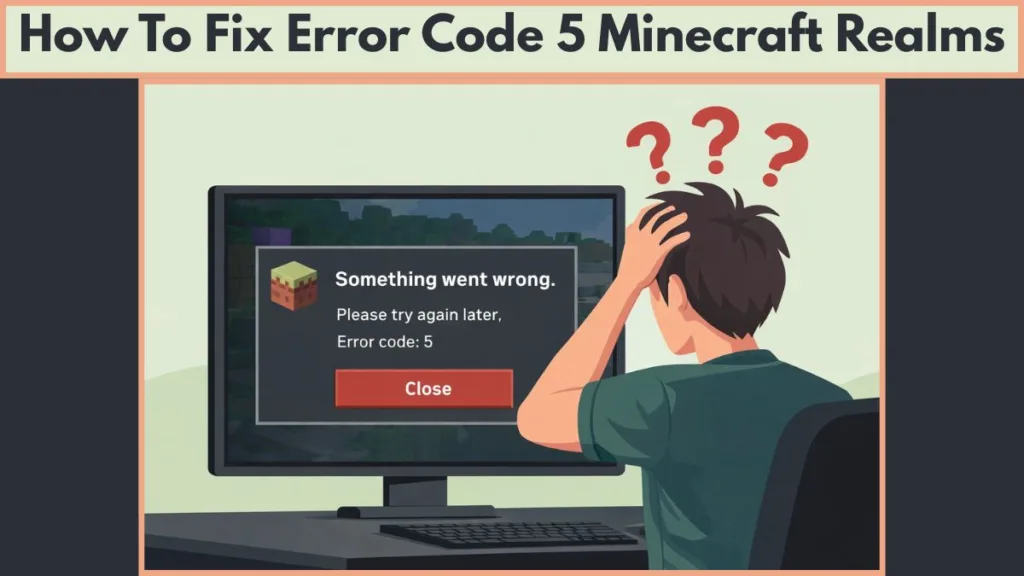
Below is a clear, no-guesswork breakdown of what Error Code 5 means on Bedrock Edition, what actually fixes it right now, and how it differs from the Launcher “Access Denied” Error 5 on PC.
What Is Minecraft Realms Error Code 5?
Minecraft Realms Error Code 5 is a connectivity and session-handling glitch that occurs specifically on Minecraft Bedrock Edition, which includes PS4, PS5, Xbox consoles, Nintendo Switch, and Windows 10/11.
This error is most commonly triggered after a player has already joined a Realm successfully and then gets disconnected, either due to a network interruption, server hiccup, or game crash.
- The error prevents the player from rejoining the same Realm session, even though the Realm itself remains online and accessible to others.
- It does not indicate a ban, suspension, expired Realm subscription, or removal by the Realm owner.
- It is best understood as a client-side session state failure, where the game believes an invalid or incomplete session is still active.
Official Minecraft support documentation groups this type of issue under Realms connection errors, which are usually caused by session data, authentication refresh failures, or temporary client desynchronization rather than Realm shutdowns or account problems.
When Does Error Code 5 Usually Happen?
After being disconnected from a Realm
Players consistently report the same sequence of events.
- The initial connection to the Realm works without any issue.
- The player is disconnected unexpectedly, often mid-game.
- Any attempt to rejoin immediately afterward results in Error Code 5.
This pattern strongly suggests that the error is triggered by a broken or locked session token that does not reset properly after a disconnect.
Why first-time joining often works
A fresh join creates a new, clean session handshake between the player and the Realm server. Error Code 5 rarely appears during this first connection. Instead, it emerges only when the session is interrupted, which explains why restarting the game or system is so effective—it forces the session to be rebuilt from scratch.
Immediate Fix (Do This First)
Restart your console or PC.
- A full system restart clears cached session data tied to your Microsoft account and the active Realm connection.
- This resets background services that may still think you are connected to the Realm.
- Across community reports and troubleshooting guides, this remains the most consistently effective workaround.
Simply closing and reopening Minecraft can work in some cases, but a complete system restart is far more reliable, especially on consoles.

Platforms Affected by Minecraft Realms Error Code 5
This error has been reported across all Bedrock-supported platforms.
- PlayStation platforms, including PS4 and PS5, experience it frequently after network drops or sleep-mode resumes.
- Xbox One and Xbox Series X|S users encounter it during Realms session handoff failures.
- Nintendo Switch players often see it after long idle sessions or unstable Wi-Fi connections.
- Windows 10 and Windows 11 Bedrock players report it after crashes or forced disconnects.
A notable pattern is that the same Microsoft account can join the Realm successfully on one device while failing on another, which further confirms that Error Code 5 is device-specific, not account-wide.
Check Microsoft / Xbox Privacy Settings (Critical)
If restarting does not resolve the issue, your next step should be verifying Microsoft account privacy settings, especially for console users.
- Multiplayer games must be explicitly set to Allow.
- The option to join multiplayer games must also be enabled.
- Cross-network play permissions should not be blocked.
If these settings are restricted, Minecraft may fail silently during the connection handshake, resulting in generic errors such as “Unable to connect to world” or Error Code 5.
Update Minecraft & Compatibility
Keeping Minecraft fully updated is essential for Realms connectivity.
- Realms are automatically updated by Mojang, often before players manually update their game.
- If your local game version does not match the Realm version, the connection attempt can fail before a clear version-mismatch message appears.
- This mismatch does not always show a specific error code, but it can contribute to session instability and repeated Error Code 5 occurrences.
Always ensure your Bedrock Edition client is running the latest available version.
What Does Not Fix Error Code 5
Several commonly suggested steps are not reliable solutions for this specific error.
- Waiting inside the game and retrying usually fails because the broken session remains active.
- Rapidly retrying the join option does not refresh authentication tokens.
- Changing networks has no consistent success rate unless the original disconnect was network-related.
- Reinstalling Minecraft rarely helps because the issue is tied to session state, not corrupted game files.
Are You Seeing Error Code 5 in the Game or the Launcher?
This distinction is crucial because two different errors share the same code.
If the error appears inside the game while joining a Realm
You are dealing with the Realms connectivity version of Error Code 5, which is caused by session and connection handling issues.
If the error appears in the Minecraft Launcher on PC
This is System Error 5: Access Denied, a completely separate issue unrelated to Realms connectivity.
PC Only: “System Error 5 – Access Denied” (Launcher Error)
This error occurs before the game launches, during the launcher’s update or file-verification process.
- The launcher lacks permission to modify files in protected directories such as
Program Files (x86). - Temporary update files like
tmpLauncher.tmpmay fail to rename or replace existing files. - Windows security settings or third-party antivirus software may block write access.
Confirmed fixes include running the launcher as Administrator, replacing blocked temporary files, and ensuring full folder permissions for Minecraft directories. These steps resolve the launcher error but do not affect Realms Error Code 5.
How to Reduce the Chances of Error Code 5 (Preventive Tips)
While not permanent fixes, the following steps reduce recurrence:
- Avoid force-closing Minecraft while connected to a Realm.
- Rejoin immediately after a disconnect rather than waiting long periods.
- Restart the system before rejoining if the error appears once.
- Keep Bedrock Edition and system software fully updated.
Frequently Asked Questions
How do I fix Error Code 5 on Minecraft Realms?
Restart your console or PC first. If the issue persists, verify Microsoft account multiplayer privacy settings and ensure your game version matches the Realm.
Why does my Minecraft say “Error Code 5”?
On Bedrock Edition, it usually means your client session failed to reset after a disconnect. In the PC launcher, it indicates a permission issue.
Is Minecraft Realms currently down?
Not usually. Error Code 5 often occurs even when Realms services are fully operational.
What does “Access Denied” mean in Minecraft Launcher?
It means the launcher cannot write or update required files due to insufficient permissions.
How do I run Minecraft as Administrator?
Right-click MinecraftLauncher.exe, then select Run as administrator.
Bottom Line
Minecraft Realms Error Code 5 is a known Bedrock session issue, not a mistake on your part. Restarting your device clears the majority of cases by resetting stuck session data. If the error appears in the launcher instead, you are dealing with a separate Windows permission problem that requires administrator access.
Understanding which version of Error Code 5 you are facing is the key to fixing it quickly and getting back into your Realm.
Official Support & Troubleshooting
- Minecraft Realms Connection Error Troubleshooting – Official guide from Mojang explaining common connection issues with Realms, including steps like closing and reopening Realms that can help reset problematic sessions.
- Minecraft Bedrock Edition Error Code Troubleshooting – A general official reference for various Bedrock error codes and connection issues (may include version mismatches, connectivity basics, and update checks).
- Named Error Code Help for Bedrock Edition – Official tips for resolving named error codes and connection problems; includes general guidance that can help with Realm connection errors.
- Minecraft Launcher Issues Troubleshooting – Official Mojang support page on fixing launcher problems (useful for the System Error 5 section).
Visit Our Post Page: Blog Page