
Subtitles stuck? Learn how to turn off subtitles on Amazon Prime across Fire TV, Smart TVs, Roku, mobile, and web. Fix glitches and disable captions fast.
Subtitles on Amazon Prime Video are great when you need them, but they can be incredibly annoying when you don’t. Even worse, Amazon often hides the “Off” button. Unlike Netflix or YouTube, you usually can’t change these settings from the main menu. You have to catch them in the act—right while the video is playing.
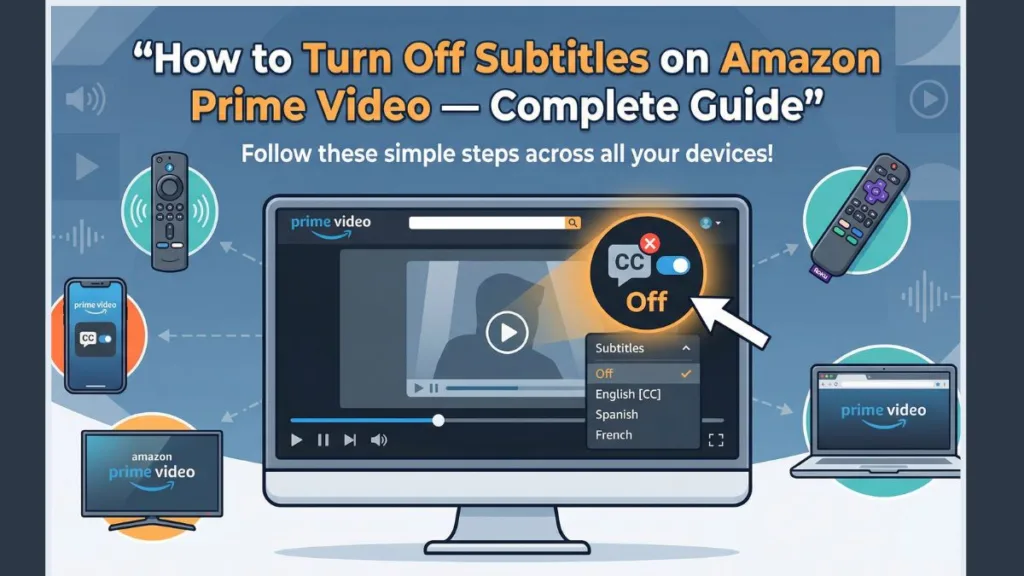
Many users get stuck because the interface fades out too quickly, or worse, the subtitles keep turning themselves back on due to a glitch.
If you are struggling to find that hidden “CC” button, don’t worry. In this guide, I will walk you through exactly how to disable subtitles on every device—from your Firestick to your iPhone—and how to fix those annoying bugs where they refuse to stay off.
How to Turn Off Subtitles on Amazon Prime Video (Universal Method)
The process is almost identical across most platforms, but the buttons move depending on your screen size. The golden rule for Prime Video is this: You must play a video to change the settings.
- Start playing a movie or TV show.
- Pause the video or tap the screen to reveal the playback menu.
- Look for the Speech Bubble or CC icon (usually in the top right or bottom right corner).
- Select Off.
However, specific devices have unique quirks. Let’s break them down.
How to Turn Off Subtitles on Prime Video on Web (Browser)
Watching on your laptop or desktop? The interface here is mouse-driven, but the buttons like to hide themselves quickly to keep your screen clear.
- Start playing your video.
- Move your mouse cursor over the video player. If the menu doesn’t pop up immediately, click Pause.
- Locate the Speech Bubble (CC) icon in the top right corner of the screen.
- Click the icon and select Off from the menu.
Quick Tip: If you move your mouse away, the menu will vanish. This is normal behavior, so just wiggle the mouse again to bring it back.
How to Turn Off Subtitles on the Amazon Prime App (Android & iPhone)
On mobile, you don’t have a mouse, so you have to tap to reveal the hidden overlay. Here is how to do it without accidentally skipping scenes:
- Launch the Prime Video app and play a title.
- Tap the screen once to wake up the interface.
- Tap the CC / Subtitles icon (usually in the top right corner).
- Select Off to disable them.
Still seeing text? If the subtitles refuse to leave, your app might be glitching. First, try updating the app in the App Store or Play Store. If that fails, uninstall and reinstall the app. This clears the local cache that often causes “stuck” subtitles.
How Do I Turn Off Subtitles on My Fire TV Stick?
On a Fire TV Stick, you control everything through the remote while the video plays. Since Fire TV integrates deeply with Prime, the menu looks a little different here.
- Start playing your movie or show.
- Press the Menu / Options button on your remote (the one with the three lines).
- Select Subtitles or Closed Captions from the list.
- Switch the setting from English [CC] to Off.
Note: If you don’t see “Subtitles,” look specifically for “Closed Captions.” Fire TV menus change slightly depending on your region and update version.
How to Remove Subtitles on Amazon Prime on Smart TVs & Game Consoles
Smart TV apps can be tricky because every remote is different. However, the general process remains the same whether you are on a Samsung TV, PlayStation, or Xbox.
- Pause the video while it is playing.
- Use your remote arrow keys or controller thumbstick to navigate to the CC / Speech Bubble icon.
- Note: On some older TV models, you may need to press the Up Arrow or OK to see the menu.
- Select the icon and change the setting to Off.
- Resume playback.
Using Prime Video on Roku? Turn Off Subtitles the Right Way
Roku devices are unique because they have a “Master Switch” for captions. Even if you turn subtitles off inside the Prime app, Roku might force them back on. You need to disable them at the system level.
Method 1: The Shortcut (Easiest)
- While the video is playing, press the Star (*) button on your remote.
- This opens a quick sidebar menu on the left.
- Navigate to Closed Captioning and switch it to Off.
Method 2: The System Menu
- Press the Home button on your Roku remote.
- Go to Settings > Accessibility.
- Select Captions Mode and set it to Off.
Amazon Subtitles Won’t Turn Off? Try These Fixes
If you have followed the steps above but subtitles keep reappearing, you are likely dealing with a sync bug or a device override. Here is how to fix it:
- The Toggle Trick: Sometimes the “Off” button doesn’t register. Open the subtitle menu, switch it to English [CC], wait two seconds, and then switch it immediately back to Off. This forces the app to refresh your preference.
- Check Accessibility Settings: Go to the main settings of your actual device (your TV, Phone, or Tablet settings—not the Prime app). Search for “Accessibility” or “Captions” and ensure they are disabled there.
- The Hard Reset: Log out of your Amazon account on the device, restart the device, and log back in. This creates a fresh connection and usually clears persistent glitches.
Frequently Asked Questions
Why do subtitles keep turning back on?
This usually happens due to a toggle bug or a device accessibility setting forcing captions on. Try the “Toggle Trick” mentioned above or check your device’s main settings.
What is the difference between Subtitles and Closed Captions?
Subtitles just translate dialogue. Closed Captions (CC) include sound effects (like [Door Creaks]) and are meant for the hard of hearing. Prime often groups them together.
Can I change the subtitle size?
Yes. In the same menu where you turn them off, select Subtitle Settings. You can usually adjust the size and color there to make them less intrusive if you decide to keep them on.
Visit Our Post Page: Blog Page