
Just hit send by mistake? Learn how long you have to recall an email in Outlook, including Undo Send limits, recall timing, and what really works.
Did you just hit Send and immediately regret it? Don’t panic—we’ve all been there. Your heart sinks, your stomach drops, and your first thought is: Can I still stop it? You’re not alone—and you’re not out of options yet. Whether you sent a confidential attachment to the wrong client or a half-finished draft to your boss, Outlook provides two distinct ways to undo a sent email—and each operates within a very different time window.
In this detailed guide, we will answer the critical question: how long does it take to recall an email in Outlook? You will get exact answers fast, including:
- How much time you actually have before it’s too late
- Which features work immediately versus those that work later
- Why specific conditions, like Microsoft Exchange settings, matter
- Real-world examples of why recall sometimes fails
- Damage control strategies if the feature doesn’t work
Let’s walk through it step-by-step—with clarity, reassurance, and the real facts you need right now.
Undo Send vs Message Recall: What’s the Difference? (And Why It Matters)
Before we discuss specific time limits, it is crucial to understand the mechanical difference between the two features Outlook offers. Confusion between these two tools is often the main source of panic for users.
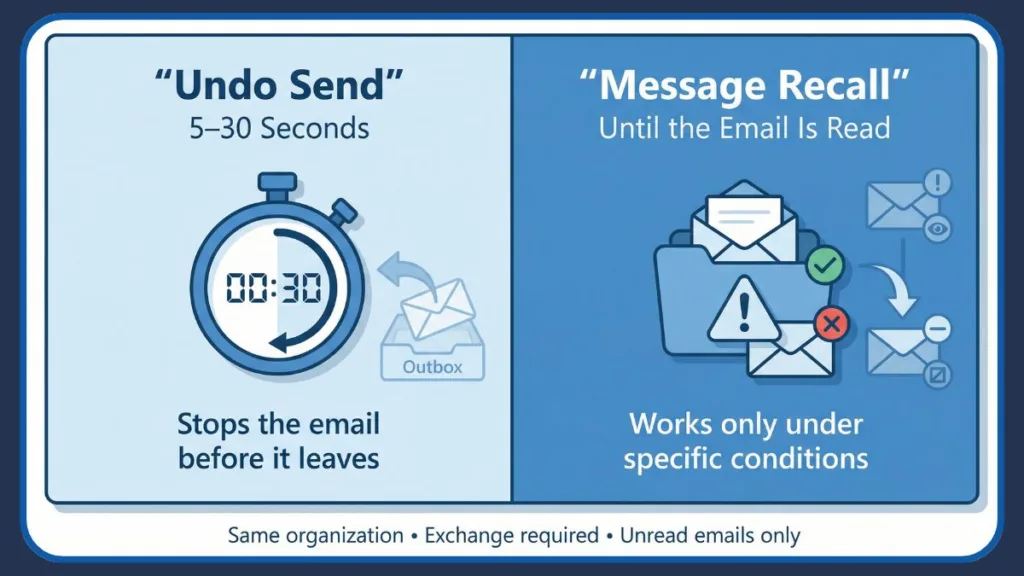
- Undo Send: This feature cancels the email before it ever leaves your Outbox. It acts as a safety buffer, holding the message on your device or the Outlook Web App (OWA) for a brief moment.
- Message Recall: This feature attempts to retract a message after it has left your server. It tries to remove the email from the recipient’s inbox or replace it with a new version.
These are not the same tools. Consequently, they have very different time limits and success rates. Undo Send is a guaranteed stop, whereas Message Recall is a request that the receiving server must approve.
How Long Does “Undo Send” Actually Give You?
When you hit Send, Outlook doesn’t always transmit the data instantly. Instead, it holds the message in a temporary state, giving you a short window to cancel if you change your mind. This is your first line of defense.
Default Time Window (5–10 seconds)
When enabled, Outlook typically gives you a default window of 5 to 10 seconds. During this time, a prompt appears allowing you to click Undo before the email goes to the Exchange Online server.
How to Increase That Time
Fortunately, you can customize this safety net. In Outlook Web and the desktop client, you can extend this buffer up to 30 seconds in the settings menu under Undo Send. While this setting doesn’t recall an email after it sends, it delays the transmission process, giving you valuable seconds to catch a “Reply All” mistake before it happens.
If you saw the Undo button, and you clicked it before the timer expired—the email never left. That’s the best possible outcome.
Is There a Time Limit for Message Recall?
If you missed the Undo window, you move to the second option. Here is what most people really want to know: after the email has actually been delivered, how long do you have to recall it?
Short answer:
There is no strict, official Outlook recall email time limit set by Microsoft. You can technically attempt to recall a message minutes, hours, or even weeks later.
However, a technical possibility does not guarantee success. Here is the real catch that dictates your actual timeline.
The “Real” Limit = Whether the Recipient Has Read It
The Outlook recall feature will effectively only work if the recipient has not yet opened your email. If they have already viewed it in the Reading Pane or opened the item, the recall will fail. Alternatively, they might receive a notification stating that you tried to delete the message, which can lead to awkward questions.
- Unread email: You might still successfully purge or replace the message—even days later.
- Read email: The recall will likely fail, and the recipient may see a notification of your attempt.
In other words, the real time limit isn’t measured in minutes or hours—it is measured by the recipient’s activity. Your window closes the moment they double-click that message.
How Long Does Outlook Recall Take to Process?
Once you navigate to the “Actions” menu and hit the Recall This Message button, the system begins a multi-step process.
- Outlook sends a formal recall request to the Microsoft Exchange server.
- The system attempts to locate and remove the original message from the recipient’s Inbox or Sent Items.
- You typically receive a Message Recall Report within a few minutes.
This automated report tells you if the recall succeeded or failed—and it appears directly in your inbox.
Note: Processing can take longer if there are many recipients (for example, if you emailed a large distribution list) or if there are server delays. However, typically this process completes within a matter of minutes.
Why Outlook Recall Often Fails
Even if you act quickly and technically have an unlimited time window, recall success depends heavily on specific infrastructure conditions. If the environment isn’t perfect, the recall request will bounce.
Conditions That Must Be True
For a successful retraction, all the following must apply:
- Same Organization: You and the recipient must use accounts within the same organization (sharing the same Microsoft 365 or Exchange environment).
- Unread Status: The recipient must not have opened the email yet.
- Inbox Location: The message must still sit in their Inbox and not be moved by client-side rules or filters to a different folder.
- Exchange-Based: Both sender and recipient must use Exchange-based email.
Crucially, this means standard @gmail.com, @yahoo.com, or iCloud addresses will NOT work. If you send an email to an external client, Outlook has no authority to reach into their server and delete the message.
If ANY of these conditions is missing, the recall usually fails—even if the message remains unread.
Does the Recipient Know If You Tried to Recall It?
Transparency is a core part of the Exchange protocol, which can work against you. Yes, often the recipient receives a notification that you tried to recall an email. The visibility of this notification depends on system settings and the version of Outlook the recipient uses.
- If the recall fails: Outlook notifies them that you wanted to recall the message, often drawing more attention to the error.
- If it succeeds: In some configurations, they might simply see a message saying the email was removed, or the email might disappear silently.
This potential for notification can be awkward; however, understanding this risk helps you decide whether to attempt a recall or simply send an apology.
Why the Recall Option Might Be Missing
Sometimes, you might search for the button and find it missing entirely. If you don’t see a recall option, consider these probable causes:
- You are not using the full Outlook desktop app (some mobile versions lack this feature).
- Your account does not reside on an Exchange or Microsoft 365 server.
- You are trying to recall emails sent to addresses outside your organization, where the feature is disabled by design.
In those cases, the recall feature simply isn’t supported, and you must rely on other methods of damage control.
Quick FAQs (People Also Ask)
Is there a time limit on recalling emails in Outlook?
There’s no fixed time limit—as long as the message remains unread, you can attempt a recall.
Can I recall an email if it’s been read?
Generally, no. Once the recipient opens it, the recall process usually fails.
Does the recipient know if I tried to recall the email?
Yes. They often receive a notification if the recall fails, or depending on their specific Outlook settings, they may see the attempt request.
Why is the Recall option missing in my Outlook?
It may not be available if you’re not on an Exchange/Microsoft 365 server or if you are emailing someone outside your organization.
What to Do If Recall Doesn’t Work (Damage Control)
If you receive a failure report, do not freeze. Since recall is unreliable, direct communication is often your best recovery service.
- Send a follow-up clarification email: clearly stating “Please disregard the previous email.”
- Acknowledge the mistake honestly: A simple “I sent the wrong attachment by mistake” usually diffuses the situation.
- Provide correct attachments or updates: Immediately supply the correct information to shift focus to the solution.
Being prompt and transparent often reflects professionalism—even in a panic moment.
Bottom Line: Your Chance to Stop an Email
To summarize the capabilities of Outlook recall versus cancellation, refer to the comparison below:
| Feature | Time Limit | Success Rate | What It Does |
| Undo Send | 5–30 seconds | Very high (if used in time) | Cancels transmission before it leaves your Outbox |
| Message Recall | Indefinite (until read) | Low (unless conditions are perfect) | Attempts to delete the message from the recipient’s inbox |
Hit send too soon? Breathe. If you acted fast, the Undo Send feature might still save you. But even if recall doesn’t work, a thoughtful follow-up can still turn the moment around.
Official Microsoft Support Guides
- Microsoft Support: Recall an Outlook email message – Official instructions for recalling or replacing a sent email in Outlook, including requirements and steps.
- Microsoft Support: Recall or replace a sent email in Outlook – Detailed overview of how the recall process works, how to choose recall options, and how to get status notifications.
- Microsoft Support: Recall an email message in Outlook for Mac – Platform-specific guidance for recalling emails if you’re using Outlook on macOS.
Visit Our Post Page: Blog Page