
Activate eSIM on your iPhone with ease. Learn how in this step-by-step guide for iOS 16, 17, and 18, and set up mobile service without a physical SIM.
You’re moving away from a physical SIM card and setting up eSIM on your iPhone, which means your mobile plan lives digitally inside the device instead of on a removable chip.
You usually do this when you switch carriers, add a second number, upgrade to a newer iPhone, or purchase an eSIM-only iPhone model (iPhone 14 and newer in the U.S.).
Although the overall setup is designed to be user-friendly, the actual experience depends heavily on your carrier’s activation method, your country or region, and the on-screen prompts iOS shows you at that moment.
This guide walks you through how to activate eSIM on iPhone, explains what you are seeing on your screen, clarifies what iOS is doing in the background, and helps you understand why certain options appear or don’t appear, so you can complete activation without confusion or errors.
What Is eSIM on iPhone? (What Does eSIM Mean and How Does It Work?)
When you activate an eSIM (embedded SIM) on your iPhone, you are enabling a digital SIM profile that is permanently built into the phone’s hardware. Instead of inserting or removing a plastic SIM card, you instruct iOS to download and install carrier credentials directly onto the device. From your point of view, this usually looks like scanning a QR code, tapping an activation link, or confirming a transfer from another phone during setup.
In the background, your iPhone securely downloads a carrier profile that includes your phone number, network permissions, authentication keys, and service configuration. This process allows faster carrier switching, reduces physical damage or loss risks, and improves security because the SIM cannot be physically removed. Because of these advantages, Apple removed the SIM tray from iPhone 14 and later models sold in the U.S., making eSIM the default connectivity method rather than an optional feature.
Which iPhone Models Support eSIM? (Does Your iPhone Support eSIM?)
Before starting activation, you need to confirm that your iPhone model supports eSIM. Apple introduced eSIM support with iPhone XS and iPhone XR, and every iPhone released after that includes eSIM capability. If you’re using a modern device such as iPhone 15, 16, or later, eSIM support is already present at the hardware level, so no additional components are required.
What often causes confusion is that regional restrictions still apply. iPhones sold in most countries include eSIM, but devices purchased in Mainland China, Hong Kong, and Macao rely on physical SIM trays due to local regulations. If your iPhone was purchased outside those regions, eSIM functionality is already built in, and the remaining factor is whether your carrier supports eSIM for your plan.
Hardware Check: Go to Settings > General > About. Scroll down to the “ESIM” section. If you see an EID number (a 32-digit identifier), your phone’s eSIM hardware is functional. If this number is missing or the section is absent, your device may have a hardware failure.
What You Need Before Activating eSIM on iPhone (What Is Required to Set Up eSIM?)
Before you begin the activation process, several conditions must already be met. Your iPhone must be eSIM-compatible, your wireless carrier must offer eSIM service, and your device must be connected to the internet. In most real-world setups, this means Wi-Fi, because your iPhone needs a stable connection to download the eSIM profile during installation.
You also need an activation trigger from your carrier. This could be a QR code, a carrier app, manual activation details, or a setup link sent via email or SMS. If you purchased your iPhone directly from a carrier, the eSIM may already be pre-assigned to your device and waiting to install through a system notification inside iOS.
Important: Even though some newer iPhones (iPhone 14 and later) can activate eSIM without Wi-Fi using a bootstrap signal, most activation problems happen when the connection drops during setup. Always use Wi-Fi if possible.
How to Activate eSIM on iPhone (How Do You Enable eSIM on iPhone?)
The exact steps you follow depend on how your carrier provisions eSIM, but Apple enforces the same core activation flow across all supported methods. You always start from the Cellular (or Mobile Service in some regions like UK/India) section in Settings or respond to an automatic iOS prompt.
As you move through setup, iOS guides your actions, but it does not always explain why certain options are unavailable. Understanding each method helps you choose the correct activation path for your situation.
Activate eSIM Using a QR Code (How Do You Scan an eSIM QR Code on iPhone?)
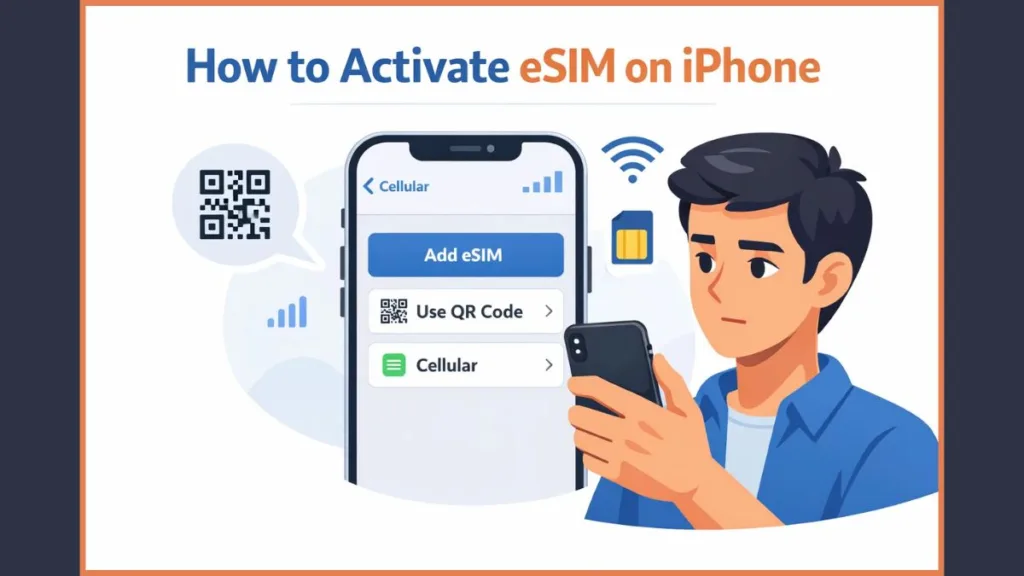
When you already have a carrier-provided QR code, this is the most straightforward activation method. You open Settings, navigate to Cellular, and tap Add eSIM. On some devices, the option appears as Add Mobile Data Plan, but the functionality is identical. Once you select Use QR Code, the camera opens and waits for scanning.
New Feature (iOS 17.4+): If your carrier sent the QR code via email and you are viewing it on the iPhone you want to activate, you can save the QR code image to your Photos app. When you tap “Use QR Code,” select Open Photos to load the code directly without needing a second screen.
As soon as you scan the QR code, your iPhone contacts the carrier’s activation servers and requests the associated eSIM profile. You may be asked for a confirmation code if the carrier uses additional verification. After approval, the eSIM installs automatically and your carrier name appears under Cellular settings, indicating successful activation.
If scanning does nothing or fails repeatedly, the QR code may already be used, expired, or restricted to another device.
Activate eSIM Using a Carrier App (Can You Activate eSIM Through a Carrier App?)
Some carriers (like Mint Mobile, Visible, T-Mobile, or travel eSIM providers like [suspicious link removed]) manage the entire activation flow inside their official mobile app. You install the app from the App Store, sign in, select a new or existing plan, and confirm activation. At that point, the app hands control to iOS, which performs the actual eSIM installation.
This hand-off often confuses users, but it’s expected behavior. The app only initiates the request; iOS completes the installation using built-in system services.
Activate eSIM Manually (How to Enter eSIM Details Manually on iPhone?)
Manual activation is used when your carrier provides technical activation details instead of a QR code. You still go to Settings > Cellular > Add eSIM, choose Use QR Code, and then tap Enter Details Manually. iOS then prompts you for information such as the SM-DP+ address and an activation code.
These values tell your iPhone exactly where to retrieve the eSIM profile. Because this method depends entirely on correct data entry, even a small mistake will cause activation to fail, making accuracy critical. Copy and paste these values if possible rather than typing them.
Convert a Physical SIM to eSIM (How to Convert SIM to eSIM on iPhone?)
If you are currently using a physical SIM and want to move to eSIM without changing your phone number, iOS may offer a Convert to eSIM option under Settings > Cellular. When you select it, your iPhone requests permission from your carrier to migrate the existing line.
Once approved, the carrier disables the physical SIM and reissues the same number as an eSIM profile. You’ll know the conversion is complete when the physical SIM stops working (signal bars disappear briefly) and the eSIM becomes active. If “Convert to eSIM” does not appear, your carrier does not support SIM-to-eSIM conversion for your plan, and you must contact them directly.
Activate eSIM Using a Carrier Link (How to Activate eSIM Without QR Code?)
Some carriers send an activation link (URL) instead of a QR code. When you tap the link on your iPhone, iOS displays a system prompt asking whether you want to Activate New eSIM. After tapping Allow and Continue, installation begins automatically.
This activation method requires iOS 17.4 or later, because earlier versions cannot interpret carrier activation links directly from Messages or Mail.
Activate a Pre-Assigned Carrier eSIM (How to Activate eSIM That Comes With iPhone?)
If you purchased your iPhone directly from a carrier (e.g., AT&T, Verizon, T-Mobile), the eSIM may already be linked to your device’s EID. During setup, iOS detects this and displays a message such as “Network Provider Mobile Data Plan Ready to Be Installed.” When you tap Continue, the eSIM installs without needing a QR code or app.
If you miss this notification, you can manually trigger it later from Settings > Cellular.
How to Transfer eSIM From Old iPhone to New iPhone (How Does eSIM Quick Transfer Work?)
When upgrading to a new iPhone, you can move your number using eSIM Quick Transfer. On the new device, go to Settings > Cellular > Add eSIM and choose Transfer From Nearby iPhone. Both devices must be unlocked, close together, signed in with the same Apple ID, and have Bluetooth enabled.
Troubleshooting Tip: If the transfer gets stuck on “Place Devices Near Each Other,” perform a Force Restart on both iPhones and try again. If it fails repeatedly, your carrier may not support Quick Transfer; you will need to request a fresh QR code from them.
How to Set the Default Line After eSIM Activation (How Do You Choose Default SIM on iPhone?)
After activation, iOS asks how each line should be used. You choose which line handles calls, messages, and mobile data. This is especially important when using Dual SIM, because an incorrect default can cause unexpected charges or routing issues.
You can adjust these preferences anytime from Settings > Cellular.
Default Voice Line: The number used for calls and SMS.
Cellular Data: The line used for internet. (Toggle “Allow Cellular Data Switching” ON if you want the phone to use the other line’s data while you are on a voice call).
How to Check if eSIM Is Activated on iPhone (How to Confirm eSIM Is Working?)
To verify activation, open Settings > Cellular and locate the active plan.
Seeing a carrier name, signal bars, and being able to place a call confirms successful activation. If the plan appears but shows no signal, the eSIM installed correctly but has not yet connected to the network.
eSIM Activation Not Working? Fixes That Actually Help (Why Is My eSIM Not Activating?)
When eSIM activation fails, the cause is usually carrier-side approval or network connectivity. Here are the most effective fixes for 2025:
- Stuck on “Activating…”: If your eSIM says “Activating” for more than 15 minutes, toggle Airplane Mode on and off. If that doesn’t work, restart your iPhone.
- “Unable to Add eSIM” Error: This often means the QR code has already been used. QR codes are one-time use only. You must contact your carrier for a new one.
- Greyed Out Cellular Settings: If you cannot tap “Add eSIM” or the menu is grey, check Settings > Screen Time > Content & Privacy Restrictions. Ensure “Mobile Data Changes” is set to Allow.
- Ghost eSIMs: Sometimes a “stuck” activation cannot be deleted. Do not factory reset your phone immediately. Try updating to the latest iOS version first, as bugs in iOS 18.0-18.2 were known to cause this.
- Missing EID: If Settings > General > About shows no EID, your phone has a hardware defect (Baseband IC failure) and requires Apple repair.
FAQ About Activating eSIM on iPhone
How long does eSIM activation take on iPhone?
In most cases, activation completes within minutes. However, post-paid plans (like Verizon or AT&T) may take up to 2 hours if their activation servers are busy.
Does eSIM drain battery faster?
No. Battery consumption depends on signal strength, not whether the SIM is physical or embedded. However, running two active lines (Dual SIM) will consume slightly more power than one.
Can I store multiple eSIMs on one iPhone? Yes. You can store 8 or more eSIM profiles (depending on storage), but only two can be active at the same time on iPhone 13 and later.
Is eSIM secure?
Yes. Because eSIMs cannot be physically removed, they reduce SIM-swap and theft risks. If your phone is stolen, the thief cannot remove the SIM to hide the phone’s location.
Can I make calls and send SMS with eSIM?
Yes. Once activated, eSIM works exactly like a physical SIM for calls, messages, and mobile data.
Visit Our Post Page: Blog Page