
Need help managing your Facebook Page? Learn how to add an admin in 2026 using simple steps for any device and manage page roles and permissions securely.
Running a Facebook Page can start as a simple task—posting updates, replying to comments, and occasionally checking insights. But as your page grows, those small tasks quickly turn into daily responsibilities. Messages pile up, content schedules become harder to maintain, and managing everything alone can feel overwhelming.
That’s actually a good sign. It means your community or business is growing.
At this point, adding a trusted teammate can make all the difference. Learning how to add admin on Facebook page allows you to delegate responsibilities, keep your audience engaged, and manage your page more efficiently without giving up control. Using the right facebook page management strategies ensures that you add admin to facebook page safely.
The good news is that Facebook’s current access system makes it easier than ever to manage permissions. Once you understand how facebook page roles management and page access settings work, adding a new admin becomes a quick and secure process. Whether you need to make someone admin facebook page or simply add page admin facebook, this guide covers everything you need.
By the end of this guide, you’ll know exactly how to add facebook page admin access, manage permissions confidently, and share the workload with your team.
The Evolution of Professional Facebook Page Management
To understand how to manage a page in 2026, it is essential to look at how the platform has evolved. For years, Facebook used a “Classic Pages” model where roles were defined by fixed titles like Editor or Moderator. While these were simple, they were often too rigid for modern businesses that need more granular control over specific tasks.
Meta introduced the “New Pages Experience” to bridge the gap between individual creators and large-scale business operations. In this modern ecosystem, the focus has shifted from “Who are you?” to “What can you do?”. This shift is why you no longer simply “pick a role” from a dropdown menu; instead, you assign specific levels of access that correspond to the actual work being performed. Understanding facebook page roles new pages experience is the first step toward professional management.
Your Facebook Page is now a “Digital Asset” rather than just a social profile.
This transformation also coincided with the integration of Meta Business Suite, which serves as a centralized hub for Facebook, Instagram, and WhatsApp. It is the ultimate platform for digital assets management and professional collaboration.
How Facebook Page Access Works in 2026: Modern Permissions
Facebook has changed the way page permissions work. In the past, pages relied on traditional roles like Admin, Editor, Moderator, Advertiser, and Analyst. While those roles still exist in some areas, the New Pages Experience now focuses on access levels rather than job titles. To truly master the platform, you must understand what are the different facebook page roles and how does facebook page access work today.
Today, Facebook primarily organizes permissions into two categories: Full Control and Partial Control.
Full Control (Essential Admin-Level Access)
Full control is the modern equivalent of the old admin role. Anyone with this level of access has authority over nearly every aspect of your Facebook page. This is the level required to assign admin role facebook page to others.
With full control, a user can:
- Manage page settings and update core business information in facebook page settings 2026.
- Publish, edit, and delete posts, stories, and reels.
- Reply to comments and private messages as the Page using message access.
- View deep-dive analytics and performance insights via content access.
- Connect or disconnect Instagram and link instagram to facebook page 2026.
- Assign, change, or remove page permissions for others.
- Add or remove other admins, including the original creator.
- Delete the page entirely or de-activate it temporarily.
Crucial Tip: It is recommended to have at least two people with Full Control to ensure you never lose access to your asset if one account is compromised.
Partial Control (Simplified Task-Based Access)
Partial control is designed for people who help manage day-to-day activities without needing ownership authority. This is the “safe zone” for most team members, contractors, and agencies seeking agency access to facebook page.
With partial control, users can be granted specific permissions for:
- Content: Creating and scheduling posts, stories, and reels.
- Messages: Responding to customers in the Inbox.
- Community Activity: Moderating comments, hiding spam, and banning users—a key community manager role.
- Ads: Creating, managing, and deleting advertising campaigns.
- Insights: Viewing performance data to help with strategy.
However, they cannot change page settings, manage roles, or delete the page. Understanding facebook page full control vs partial control and specifically what is the difference between full control and partial control in 2026 helps you protect your digital assets while still collaborating effectively.
Eligibility: Who Can Add an Admin to a Facebook Page?
Not everyone can assign admin permissions. Facebook restricts role management to prevent unauthorized access changes, which is a key security feature in 2026.
Only users with Full Control access can add or remove other people from a page. If you only have partial access—such as content or message access—you won’t see the option to add people to facebook page in your page settings.
Quick Checklist: Requirements Before Adding an Admin
| Requirement | Description |
| Full Control | You must have Full Control permissions yourself to assign page access facebook. |
| Personal Profile | The person added must have a personal Facebook profile to add admin to facebook page. |
| 2FA | Two-Factor Authentication is often mandatory for administrative access. |
| Acceptance | The person must manually accept the invite to become active. |
Step-by-Step Guide to Add Admin on Facebook Page: Desktop View
Now let’s walk through the exact process of adding a new admin using the current Facebook interface. This step by step guide add admin facebook works for most pages using the New Pages Experience.
Step 1: Open Your Facebook Page Settings
Start by logging into your Facebook account on a desktop browser. From the left-hand navigation menu, click “Pages” and select the specific page you want to manage. Ensure you have “switched” into the Page profile if prompted. Once inside your page dashboard, locate the “facebook page settings link” or the “Settings” option, usually found in the left sidebar or under the “professional dashboard access” menu.
Step 2: Navigate to Page Access
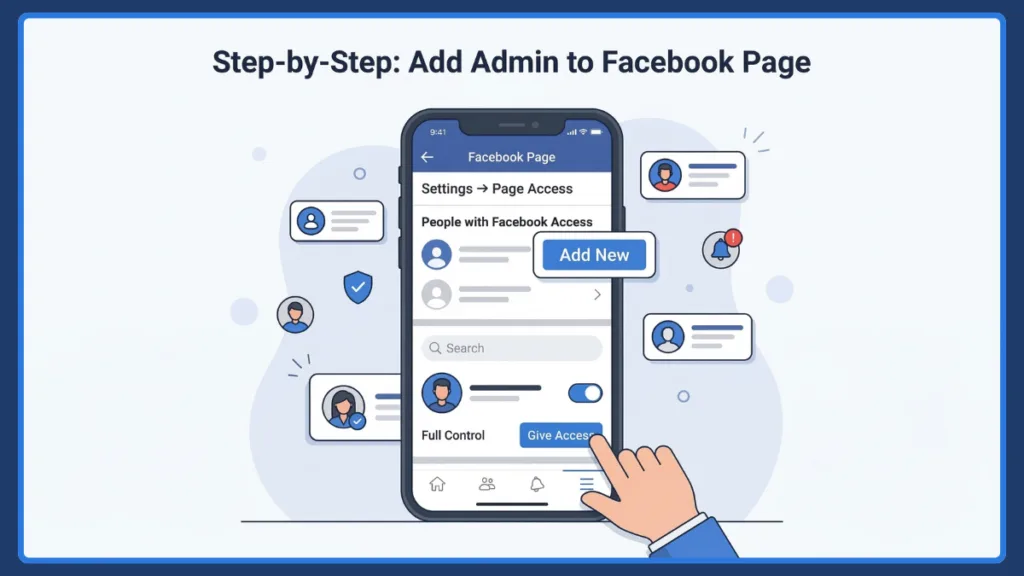
Inside the settings menu, find and click “Page Access.” This is the command center for your team to manage facebook page access. You will see two main sections: “People with Facebook access” (those who can use the Page on Facebook) and “People with task access” (those who use tools like Meta Business Suite). Admins belong under “People with Facebook access.”
Step 4: Enter the Person’s Name or Email
In the search field, type the name or email address of the person you want to add to facebook add page admin. Facebook will display matching profiles. Carefully select the correct account by verifying their profile picture. At this point, the invitation will appear as “invitation pending facebook admin” in your settings.
Step 5: Grant Full Control (Admin Access)
After selecting the user, Facebook will ask you to choose their access level. To give admin access facebook page, scroll to the bottom and toggle “Allow this person to have full control.” This is how you make someone admin facebook page in the modern system.
Warning: Review the summary of permissions carefully to ensure you aren’t granting more power than necessary.
Step 6: Send the Invitation
Click “Give Access” to send the invitation to add new admin to facebook business page. The person will receive a notification in their Facebook notifications tray and often an email. Invitations typically expire after 31 days.
Step 7: Confirm Access Is Active
After the invitation is accepted, return to the “Page Access” menu. The person should now appear under “People with Facebook access” with the “Full Control” badge enabled. This confirms you have successfully managed to add page admin facebook.
How to Add Admin to Facebook Page on Mobile App
If you prefer using your phone, Facebook allows you to add admin to facebook page from phone through the mobile app. This is how to add admin to facebook page on mobile efficiently.
- Open the Facebook app and tap the Menu icon.
- Tap “Pages” and select the page you manage. If prompted, “Switch” into the Page profile.
- Tap the Settings icon (the gear) or find “Page Access” under the “professional dashboard access”.
- Select “Add New” under the “People with Facebook access” section to give someone admin role facebook.
- Search for the profile or email and toggle “Full Control.”
- Confirm your password and tap “Give Access.”
How to Add Admin Using Meta Business Suite Platform
For businesses managing multiple pages, the meta business suite admin access platform is the professional standard. You should first perform a meta business suite login to begin.
- Log Into Meta Business Suite (business.facebook.com).
- Open “Settings” then click “Business Settings.”
- Click “Users” then “People” in the left menu.
- Click the “Add” button and enter their professional email address.
- Assign the Business Role: Choose Admin for meta business suite add admin privileges.
- Assign the Page: Select your Page and toggle “Full Control” to add admin to facebook page meta business suite.
- Send the invitation.
This method is the best way to add admin to facebook page without business manager restrictions and allows you to manage facebook page access across your entire organization.
Detailed Breakdown of 2026 Page Roles and Levels
Understanding the facebook page roles explained and page roles explained facebook helps you categorize your team.
| Role Type | Access Level | Primary Function |
| Admin | Full Control | Complete authority, including roles and security. |
| Content Manager | Task Access | Creating, editing, and deleting posts/reels. |
| Community Manager | Task Access | Responding to messages and moderating comments. |
| Advertiser | Task Access | Managing ad campaigns and budgets. |
| Analyst | Task Access | Viewing data and performance insights only. |
How to Remove Admin from Facebook Page: Security Steps
Regularly auditing your admin list is a critical security practice. Knowing how to remove admin from facebook page is just as important as knowing how to add one.
- Go to “Settings” and navigate to “Page Access” to manage page setup.
- Locate the person in the list.
- Click the three-dot menu (…) next to their name.
- Select “Remove Access.”
- Confirm the removal by entering your password.
If you need to change facebook page owner, you must ensure the new owner has full control before the old one is removed.
Common Problems and Troubleshooting Admin Access
- Why can’t I see the add new button on my facebook page access? This usually means you do not have Full Control yourself or the page is owned by a business account.
- The Invitation Link is Broken: Have the user log out and back into Facebook, or how to accept facebook page admin invite directly via the notifications tab.
- Facebook page roles not showing up: This happens if you are looking at the classic settings instead of the New Pages Experience settings.
- Invitation Expired: Remember that invitations only last for 31 days. After that, you must send a new one.
Security Best Practices for 2026 Page Management
- The Rule of Two: Always have at least two trusted admins with Full Control to prevent lockouts.
- Audit Every 90 Days: Regularly review your “Page Access” list and remove anyone who no longer needs access to your facebook business account roles.
- Use Task Access When Possible: Do not give Full Control to freelancers or new employees. Enable admin permissions now only for those who truly need it.
- Enable 2FA: Ensure all admins are using Two-Factor Authentication to protect the page from hackers.
Frequently Asked Questions (FAQs) About Admin Access
Can i add someone as an admin if we aren’t friends on facebook?
Yes. You can invite any profile using their name or email address. Being “Friends” is no longer a requirement for the facebook page admin roles 2026.
How do i accept a facebook page admin invitation?
Open your Facebook notifications on your profile. You will see a request from the Page; click “Review Invite” and then “Accept.”
Is an editor the same as an admin on the new facebook layout?
No. An facebook page editor vs admin comparison shows that editors have task access (partial control), while admins have full control over settings and roles.
What is the difference between facebook business manager vs business suite?
Meta Business Suite is the modern, integrated interface for daily management, while Business Manager is the backend tool for complex asset ownership and facebook business account roles.
Final Thoughts: Share the Workload With Confidence
Adding an admin to your Facebook page isn’t just a technical task—it’s a sign that your online presence is maturing. Transitioning from a solo manager to a team leader allows you to scale your content and respond faster to your community. Using the best tools for facebook page management like Meta Business Suite makes this growth seamless.
The key to successful delegation is matching the right level of access to the right person.
With clear permissions, a secure setup, and a trusted team, your Facebook Page is positioned for long-term growth and success in 2026 and beyond.
Useful Resources
Manage Page Access on Facebook – Official Facebook Help Center guide explaining how Page access works, including adding, editing, and removing admins under the New Pages Experience.
Add or Remove People with Facebook Access – Step-by-step instructions from Facebook on assigning Full Control or task access to manage a Page securely.
Meta Business Suite Overview – Facebook’s guide to managing Pages, Instagram accounts, ad accounts, and team permissions through Meta Business Suite.
Visit Our Post Page: Blog Page