
Blocked apps or games? Learn how to add exceptions to Windows Firewall to unblock apps and open ports in Windows 10 and Windows 11.
You are staring at a screen where an app refuses to connect, a game won’t join multiplayer, or a local service just sits there loading forever. At this moment, you are not dealing with a broken program. You are dealing with Windows Firewall blocking traffic.
Windows Firewall is active, it is enforcing rules correctly, and it is waiting for you to explicitly allow what you trust. Your job is to add a Windows Firewall exception the right way—without weakening your system.
This guide walks you through how to add exceptions to Windows Firewall, exactly as you see it on your screen, so you can unblock apps and ports in Windows 10 and Windows 11 without guessing.
What Is a Windows Firewall Exception and Why Is Your App Blocked?
As you look at your system, understand this first. A Windows Firewall exception is a rule that tells Windows, “This app or this port is allowed to send and receive network traffic.” Without that rule, Windows blocks traffic by design.
That is why you may see an app launch normally but fail to connect, a game stuck on “connecting”, or a local server that works on another PC but not on yours.
At this point, you are not fixing the app. You are fixing the firewall rule that is silently stopping it. Before anything else, make sure Windows Firewall is turned ON. Navigate to Windows Security > Firewall & network protection. If the firewall is disabled, exceptions do nothing.
WARNING: “DO NOT DISABLE THE FIREWALL ENTIRELY.”
Turning it off removes protection and creates bigger problems than it solves.
What Should You Check Before Adding a Firewall Exception?
Do You Have Administrator Permissions?
As you look at the firewall settings, you may see buttons that are greyed out or unclickable. That is not a bug. You are not running with administrator rights.
Windows does not allow firewall rule changes without admin permission. Log in with an administrator account or approve the prompt when Windows asks. Without this, you cannot add or modify any exception.
What Exactly Is Being Blocked?
Before clicking anything, identify what is failing. Use the table below to orient yourself clearly:
| Blocked Item | What You Are Seeing | What You Need to Add |
| Application | App opens but cannot connect | App exception (.exe) |
| Network Port | Server or game unreachable | Port exception |
| Network Profile | Works on one network only | Correct profile (Private/Public) |
Skipping this step is the number-one reason firewall exceptions fail.
How Do You Allow an App Through Windows Firewall the Fast Way?
Navigate to Windows Security from the Start menu. As you look at the dashboard, follow these steps:
- Click Firewall & network protection.
- Click the link labeled Allow an app through firewall.
- You will see a list of applications (currently greyed out).
- Click the Change settings button at the top to unlock editing.
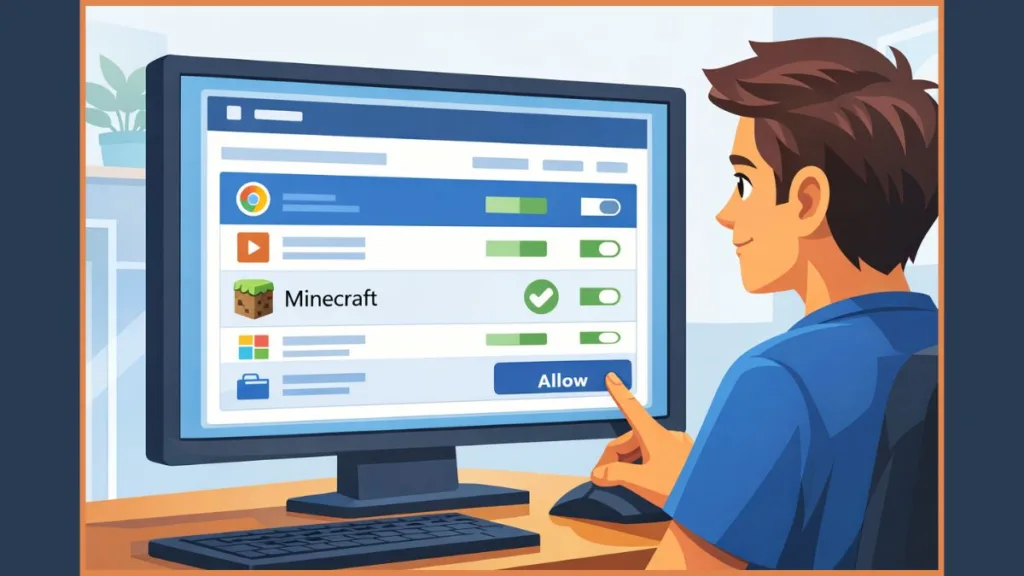
Locate the app in the list. When you see the Private and Public checkboxes, choose carefully. Private is usually correct for home and office use.
- Check the box for your app.
- Click OK.
- Immediately test the app.
If the app connects now, the firewall rule was the problem, and you are done.
CRITICAL: “NEVER TURN THE FIREWALL OFF AS A FIX.”
Allowing the app is the correct and safe solution.
What If Your App Does Not Appear in the Firewall List?
As you scan the list, the app may be missing. This happens when the app uses a launcher, runs in the background, or installs in a non-standard location. Windows cannot auto-detect it. In this case, you must add it manually.
How Do You Manually Add a Program to Windows Firewall Exceptions?
Stay in the Allow an app through firewall window and follow this path:
- Click the Allow another app… button at the bottom.
- Click Browse.
- Navigate directly to the .exe file of the program.
- Tip: As you look through folders, common locations include Program Files, Program Files (x86), or a custom install directory.
- Select the executable and click Open.
- Click Add.
- Select the correct network profile (Private/Public) and click OK.
Test the app again. This step is required for many launchers, professional tools, and background services.
When Do You Need to Add a Port Exception Instead of an App?
Some software does not rely on a single executable. Instead, it communicates through specific network ports. This is common with multiplayer games, dedicated servers, development tools, and database services.
If a Minecraft server cannot be reached or a competitive game like Valorant fails to connect, you are almost always missing a port exception, not an app rule.
How Do You Open a Port in Windows Firewall Correctly?
- Navigate to Windows Security > Firewall & network protection.
- Click Advanced settings (at the bottom). A new window opens.
- Click Inbound Rules in the left pane.
- Click New Rule… in the right pane.
- Select Port and click Next.
- Select TCP or UDP (check your software documentation for which protocol it uses).
- Enter the Specific local ports (e.g., 25565) and click Next.
- Choose Allow the connection.
- Select the applicable profiles (Domain, Private, Public) and click Next.
- Name the rule clearly (e.g., “Minecraft Server”) and click Finish.
If the app still cannot communicate outward, repeat the same process under Outbound Rules.
What Is the Difference Between Inbound and Outbound Firewall Rules?
Use this table to lock the concept in place:
| Rule Type | Controls | When You Need It |
| Inbound Rules | Traffic coming into your PC | Servers, hosting, incoming connections |
| Outbound Rules | Traffic leaving your PC | Apps failing to connect to the internet |
Games, servers, and dev tools often require both. Missing one causes silent failures that look like app bugs.
Are Firewall Exception Steps Different on Windows 10 and Windows 11?
How Do Firewall Exceptions Work on Windows 10?
You usually access settings via Control Panel or Windows Security. Rule paths and options are clearly labeled.
How Do Firewall Exceptions Work on Windows 11?
The interface looks different, but the logic is identical. You still navigate to Windows Security > Firewall & network protection > Allow an app through firewall. The layout changed. The firewall engine did not.
Why Is Your Firewall Exception Added but Still Not Working?
If the rule exists but the app still fails, check these points immediately:
- Wrong Profile: Did you check Public but are connected to a Private network? (Learn more about Private vs Public networks here).
- Disabled Rule: Check if the rule is enabled in Advanced settings.
- Rule Conflict: Look for overlapping or higher-priority “Block” rules.
- Cache Issue: Restart the firewall service or reboot Windows.
Most failures here are configuration mistakes, not software problems.
What Security Rules Should You Follow When Adding Firewall Exceptions?
Every exception slightly reduces protection. That is expected—but it must be controlled. Only allow apps you trust. Remove unused rules regularly.
SECURITY ALERT: “DO NOT OPEN RANDOM PORTS YOU DO NOT UNDERSTAND.”
Open ports can be exploited if left exposed.
Frequently Asked Questions
What is a Windows Firewall exception?
You are allowing a specific app or port to bypass Windows Firewall blocking so it can communicate normally.
How do You Unblock a Program in Windows Firewall?
Navigate to Allow an app through firewall, enable editing, and check the box to allow the app. If it is missing, add the .exe manually.
How do You Open Ports for Games in Windows Firewall?
Use Advanced settings, create a Port rule, and allow both Inbound and Outbound traffic for the required ports.
Why Can’t You Add a Firewall Exception?
You are missing administrator permissions. Windows does not allow non-admin users to modify firewall rules.
Do Firewall Exceptions Apply to All Networks?
No. They apply only to the network profiles you explicitly select, such as Private or Public.
Visit Our Post Page: Blog Page