
Not tracking conversions or wasting ad spend? Learn how to add Facebook Pixel to Shopify (2026) and unlock accurate tracking, smarter targeting, and higher sales.
If you’re running ads or planning to scale your store, learning how to add Facebook Pixel to Shopify (now called Meta Pixel) is one of the most important steps you can take.
Why? Because without proper tracking, you’re basically guessing what works. In this guide, you’ll learn exactly how to add Facebook Pixel to Shopify step-by-step, even if you have zero technical experience.
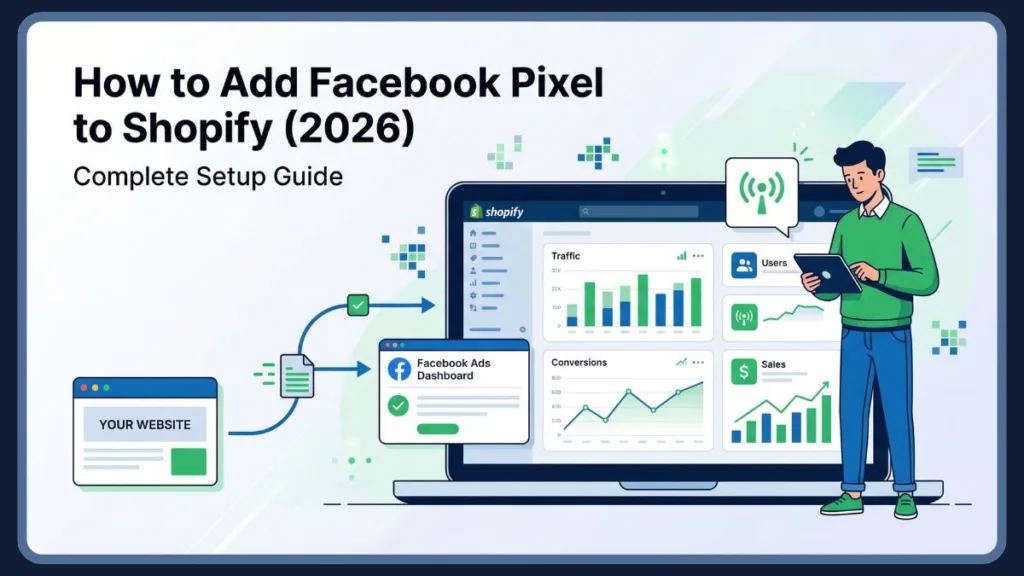
When you set up Meta Pixel in Shopify, you unlock powerful insights like:
- Which products people view
- What they add to cart
- Where they drop off
- Which ads actually drive sales
This data helps you optimize campaigns, reduce wasted ad spend, and increase conversions—all based on real user behavior.
Whether you’re a beginner or already running ads, this guide will show you the fastest and most reliable ways to master your Facebook Pixel Shopify setup and add Facebook Pixel to Shopify 2026.
Quick Answer: How do I add a pixel to my Shopify store?
To add Facebook Pixel to Shopify, follow these steps:
- Go to Shopify Admin → Settings → Apps & Sales Channels
- Open Facebook & Instagram
- Click Settings → Data sharing settings
- Turn on data sharing and select your Meta Pixel
- Click Save to connect your pixel
This is the easiest no-code method to connect your Meta Pixel to Shopify and start tracking conversions instantly.
Quick Tip: If you’re using advanced tracking, you can also enable the Conversions API Shopify integration inside the same settings for better data accuracy.
What is Facebook Pixel (Meta Pixel) & How Does It Work For Your Meta Pixel Integration?
Before you add Facebook Pixel to Shopify, it’s important to clearly understand what this tool actually does and why it plays such a critical role in your store’s growth.
Facebook Pixel (now known as Meta Pixel) is a tracking technology provided by Meta that allows you to monitor how visitors interact with your Shopify store. It works by placing a small piece of code on your website, which then collects and sends user behavior data back to Meta’s advertising system.
But here’s the key point:
This isn’t just about tracking—it’s about turning visitor behavior into actionable marketing insights.
How Meta Pixel Actually Works Behind the Scenes
When you link your pixel to Shopify, you are essentially connecting your store with Meta’s advertising ecosystem.
Here’s how the process works in a simple, real-world flow:
- Step 1: A user visits your Shopify store
- Step 2: The Pixel code activates and starts tracking actions
- Step 3: Each action (event) is recorded (e.g., product view, add to cart)
- Step 4: Data is sent to Meta Ads Manager
- Step 5: Meta uses this data to optimize your ads and targeting
This continuous data loop is what powers your Shopify tracking setup, allowing you to make smarter marketing decisions instead of relying on guesswork.
Understanding Pixel Events (Core of Tracking)
At the heart of the Meta Pixel are events—these are specific actions users take on your website.
When you set up Meta Pixel events, you gain visibility into the entire customer journey. Instead of just listing them, let’s understand their importance:
- When someone lands on your store, a PageView event is triggered. This tells you how many people are entering your funnel.
- When they view a product, a ViewContent event fires, helping you identify which products attract attention.
- If they add an item to the cart, the AddToCart event shows buying intent.
- When they begin checkout, the InitiateCheckout event signals strong purchase interest.
- Finally, the Purchase event confirms conversions and revenue.
These Shopify Pixel events allow you to pinpoint exactly where users drop off and where your store performs well.
Facebook Pixel vs Meta Pixel (Clearing the Confusion)
A lot of users still search for Facebook Pixel vs Meta Pixel, which can create confusion. Let’s make it simple:
- Facebook Pixel = Meta Pixel
- The functionality, purpose, and usage remain exactly the same.
- Only the name changed when Facebook rebranded to Meta.
If you’ve been researching how to add Facebook Pixel to Shopify, you’ve probably come across both terms and wondered if they are different tools. Let’s clear this up completely. The name change reflects Meta’s broader ecosystem, which now includes Facebook, Instagram, Messenger, and the Audience Network. So when you set up Meta Pixel in Shopify, you’re not just tracking Facebook ads—you’re enabling tracking across Meta’s entire advertising network.
In terms of functionality, the tracking code is the same, the events system is the same, and the purpose (tracking and optimization) is the same. For your Shopify store, this means you don’t need to install two different tools or worry about compatibility. Once you add Meta Pixel to Shopify, you are fully set up to track customer behavior, ad performance, and conversion data.
So whether you’re trying to add Facebook Pixel to Shopify or install the Meta Pixel on Shopify, you’re working with the exact same tool.
Why Meta Pixel is More Than Just Tracking Code
Most beginners think the Pixel is just for tracking visits—but in reality, it’s much more powerful.
When properly configured, it enables:
- Audience Building: You can create custom audiences based on user behavior.
- Lookalike Targeting: Meta finds new users similar to your best customers.
- Ad Optimization: Campaigns automatically improve over time.
- Conversion Attribution: You know exactly which ads generate sales.
This is why a Pixel tracking setup is not just a technical task—it’s a growth strategy.
Can You Use Facebook Pixel in Shopify? (How to Connect Meta Pixel Shopify)
If you’re wondering whether Shopify supports the Meta Pixel, the answer is simple:
Yes, Shopify fully supports the Facebook Pixel (Meta Pixel), and it’s one of the most seamless integrations available.
In fact, Shopify is designed to work closely with Meta, making it easier for store owners to track conversions and run high-performing ad campaigns.
How Meta Pixel Integrates with Shopify
When you connect your Meta Pixel to Shopify, you’re not just adding a tracking script—you’re enabling a deep integration between your store and Meta Ads.
Shopify allows you to integrate the Pixel in three main ways:
1. Native Integration (Best for Beginners) The easiest way to add Facebook Pixel to Shopify is through the Facebook & Instagram sales channel. This method:
- Requires no coding.
- Automatically tracks standard events.
- Supports Conversions API Shopify integration.
This is the most recommended approach for most users.
2. Manual Installation (Advanced Users) If you prefer more control, you can:
- Copy your Facebook Pixel code.
- Add it directly into your Shopify theme.
This method is useful for custom tracking setups, Shopify Plus users, and advanced developers.
3. Third-Party Apps (Flexible Option) Apps allow you to:
- Manage multiple pixels.
- Add advanced tracking features.
- Simplify event configuration.
This is ideal if you’re running multiple campaigns or managing multiple ad accounts.
Does Meta Pixel Work Effectively with Shopify?
Not only does it work—it works extremely well when set up correctly.
When you complete your Facebook Pixel Shopify setup, you unlock:
- Real-time tracking of customer behavior.
- Accurate reporting inside Meta Ads Manager.
- Better optimization of ad delivery.
- Improved campaign performance.
This is why Shopify Facebook integration is essential for any store running paid ads.
Why Add Facebook Pixel to Shopify?
If you’re serious about growing your store, you need to understand this:
Running ads without a Pixel is like driving blind. Running ads with a Pixel is like using GPS with real-time data.
When you add Facebook Pixel to Shopify, you gain the ability to make decisions based on real customer behavior—not assumptions.
Businesses using Meta Pixel tracking often see significantly improved ad performance due to better targeting and conversion tracking.
Deep Customer Behavior Insights
One of the biggest advantages of your Facebook Pixel Shopify setup is visibility. Instead of guessing what your customers are doing, you can actually see:
- Which pages they visit.
- Which products they explore.
- Where they lose interest.
- What leads them to purchase.
This allows you to refine your product pages, pricing strategy, and overall user experience.
Over time, this leads to a more optimized and profitable store.
Smarter Ad Optimization
When you link your pixel to Shopify, Meta’s algorithm starts learning from your data.
This means your ads:
- Get better at targeting the right audience.
- Improve click-through rates.
- Deliver higher conversion rates.
Instead of manually guessing your audience, Meta uses Pixel data to automatically optimize performance.
Powerful Retargeting Capabilities
Not every visitor buys on their first visit—and that’s normal. With the Pixel, you can:
- Retarget users who viewed products.
- Show ads to users who added items to cart.
- Bring back users who abandoned checkout.
This dramatically increases your chances of converting lost traffic into paying customers.
Better Budget Allocation & Reduced Ad Waste
Without a Pixel, you might spend money on ads that don’t convert. With a Pixel, you can:
- Identify underperforming campaigns.
- Shift budget to high-performing ads.
- Stop wasting money on ineffective targeting.
This directly improves your ROI and ROAS.
Full Funnel Optimization
The real power of Shopify Pixel events lies in understanding your entire sales funnel. For example:
- If many users view products but don’t add to cart → your product page may need improvement.
- If users add to cart but don’t purchase → your checkout process may be the issue.
This level of insight allows you to continuously improve your store performance.
Data-Driven Growth (The Real Advantage)
At the end of the day, when you set up Meta Pixel in Shopify, you move from guesswork to strategy.
You’re no longer asking: “Why aren’t my ads working?” Instead, you’re answering: “What is the data telling me—and how do I improve it?”
Bottom Line: If you want to scale your store, improve conversions, and run profitable campaigns, you need to add Facebook Pixel to Shopify. It’s not just a tool—it’s the foundation of modern eCommerce marketing in 2026.
Method 1 – Add Facebook Pixel to Shopify (No-Code Setup for Beginners)
If you’re looking for the simplest and most reliable way to add Facebook Pixel to Shopify, this is the method you should follow. Shopify has made the process extremely user-friendly by offering a built-in integration through the Facebook & Instagram sales channel, allowing you to connect your Meta Pixel to Shopify without writing a single line of code.
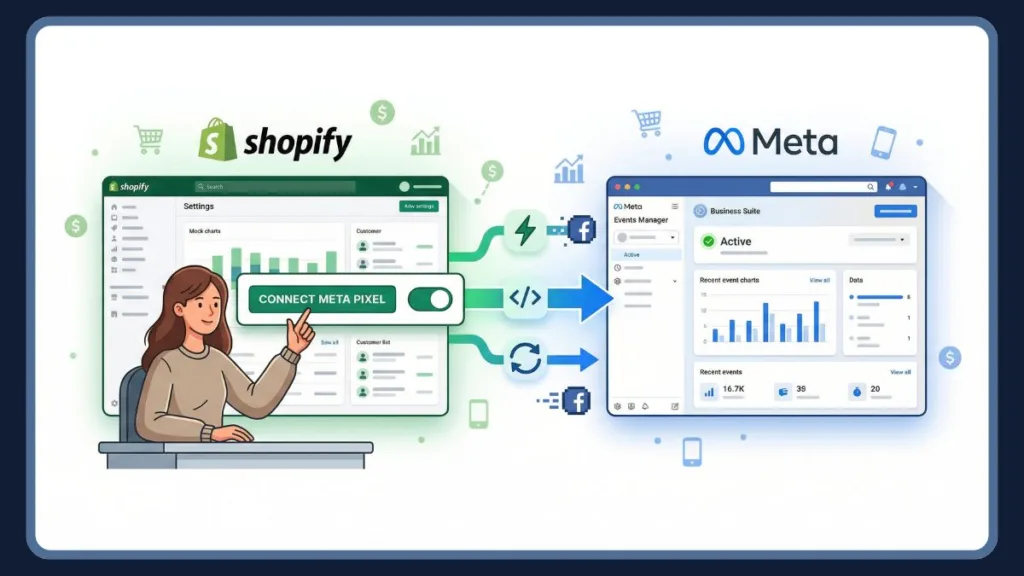
This approach is especially powerful because it doesn’t just install the Pixel—it creates a direct connection between your Shopify store and Meta’s advertising system. That means better tracking accuracy, automatic event detection, and smoother campaign optimization over time.
When you use this method, you are essentially establishing a complete Shopify Meta Pixel setup that works seamlessly in the background while you focus on growing your store.
Why This Method Works Best in 2026
In today’s privacy-focused environment, browser-based tracking alone is no longer enough. That’s where Shopify’s native integration stands out. When you set up Meta Pixel in Shopify using the official integration, Shopify combines browser tracking with server-side tracking (Conversions API).
This means:
- Your data is more accurate.
- Fewer conversions are lost due to ad blockers or iOS privacy updates.
- Meta receives stronger signals to optimize your campaigns.
In simple terms, this method ensures your Facebook Pixel Shopify setup is future-proof and more reliable than manual installation alone.
Step-by-Step: How to Add Meta Pixel to Shopify
To properly link your pixel to Shopify, you need to follow a structured process. Each step plays an important role in ensuring your tracking works correctly.
Step 1: Install Facebook & Instagram Sales Channel Start by logging into your Shopify admin panel. From there, navigate to Settings, then go to Apps & Sales Channels. You’ll see an option to add a new sales channel. Search for Facebook & Instagram and install it.
This is not just another app—it’s the official bridge between Shopify and Meta, designed specifically for your Facebook Pixel Shopify setup. Installing it ensures compatibility and reduces the chances of tracking errors later.
Step 2: Connect Your Meta Account Once the app is installed, you’ll be prompted to connect your Facebook account. This step is crucial because it links your Shopify store with your Meta Business Manager.
During this process, you will:
- Log into your Facebook account.
- Select your Business Manager.
- Choose your Ad Account.
- Connect your Facebook Page.
This connection allows Shopify to communicate directly with Meta, making it easier to add Facebook Pixel to Shopify and manage campaigns efficiently.
Step 3: Configure Data Sharing Settings After connecting your account, you’ll need to configure how data is shared between Shopify and Meta. This is one of the most important steps in the entire setup process.
Inside the Data Sharing Settings, you’ll be asked to choose a level of tracking:
- Standard: Tracks basic browser events.
- Enhanced: Improves tracking with additional signals.
- Maximum: Combines Pixel + Conversions API for best accuracy.
If your goal is to get the most out of your ads, selecting Maximum is highly recommended. This enables the Conversions API Shopify integration, which sends data directly from Shopify’s servers to Meta.
This step significantly improves your Meta Pixel integration, especially for tracking purchase events accurately.
Step 4: Select or Create Your Meta Pixel At this stage, Shopify will display a list of available Pixels linked to your Meta account. You can either select an existing Pixel or create a new one.
If you don’t already have one, Shopify makes it easy to create a new Pixel in Shopify within the same interface. Once selected, this Pixel becomes your primary tracking tool for all store activity.
Step 5: Finalize and Activate After selecting your Pixel, simply click Save, and your setup is complete.
At this point, you have successfully:
- Completed your Facebook Pixel Shopify setup.
- Enabled automatic event tracking.
- Connected your store for ad optimization.
From here onward, your Pixel will start collecting data in real time.
What Happens After You Add Meta Pixel to Shopify?
Once your Pixel is active, Shopify begins tracking user interactions automatically. This includes everything from page visits to completed purchases.
What makes this powerful is that you don’t need to manually configure most events. Shopify handles the standard Meta Pixel events for you, ensuring your data is consistent and reliable.
Over time, this data helps Meta:
- Identify high-intent users.
- Optimize ad delivery.
- Improve conversion rates.
This is where the real value of learning how to connect your Meta Pixel to Shopify becomes evident—you move from guessing to making data-driven decisions.
Method 2 – Add Facebook Pixel to Shopify Manually (Advanced Tracking Control)
While the native integration is recommended, there are situations where you may want more control. That’s where manual installation comes in.
When you add Facebook Pixel to Shopify manually, you are directly inserting the Facebook Pixel code into your store’s theme files. This gives you flexibility, but it also requires careful handling.
When Manual Installation Makes Sense
Manual installation is typically used by:
- Developers who want full control over tracking.
- Shopify Plus store owners with custom setups.
- Marketers who need advanced event customization.
It’s also useful if you want to implement custom events beyond Shopify’s default tracking.
Step-by-Step: Manual Facebook Pixel Shopify Setup
To begin, you need to create your Pixel inside Meta Events Manager. Once created, you’ll receive a unique Facebook Pixel code, which acts as your tracking script.
Next, go to your Shopify admin and navigate to Online Store → Themes → Edit Code. Inside the theme editor, locate the theme.liquid file. This file controls the overall structure of your website.
Within this file, find the <head> section and paste your Pixel code just before the closing </head> tag. This ensures the Pixel loads on every page of your store.
After saving your changes, your Facebook Pixel Shopify setup via manual installation is complete.
Important Considerations for Manual Setup
Manual installation requires extra attention. If done incorrectly, it can lead to:
- Duplicate tracking events.
- Incorrect conversion data.
- Conflicts with Shopify integrations.
If you previously used the Shopify app or another Pixel method, make sure to remove old installations before adding new code.
Method 3 – Install Facebook Pixel Using Shopify Apps (Flexible & Fast)
Another option to install Facebook Pixel Shopify is by using third-party apps. These apps are designed to simplify the process and provide additional features beyond basic tracking.
How Apps Enhance Pixel Setup
When you use an app, you’re essentially adding a layer of control over your Pixel. Most apps guide you through the setup process and allow you to manage multiple Pixels from one place.
This is particularly useful for:
- Agencies managing multiple clients.
- Stores running multiple ad accounts.
- Businesses needing advanced tracking setups.
How App-Based Integration Works
After installing a Pixel app from the Shopify App Store, you’ll typically connect your Facebook account and enter your Pixel ID. The app then handles the rest of the integration.
Some apps also allow you to:
- Customize event tracking.
- Monitor Pixel performance.
- Troubleshoot errors more easily.
This makes apps a flexible option to connect your Meta Pixel to Shopify without technical complexity.
How to Remove Facebook Pixel from Shopify
There may be situations where you need to remove your Pixel, especially if you’re switching accounts or fixing tracking issues.
Removing a Pixel depends on how it was installed.
- If you used Shopify’s native integration, you can simply go into the Facebook & Instagram sales channel settings and disconnect the Pixel.
- If you installed it manually, you’ll need to return to the
theme.liquidfile and delete the Pixel code. - If you used an app, removing the Pixel is as simple as uninstalling or disabling the app.
Keeping your Facebook Pixel Shopify setup clean and organized is essential for accurate tracking.
How to Verify Facebook Pixel on Shopify
After completing your setup, verification is not optional—it’s necessary.
To verify your Pixel, you can use tools like the Meta Pixel Helper Chrome extension. This extension allows you to check whether your Pixel is firing correctly on your store.
Once installed, visit your website and observe the events being triggered. You should see actions like PageView, ViewContent, and AddToCart being recorded.
This step ensures you properly verify the Facebook Pixel on your Shopify checkout process and confirms your tracking is functioning accurately.
Why is Facebook Pixel Not Tracking Purchases on Shopify?
If your Pixel isn’t tracking purchases, it usually indicates a configuration issue rather than a system failure.
Common causes include selecting the wrong Pixel, having duplicate installations, or not enabling proper data sharing settings. Sometimes, the issue may also arise from missing event configurations or conflicts within your theme.
The best way to resolve this is to:
- Check your Pixel connection.
- Verify events in Meta Events Manager.
- Ensure the Conversions API is enabled.
Fixing these issues will restore accurate tracking for your Facebook Pixel Shopify setup and improve your reporting.
Enable Conversions API (Advanced Setup)
To take your tracking to the next level, you should enable the Conversions API Shopify integration.
Unlike traditional Pixel tracking, which relies on the browser, the Conversions API sends data directly from Shopify’s servers to Meta. This ensures more reliable tracking, even when users block cookies or use privacy tools.
When you enable Maximum data sharing in Shopify, this feature is automatically activated.
This is one of the most important upgrades you can make to your Shopify Facebook integration.
Pro Tips to Maximize Shopify Pixel Performance
Once your Pixel is fully set up, the focus should shift from installation to optimization.
The real power of the Pixel lies in how you use the data it collects. By analyzing Shopify Pixel events, you can identify opportunities to improve your store and campaigns.
For example, if many users view products but don’t add them to the cart, you may need to improve product descriptions or pricing. If users abandon checkout, simplifying the checkout process could increase conversions.
You can also use Pixel data to create highly targeted audiences, run dynamic ads, and build lookalike audiences based on your best customers.
Over time, this transforms your Pixel from a simple tracking tool into a growth engine for your Shopify store.
FAQ
How do I add Facebook Pixel to Shopify? To add Facebook Pixel to Shopify, the easiest method is through Shopify’s native integration. Go to your Shopify admin, navigate to Settings → Apps & Sales Channels, open the Facebook & Instagram channel, enable data sharing, and select your Pixel. Once saved, your Pixel will start tracking automatically.
What is the Meta Pixel and how does it work on Shopify? The Meta Pixel is a tracking tool that collects data about how users interact with your Shopify store. When installed, it tracks actions like product views, add-to-cart events, and purchases. This data is sent to Meta Ads Manager, where it is used to optimize ad campaigns and improve targeting.
Can I use Facebook Pixel in Shopify? Yes, Shopify fully supports Meta Pixel integration. You can use it through native integration, manual installation, or third-party apps. This makes it easy to set up Meta Pixel in Shopify regardless of your technical skill level.
Do I need to add pixel code to my Shopify theme? Not necessarily. If you use Shopify’s Facebook & Instagram sales channel, you can connect your Meta Pixel to Shopify without coding. However, manual installation is available if you need advanced customization or want to insert the Facebook Pixel code directly into your theme.
How do I manually add a Facebook Pixel to Shopify? To manually install the Pixel, go to Meta Events Manager, create a Pixel, and copy the code. Then, in Shopify, navigate to Online Store → Themes → Edit Code, open the theme.liquid file, and paste the code inside the <head> section. Save your changes to complete the setup.
How do I remove a Facebook pixel from my Shopify store? If you added the Pixel using Shopify’s integration, you can remove it by disconnecting it from the Facebook & Instagram app settings. If you installed it manually, simply delete the Pixel code from your theme file. If you used an app, uninstall or disable the app.
Does Meta Pixel work with Shopify? Yes, the Meta Pixel works seamlessly with Shopify. When properly configured, it enables accurate tracking, better ad targeting, and improved campaign performance. This is why Shopify Facebook integration is widely used by eCommerce businesses.
How to enable Conversions API with Shopify and Meta Pixel? To enable the Conversions API Shopify integration, go to your Facebook & Instagram sales channel settings and select Maximum data sharing. This activates server-side tracking, which improves data accuracy and ensures better performance even with privacy restrictions.
Why is my Facebook Pixel not tracking purchases on Shopify? If your Pixel is not tracking purchases, it could be due to incorrect setup. Common reasons include selecting the wrong Pixel, duplicate installations, disabled data sharing, or missing events. Checking your setup in Meta Events Manager and ensuring proper configuration usually resolves the issue.
How do I verify Facebook Pixel on Shopify? You can verify your Pixel using the Meta Pixel Helper Chrome extension. Visit your store and check if events like PageView, AddToCart, and Purchase are firing correctly. This confirms your Facebook Pixel Shopify setup is working properly.
Conclusion
Setting up tracking correctly is one of the most important steps in building a successful Shopify store. When you add Facebook Pixel to Shopify, you’re not just installing a tool—you’re creating a system that helps you understand your customers, optimize your marketing, and grow your business with confidence.
Without a Pixel, you’re relying on assumptions. With a Pixel, you’re making data-driven decisions backed by real user behavior.
As you’ve seen, there are multiple ways to link your pixel to Shopify, including native integration, manual setup, and app-based solutions. For most users, the no-code method through Shopify’s Facebook & Instagram sales channel is the best starting point, especially when combined with the Conversions API Shopify integration.
Once your Pixel is active, the real opportunity begins. By analyzing Shopify Pixel events, you can:
- Identify what’s working.
- Fix what’s not.
- Improve your conversion funnel.
- Scale your ad campaigns effectively.
Over time, this leads to better targeting, higher conversions, and an improved return on ad spend.
In today’s competitive eCommerce landscape, learning how to add Facebook Pixel to Shopify is no longer optional—it’s essential for growth.
If you want to run smarter ads, understand your audience, and increase revenue, the Meta Pixel is the foundation you need to add Facebook Pixel to Shopify 2026 and beyond.
Now that you’ve set up your Facebook Pixel, the next step is optimizing your ads using real data.
Visit Our Post Page: Blog Page