
Can’t video call on Facebook? Discover how to allow video calls on Facebook in 2026 with simple steps. Enable camera and mic permissions, fix Messenger issues, and get your video calls working on any device.
Connecting with friends and family via Facebook has become a cornerstone of daily life for millions. It’s fast, free, and keeps us closer than ever. But sometimes, technical hurdles get in the way of a perfect conversation. Whether you’re trying to catch up with a loved one, host a group hang, or simply check in, learning how to allow video calls on Facebook is essential for maintaining your digital social life.
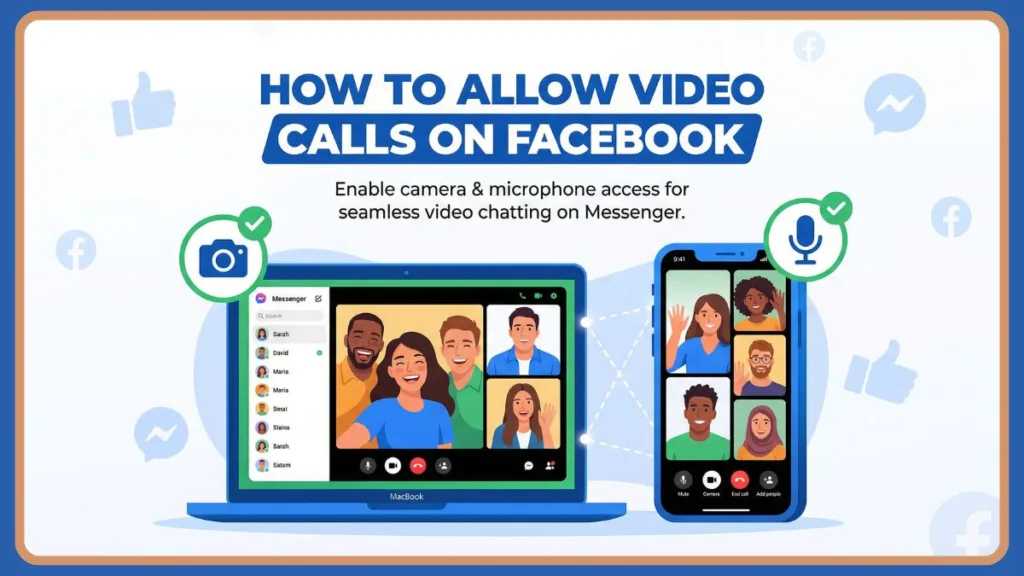
In 2026, Meta made a significant shift—implementing default End-to-End Encryption (E2EE) across all Messenger platforms. This update, while great for privacy, has caused some users to find their video call icons missing or “unable to find camera” errors occurring due to new security handshake requirements and the need for Secure Storage synchronization.
Fortunately, there are still reliable methods to ensure your permissions are set correctly and your hardware is recognized. Let’s explore these options in detail and walk through every step to get your camera and microphone back online via the official Messenger platform.
Why You Might Want to Enable or Fix Video Calls on Facebook
There is nothing more frustrating than a failed connection, especially when you need to see a friendly face. While Facebook tries to make the process automatic, your device’s operating system often acts as a gatekeeper for your privacy.
Here are the most common reasons people search for how to allow video calls:
- Troubleshooting errors: You see a “permissions denied” pop-up or a black screen.
- New Device Setup: You’ve just upgraded to a new phone or laptop and haven’t granted app access yet.
- Privacy Reset: You previously blocked camera access and now need to reverse that setting.
- Grayed-out Buttons: The video icon isn’t clickable, and you need to know why.
- AI Feature Access: You want to use the new Meta AI backgrounds or voice-to-text features during a call.
Regardless of your reason, Facebook offers tools within the Messenger app, browser settings, and system-level permissions to help you stay in control of your account’s visibility.
Can You Still Use Facebook Video Calls in 2026?
For years, video calling was a simple plug-and-play feature. However, in 2026, the technical landscape changed with the integration of Llama 4 and enhanced encryption protocols. Here is what has shifted according to the latest Meta Privacy Center updates:
Official Meta 2026 Update Statement: “Starting January 2026, all Messenger calls are protected by default End-to-End Encryption. To ensure a seamless connection, users must verify their identity via Secure Storage (6-digit PIN or Virtual Key). Without this sync, media permissions may be restricted for security purposes.”
This means:
- Browser permissions are stricter than ever (especially on Chrome and Safari).
- HD Video is now enabled by default on WiFi, requiring higher bandwidth.
- Secure Storage is now a prerequisite for many users to even see the call icons.
- Mobile apps now require explicit OS-level permission for both the camera and the microphone to function simultaneously.
How to Allow Video Calls on Facebook Using Desktop
If you are using a computer, your browser (Chrome, Edge, or Safari) acts as the primary controller for your camera and microphone.
Step-by-Step Guide to Enable Browser Access
- Sign in to your account at Facebook.com or the dedicated Messenger web portal.
- Navigate to the chat sidebar.
- Select the person you wish to call and click the Camera Icon.
- Look for a pop-up near the URL/Address bar. Click Allow to give the site access.
- If you missed the prompt, click the Lock Icon 🔒 in the address bar and toggle Camera and Microphone to “On.”
How to View and Manage Settings on Desktop
- Go to Settings & Privacy > Settings > Privacy.
- Under Permissions, ensure Facebook has authorization to access hardware.
- On Windows 11/12, go to Settings > Privacy & Security > Camera and ensure “Allow apps to access your camera” is enabled for your specific browser.
- On macOS, visit System Settings > Privacy & Security > Camera and check the box for your browser.
How to Allow Video Calls on Mobile (Messenger App)
For iPhone and Android users, the process is handled through the Messenger App and your phone’s main settings menu.
Step-by-Step Guide for Android (v15/16)
- Long-press the Messenger Icon on your home screen and tap the “i” (App Info) button. If you don’t have it, download it from the Google Play Store.
- Tap on Permissions.
- Select Camera and choose “Allow only while using the app.”
- Repeat this for Microphone and Nearby Devices (required for Bluetooth headsets).
Step-by-Step Guide for iOS (iPhone/iPad)
- Open your device Settings.
- Scroll down to the bottom and tap on Messenger (Ensure you have the latest version from the Apple App Store).
- Ensure the toggles for Camera, Microphone, and Local Network are all Green (ON).
- Ensure Picture-in-Picture is enabled if you want to multitask during calls.
Key Points to Remember
- Secure Storage Sync: If calls won’t start, check your Messenger settings for a “Sync Secure Storage” prompt.
- Hardware Lock: A camera can generally only be used by one application at a time (close Zoom or Teams first).
- Internet Speed: High Definition calls in 2026 require 10 Mbps download and 2 Mbps upload. You can verify your connection using a Speed Test.
- App Updates: Always use the latest version of Messenger to avoid encryption “handshake” bugs.

Manual Method to Fix Permissions Without the Prompt
If the “Allow” prompt never appears, you can manually force the permission via the Site Settings workaround.
- Open Facebook in your browser.
- Paste this into your Chrome/Edge address bar:
chrome://settings/content/siteDetails?site=https%3A%2F%2Fwww.facebook.com - Locate Camera and Microphone in the list.
- Change the dropdown selection from “Ask” to “Allow.”
- Refresh your Facebook page and attempt the call again.
Additional Ways to Protect and Improve Your Video Calls
Beyond just enabling the camera, you can take control of your 2026 calling experience with these modern strategies:
- Enable Voice Isolation: In your Messenger call settings, turn on Voice Isolation to block background noise (perfect for Tier 1 city environments).
- Use Meta AI Backgrounds: Tap the Effects icon during a call to generate a custom AI background, keeping your real-life surroundings private.
- Hands-Free Calling: On iOS, you can now say, “Hey Siri, call [Name] on Messenger” to initiate calls without touching your phone.
- Manage Delivery Privacy: If you are using Meta AI Glasses, ensure they are paired in the “Devices” tab of the Meta AI app to use them as your primary camera.
Limitations of Facebook Video Calling
Even with these tools, there are a few things you should know:
- Recipient Privacy: If the “Video Call” button is grayed out, the recipient may have disabled calls in their Privacy Center.
- VPN Interference: Some high-security VPNs block the peer-to-peer (P2P) traffic required for E2EE calls.
- Browser Limits: Group video calls are still restricted or lower quality on Firefox compared to Chromium-based browsers.
- E2EE Requirements: Older devices that cannot support the 2026 encryption hardware acceleration may experience significant lag.
Final Thoughts on How to Allow Video Calls on Facebook
While technical updates in 2026 have added layers of security and AI functionality, enabling video calls remains a straightforward process once you know where the “gatekeepers” are.
To summarize:
- Use the System Settings on your phone to grant hardware access.
- Ensure your Secure Storage PIN is entered to sync encrypted calls.
- Use the Lock Icon in your browser to manually allow the camera.
- Keep your Internet Speed and App Updates in check for HD quality.
Being proactive and using these privacy and technical tools helps you maintain control, even as Meta continues to evolve its communication systems.
FAQ
Q1: How do I allow video calls on Facebook Messenger?
Open the Messenger app, go to a chat, tap the video icon, and select “Allow.” If that fails, go to your phone’s Settings > Apps > Messenger > Permissions and toggle Camera/Mic to “On.” Visit the Facebook Help Center for more specific troubleshooting.
Q2: Why is my camera not working on Messenger in 2026?
The most common 2026 issue is an unverified Secure Storage sync or an outdated app version that doesn’t support the new E2EE protocols.
Q3: How do I hide my background during a Facebook call?
During a call, tap the “Effects” button and select “Backgrounds.” You can choose from pre-set blurs or use Meta AI to generate a unique digital room.
Q4: Can I video call on Facebook without the app?
Yes. You can use any modern browser (Chrome, Safari, Edge) on a desktop. Simply visit Messenger.com to access the full calling suite.
Q5: How many people can join a Facebook group video call?
Currently, Facebook supports up to 50 people in a single room, though only the most active participants’ video feeds will be shown simultaneously to save bandwidth.
Visit Our Post Page: Blog Page