
Archive Order missing in 2026? You’re not imagining it. Learn how to archive Amazon orders, hide secrets, and manage history since deletion isn’t possible.
Is the Archive Order button missing right when you need to hide a secret purchase? You’re not imagining it. As of 2026, Amazon has made it noticeably harder to control what appears in your order history—especially if your account is shared with family, a partner, or roommates.
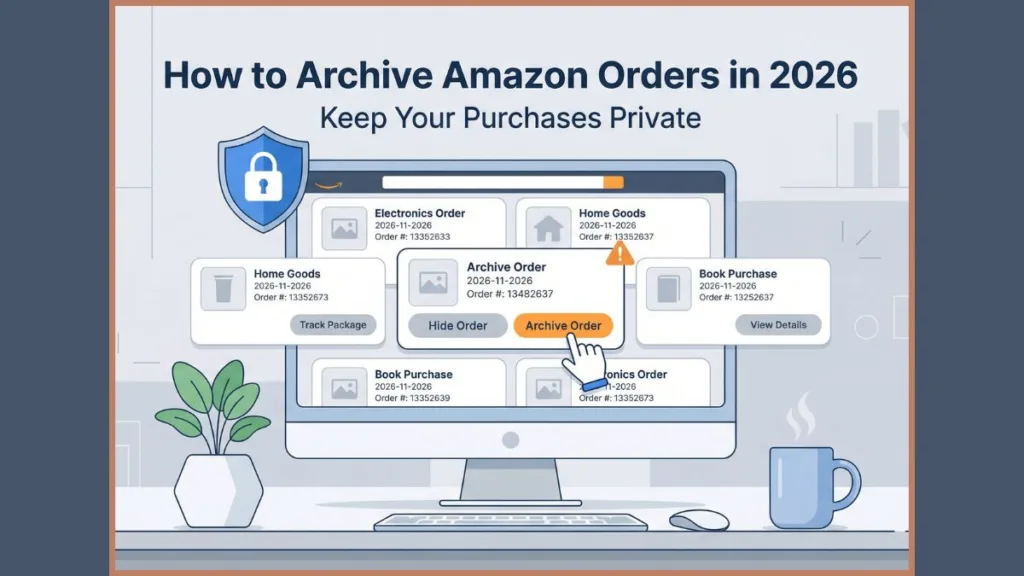
Let’s get one thing out of the way immediately, before false hope sets in.
You cannot permanently delete an Amazon order.
Amazon stores purchase records indefinitely. However, that doesn’t mean you’re powerless. You can reduce visibility, limit exposure, and hide purchases well enough that no one casually browsing your account will find them.
This guide focuses on what still works in 2026, why certain buttons seem to disappear, and how to keep purchases discreet without relying on outdated advice or risky tools.
Why You May Need to Hide Amazon Orders
Wanting privacy on Amazon isn’t unusual—it’s practical. Many Amazon accounts are shared, and Amazon’s default settings assume total transparency between users.
- Shared accounts: When multiple people use the same Amazon login, every order appears in one unified order history. This makes it easy for anyone with access to the account to browse past purchases, even if the order was placed by someone else.
- Surprise gifts: Amazon frequently exposes past purchases through order previews, notifications, and the “Buy Again” section. Without hiding an order, a gift can be revealed long before it’s given.
- Personal purchases: Some purchases are private by nature. Even when nothing is inappropriate, users may prefer not to discuss or explain certain items.
- Recommendation leaks: Amazon syncs recommendations across shared browsers and devices. A hidden order can still surface indirectly if browsing history is not managed.
Think of hiding orders as activating Stealth Mode. You’re not erasing history; you’re reducing how easily it surfaces.
Can You Permanently Delete Amazon Order History? The Honest Answer
For years, the Archive Order feature was Amazon’s quiet compromise on privacy. It didn’t delete anything, but it gave users a way to remove purchases from the main order list and tuck them away inside a separate Archived Orders section. For anyone sharing an account, that was often “good enough.”
That era is ending.
According to Amazon’s official statement, the rollback began in 2025. From August 19, 2025, the Archived Orders view was removed, and previously archived purchases were returned to the main order history.
Amazon Archive Order Button Missing in 2026: What Changed
If the Archive Order button is missing, you are not doing anything wrong. Amazon has changed the Returns & Orders interface multiple times.
What this means in practice is simple but frustrating:
- Some users still see the Archive Order button, usually on older accounts or specific regions.
- Many users no longer see it at all, especially when using the Amazon mobile app.
- The feature is being fully phased out, not redesigned or replaced.
This shift makes one thing clear: Amazon does not support permanent deletion of order history, and it is actively reducing even temporary hiding options.
If your account still supports archiving, you can continue to archive and unarchive orders for now, but it should be treated as a temporary window, not a permanent solution. The rest of this guide focuses on how to use what remains—before it disappears completely—and what to do once it’s gone.
Method 1: How to Archive Amazon Orders (If the Button Still Exists)
If your Amazon account still shows the Archive Order button, this is the most straightforward way to hide a purchase—at least for now. Archiving does not delete the order, but it removes it from your main order history, making it far less visible to anyone casually browsing your account.
How to Archive an Order on Amazon Using Desktop
To use this method, you must access Amazon from a desktop browser, as the Archive option does not appear in the mobile app.
- Sign in to your Amazon account using a desktop browser such as Chrome, Edge, or Safari.
- Hover over Accounts & Lists at the top of the page and click Your Orders.
- Scroll through your order history or use filters to locate the order you want to hide.
- Find the Archive Order option next to the purchase and click it.
- Confirm your choice when Amazon asks for verification.
Once confirmed, the order is immediately removed from your main order history and placed in a separate section called Archived Orders, where it stays hidden from the default view.
How to View Archived Orders on Amazon
Archived orders are not deleted and can still be accessed if you need them for reference, returns, or invoices.
- Go to Accounts & Lists.
- Select Your Account.
- Click on Archived Orders.
You’ll see a complete list of all purchases you’ve archived. These orders do not appear in your regular order history unless they are unarchived.
How to Unarchive an Amazon Order
If you ever need to restore an archived purchase to your main order list, the process is quick.
- Open the Archived Orders section.
- Locate the order you want to restore.
- Click Unarchive Order.
The order will instantly reappear in your main order history.
Key Points to Remember
- Archiving hides orders but does not delete them permanently.
- Amazon allows you to archive up to 500 orders per account.
- The Archive feature is only available on desktop browsers.
- Archived orders can still be found manually if someone knows specific order details.
Method 2: Hide Amazon Orders Without the Archive Button (Manual Workaround)
If the Archive Order button is missing from your account, there is still a manual workaround that can hide an order. This method works by directly triggering Amazon’s archive function through a specially modified URL.
How to Hide Amazon Orders Without the Archive Button
This workaround must also be done on a desktop browser and relies on the fact that Amazon’s backend still processes archive requests.
- Log in to your Amazon account using a desktop browser.
- Go to Accounts & Lists > Your Orders > Archived Orders.
- Locate any order that has already been archived.
- Right-click on Unarchive Order and select Copy Link.
- Paste the copied link into a text editor. The link will look similar to:
https://www.amazon.in/gp/css/order-history/archive/...archiveRequest=0&orderIds=<Input_ORDER_ID> - Edit the link by changing archiveRequest=0 to archiveRequest=1.
- Replace
<Input_ORDER_ID>with the Order ID of the purchase you want to hide. - Copy the updated link and paste it into your browser’s address bar.
- Press Enter to submit the request.
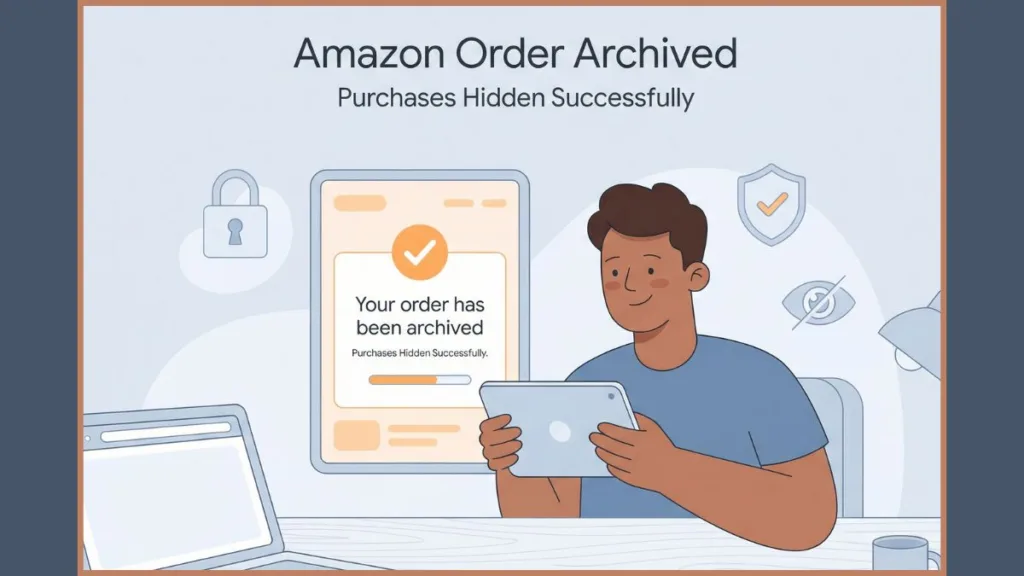
If the process succeeds, Amazon will display the message “Your order has been archived.” The order will then disappear from your main order history and move into the Archived Orders section.
Important Warnings Before Using the Manual Archive Workaround
- This workaround works only if you already have at least one archived order.
- Amazon may disable this method at any time as it continues removing archive functionality.
- On mobile devices, you must enable Desktop Site Mode to perform these steps.
- As of Januray 13 2026, this method still works, but it may be patched in the future.
Method 3: How Amazon Household Hides Orders on Shared Accounts
If you regularly share your Amazon account and privacy is a long-term concern, Amazon Household is the most reliable and official solution.
Amazon Household allows two adults to share Prime benefits—such as free shipping, Prime Video, and Kindle perks—while keeping separate accounts, order histories, and recommendations.
How to Set Up Amazon Household
- Visit the Amazon Household setup page while logged into your account.
- Click Add Adult.
- Enter your spouse’s or family member’s email address.
- The invited adult must accept the invitation.
- Once accepted, Prime benefits are shared, but order histories remain private.
Each adult now uses their own login, ensuring purchases stay completely separate.
Benefits of Using Amazon Household
Separate order histories: Each adult’s purchases remain private and hidden from the other.
Shared Prime membership: Both users enjoy Prime benefits without sharing visibility.
Ideal for couples and families: It balances convenience with privacy.
Accurate recommendations: Amazon suggestions are based on individual activity, not shared behavior.
If you frequently share your Amazon account with family members, Amazon Household (now Amazon Family) is the safest and most official way to protect your purchase privacy without relying on disappearing features or workarounds.
Method 4: Additional Ways to Hide Amazon Purchases and Reduce Exposure
Hiding the order itself is only half the job. Even when an order is archived or separated, Amazon has a habit of exposing your purchases indirectly—through recommendations, browsing history, and voice announcements. This is where most “secret” purchases get exposed.
Stop the “Buy Again” and Recommendation Leaks
Amazon aggressively promotes past purchases across shared devices. If you don’t clean this up, a hidden order can still resurface as a “Recommended for you” card or a Buy Again suggestion on a shared tablet or family computer.
To shut this down:
- Go to Your Account on Amazon.
- Open Browsing History, then select Manage History.
- Remove the specific item you don’t want resurfacing, or turn browsing history off entirely.
This prevents the product from reappearing in recommendations, ads, and suggestion panels—especially on shared devices like a family iPad.
Silence Alexa Before It Gives You Away
Alexa is one of the most common ways hidden purchases get exposed. By default, Alexa announces deliveries out loud, sometimes including item titles—to everyone in the house.
To stop that from happening:
- Open the Alexa app.
- Go to Settings.
- Select Notifications, then Amazon Shopping.
- Toggle OFF “Say or show item titles.”
Once disabled, Alexa will still notify you about deliveries, but it won’t announce what the package actually is—keeping your purchase private.
Covering these two areas closes the most common loopholes Amazon uses to “snitch” on your order history, even when the order itself is hidden.
Limitations of Hiding and Archiving Amazon Orders
No matter which method you use, there are hard limits Amazon does not let you bypass. Knowing these upfront saves time and false expectations.
- Permanent deletion is impossible. Amazon does not allow users to erase order history. All purchases remain stored for legal, billing, and support reasons.
- Archiving is not guaranteed long-term. The Archive feature is being phased out, works inconsistently across accounts, and may disappear completely.
- Desktop access is required. Most hiding methods do not work in the Amazon mobile app and require a desktop browser or Desktop Site mode.
- Archived orders are not invisible to Amazon. Orders can still be found internally, used for recommendations, or resurfaced if settings change.
- Manual workarounds are unstable. URL-based methods rely on backend behavior that Amazon can patch at any time.
- Shared devices remain a risk. Even hidden orders can surface through browsing history, recommendations, or Alexa announcements if those aren’t managed.
These limitations make one thing clear: hiding orders on Amazon is about reducing visibility, not eliminating records.
Frequently Asked Questions About Hiding Amazon Orders
Can you really hide an order on Amazon in 2026?
Yes. Archiving, manual workarounds, and Amazon Household reduce visibility. Permanent deletion is not possible.
Can I permanently delete Amazon order history?
No. Amazon retains purchase records indefinitely.
Why is the Archive Order button missing?
Amazon changed the interface and is phasing out the feature.
Can I hide orders in the Amazon app?
No. You must use a desktop browser or Desktop Site mode.
How many orders can I archive?
Up to 500 orders per account.
Does Amazon Household hide orders completely?
Yes. Each adult’s order history remains private while sharing Prime benefits.
Visit Our Post Page: Blog Page