
Want to switch countries on Amazon app in 2026? Learn how to change country settings on Amazon with simple, step-by-step instructions for iPhone & Android. From switching marketplaces and updating language or currency to understanding Prime, shipping, and digital content impacts. Stay in control of your Amazon region settings with confidence.
How Changing Country on Amazon App Works (What You’re Actually Doing)
As you open the Amazon app and start tapping around, it feels like changing country should be a simple toggle—tap a flag, pick a country, done. But when you try it, you notice something subtle: the app doesn’t treat “country” as a single switch. What you’re really changing is which Amazon marketplace you’re viewing, not where your account officially lives.

When you tap the flag icon near the top of the app, you’re telling Amazon, “Show me products, prices, and deals from another region.” At this point, the app refreshes. You may suddenly see prices in a different local currency, different delivery estimates, or items you’ve never seen before. That’s expected. What hasn’t changed yet is your account’s base country, your billing profile, or your digital ownership.
This is the most important behavior to understand: changing country in the Amazon app controls what store you’re browsing, not who your account belongs to.
As you scroll product pages after switching, you may notice friction immediately. Some items show “Not deliverable to your location.” Others disappear entirely. This isn’t a bug. You’re looking at a marketplace that follows its own shipping rules, seller inventory, customs duty, and import fee logic. The app is doing exactly what it’s designed to do—even though it feels broken when products vanish mid-search.
Another thing you’ll notice is that Amazon does not auto-adjust everything for you. The language may stay the same. Your saved addresses may still point to your old country. Your payment method may fail during checkout. That’s because language, currency, delivery location, and payment eligibility are separate controls, even though they sit close together in the app.
Changing the Amazon app country is a browsing-level change, not an account migration.
This explains why users often say the Amazon app “keeps switching back,” “shows the wrong country,” or “won’t let me buy anything” after a region change. You didn’t do anything wrong—you just switched the marketplace view, not the account region.
At this stage, the app is ideal for international shopping previews, checking prices in another country, or browsing a different Amazon store while traveling. It is not yet suitable for long-term relocation, digital content transfers, or fixing Prime-related region limits. Those require a different action entirely, which behaves very differently inside Amazon’s system.
As you continue, everything that feels confusing later—Prime issues, missing Kindle books, currency mismatches—traces back to this single behavior. Once you understand how Amazon separates marketplace browsing from account country, the rest of the steps start making sense instead of feeling random or broken.
Switching Amazon Store Country vs Transferring Your Amazon Account
When you try to change country on the Amazon app, this is where most people get trapped. You tap the flag, the app refreshes, prices change, and it looks like your Amazon country has changed. But what you’ve actually done is only switch the Amazon store you’re viewing, not move your account itself. These are two completely different system actions, and Amazon treats them very differently behind the scenes.
When You Only Want to Switch Amazon Store Country for Shopping
As you switch the Amazon store country using the flag icon in the app, you’re telling Amazon to load a different marketplace interface. At this point, you may see a different homepage, region-specific deals, and prices in a new currency. If you search for the same product again, results often change—or disappear entirely.
This mode is designed for temporary use. As you scroll, you’ll notice checkout friction almost immediately. Items may show delivery errors, payment may fail, or the app may warn that a product can’t ship to your delivery location. That’s because your shipping address, payment method, and account country are still tied to the original region, even though you’re browsing another Amazon store.
Switching the Amazon store country does not move your account, your Prime membership, or your digital purchases.
This is why users often think the Amazon app is “buggy” or “half-working” after a country change. In reality, the app is letting you browse internationally—but stopping you from completing actions that don’t match your account’s base country.
When You Need to Transfer Your Amazon Account to Another Country
Account transfer is what Amazon expects you to use when you’ve actually relocated. This does not happen from the simple flag switch. Instead, it changes how Amazon identifies your account internally—your billing country, eligible digital content, and regional services.
When you transfer your Amazon account, the system reassigns your account to a new country. At this point, you’ll see deeper changes. Kindle and digital content availability shifts. Prime Video catalogs change. Some subscriptions stop working. Gift cards and promo balances may disappear. These effects don’t show up when you’re only switching the store view, which is why users are often shocked when they finally transfer later.
Account transfer is not reversible on demand and cannot be done repeatedly. Amazon limits how often this can happen.
If you try to transfer without a valid billing address in the new country, the process stalls or errors out. If you have open orders or active subscriptions, the system may block you entirely until those are resolved.
Why Amazon Separates These Two Actions
As you use the app, Amazon is protecting two things at once: international browsing flexibility and account security. Letting users freely browse any Amazon marketplace is easy. Letting accounts jump countries repeatedly is not.
That’s why switching the Amazon store country is quick and reversible, while transferring your account is slow, restricted, and comes with warnings. Once you recognize which action you’re actually performing, the confusing behavior in the app starts to make sense—and you can choose the right path instead of fighting the system.
How You Can Check Your Current Amazon App Country
As you open the Amazon app and start browsing, the app doesn’t clearly tell you which country it’s set to. There’s no banner or warning. Instead, Amazon hides this in small visual cues that are easy to miss if you’re not looking for them.
Check the Flag Icon You’re Already Seeing
At the top of the app, near the search area, you’ll notice a small flag icon. This is not decoration. That flag represents the current Amazon marketplace you’re browsing. If you tap it and a country list opens, the highlighted option is the store your app is actively using right now. Many users assume the flag reflects their physical location. It doesn’t. It reflects the store region your app last loaded.
If the flag doesn’t match the country you expect, your Amazon app is already set to a different marketplace.
This is why you might feel like the app is “showing the wrong country” even though you never changed anything intentionally.
Look at the Amazon Domain the App Is Using
As you tap into search or product pages, pay attention to the Amazon domain the app references internally. You won’t always see a full URL, but the marketplace behavior makes it obvious. Prices might be in dollars instead of your local currency. Delivery estimates suddenly mention international shipping. Some products disappear entirely.
When the app is set to:
- Amazon.com, you’re browsing the US store
- Amazon.in means India
- Amazon.co.uk points to the UK
- Amazon.ca means Canada
This domain logic explains why users often say, “My Amazon app says CA” or “Why is everything in USD?” The app isn’t confused—you’re simply inside a different regional store.
Why Amazon Doesn’t Auto-Change Your Country
Even if you travel, install the app in another country, or switch SIM cards, Amazon will not automatically update your app country. Your Amazon app stays locked to the last selected marketplace, not your GPS location or IP address.
Amazon assumes country changes are intentional, not automatic.
This design prevents accidental region switches that could break Prime access, digital content, or payment methods. It also explains why many users think Amazon is stuck on the wrong country when it’s actually waiting for manual confirmation.
The Common Mistake Users Make Here
At this point, many users jump straight into checkout, assuming the app will adapt. That’s where errors start appearing—items not deliverable, payment failures, or language mismatches. All of that friction comes from not confirming the current Amazon app country first.
Once you know which marketplace the app is using, every next step—switching region, fixing currency, or deciding whether to transfer your account—becomes much clearer instead of feeling random or broken.
How to Change Country on Amazon App Step by Step
As you’re holding your phone and looking at the Amazon app, this process feels straightforward—but only if you follow the exact path Amazon expects. Most failures happen because users change delivery address instead of marketplace, or back out before tapping Done.
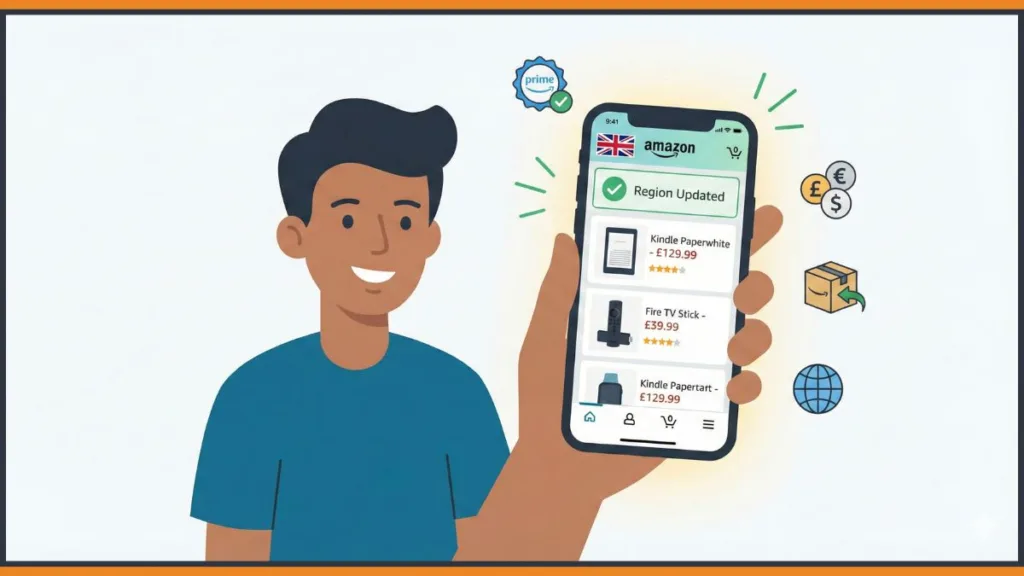
Start From the Profile Tab You’re Already Using
As you look at the bottom navigation bar, tap the Profile tab—the icon shaped like a person. This is where Amazon hides all region-related controls. If you’re on the home feed or a product page, you won’t see the country option at all, which is why many users think it’s missing.
Once the profile screen loads, your eyes should go to the top-right corner. You’ll see a small flag icon. This flag reflects the current Amazon store country, not your physical location.
If you don’t tap the flag, you are not changing the Amazon app country—no matter what else you adjust.
Tap the Flag Icon to Open Country and Language Settings
When you tap the flag, the app opens Country and Language settings. At this point, Amazon pauses your current session and prepares to reload the app based on your selection. This is where users often rush and miss a step.
As you look at the screen, you’ll see options for Country/Region, Language, and sometimes Currency depending on the marketplace. Tap Country/Region first. This is the actual marketplace switch.
Choose the Amazon Store Country You Want to Use
As you scroll through the list, you’re not selecting a shipping destination—you’re selecting an entire Amazon marketplace. When you tap a country, Amazon previews what will change. Some regions show warnings about product availability or shipping limits. Don’t ignore these. They explain why items may disappear later.
After selecting the country, the app waits for confirmation. This is where many users back out accidentally.
If you don’t tap “Done,” the Amazon app country does not change.
Once you confirm, the app refreshes. You may briefly see a loading screen, then land on a new homepage with different deals, prices, and categories.
What You’ll Notice Immediately After the Switch
As the app reloads, prices may flip to a new local currency. Search results may look unfamiliar. Some items you saved earlier may no longer appear. This isn’t an error—it’s the expected behavior when you switch the Amazon store country.
If you try searching for the same product again and see fewer results, that’s the marketplace enforcing regional inventory and shipping rules. If checkout fails later, it usually means your delivery location or payment method doesn’t match the new store yet.
Changing the Amazon app country controls what you can browse—not what you can automatically buy.
At this point, the country change is complete at the marketplace level. If something feels off—wrong language, wrong currency, or delivery errors—that’s not because the switch failed. It’s because Amazon separates country, language, currency, and account region into different controls.
How to Change Amazon Country Using a Web Browser
When the Amazon app refuses to cooperate—or the country option feels missing—opening a web browser is often the fastest way forward. As you switch to a desktop or mobile browser and sign in, you’re interacting with Amazon’s full account controls, not the simplified app layer.
Use the Flag Menu on the Website (Browsing-Level Change)
As the Amazon homepage loads, your eyes should go to the top navigation bar, near the search box. You’ll see the same flag icon you saw in the app. Hover over it with your cursor, or tap it on mobile. A dropdown opens immediately.
When you select or go to Change country/region, Amazon shows a country selector tied to the marketplace view. This behaves the same way as the app’s flag switch. Once you choose a country and confirm, Amazon opens that country’s store—often in a new tab—with prices, availability, and deals specific to that region.
If a new tab opens, that’s expected. Amazon treats each marketplace as a separate storefront.
At this point, you’re browsing a different Amazon store, not moving your account. If checkout fails or items won’t ship, it’s usually because your delivery location or payment method still belongs to your original country.
When the Browser Is the Only Option That Works
If you’ve tried switching country in the app and nothing sticks, the browser view often reveals why. Here, Amazon shows clear warnings the app hides—active subscriptions, open orders, or billing mismatches that block deeper changes.
You’ll also notice the browser lets you access account-level settings the app doesn’t fully expose. This is why Amazon support often tells users to “try from a web browser” when the app keeps looping or resetting the country.
If the app keeps switching back, the browser view usually shows the real restriction.
Don’t Confuse Website Switching With Account Transfer
As you use the website, it’s easy to think you’ve permanently changed your Amazon country because everything looks different. But if you only used the flag menu, your account is still anchored to its original region. Your Prime status, digital content, and billing base haven’t moved.
You’ll know you’re still in browsing mode if:
- Your old addresses are still default
- Prime benefits behave inconsistently
- Digital purchases don’t match the new region
That’s normal behavior. The browser simply gives you more visibility, not a different rule set.
Once you’ve confirmed the country change works correctly in the browser, you can safely return to the app knowing the marketplace itself isn’t the problem.
How You Can Change Amazon App Language and Region Together
Right after you switch the Amazon store country, this is where things often feel off. As the app reloads, you may still see the same language, or prices might appear in a currency you didn’t expect. That’s because language and currency do not auto-sync with country in the Amazon app—you have to set them deliberately.
Adjust Language From the Same Country Screen
As you’re still on the Country and Language settings screen—opened by tapping the flag icon—look just below the country selector. You’ll see Language as a separate option. When you tap it, Amazon shows the languages supported by the marketplace you just selected.
At this point, users commonly expect their local language to appear automatically. It doesn’t. Many Amazon regions default to English, even when a local language exists. If the app suddenly switches to a language you don’t understand, don’t panic. You didn’t break anything. Just reopen the flag menu and change the language back.
Changing the Amazon app language does not change your country—and changing country does not force a language change.
Once you select a language and confirm, the app refreshes again. Menu labels, filters, and system messages update immediately. If some screens remain untranslated, that’s normal—Amazon rolls out language coverage unevenly across regions.
Set Currency Separately (If the Option Appears)
Currency behaves differently depending on the marketplace. As you look through the same settings panel, you may see a Currency option—or you may not. If it’s there, you can choose which currency prices are displayed in while browsing.
This is where many users get confused. Even if you switch currency successfully, checkout may still use a different currency based on your payment method and delivery location. Display currency is not always billing currency.
Currency display affects how prices look, not always how you’re charged.
If the currency option is missing entirely, that’s not an error. Some Amazon stores lock currency to the region and don’t allow manual overrides.
Why Language and Currency Often “Reset”
After switching country, you might notice the app reverting language or currency later. This usually happens when:
- You reopen the app after a long pause
- You switch back to a previously used marketplace
- Your account is still anchored to a different base country
In these cases, Amazon prioritizes account stability over preferences. The app isn’t ignoring you—it’s enforcing regional consistency.
If you’re seeing the Amazon app in the wrong language, the fix is almost always here: reopen the flag menu, reselect language, tap Done, and let the app fully reload.
Once language and currency match what you expect, browsing feels normal again—and checkout issues become much easier to diagnose instead of feeling random.
What Changes After You Switch Amazon App Country
As soon as the Amazon app finishes reloading after a country switch, you start noticing small but important shifts. The homepage looks familiar, yet things don’t behave the same way. This is where most users pause and think something went wrong—even though the app is doing exactly what it’s designed to do.
Prices, Currency, and What You’re Actually Seeing
As you scroll product listings, prices may appear in a new currency. Sometimes that currency matches the country you selected. Sometimes it doesn’t. This mismatch happens because price display and checkout billing are handled separately. You’re looking at prices optimized for a marketplace, not guarantees of how you’ll be charged later.
Seeing a local currency doesn’t mean your payment method will be accepted in that currency.
This is why many users only discover problems at checkout, not while browsing.
Product Availability Changes Mid-Search
You may notice something more frustrating. A product you just viewed disappears when you go back, or the search results suddenly show fewer items. At this point, the Amazon app is enforcing regional catalog rules. Sellers list products per marketplace, not globally. When you switch country, you step into a different catalog—even if the product technically exists elsewhere.
This behavior often triggers the “Amazon app is broken” reaction. It’s not broken. You’re simply viewing a store with different seller permissions, compliance rules, and inventory.
Shipping Address and Delivery Location Conflicts
As you try to add an item to your cart, messages like “Not deliverable to your location” or “This item cannot be shipped to your selected address” may appear. This happens when your delivery location doesn’t match the marketplace you’re browsing.
You may think changing the Amazon country also changed shipping rules. It didn’t. Your saved address still belongs to your original country unless you update it manually.
Amazon checks delivery location after marketplace selection—not before.
That’s why errors feel delayed and unexpected.
Customs Duty and Import Fees Appear Later
If an item does ship internationally, you may notice new lines during checkout—customs duty, import fees, or extended delivery windows. These don’t show up while browsing. They appear only when Amazon confirms the item crosses borders.
This is where international shopping feels expensive compared to expectations. The app didn’t hide costs; it simply couldn’t calculate them until your address entered the equation.
Digital Content and Services Behave Differently
If you try accessing digital content—like videos, apps, or books—you may see missing titles or restricted access. This isn’t tied to shipping at all. Digital availability depends on account region, not just marketplace view.
Switching the Amazon country changes what you can browse, not what digital content you own.
That’s why Prime Video catalogs look different but don’t fully unlock new content.
Why This Feels So Disruptive
Everything that changes after a country switch happens in layers. Marketplace first. Shipping second. Payments third. Digital rights last. When users expect all of this to move together, the app feels inconsistent. Once you understand the order, the behavior stops feeling random.
At this point, you’ve successfully switched the Amazon country—but whether it works for your situation depends on what you do next.
Amazon Prime, Digital Content, and Region Restrictions
This is where users feel the biggest shock. You switch the Amazon country, the app reloads, browsing works—and then Prime or digital content suddenly behaves differently. As you tap into Prime Video, Kindle, or your library, things don’t line up with what you expect. That’s not accidental. Amazon treats Prime benefits and digital content as region-locked, and they do not follow simple marketplace switches.
What Happens to Amazon Prime When You Switch Country
As you open the Prime section after changing country, you may still see the Prime badge. That doesn’t mean your Prime membership fully works in the new region. Prime is country-specific, not global. Benefits like fast delivery, exclusive deals, and Prime Video catalogs are tied to the account’s base country, not just the store you’re browsing.
Switching the Amazon store country does not automatically move your Prime membership.
This is why delivery promises may disappear, or Prime-only deals stop applying at checkout. The app is letting you browse another marketplace, but Prime eligibility is still anchored to where your account officially lives.
Prime Video Region Change Feels Immediate—but Isn’t Complete
When you open Amazon Prime Video after a country switch, the catalog often looks different right away. Some titles vanish. Others appear. This happens because Prime Video checks where you’re browsing, not just where your account is registered.
But here’s the catch: rented or purchased titles may no longer be accessible, even though your subscription still exists. That’s because content licensing is regional, and Amazon can’t legally show the same library everywhere.
A changed catalog doesn’t mean you gained access—it often means you lost access to your original library.
This is one of the most common “Amazon took my movies” complaints, and it’s usually triggered by a country change.
Kindle, Apps, and Other Digital Content Don’t Follow the Store Switch
As you open Kindle or check your digital purchases, missing content is a red flag—but not a bug. Kindle books, apps, and subscriptions are tied to your account region, not the marketplace you’re browsing.
If you only switched the store country using the flag, your Kindle library stays tied to the original region. If you transferred your account later, some titles may still disappear because they aren’t licensed in the new country.
Digital ownership on Amazon is regional, even after you pay for it.
That’s the part Amazon warns about—but users often skip.
Why Amazon Locks Digital Content This Way
As frustrating as it feels, Amazon isn’t doing this to limit users arbitrarily. Digital content is governed by regional licensing, tax laws, and publisher agreements. Amazon enforces these at the account level to avoid abuse and legal conflicts.
That’s why:
- Prime doesn’t travel freely
- Kindle stores differ by country
- Digital subscriptions may stop working overnight
Once you understand this, the behavior stops feeling random—and starts feeling predictable.
At this point, the decision becomes clear: if you’re only browsing or shopping occasionally, switching the Amazon store country is fine. If digital content and Prime matter to you long-term, account region decisions carry real consequences.
Amazon Global vs Changing Amazon Country (Not the Same Thing)
This is one of the most common misunderstandings you run into while shopping internationally. As you browse products and see items labeled Amazon Global, it feels like you’ve unlocked global access—no country switch required. But as you interact with the app, you quickly realize Amazon Global and changing Amazon country solve two very different problems.
What Amazon Global Actually Does While You Browse
As you open a product page marked Amazon Global, the app is still operating inside your current Amazon marketplace. You haven’t switched regions. You haven’t changed the store country. Amazon is simply allowing select sellers to ship internationally to your delivery location.
You’ll notice this when:
- Prices appear higher than usual
- Delivery dates stretch out by weeks
- Import fees and customs duty appear during checkout
Amazon Global extends shipping reach, not marketplace access.
You’re still shopping from your original Amazon store, with its pricing rules, seller base, and Prime limitations intact.
Why Amazon Global Doesn’t Fix Region Issues
If you try to use Amazon Global to access region-exclusive products, Prime deals, or digital content, it quickly falls apart. The app still blocks:
- Prime-only benefits from other countries
- Region-locked digital content
- Local-only discounts and promotions
That’s because Amazon Global doesn’t change your region settings, your account country, or your store catalog. It only changes how far an item is allowed to ship.
If something is unavailable due to region restrictions, Amazon Global won’t override it.
This is why users often say, “Amazon Global didn’t work” after seeing items still unavailable. The tool was never meant to solve that problem.
What Changing Amazon Country Does Instead
When you change the Amazon country using the flag icon or browser settings, you’re switching the entire marketplace. Product availability changes at the catalog level. Local pricing appears. Regional deals unlock. Search results look different immediately.
But here’s the tradeoff you feel right away: shipping restrictions tighten, delivery errors appear, and payment compatibility becomes stricter. That’s because marketplace switching prioritizes local commerce, not international convenience.
When Amazon Global Is the Right Choice
As you’re shopping, Amazon Global works best when:
- You want a specific item not sold locally
- You’re okay with longer delivery times
- You expect customs duty and import fees
- Prime benefits are not critical
In these cases, staying in your original Amazon country and using Amazon Global avoids disrupting your account, Prime membership, and digital content.
When Changing Amazon Country Makes More Sense
If you find yourself repeatedly browsing another country’s Amazon store, frustrated by missing items, local deals you can’t access, or prices that never match expectations, that’s a signal Amazon Global isn’t enough. At that point, switching the Amazon store country gives you a truer local experience—but with stricter rules.
Amazon Global ships across borders. Changing Amazon country moves you inside a border.
Understanding this difference prevents wasted time, failed checkouts, and the assumption that Amazon is “blocking” you unfairly. The system is behaving consistently—you just need the right tool for the situation.
How to Shop on Amazon USA From Another Country
As you try to shop on Amazon USA from outside the US, the first thing you notice is that browsing works perfectly—until you actually try to buy something. You can search, open product pages, read reviews, even add items to your cart. The friction only shows up after you commit.
What Works Immediately—and What Doesn’t
When you switch the store to Amazon.com or open it directly, the catalog loads as expected. Prices are in USD. Deals look different. But as soon as you tap Add to Cart and move toward checkout, the app checks two things you haven’t changed yet: delivery location and payment eligibility.
If your saved address is outside the US, you’ll often see messages like “Not deliverable to your location.” That’s not the app failing. The seller simply doesn’t ship internationally.
Most US sellers list domestically first; international shipping is the exception, not the rule.
This is why two similar-looking products behave differently—one ships, the other blocks you.
Use Amazon Global When the Badge Appears
As you scroll product pages, look closely under the price. If you see an Amazon Global badge, that’s your green light. It means the seller is willing to ship internationally, and Amazon can calculate import fees and customs duty upfront.
When you proceed to checkout on these items, you’ll notice extra lines added—import charges, longer delivery windows, and sometimes higher taxes. This isn’t hidden. It only appears once Amazon confirms your delivery location.
If you don’t see the Amazon Global label, switching country settings won’t magically enable shipping. The item simply isn’t eligible.
Why Prime Rarely Helps Here
As you shop from Amazon USA while living elsewhere, Prime often feels inconsistent. That’s because Prime benefits don’t travel well across borders. Even if you see the Prime logo on a US listing, it usually won’t apply to international delivery.
Prime is tied to the account’s base country, not the store you’re browsing.
This is why Prime shipping promises disappear during checkout or turn into paid international delivery.
Payment Methods Can Block Checkout Late
Another common frustration hits right at the end. You confirm everything, then the payment fails. This usually happens because your card doesn’t support USD international transactions, or Amazon flags the billing country mismatch.
At this point, the fix isn’t switching stores again. It’s using a payment method that supports international charges and matches your billing address correctly.
When Shopping on Amazon USA Makes Sense
Shopping on Amazon USA from another country works best when:
- The item clearly supports Amazon Global shipping
- You expect import fees and delays
- The product isn’t available locally at all
If you’re repeatedly blocked by delivery errors, that’s your signal the US store isn’t meant for that purchase—even if browsing made it feel possible.
Understanding this flow saves you from endless retries, false assumptions, and blaming the app when it’s actually enforcing seller and shipping rules correctly.
Should You Create a New Amazon Account for a Different Country?
This question usually comes up after you’ve tried everything else and something still feels blocked. As you switch countries, hit delivery errors, or lose Prime perks, creating a new Amazon account can feel like the cleanest reset. Sometimes it is—but often it introduces new problems you don’t expect.
What Actually Happens When You Create a New Account
As you create a new Amazon account for another country, you’re starting from zero in Amazon’s system. New login, new order history, new Prime status, new digital library. Nothing carries over automatically. When you sign in, the app behaves perfectly for that country because everything—billing country, marketplace, currency, and eligibility—now aligns.
A new Amazon account fixes region conflicts by avoiding them, not by resolving them.
That’s why checkout suddenly works and shipping errors disappear. The account was created inside that country’s rules.
The Tradeoff Most Users Miss
As soon as you switch back to your original account, the friction returns. Purchases don’t sync. Prime benefits don’t transfer. Wishlists are separate. Digital content is locked to whichever account bought it.
This becomes obvious when you try to access Kindle books or Prime Video. Content bought on one account won’t appear on the other—even if both accounts belong to you and use the same email variation.
Amazon accounts are isolated by design. There is no merge or sync later.
Users often regret this after splitting years of purchases across regions.
When a New Account Makes Sense
Creating a new account works best when you:
- Permanently live in a new country and don’t need old purchases
- Want clean Prime benefits without region warnings
- Only shop physical products, not digital content
In these cases, starting fresh avoids account-transfer limits and subscription conflicts.
When It Becomes a Long-Term Headache
If you frequently switch countries, travel often, or rely on digital libraries, multiple accounts quickly become frustrating. You’ll constantly log out, miss orders, forget which account has Prime, or re-buy content you already own elsewhere.
At that point, managing two Amazon accounts feels less like flexibility and more like friction.
If digital content and Prime continuity matter, a single transferred account is usually safer than multiple accounts.
The key is choosing based on how you actually use Amazon—not what feels easiest in the moment. Once an account is created and purchases are made, there’s no undo button.
Amazon App Country Not Changing? Common Errors and Fixes
You tap the flag, pick a country, hit Done, and… nothing sticks. The app reloads and quietly drops you back into the old store. This is where frustration spikes, because the app doesn’t explain why it refused the change. The reasons are predictable once you know what the system is checking.
The Country Option Is Missing or Greyed Out
As you open the Profile tab and look for the flag, you may not see it at all—or it’s there but unresponsive. This usually happens when the app session is stale. If you’ve kept the app open for days, the region menu can silently fail.
Close the app completely, reopen it, and navigate straight to the Profile tab before tapping anything else. If the option still doesn’t appear, the app version is often the culprit. An outdated build can hide country controls even though your account supports them.
If the option exists on the website but not in the app, the app is the problem—not your account.
In that case, switching via a web browser confirms the setting and forces the app to follow later.
The App Switches Back to the Old Country
This is the most common complaint. You switch the Amazon store country, browse for a bit, then reopen the app and everything resets. What’s happening here is priority conflict. Amazon reverts to the last stable account region when it detects a mismatch.
This happens when:
- Your default delivery address belongs to a different country
- Your payment method isn’t valid for the new marketplace
- You switched countries too recently
Amazon does this intentionally to avoid incomplete checkouts and payment failures.
The app favors account stability over your last browsing preference.
Until addresses and payments align, the app may keep snapping back.
Language or Currency Refuses to Update
You change country successfully, but the app stays in the wrong language or shows an unexpected currency. This feels like a bug, but it’s usually cached settings.
As you reopen Country and Language settings, reselect the language manually, tap Done, then fully restart the app. Partial reloads don’t apply language changes consistently. Currency behaves similarly—some marketplaces ignore your preference if the payment method or delivery location conflicts.
Language and currency only lock in after a full app refresh.
If you switch stores frequently, expect these settings to drift.
Checkout Fails After the Country Change
This is where users assume the country change didn’t work, when in reality it worked too well. You’re browsing a new marketplace, but your payment method still belongs to the old country. Cards that worked before suddenly decline. Address validation fails. Taxes calculate incorrectly.
At this point, switching the store again won’t help. The fix is aligning:
- Billing address with the new region
- A payment method accepted in that country
Until those match, checkout errors are expected behavior.
You Switched Too Recently
Amazon quietly limits how often you can change country or region. If you’ve switched recently, the option may appear but fail to save—or be disabled entirely.
This isn’t a temporary glitch. It’s a cooldown enforced at the account level.
Waiting is the only fix here. Clearing cache or reinstalling the app won’t bypass it.
When Nothing Works in the App
If every fix above fails, move to the web browser and check your country settings there. The browser view shows restrictions the app hides and is the only place Amazon reliably explains why a change is blocked.
Once the browser setting is stable, the app usually follows without resistance.
FAQ: Switch Amazon Countries
Can you change your Amazon app country to buy from other countries?
Yes. As you tap the flag icon and switch the Amazon store country, you can browse and attempt to buy from another region. What changes is the marketplace view, not your account base. Whether you can actually check out depends on shipping eligibility, delivery location, and payment compatibility.
Why can’t you change your country on the Amazon app?
When the option doesn’t save or keeps reverting, Amazon is blocking the change for stability reasons. This usually happens because your default address, payment method, or recent region changes don’t match the new country. The app won’t explain this clearly, but the behavior is intentional.
Will you lose Amazon Prime if you change countries?
If you only switch the Amazon store country, your Prime membership stays tied to the original region and may stop applying to orders. If you transfer your account to another country, Prime does not automatically carry over and often requires a new subscription.
Does changing Amazon region also change the currency?
Sometimes. As you switch countries, prices may display in a local currency, but checkout can still use a different one based on your payment method. Currency display and billing currency are not the same control.
How do you change the Amazon app back to English?
If the app switches to a language you don’t recognize, reopen the flag menu, tap Language, select English, then tap Done and fully restart the app. Partial reloads often don’t apply language changes correctly.
Is Amazon Prime valid in other countries?
Prime benefits don’t travel freely. Even if Prime appears active, shipping speed, deals, and Prime Video catalogs change by region. This is normal behavior, not an error.
Can you switch back to your original Amazon country?
Yes, as long as you still have a valid billing address in that country and haven’t hit Amazon’s change limit. If the option is disabled, you likely switched too recently and need to wait.
Visit Our Post Page: Blog Post