
Want to open links in Chrome, Edge, or Firefox instead of Safari? Learn how to change your default browser on iPhone using simple steps. From the new iOS 26 Default Apps menu to troubleshooting missing options and syncing data. Take control of your iPhone browsing experience today.
Want to know how to change your default browser on iPhone to open links in Chrome, Edge, Firefox, or another browser instead of Safari? Apple now makes it easier than ever to set the default browser in iPhone settings with the latest iOS versions.
Whether you are looking for iPhone Safari vs Chrome comparisons, better syncing across devices, stronger privacy controls, or smoother productivity integration, you are in the right place. This guide walks you through exactly how to switch the default browser on iPhone in 2026. We will cover everything from the new iOS 2026 default browser settings to troubleshooting default browser iPhone issues.
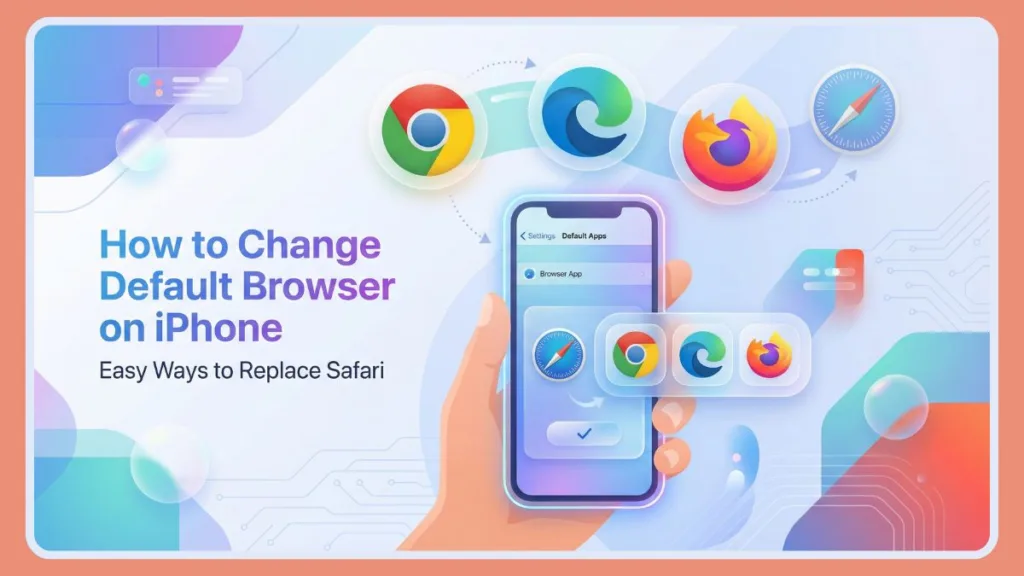
Additionally, with iOS 26 and newer versions, Apple expanded the default apps iPhone 2026 system. Now, changing the default browser on iPhone is just the start—you can manage defaults for email, messaging, navigation, passwords, and more, all from one dedicated area.
Note: This new system is designed to work seamlessly with the new “Liquid Glass” interface, making customization feel more fluid and visual.
Quick Answer: How Do I Change My Default Browser on iPhone Immediately?
If you need a step-by-step guide to change the default browser on iPhone, don’t worry—it’s a straightforward process. Here is the fastest method:
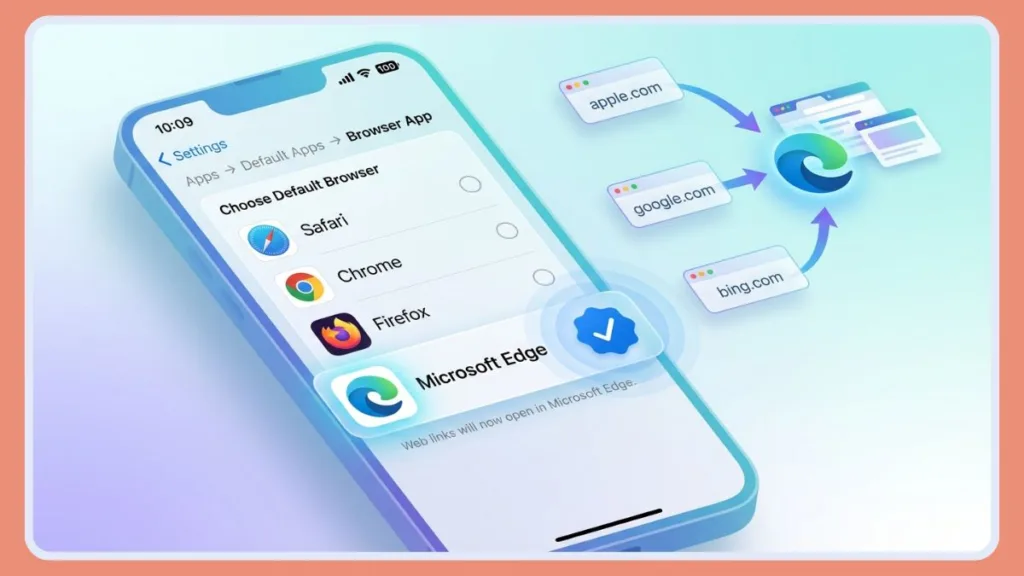
- Open Settings > Apps > Default Apps > Browser App.
- Select your preferred browser (like Chrome, Edge, or Arc) from the list.
That’s it. Once you set the default browser on iPhone, your device will automatically open web links in your chosen app instead of Safari. This even applies to links identified by the new Visual Intelligence feature when scanning objects with your camera.
Make sure your preferred browser is installed and your iPhone is updated. This iPhone default browser settings menu only appears on devices running iOS 14 or higher.
Pro Tip: If you are wondering “how to adjust browser settings on iPhone” quickly, swipe down on the Settings main screen to reveal the Search bar and type “change default web browser on iPhone.” This will take you directly to the correct setting regardless of your iOS version.
Now let’s explore why can’t I change my default browser on iPhone sometimes, why users are switching, and how to set Chrome as the default browser on iPhone properly.
Why You Should Change the Default Web Browser on iPhone
Switching your default browser on iPhone allows you to align your mobile experience with your personal preferences. For many users, it’s about control, productivity, and privacy. Here is why you might want to consider Safari alternatives on iPhone.
Seamless Sync: Keeping Bookmarks & Passwords Across Devices
If you use a specific browser on your computer, keeping the same browser on your iPhone means:
- Synced bookmarks
- Saved passwords
- Browsing history continuity
- Open tabs across devices
If you use a third-party browser on your laptop, setting it as your iPhone’s default keeps your data synchronized. iPhone productivity hacks often rely on this consistency. For example, making Chrome or Edge the default on iPhone improves autocomplete and makes it easier to pick up where you left off on another device.
Ecosystem Benefit: Using the same browser ecosystem allows for smoother “Handoff” functionality, letting you instantly open a page you were reading on your iPhone directly on your desktop browser without needing to email the link to yourself.
More Personalization: Adjusting Browser Settings on iPhone
iOS 2026 app management now allows deeper customization through the Default Apps section. You’re no longer locked into Apple’s default choices. Your browser, email app, messaging app, navigation tools, and even password manager can reflect your iPhone app preferences. Apple now lets you take control of your browsing experience, and changing your default browser on iPhone is a simple way to personalize your device.
Better Privacy: Using DuckDuckGo or Firefox as Default
Some browsers are designed with privacy as a core principle. For example, DuckDuckGo offers secure, private syncing of bookmarks and passwords across devices without tracking your data. Browsers like Firefox Focus also emphasize strong tracker blocking and minimal data collection. If privacy is your priority, these alternatives give you more control over your data.
Did You Know? Many of these alternatives also offer strict “fingerprinting” protection, preventing advertisers from identifying your device based on its unique configuration.
Productivity: Setting Chrome or Edge for Work Integration
Professionals often prefer browsers that integrate with their work tools. Setting the default browser in iPhone to Edge or Chrome can streamline document access, login sessions, and cloud tools, depending on whether you use Microsoft 365, Google Workspace, or other platforms. For those working across devices, this means smoother access to your files.
Performance Insights: Is Safari Better Than Chrome on iPhone?
Different browsers offer unique tools. You might ask, “Is Safari better than Chrome on iPhone?” It depends on your needs. Safari is optimized for iOS efficiency, but Chrome offers better integration with Google services, while Edge brings unique productivity tools. Choosing the right default browser depends on your workflow. Your choice should match your everyday iPhone customization tips and habits.
New for 2026: Choosing an AI-Powered Default Browser
Changing your default browser now also defines your AI experience. Different browsers integrate different AI models. Sticking with Safari offers deep integration with “Apple Intelligence” and Visual Intelligence, while third-party browsers may offer direct access to other AI assistants for summarizing articles and answering complex queries. Switching defaults allows you to choose which AI assistant powers your web browsing.
How to Change Default Browser on iPhone (iOS 26 & Latest Models)
If you are wondering how to change the default browser on iOS 26, the system makes this even easier than before. Here is how to change the default browser app on iPhone:
- Open the Settings app on your iPhone.
- Scroll down and tap Apps.
- Tap Default Apps at the top of the apps list.
- Choose Browser App from the options.
- Select your preferred browser from the list of installed options.
Once selected, every time you tap a link in Mail, Messages, Siri suggestions, QR codes, or other apps, it will open in your new default browser.
If you don’t see “Default Apps,” your iPhone may need a software update. Go to Settings > General > Software Update and make sure you’re up to date.
How to Change Default Browser on iOS 14–17 (Older iPhones)
If you have an older device and need to know how to change the default browser in iOS 14-17, the process is almost the same but accessed slightly differently:
- Open Settings.
- Scroll until you see the browser you want to set as default (e.g., if you want to know how to change Safari to Chrome on iPhone, find Chrome).
- Tap the browser’s name.
- Tap Default Browser App.
- Select your preferred browser.
Once done, you have successfully handled changing the default browser on iPhone, and web links will open in the new browser instead of Safari.
How to Transfer Safari Bookmarks, History & Passwords to Chrome or Edge
Worried about losing your browsing data? You don’t have to. To export your Safari data:
- Open Settings > Apps > Safari.
- Scroll down and tap Export.
- Choose what you want to include, then save it to your Downloads or iCloud Drive folder.
After exporting, open your new browser and check if it supports importing bookmarks and data. Many major browsers allow importing from a file containing your Safari data.
Important Note on Passwords: When exporting passwords, iOS typically creates a
.csvfile.Be extremely careful with this file, as it contains your passwords in plain text without encryption. Once you have imported this file into your new browser or password manager, delete the
.csvfile from your device immediately to maintain security.
Your bookmarks remain safe inside Safari even after switching the default browser on iPhone — nothing is deleted.
Best Default Browser App for iPhone 2026: Which Should You Choose?
If you’re unsure how to change your iPhone default browser to the right one, here are some popular options users prefer, along with their key features and considerations:
- Mozilla Firefox – Known for flexible privacy controls and strong tracker blocking. Ideal if you want a Firefox default browser setup. However, it may lack some of the deep ecosystem integration found in other browsers.
- Microsoft Edge – Great for Microsoft ecosystem users with features like Collections and Office integration. Perfect for an iPhone Edge browser setup, though users outside the Microsoft ecosystem may find these features less relevant.
- Google Chrome – Offers search integration, cross-device sync, and features for users in the Google ecosystem, including Gemini AI integration. This is a common choice for those asking “can I change Safari to Chrome on iPhone?”, but users should consider their data privacy preferences.
- DuckDuckGo – Privacy-oriented browser with private sync options (even for passwords and bookmarks). It offers strong privacy but may have fewer extensions or customization options compared to mainstream browsers.
- Brave – Built-in ad blocker and privacy protections. It focuses on speed and privacy, though its unique rewards system may not appeal to all users.
- Ecosia – Environment-focused, uses search revenue to plant trees. It is a solid choice for eco-conscious users, though it relies on Bing’s search index.
- Arc Search – Ideal for users who want a modern “Browse for Me” AI summary experience. It offers a unique interface that may have a learning curve for users accustomed to traditional browsers.
Each browser brings different strengths, so pick the one that fits your browsing habits.
Design Note: While third-party browsers are powerful, Safari is currently the only one fully optimized for the new iOS 26 “Liquid Glass” design language, offering translucent toolbars that blend with your wallpaper.
Troubleshooting: Why Can’t I Change My Default Browser on iPhone?
If you’re facing issues and wondering “why can’t I change my default browser on iPhone,” we have you covered. Here are common fixes.
Fix: “Default Apps” Option Missing in Settings
Update your iPhone to the latest iOS. Older versions may not show the centralized Default Apps hub.
Fix: Browser Not Showing in Default List
The browser must support Apple’s default app framework. If it doesn’t appear, update the app or contact the developer.
Fix: Default Resets After Restart
Some older software saw occasional reset issues, but updating fixes many of these quirks.
Check Screen Time Restrictions
One of the most common reasons the “Default Browser App” option disappears is Screen Time settings. If you have “Web Content” restrictions enabled, iOS may lock Safari as the only allowed browser to enforce those filters. To fix this, go to Settings > Screen Time > Content & Privacy Restrictions > Content Restrictions > Web Content and set it to “Unrestricted.”
Corporate Device Restrictions (MDM)
If you are using a work iPhone, your IT department may use Mobile Device Management (MDM) profiles to prevent changing the default browser. A setting known as “Allow default browser modification” can be disabled by administrators. If the option is greyed out or missing, check with your IT administrator.
Region-Specific Differences (The “Browser Choice Screen”)
In the European Union and some other regions, Apple’s “browser choice screen” may appear during setup, letting you pick a default right away. This screen displays a randomized list of the top 12 most popular browsers in your country to ensure fair competition under the Digital Markets Act (DMA).
Correction: If you panic-picked a browser on this screen during setup and want to change it, simply follow the “Default Apps” steps above to override your initial choice.
FAQ About Changing Default Browser Settings on iPhone
How do I change default apps on iPhone?
You can change default apps, including email and browser, by going to Settings > Apps > Default Apps.
Can I remove Safari completely?
No. Safari remains installed on iPhone, but you don’t have to use it as your default. You can, however, remove the Safari icon from your Home Screen to declutter your interface.
Does changing the default browser delete my data?
No. Your bookmarks and history stay inside each browser.
Can I switch back to Safari?
Yes. Simply follow the same steps on how to change the browser default on iPhone and select Safari again.
Does this affect other apps?
It only changes where web links open. Other app functions remain unchanged. However, note that some apps (like Instagram or TikTok) may still use their own internal browser unless you tap “Open in Browser.”
Take Control: Final Thoughts on Switching Default Browsers on iPhone
Changing the default browser on iPhone 2026 is simple, flexible, and completely reversible. Whether you want better syncing, enhanced privacy, or improved productivity, switching your default browser on iPhone is a small tweak that can make a big difference.
The best part? You’re not locked into anything. If your new browser doesn’t feel right, you can change your default browser on iPhone back to Safari anytime in just a few taps.
Now that you know how to change browser settings on iPhone, which one are you planning to use?
Visit Our Post Page: Blog Page