
Looking to update your home location for faster commutes and smarter navigation? This quick guide shows you how to change home address on Google Maps across Android, iOS, and Desktop.
Moving to a new house is a massive task, but updating your digital life shouldn’t be. We’ve all been there—you move into your beautiful new home, but my home address Google Maps still points to your old driveway. It’s a small detail that can lead to frustrating navigation loops and incorrect ETA calculations for your daily commute.
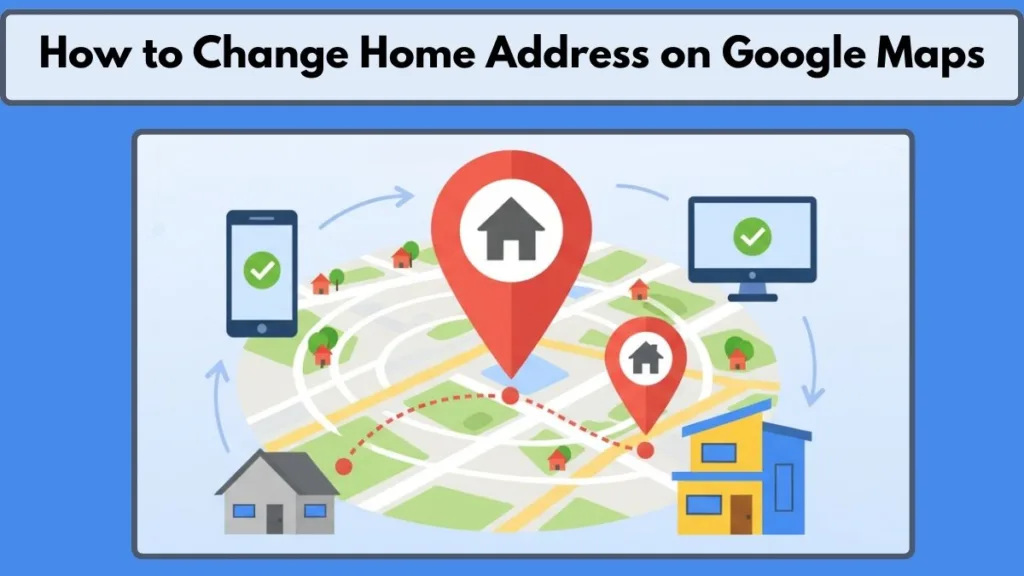
We believe tech should work for you, not against you. Whether you’ve recently moved or just realized your current pin is slightly off, here is the fastest way to update home on Google Maps across all your devices.
The modern navigation experience is built around the concept of “The Anchor.” For most of us, our home address is the primary anchor point from which all other digital services radiate. When this anchor is outdated, the ripple effects are felt throughout your smart home ecosystem, your vehicle’s dashboard, and even your food delivery apps.
In this expanded guide, we will dive deep into every setting, shortcut, and troubleshooting step to ensure your digital map is as accurate as the physical world you live in.
How to Set Home Address on Google Maps for the First Time: Initial Setup
If you are new to the app or haven’t personalized your experience yet, setting home in Google Maps is the best way to get one-tap directions.
To add home to Google Maps for the first time:
- Open the Google Maps app on your phone.
- Tap the Saved icon (the bookmark symbol) at the bottom of the screen.
- Under the “Your lists” section, tap on Labeled.
- You will see a Home option. Tap it and enter your address.
- Google will now remember this as your primary starting or ending point.
By setting home in Google Maps, you unlock faster commute alerts and better local recommendations.
The Digital Ecosystem: Why Your “Home” Label Matters
Setting a “Home” label is more than just a convenience for directions. It serves as a metadata tag for the entire Google Workspace and Assistant platform.
Key Integration: When you say, “Hey Google, take me home,” the Assistant references this specific labeled place.
Furthermore, features like Google Assistant’s “Daily Briefing” or Google Nest’s “Home/Away Assist” rely heavily on the geofencing established by this address. If you have a Nest Thermostat, for example, it may use the location of your phone relative to this home address to determine when to save energy.
Reducing Cognitive Friction with One-Tap Navigation
In the era of information overload, reducing “cognitive friction” is key to productivity. Having a set home address removes the need to type your street name while sitting in traffic or rushing out of a meeting. It transforms a complex navigation task into a binary choice: “Home” or “Work.” This efficiency is a core reason why keeping these labels updated is a top priority for power users.
How to Change Home Address on Android and iOS: Mobile Synchronization
If you already have a location saved but need to change home in Google Maps, the process is slightly different. Follow these steps for both Android and iOS devices:
- Open the Google Maps app.
- Tap your Profile Picture or initial in the top-right corner.
- Go to Settings > Edit home or work.
- Find the Home entry. Instead of tapping the address, tap the three dots (overflow menu) on the right side.
- Select Edit home.
- Clear the old text and type in your new location to update home on Google Maps.
- Tap Save.
This ensures that whenever you ask for “directions home,” you are actually heading to the right place. Changing home on Google Maps takes less than a minute but saves hours of navigation headaches.
Updating Your Address on Android (2026 Interface)
On the latest Android builds, Google has integrated “Material You” design elements that make the Google Maps home address settings even more accessible.
- Search Shortcuts: You can often find the “Edit Home” option by simply tapping the search bar; a shortcut for your home and work addresses usually appears immediately.
- Widget Support: If you use the Google Maps “Frequent Trips” widget on your home screen, updating your address in the app will automatically refresh the widget’s destination and ETA display.
Optimizing Google Maps for iPhone and iOS Users
The iOS version of Google Maps follows a similar path but often integrates with Apple’s Siri Shortcuts.
- Siri Integration: Once you update home on Google Maps, you can create a Siri Shortcut that says “Drive Home using Google Maps.” This bypasses Apple Maps and launches your preferred navigation tool with the updated coordinates.
- Focus Modes: iOS users can also set up “Focus Modes” (like Work or Home) that trigger specific app behaviors based on the geofence of your newly saved address.
How to Edit Home Address via Web Browser: Desktop Management
If you prefer using a computer to manage your Google Maps home address settings, the web browser version is equally straightforward.
- Go to maps.google.com.
- In the search bar at the top left, type “Home.”
- Next to the address that appears in the side panel, click Edit.
- Type your new address and click Save.
This is often the easiest way to edit home on Google Maps if you are already sitting at your desk planning your next trip.
Precision Control: The Benefits of Large-Screen Editing
Using a desktop allows you to see the broader context of your neighborhood. When you Google Maps change home location on a large monitor, you can more easily identify if the address is being placed on the wrong side of the street or if the “front door” access is via an alleyway.
Visual Advantage: This level of granularity is often lost on smaller mobile screens, making desktop editing the preferred choice for complex properties.
Cloud Synchronization and Browser Compatibility
Whether you are using Google Chrome, Safari, or Microsoft Edge, your Google Maps edit home address changes are saved to your Google Account’s central “Personal Info” cloud.
Instant Sync: The moment you click “Save” on your desktop, the new data is pushed to your tablet, your phone, and even your integrated car system.
If the sync isn’t immediate, ensure that you aren’t in “Incognito” or “Private” mode, as these sessions do not save changes to your profile.
Pinning Your Exact Location Manually: Geographic Accuracy
Sometimes, a street address doesn’t lead exactly to your front door—especially in new developments or rural areas. In these cases, you may need to edit home on Google Maps by manually moving the pin.
- Follow the steps above to reach the Edit Home screen.
- Instead of typing an address, select Choose on map.
- Drag the map until the red pin is exactly over your rooftop.
- Tap OK or Save.
This specific feature for Google Maps edit home location ensures that delivery drivers and friends find your exact door, not just the general street.
Leveraging Plus Codes for Precise Positioning
One of the most powerful but underutilized features of modern navigation is the Plus Code. A Plus Code is like a digital street address for places that don’t have one.
Technical Detail: It is based on latitude and longitude and looks like a short string of characters (e.g.,
8FVC9G8F+6X).
- If your home is in a remote area, you can find your Plus Code by tapping the blue dot (your current location) or dropping a pin on your house.
- You can then use this Plus Code in the “Edit Home” field. This is the ultimate way to set home address on Google Maps with surgical precision.
Why Manual Pin-Dropping Outperforms Text Addresses
Mailing addresses are designed for postal carriers, but navigation pins are designed for GPS satellites. Often, a mailing address might point to the center of a large apartment complex or the entrance of a gated community. By using the “Choose on map” feature to edit home on Google Maps, you can place the pin specifically on your building or even your specific driveway entrance.
What to Do When Your Address Won’t Save: Technical Troubleshooting
If you’ve followed these steps and find that my home address Google Maps is still showing the old location, try these quick fixes:
- Check Your Account Sync: Ensure you are signed into the same Google Account on both your phone and your computer.
- Clear App Cache: On Android, go to Settings > Apps > Maps > Storage and tap Clear Cache.
- Hard Restart: Sometimes the app needs a “hard refresh” to pull the new data from your Google Account settings.
Understanding Cache Clearing and Server Sync Delays
The most common reason for a failed update is “Local Caching.” To speed up performance, Google Maps stores a version of your “Labeled Places” on your device’s local storage.
- For Android: Go to Settings > Apps > Maps > Storage & Cache > Clear Cache.
- For iOS: Simply offloading the app and reinstalling it, or force-closing the app and restarting your iPhone, usually triggers a refresh.
Resolving Conflicting Google Account Data
Sometimes, your address is stored in multiple places within your Google Account. If Google Maps seems “stuck,” visit the Google Account Personal Info page.
Pro Tip: Check the “Addresses” section in your general account settings. If your old home address is listed here, it might be overriding the specific changes you made in the Maps app.
The Critical Role of “Web & App Activity”
For your home address to sync and stay relevant, you must have Web & App Activity turned on in your Google Activity Controls. If this is disabled, Google may not save your “Labeled” places correctly across sessions, as it treats each interaction as a localized event rather than a profile update.
Smart Ecosystem Integration: Beyond Navigation
Your home address isn’t just a destination; it’s a data point that powers an entire suite of smart services. When you update home on Google Maps, you are essentially updating the “home base” for your digital life.
Google Assistant and Smart Home Synergy
Smart speakers and displays like the Google Nest Hub use your home address to provide localized weather, traffic reports, and news.
- Commute Calculations: If you ask your Assistant about your commute, it calculates the traffic from your “Home” address to your “Work” address.
- Geofencing Routines: Services like Google Home use geofencing to turn off lights, lower the thermostat, or arm your security system when you leave the premises.
Dashboard Connectivity: Android Auto and Apple CarPlay
For many users, the primary way they interact with Google Maps is through their car’s dashboard.
- Android Auto Integration: Your “Home” and “Work” buttons are usually the most prominent shortcuts on the home screen.
- Apple CarPlay Compatibility: If you use the Google Maps app via CarPlay, it pulls the “Labeled” data from your Google profile.
Privacy and Data Security: Managing Your Location History
While having your home address saved is convenient, it also raises important questions about privacy. Google gives you several tools to manage how this data is stored and used.
Auditing Your Google Maps Timeline
Google Maps Timeline is a personal map that helps you remember paths you’ve taken and places you’ve been.
- If you don’t want Google to keep a record of how often you are at home, you can disable Location History.
- You can also set up Auto-Delete for location data (3, 18, or 36 months).
Purging Past Residence Records
If you are concerned about your old addresses being visible in your history, you can manually delete them.
- Go to Your Timeline in the Google Maps app.
- Tap on Settings and Privacy.
- Select Delete all Location History or Delete Location History range.
Navigating Complex Scenarios: International and Rural Challenges
Changing an address in a metropolitan area like New York or London is usually a breeze. However, users in rural areas or countries with different addressing systems may face unique challenges.
Overcoming Non-Standardized Addressing Systems
In many parts of the world, “123 Main St” isn’t a reality. Homes might be identified by landmarks or plot numbers.
- Landmark-Based Navigation: If your home is identified by local landmarks, this is where the Plus Code or manual pin-drop becomes vital.
- Transliteration Errors: Ensure your map’s language settings match the local addressing conventions.
Contributing to the Map: Adding Missing Roads
If you move into a brand-new street that doesn’t even exist on the map yet, you must help Google build the map.
- Tap Contribute at the bottom of the Maps app.
- Select Edit Map > Add or fix a road.
- Once the road is approved by the community, you can then set it as your “Home.”
Future Trends: AI and Immersive Navigation in 2026
As we move further into 2026, Google Maps is evolving from a 2D map into a 3D, AI-driven assistant.
Predictive Commute Intelligence
Google is now using generative AI to predict not just when you should leave, but how the weather, local events, and historical trends will impact your specific route home.
The Power of Immersive View
Immersive View uses computer vision to fuse billions of images into a digital model of the world.
Future Tech: When you update your home address, you can use Immersive View to check the traffic flow in 3D or see how the lighting changes in your neighborhood at different times of the day.
Conclusion: Final Thoughts on Digital Home Maintenance
Keeping your Google Maps set home address updated is essential for accurate travel times and seamless navigation. Whether you use the Google Maps edit home address feature on your phone or your desktop, the goal is the same: getting you where you need to go with zero friction.
An accurate home address is the foundation of a smart, efficient digital life. By mastering the tools of Google Maps home address settings, from Plus Codes to geofencing, you ensure that your technology is always working to bring you home safely and efficiently.
Resources & Further Reading
If you’re looking to dive deeper into the mechanics of Google’s ecosystem or need a specialized fix for a unique situation, these are the only sources we trust:
- Official Google Maps Help: Manage your Home & Work Address – This is the definitive “source of truth” for the latest interface updates and specific account-level troubleshooting.
- Plus Codes Official Site – If you live in a rural area or a new development without a standard street name, this resource will show you how to generate a precise digital address that never misses.
- Google Account Personal Information Hub – Think of this as your digital master control. If your map isn’t syncing, updating your address here often acts as the “hard reset” that fixes everything in one click.
Visit Our Post page: Blog Page