
Need to type in multiple languages? This easy, step-by-step guide shows you how to change keyboard language in Windows 11. Master quick switch shortcuts, and fix stubborn layout issues without any headaches.
In today’s interconnected world, being able to communicate in more than one language is almost a necessity. In fact, roughly 43% of people globally are bilingual, with a further 17% being multilingual. Whether you are collaborating with an international team, studying a new language, or simply need to type a special character like an accent (é) or a tilde (ñ), knowing how to manage your keyboard settings is essential for productivity.
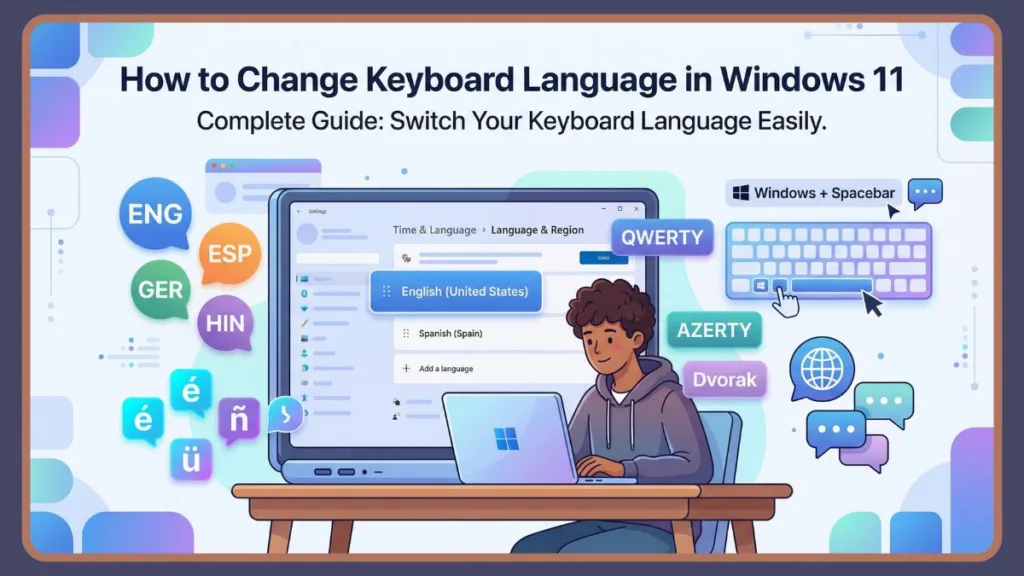
Windows 11 makes it fairly simple to toggle between different languages and layouts. This guide will walk you through the quickest shortcuts, how to add new languages, and how to troubleshoot common issues so you can type efficiently and accurately across your entire system.
How to Quickly Switch Keyboard Language in Windows 11 Using Shortcuts
If you already have multiple languages installed, you don’t need to dive into the settings menu every time you want to switch. Use these convenient methods to change your input method in seconds:
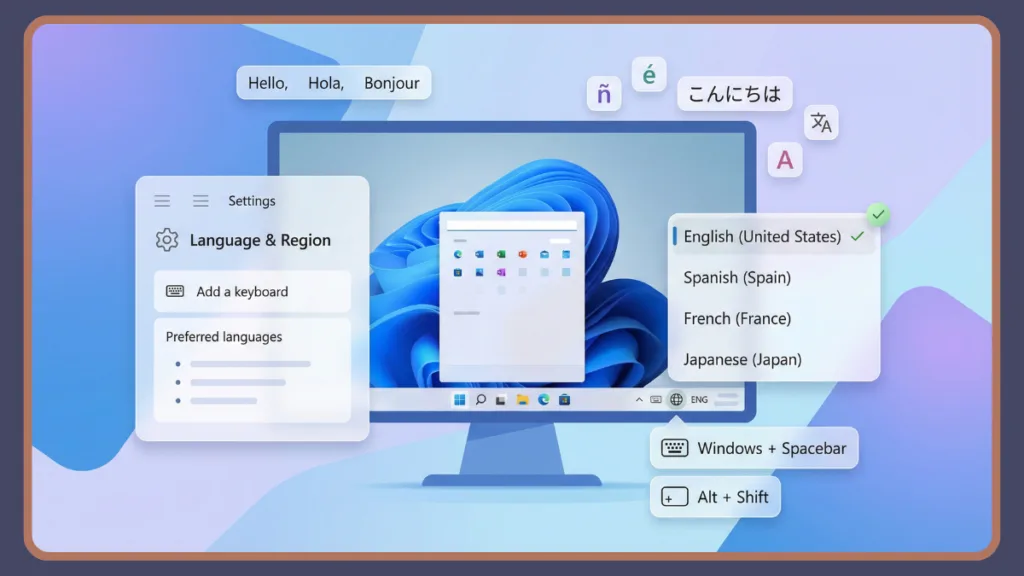
- Windows + Spacebar: This is the most reliable method to cycle through the installed keyboard languages. Hold down the Windows key and tap the Spacebar; each press moves to the next available keyboard layout you have installed.
- Left Alt + Shift: This classic keyboard shortcut toggles specifically between your installed input languages. It’s perfect for users who frequently jump between two primary languages, like English and Spanish.Note: This shortcut focuses on the active input language rather than every single layout variation.
- Ctrl + Shift: If you have multiple layouts (like QWERTY and Dvorak) assigned to the same language, this shortcut allows you to cycle through them without changing the language itself.
- The Taskbar Method: The quickest way to switch via mouse is using the language indicator located in the bottom-right corner of the taskbar near the clock. You will see a language abbreviation (such as ENG). Click this icon to open a list of all your available keyboards and select the one you need.
Step-by-Step Guide on How to Add a New Keyboard Language in Windows 11
Before you can switch between them, you must install the language pack you wish to use. Follow these detailed steps to set it up:
- Open Settings: Click on the Windows Start icon, then select Settings, or simply press Windows + I on your keyboard to launch the app instantly.
- Navigate to Language Options: Select Time & language from the left sidebar, then click on Language & region in the right pane.
- Add a Language: Under the Preferred languages section, click the Add a language button.
- Find Your Language: In the pop-up window, type the name of the language you want (like Spanish, German, or Hindi) in the search bar. Select the specific version for your region and click Next.
- Save Disk Space: Windows will ask which optional language features you want to install (like speech recognition or text-to-speech).Tip: If you only plan to use this language for typing, uncheck these features to save space on your hard drive. Ensure Language pack is selected, then click Install.
Pro Tip: Administrative Language Settings
If you want your new language to appear on the Welcome screen (login screen) and for all new user accounts, you need one extra step:
- In the Language & region menu, scroll down to Related settings and click Administrative language settings.
- In the new window, select the Administrative tab and click Copy settings.
- Check the boxes for Welcome screen and system accounts and New user accounts, then click OK.
How to Change Keyboard Layout Settings for Specific Languages in Windows 11
It is important to understand the difference between a language and a layout. A single language can have alternate keyboard layouts (like QWERTY, AZERTY, or Dvorak) that allow you to enter characters not available in the default setup.
How to add a different keyboard layout for an existing language in Windows 11
- Navigate to Settings > Time & language > Language & region.
- Click the three dots (…) icon next to the language you wish to modify and select Language options.
- Scroll down to the Keyboards section and click Add a keyboard.
- Scroll through the list and select your preferred keyboard layout.
Use the Windows 11 On-Screen Keyboard to Preview New Keyboard Layouts
If you aren’t sure where the keys are on a new layout, search for “On-Screen Keyboard” in your Start menu.
Tip: This is a life-saver for learning non-Latin scripts (like Arabic or Hindi) because it shows you exactly which characters are assigned to each physical key.
Performance Boost: Multilingual Text Suggestions
Windows 11 can actually suggest words as you type, even in multiple languages. To enable this:
- Go to Settings > Time & language > Typing.
- Turn on Show text suggestions when typing on the physical keyboard.
- Turn on Multilingual text suggestions.Why it matters: This helps you type faster and reduces spelling errors by predicting the next word based on the language you are currently using.
How to Remove Unused Keyboard Languages and Layouts in Windows 11 Settings
To keep your system organized and avoid accidentally switching to a language that leads to typing the wrong symbols, you should remove languages or layouts you no longer use.
- Open Settings and go to Time & language > Language & region.
- To remove an entire language: Click the three dots (…) next to the language and select Remove, then confirm by clicking Yes.
- To remove a specific keyboard layout: Select Language options, find the layout under the Keyboards section, click the three dots, and choose Remove.
Troubleshooting Why the Remove Language Button is Greyed Out in Windows 11
Warning: You cannot remove the default or currently active keyboard layout. If the Remove button is greyed out, switch to a different language or layout first using the taskbar or Windows + Spacebar, then try again.
How to Fix Common Windows 11 Keyboard Language and Layout Issues
Mismatched Characters: If you press Shift + 2 and get “ instead of @, your layout is likely set to UK English instead of US English. Check the input language icon in the system tray to ensure the correct layout is active.
Override for Default Input Method: If Windows keeps reverting to a language you don’t want, go to Settings > Time & language > Typing > Advanced keyboard settings. Under Override for default input method, manually select your preferred language from the dropdown menu.
How to Restore a Missing Language Icon from the Windows 11 Taskbar: If the language indicator disappears, go to Settings > Time & language > Typing > Advanced keyboard settings. Ensure the option “Use the desktop language bar when it’s available” is unchecked. This reenables the modern input language icon.
Difference Between Changing Windows Display Language and Keyboard Input Language: The Windows display language determines the language of the UI (like File Explorer). Changing this requires you to sign out and sign back in. For a deeper dive, check out this complete guide to changing the system language in Windows 11.
Registry Fix for Stubborn Layouts: For power users, if a layout won’t go away, you can find them in the Registry Editor at HKEY_USERS\.DEFAULT\Keyboard Layout\Preload. Deleting the corresponding hex code (e.g., 00000409 for US English) and restarting will force it out. Always back up your registry before making changes.
Managing your keyboard settings in Windows 11 doesn’t have to be a chore. By mastering these shortcuts, enabling multilingual suggestions, and keeping your layout list clean, you can stay focused on your work and enjoy a more personalized computing experience.
What languages do you use most often for work or study? Have you tried an alternative layout like Dvorak to speed up your typing? Let us know in the comments below!
Official Resources for Windows Language Management
To ensure you have the most up-to-date and reliable information directly from the source, here are the official Microsoft resources regarding these settings:
Microsoft Support: Manage language and keyboard/input layout settings in Windows — The definitive guide for standard users.
Microsoft Learn: Windows 11 Languages Overview — Deep-dive documentation for power users and IT professionals.
Official Shortcut List: Keyboard shortcuts in Windows — A full list of every shortcut available, including those for switching layouts.
Visit Our Post Page: Blog Page