
Stuck with the wrong city on Facebook Marketplace? Learn how to change your location in FB marketplace, fix common GPS bugs, and update your search radius for better deals.
In the rapidly evolving digital landscape of 2026, Facebook Marketplace remains a cornerstone of the global peer-to-peer economy. However, as Meta integrates more complex algorithms and consolidates settings into the Meta Accounts Center, users often find themselves fighting with a platform that seems stuck in the wrong city. If Facebook Marketplace is showing listings from the wrong city, country, or even the wrong currency, you’re not alone. This is one of the most common frustrations users face—and the good news is, it’s usually easy to fix once you understand how Marketplace handles location data.
Changing your location on Facebook Marketplace is pretty straightforward. You’ll be able to browse items for sale or list your own stuff in the region you specify. Just follow a few simple steps, and you’ll be set to explore a new marketplace. Whether you’re moving to a new city, hunting for deals while traveling, or just curious about what’s available elsewhere, these steps will guide you through the process effectively.
Quick Answer (Start Here)
To change your location on Facebook Marketplace:
Open Facebook > Go to Marketplace > Tap Location > Enter a new city or ZIP code → Adjust the radius → Apply changes.
This updates what listings you see. It does not change your Facebook profile location. Accurate location configuration is a simple yet crucial skill for maximizing your buying and selling potential.
The Importance of Location Accuracy in E-commerce
In the context of Facebook Marketplace, geographic location acts as a primary filter for potential buyers. Algorithms prioritize listings within a defined radius of a user’s specified location. Therefore, an inaccurate or outdated selling location can significantly hinder visibility, reduce engagement, and ultimately impact sales performance. The implications extend beyond mere visibility and touch every part of the user journey.
Localized SEO and Discovery
Marketplace listings are indexed based on location-specific keywords. A correct location maximizes relevance in local search results. When a buyer in Seattle searches for a “mountain bike,” the algorithm looks for listings tagged specifically within that geographic boundary. If your location is set incorrectly, your listing effectively doesn’t exist for your target audience.
Shipping, Local Pickup, and Delivery Logistics
Location data informs potential buyers about proximity, enabling efficient coordination for local pickup or estimating shipping costs based on distance. If your listed location doesn’t match where you are or where you wish to buy or sell, you may miss out on opportunities or find irrelevant listings. Furthermore, accurate location helps in coordinating safe exchange zones, which are often suggested based on your proximity to police stations or well-lit public areas.
Compliance, Regional Regulations, and Privacy
Certain products are subject to regional restrictions or regulations. An accurate location ensures compliance and avoids potential violations of Facebook’s Commerce Policies. Additionally, understanding how to manage your location is a key part of digital privacy—knowing when to share your exact ZIP code versus a general city area helps protect your home address while still allowing you to trade effectively.
Scenarios Requiring Location Modification
Understanding the specific scenarios where you might need to change your location helps in tailoring your Marketplace strategy.
- Relocation: A permanent or temporary move to a new city or country requires an immediate update to target the new local market.
- Business Expansion: For small businesses, expanding a service area to include neighboring regions allows access to new customer bases.
- Inventory Management: If you are selling from multiple locations, such as a warehouse or a consignment shop, you need to match buyers with the closest inventory source to optimize shipping.
- Temporary Events: Selling at pop-up shops or conventions requires localized visibility for the duration of the event.
- Market Testing: Experimenting with product offerings in different geographic areas provides valuable data for future expansion.
How to Change Location on Facebook Marketplace (Step-by-Step)
Method 1: Change Location on Mobile (Android & iPhone)
This is the most common method as most users engage with Marketplace through the mobile app.
Step 1: Open the Facebook App
Launch the Facebook app on your mobile device. Ensure you are logged into the correct profile. Accessing Marketplace requires an active, unrestricted account.
Step 2: Access the Marketplace Tab
Tap on the Marketplace icon. It looks like a small storefront. You’ll usually find it at the bottom of your screen on iOS or at the top of the app on Android.
Step 3: Access Location Settings
Once in the Marketplace section, you will see a search bar at the top and your current location displayed prominently (often in blue text). Tap on the location name or the pin icon. Alternatively, you can tap on the “Your Account” (profile) icon and scroll down to “Location.”
Step 4: Search and Select New Area
Type your correct location into the “Search Area” box. You can enter a city, town, or a specific ZIP code. As you type, Facebook will provide suggestions.
Important Note: Always select the location from the dropdown suggestions to ensure the system geocodes it correctly.
Step 5: Adjust the Search Radius
After selecting the location, use the slider to adjust the radius. This determines how far outside the center point you want to see items. You can choose a narrow radius for local pickups or a wider one for rare items you’re willing to travel for.
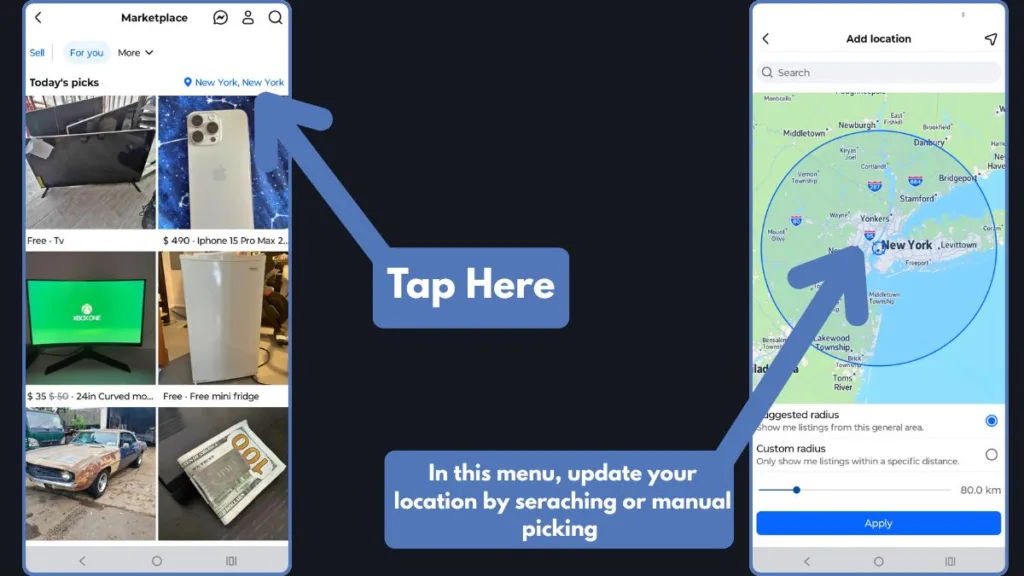
Step 6: Apply and Verify
Tap “Apply” to save your changes. Return to the Marketplace home screen and verify the listings have updated. The items shown should now reflect the new area you’ve chosen.
Method 2: Change Location on Desktop
Using a web browser offers a stable way to manage listings and search settings, especially for business users.
- Log into Facebook: Open your preferred browser (Chrome, Firefox, or Safari) and log into your account.
- Navigate to Marketplace: Click on the ‘Marketplace’ option located on the left sidebar of your Facebook homepage.
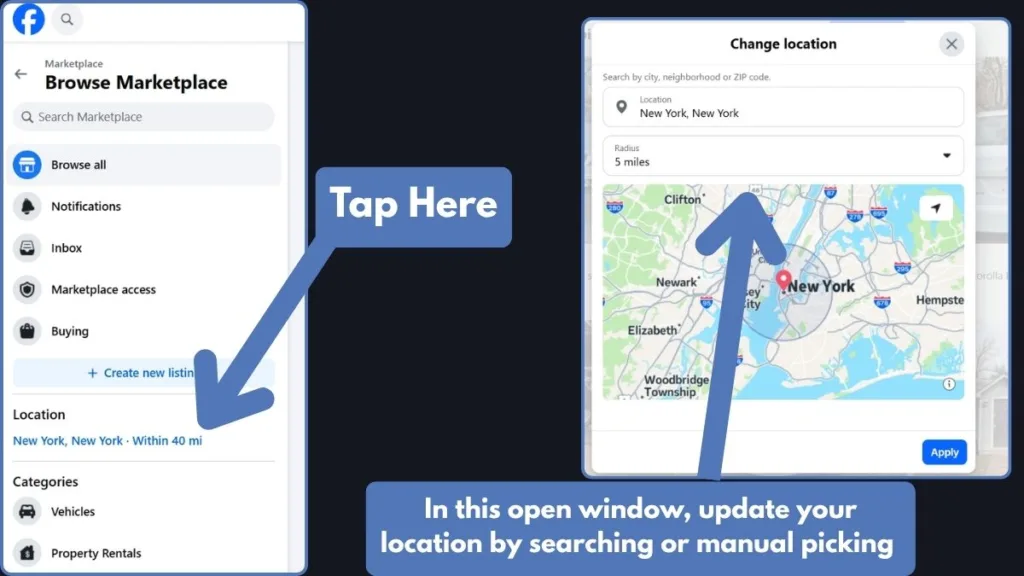
- Find the Filters Section: On the left-hand side of the Marketplace page, locate the filters. Your current location will be displayed with a “Change” or “Edit” option next to it.
- Enter New Location: Click the location link. A pop-up will allow you to enter a new city or ZIP code.
- Confirm the Change: Select the correct city from the suggestions and set your preferred distance radius. Hit “Apply” or “Enter” to save.
Alternative Method: Change Location Using Search Shortcuts
While browsing, you can tap the search bar and see a location toggle there as well. This is perfect for a “quick look” at another city without navigating through the full account settings menu.
Changing Location for Browsing vs Selling (Important Difference)
Many users are confused when they change their location to browse items but find their own listings are still tagged in their old city. It is vital to understand the difference between these two “locations.”
Browsing Location
This is a temporary filter. It determines what you see in your feed. Changing this does not change where you live on your profile or where your active listings are located. It is highly flexible and can be changed multiple times a day.
Selling/Listing Location
This is hardcoded into the specific item you are selling. When you create a listing, Facebook asks for the item’s location.
Key Takeaway: To fix a wrong listing location, you must manually edit the specific listing. Open “Your Listings,” tap the three dots on the item, select “Edit Listing,” and update the location field specifically for that item.
- Existing Postings: Your existing postings will remain in their original location even if you change your browsing settings. Each listing has its own geographic “anchor.”
How Facebook Marketplace Actually Uses Your Location
Facebook uses a sophisticated mix of signals to determine where you are. This is why your location might sometimes “reset” to a place you don’t want.
- GPS Data: On mobile devices, this is the dominant signal. If your GPS is on, Facebook will often prioritize your physical coordinates over your manual settings.
- IP Address: On desktop, Facebook looks at your IP address. If you are using a VPN or a corporate network, your Marketplace might show listings from where the server is located.
- Profile Data: Information in your “Places Lived” section acts as a fallback. If GPS and IP data are unavailable, Facebook pulls from your profile’s “Current City.”
- Wi-Fi and Cellular Signals: Even without GPS, proximity to specific cell towers and Wi-Fi routers helps Facebook triangulate your general area.
Fix: Facebook Marketplace Location Not Updating
If you’ve followed the steps and your location is still stuck, you are likely dealing with a technical glitch or a data sync error.
1. Turn On Location Services
Check your device settings:
- iPhone: Settings > Privacy & Security > Location Services > Facebook. Ensure it is set to “While Using the App.”
- Android: Settings > Location > App Permissions > Facebook. Toggle on “Use Location.”
2. Clear Facebook App Cache (Android Only)
Caches and cookies can compromise your operation. Clearing the cache forces the app to pull fresh data from the servers.
- Open device Settings.
- Go to Apps > Facebook.
- Tap Storage > Clear Cache. (Do not tap “Clear Data” unless you want to be logged out).
3. Deep Refresh for iPhone
Since iOS doesn’t have a clear cache button, you must “Offload” or delete the app.
- Go to Settings > General > iPhone Storage.
- Find Facebook and tap Delete App.
- Reinstall the app from the App Store. This clears out all outdated location files.
4. Log Out and Re-Login
Sometimes the connection between your device and Meta’s servers becomes “stale.” Logging out and back in forces a fresh handshake with the server, which often resolves syncing issues.
5. Check VPN and IP Mismatch
If you use a VPN for privacy, it can confuse Facebook. Turn off your VPN and refresh the Marketplace page. If the location corrects itself, you’ll know the VPN was the cause.
Fix: Wrong Currency or Country on Marketplace
It is common for users to see prices in Euros or Brazilian Real when they are in the US or UK. This is usually a regional setting issue.
- Check Language & Region: Ensure your phone’s system settings are set to the correct country.
- Update Payment Settings: Go to Facebook Settings > Payments > Ad Payments. Under “Preferences,” ensure your currency is set to your local currency (e.g., USD, GBP, INR).
- Clear Browser Cookies: If you are on a desktop, clearing your browser’s cookies specifically for Facebook can reset the currency detection algorithm.
Pro Tip: Facebook may limit currency changes to once every 72 hours.
Why Facebook Marketplace Isn’t Available to You
If you find that you cannot access Marketplace at all, or the location features are completely missing, your account might be restricted.
- Age Restrictions: Marketplace is only available to users 18 and older.
- New Accounts: To prevent spam, Meta often hides Marketplace from brand-new accounts for a few weeks.
- Regional Availability: While available in over 70 countries, some regions still do not have access.
- Policy Violations: If your account has been flagged for selling prohibited items, your Marketplace access may be revoked.
- Account Standing: Frequently changing your IP or location too quickly (e.g., “teleporting”) can flag your account as suspicious.
Troubleshooting Common Location-Related Issues
| Issue | Potential Cause | Resolution |
| Location Not Updating | Disabled GPS or cached data | Enable location services and clear app cache |
| Inaccurate Listings | Outdated IP address or browser cache | Restart the app or clear browser cookies |
| Listings in Wrong Country | VPN active or wrong region settings | Disable VPN and check “Language & Region” settings |
| Login Issues | Incorrect credentials or account alert | Verify login info and check for security notifications |
Advanced Considerations for Businesses
For those using Marketplace as a professional selling tool, simple manual updates may not be enough.
- API Integration: Businesses managing large inventories across multiple locations can leverage the Facebook Marketing API to automate location management.
- Geofencing: Combine Marketplace listings with Facebook Ads Manager to target specific geographic boundaries (geofencing).
- Data Analytics: Track your conversion rates across different locations to optimize where you should be listing your products.
- Inventory Segmentation: If you have multiple warehouses, ensure each listing is geolocated to the specific warehouse to provide accurate “distance to buyer” metrics.
FAQ
How accurate is Facebook Marketplace location?
It is highly accurate when GPS is enabled. However, if relying on an IP address (especially on desktop), it may only be accurate to the nearest major city.
Can I change my location multiple times?
Yes. There are no restrictions on how many times you can update your browsing location. However, changing your profile city frequently can trigger security flags.
Why is my Marketplace showing items far away?
This is usually because your search radius is set too wide (e.g., 100+ miles). Drag the slider to a smaller distance like 5 or 10 miles.
Does changing my location log me out?
No. Changing your location is a standard setting and will not affect your login status.
How do I reset Facebook Marketplace?
There is no “reset” button. You must manually clear your cache, update your location settings, and ensure your app is running the latest version.
Conclusion
Changing your location on Facebook Marketplace is a vital skill for anyone looking to maximize the platform’s potential in 2026. Whether you are moving, traveling, or expanding a business, the ability to control what you see and who sees your items is the key to successful trading.
Accuracy in your location settings leads to better SEO, more relevant buyers, and a safer overall experience. Remember to keep your app updated, your permissions enabled, and always double-check your radius settings. With these steps, you can navigate the global marketplace from the comfort of your own home. Happy trading!
Visit Our Post Page: Blog Page