
Fix the wrong sender name in Outlook fast. Learn how to change your Outlook display name for web, desktop, and mobile, plus solutions if it’s not updating.
Ever sent an important email only to realize your sender name still shows up as your old gaming handle or an outdated nickname? 😅 It’s a common hiccup, but in a professional world, your digital identity is your first impression.
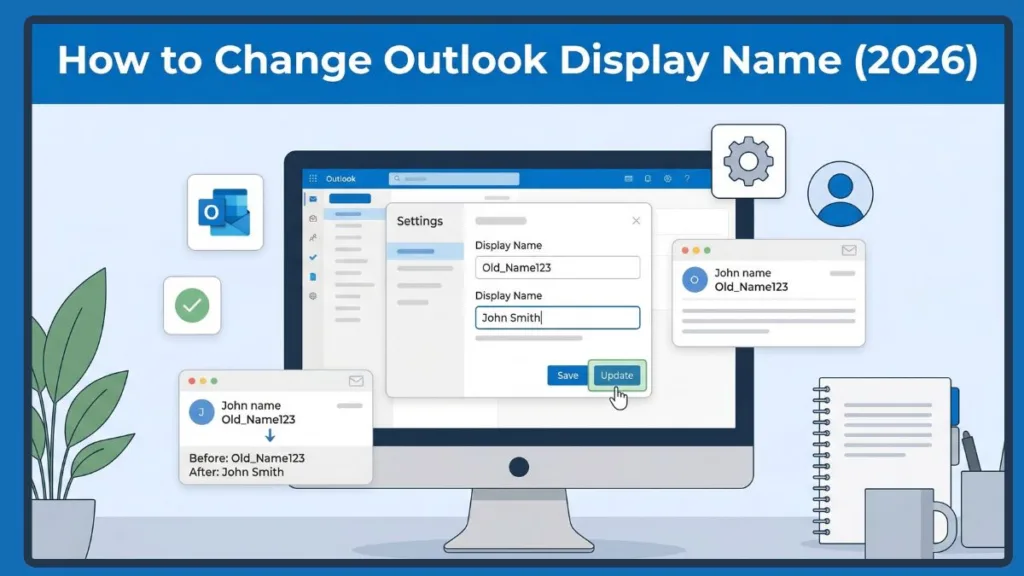
The good news is that you can change your name on Outlook email without the headache of creating an entirely new account. This “Friendly Name” is what appears in the From field of your recipient’s inbox. Whether you’ve recently married, changed your professional role, or just want to tidy up your profile, this guide will show you exactly how to do it across every version of Outlook available in 2026.
Personal vs. Work Microsoft Accounts: Understanding the Difference in Name Settings
Before we dive into the “how,” we need to identify what type of account you’re using. This determines whether you have the power to change your name yourself or if you need to send a friendly message to your IT department.
| Feature | Personal Account (Outlook.com/Hotmail) | Work/School Account (Microsoft 365/Exchange) |
| Who Controls It? | You | Your IT Administrator |
| Where to Change? | Microsoft Account Profile | Exchange Admin Center / Entra ID |
| Speed of Change | Usually 5–30 minutes | Up to 24 hours (GAL Sync) |
| Technical Protocol | IMAP / POP3 | Microsoft Exchange / MAPI |
Why You Can’t Change Your Name in the “New Outlook” App
As of 2026, Microsoft has fully integrated the “New Outlook” interface for Windows 11 and Windows 12. While it’s sleek and modern, it has a significant limitation: the app is essentially a web-wrapper. This means you cannot directly edit your display name inside the app settings for most IMAP or POP accounts.
If you are looking for a “Change Name” button inside the New Outlook Windows app and can’t find it, don’t worry—you aren’t missing anything. You simply have to use the Web App or your Microsoft Account Profile to make the change.
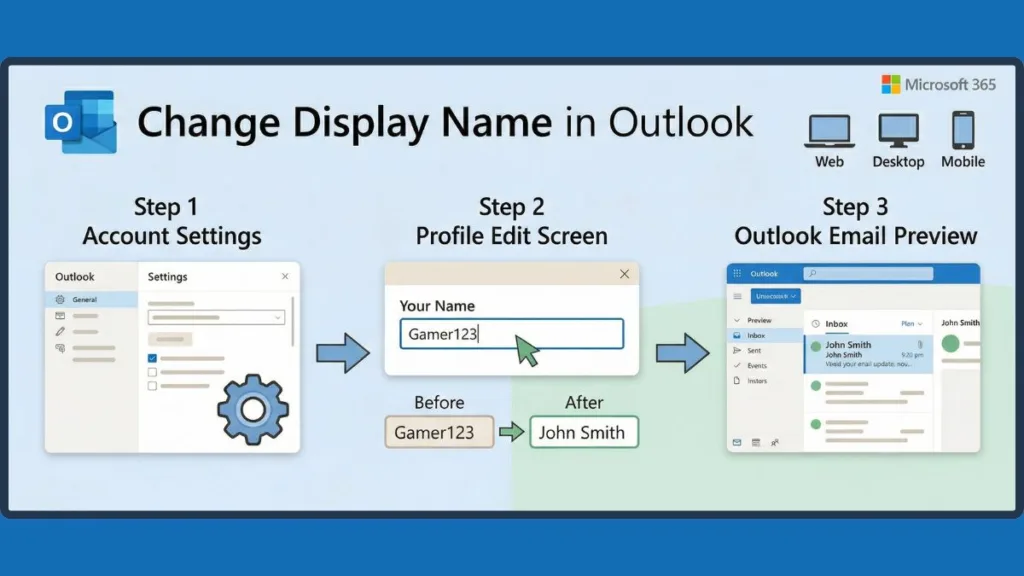
Step-by-Step: How to Change Your Outlook Web (OWA) Display Name
This is the most reliable method for 2026 and works for both personal and many business users.
- Log in to your account at Outlook.com.
- Click the Gear Icon (Settings) in the top-right corner.
- Navigate to Accounts > Email accounts.
- Click on Manage or Edit Profile. This will typically open a new browser tab for your Microsoft Account information at
account.microsoft.com. - Select Edit Name (located under your current name).
- Enter your new First and Last name, solve the CAPTCHA (if prompted), and hit Save.
Pro Tip: Log out and back in to force the browser to recognize the change immediately.
Updating Your Sender Name in Classic Outlook for Windows
If you are using the “Classic” version of Outlook (the one with the traditional ribbon), the steps are a bit more direct:
- Click the File tab in the top-left corner.
- Go to Account Settings > Account Settings.
- Select the email account you want to change and click the Change button.
- In the User Information section, locate the Your Name field.
- Type your desired sender name and click Next.
- Outlook will perform a quick test to ensure the account is still valid. Click Finish once complete.
How to Change Your Name on the Outlook App for iOS and Android
Since many users manage their lives from their phones, follow these steps:
- Open the Outlook App and tap your Profile Icon (top left).
- Tap the Gear Icon (Settings) at the bottom left.
- Tap on the specific Email Account you wish to update.
Updating Profile Information for Outlook iOS Users
You may need to tap “Account Settings” within this menu to see the name field. Look for the Edit Name or Account Description field.
Modifying Account Descriptions for Outlook Android Users
If the name is controlled by a workplace, you will see a message saying “Managed by your organization.” If it is a personal account, you can edit the name field directly.
How to Change the Display Name in Outlook for Mac
- Open Outlook and go to Outlook > Settings (or Preferences).
- Click on Accounts.
- Select your account on the left sidebar.
- Update the Full Name field. This is the name recipients will see.
- Close the window, and Outlook for Mac will sync the change to the server automatically.
Troubleshooting Grayed-Out Settings: Changing Names in Microsoft Exchange and Work Accounts
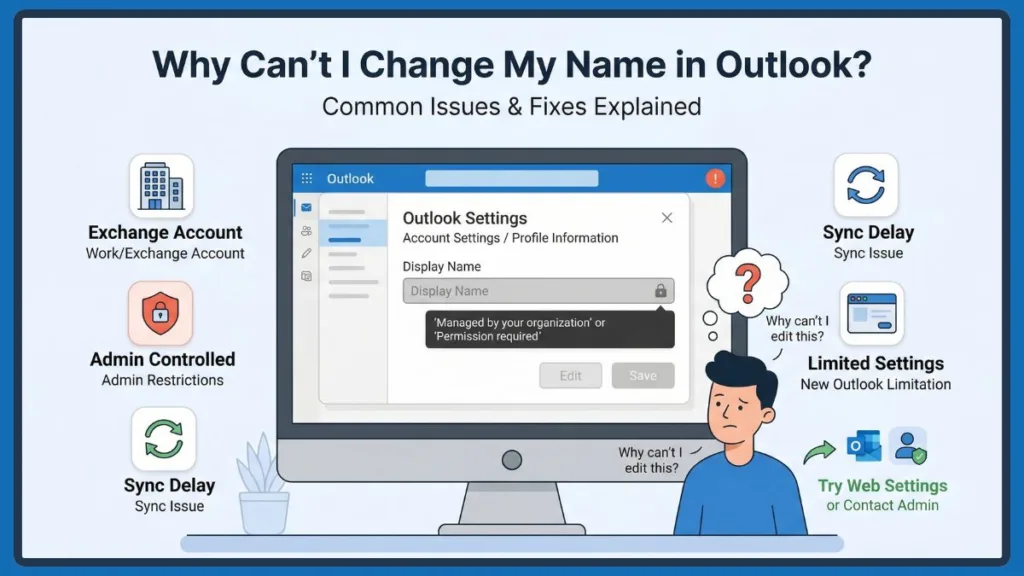
If you see your name but can’t click it, you are likely using a Microsoft Exchange account managed by your employer.
Guidelines for Standard Users in an Organization
You must contact your Microsoft Exchange Administrator or IT Helpdesk. They manage the “Global Address List” (GAL) which controls how your name appears across the entire organization.
Administrative Procedures for Microsoft 365 Admin Center Updates
Log in to the Microsoft 365 Admin Center > Users > Active Users. Select the user, and under the Account tab, click Manage contact information to update the display name.
- Advanced Fix: If the GUI doesn’t update, use PowerShell:
Set-Mailbox -Identity "UserAlias" -DisplayName "New Name"
Troubleshooting Fix: Why is Outlook Still Showing the Incorrect Name?
So, you changed your name, but your emails are still showing the old one? Here are the technical reasons why:
Understanding the Offline Address Book (OAB) Sync Delay
Outlook desktop apps download a copy of the company directory once every 24 hours. Even if the admin changes your name, your colleagues might not see it until their app downloads the new OAB.
Clearing the Auto-Complete Cache to Show Your New Name
This is the biggest culprit. Your recipients have your old name saved in their Auto-Complete list. When they type your email, Outlook fills in the cached name. They need to click the “X” next to your name in the suggestion list to clear it.
Managing Entra ID (Azure AD) Synchronization Timeframes
In large corporations, changes made in the Admin Center must sync to the Cloud (Entra ID). This “propagation” can take up to 24 hours.
Frequently Asked Questions (FAQ) About Outlook Name Changes
How do I change the name that appears when I send an email in Outlook?
Update your Microsoft Account Profile (for personal accounts) or your Outlook Account Settings (for classic desktop).
Why is the option to change my name grayed out?
This is a security feature for Work or School accounts. Your IT administrator controls the naming convention to ensure consistency across the company.
Can I have a different display name for an Outlook alias?
Yes. When you go to Settings > Mail > Compose and reply, you can choose which alias to send from. However, most aliases default to your primary profile name unless manually overridden in the “From” settings.
Final Thoughts on Managing Your Outlook Digital Identity
Keeping your Outlook display name professional and up-to-date is a small task that makes a big impact on your communication. Whether you are navigating the new 2026 interface or sticking with the classic desktop version, the steps above ensure you are in control of your digital identity.
Is your name still showing up incorrectly? Drop a comment below with your Outlook version, and I’ll help you troubleshoot!
Visit Our Post Page: Blog Page