
Learn how to change your wallpaper in Windows 10 in under 30 seconds. Use our simple step-by-step guide to make your desktop truly yours today.
If you’re tired of seeing the same default Windows blue background every time you turn on your PC, you’re not alone. That image may be clean, but it doesn’t feel personal. Your computer should reflect you—your family, your pet, your favorite game, or a calming landscape.
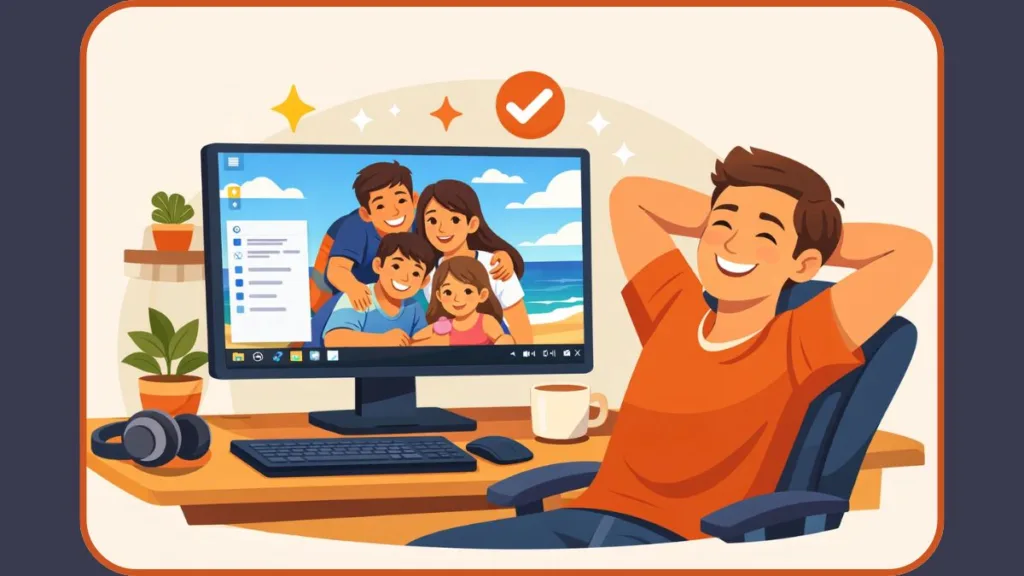
The good news? You don’t need technical skills, special software, or more than a minute. We guarantee you can change your Windows 10 wallpaper in under 30 seconds once you know where to click.
This guide shows you the fastest method first, then walks you through additional options only if you need them.
How to Change Desktop Wallpaper in Windows 10 Instantly (The 30-Second Method)
This is what most people are actually looking for.
The Absolute Fastest Way (5-Second Shortcut): Before we look at the settings menu, there is a hidden shortcut that is even faster. If you already have a photo saved in a folder:
- Open the folder containing your image.
- Right-click the image file.
- Select Set as desktop background. Done. You don’t even need to open the Settings menu.
The Standard Desktop Method: If you prefer to browse via the desktop menu, follow these steps:
- Go to your desktop and make sure you are on an empty area with no icons selected. This ensures that the right-click menu will show the options you need without interfering with files or app icons.
- Right-click on any empty space to open the context menu, which gives you quick access to personalization features.
- Click Personalize to open the Personalization settings page in the Windows Settings app, where you can control all visual aspects of your desktop.
- Under Background, choose Picture as the background type — this option lets you select a single image as your wallpaper.
- Select one of the images shown in the preview list, or click Browse to choose your own photo from your computer’s folders. This lets you use family photos, travel shots, or any custom image you like.
That’s it. Your wallpaper changes instantly and instantly makes your desktop feel more personal. Windows 10 supports JPG, PNG, and other common image formats, so you can use most photos without issues.
If your goal is simply to replace the default background with something personal, you can stop right here.
How to Change Wallpaper in Windows 10 Using Settings (Advanced Background Control)
If you want more options — like slideshows, image fit settings, or solid colors — Windows 10 gives you full control through Settings.
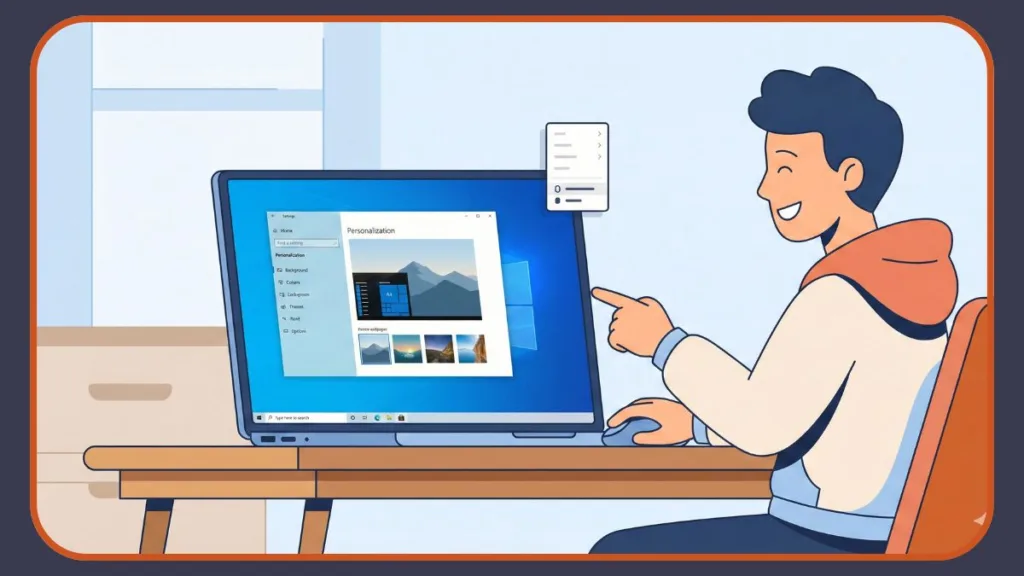
- Press Windows + I to open the Settings app quickly, or click the Start menu and select the gear icon.
- Click Personalization to access all appearance-related options, including backgrounds, themes, and colors.
- Select Background from the left menu to manage desktop wallpaper settings.
- Choose whether you want a Picture (a single image), Slideshow (multiple images that change automatically), or Solid color (a plain color background). Windows also supports Windows Spotlight for lock screens, which delivers daily images from Microsoft’s online collection.
- Use Browse to select the image or folder you want to use as your desktop background. After selecting, Windows may show additional options for how the image fits on your screen.
This method is best when you want to fine-tune how your desktop looks, including how images scale and fill the screen.
How to Set Your Own Photos as Wallpaper in Windows 10 (Personal Images Explained)
Windows 10 fully supports personal images, and we recommend you use them to create a desktop that feels familiar and enjoyable every time you sit down to work or play.
You can set family photos, pictures of your pet, artistic wallpapers, or travel photos stored on your device.
For best results, it’s ideal to use high-resolution images that match your screen’s resolution so the wallpaper appears crisp and not pixelated. Most modern displays benefit from images that match or exceed the screen resolution, such as 1920×1080 or higher.
Using personal photos like this not only makes your desktop more visually appealing but also helps you feel a stronger sense of ownership and comfort with your device.
How to Set a Slideshow Wallpaper in Windows 10 (Automatic Background Change)
If you don’t want to stick to just one image, a slideshow is an excellent way to rotate through multiple wallpapers automatically.
- Open Settings > Personalization > Background to access background controls.
- Change the Background option to Slideshow, which allows the desktop to cycle through a folder of images.
- Click Browse and select a folder that contains the images you want to rotate. Creating a dedicated wallpaper folder makes this easier to manage.
- Choose how often Windows should change the image automatically, with options ranging from seconds to several hours.
- Turn Shuffle on or off depending on whether you want images to appear in random or sequential order.
Windows will automatically rotate your wallpapers without any extra effort. You can also adjust settings to pause the slideshow when your device is running on battery power to conserve energy.
If you enjoy having your background refresh automatically on your PC, you might also be interested in setting up an automatic wallpaper changer for Android to keep your phone’s screen just as fresh.
How to Change Wallpaper on Dual Monitors in Windows 10
If you use two monitors, Windows 10 lets you customize each screen independently or stretch a single wallpaper across both displays.
To use the same wallpaper on both monitors, you can select a fit option like Span, which stretches the image across screens as one continuous picture.
If you prefer different wallpapers on each display, Windows allows you to right-click an image in the background settings and assign it to a specific monitor.
This flexibility helps keep multi-screen setups clean and balanced and ensures each screen reflects your personal style.
Difference Between Lock Screen Background and Desktop Wallpaper in Windows 10
Many users confuse these two, and Windows treats them separately, so it’s important to understand the difference. The desktop wallpaper appears after you sign in and remains visible while you use apps and browse files. The lock screen image appears before login and may show the time, notifications, and background visuals.
- To change the lock screen background, go to Settings > Personalization > Lock screen.
- Choose Picture, Slideshow, or Windows Spotlight, depending on whether you want a static image, rotating images, or automatically updated visuals.
Changing one does not automatically change the other, allowing you to personalize each separately.
Windows 10 Wallpaper Not Changing? Common Causes and Fixes
If your wallpaper won’t change, one of these is usually the reason.
Why Wallpaper Changes Are Blocked in Windows 10
This issue often happens because Windows is not activated, theme or sync settings are overriding your choice, group policies restrict changes, or the image file you selected is unsupported or corrupted. On work or school computers, administrative policies may also prevent wallpaper changes.
How to Fix Wallpaper Not Changing in Windows 10
- Try the “Right-Click” Trick: If Windows isn’t activated, the Settings menu is often greyed out. However, the method where you right-click the image file directly and select Set as desktop background often bypasses this restriction.
- Check whether your Windows 10 installation is activated, as unactivated systems may limit personalization features.
- Try applying a different image to rule out problems with the original file.
- Disable theme sync temporarily if it is enabled.
- Ensure no administrator or policy settings are blocking wallpaper changes.
- Restart your PC and reapply the wallpaper from Personalization settings.
In most cases, these steps resolve the issue and restore full control over your desktop background.
Best Wallpaper Resolution and Size for Windows 10 (Avoid Blurry Backgrounds)
To keep your wallpaper sharp and properly scaled, match the image resolution to your screen’s native resolution. For example, a Full HD display works best with a 1920×1080 image. It is also important to match the Aspect Ratio (typically 16:9 for most monitors) to ensure the image doesn’t look stretched or squashed.
Windows offers multiple fit options such as Fill, Fit, Stretch, Tile, Center, and Span, each affecting how the image appears on your screen. Choosing the correct fit option helps prevent distortion, cropping, or pixelation. We recommend avoiding stretched low-resolution images because they rarely look good on modern displays.
FAQ: Windows 10 Wallpaper
Can you use your own photos as wallpaper in Windows 10?
Yes. Windows 10 fully supports personal photos and common image formats, making it easy to set your own images as wallpapers.
Why does Windows keep changing your wallpaper automatically?
This usually happens when slideshow mode, theme sync, or automatic background features are enabled.
Does changing wallpaper slow down your PC?
No. Static wallpapers do not have a noticeable impact on system performance, and slideshow wallpapers are optimized to run efficiently.
Final Thoughts on Personalizing Your Windows 10 Desktop
Your PC doesn’t need to look like everyone else’s. One image is all it takes to make it feel personal. Whether you want a quick change or full customization, Windows 10 gives you complete control — and now you know exactly where the button is.
If you want to personalize further, you can explore themes, accent colors, and lock screen settings next.
Useful Resources to Personalize Your Windows 10 Desktop
If you want to go beyond the basics or verify settings directly from official documentation, these trusted resources will help you personalize your Windows 10 desktop with confidence.
Official Windows Personalization Guides (Recommended)
If you prefer learning directly from official sources, Microsoft provides clear documentation covering desktop backgrounds, lock screen images, themes, and personalization limits.
- Microsoft Windows Desktop Background Guide: This guide explains how Windows 10 background settings work, including picture, slideshow, solid color options, image fit modes, and multi-monitor support. It’s useful if you want confirmation straight from the source.
- Microsoft Windows Themes & Personalization Overview: If you want to personalize more than just the wallpaper, this resource explains how themes combine backgrounds, accent colors, sounds, and cursors into one consistent experience.
- Microsoft Lock Screen Customization Guide: This helps you understand the difference between the desktop wallpaper and the lock screen image, including Windows Spotlight and slideshow options.
We recommend these guides if you want official clarity or are troubleshooting personalization restrictions.
Visit Our Post Page: Blog Page