
Confused about Apple Watch wallpaper and watch faces? Learn how to change wallpaper on Apple Watch, set photos as watch faces, switch designs, and customize your screen confidently.
Apple Watch Wallpaper vs Watch Face (Why It’s Confusing)
If you’ve ever searched how to change wallpaper on Apple Watch, you’re not alone—and you’re not wrong. Most people think in terms of wallpaper or background, just like on an iPhone. But here’s where the confusion starts.
Apple doesn’t officially use the word wallpaper.
Instead, Apple calls everything you see on your watch screen a Watch Face.
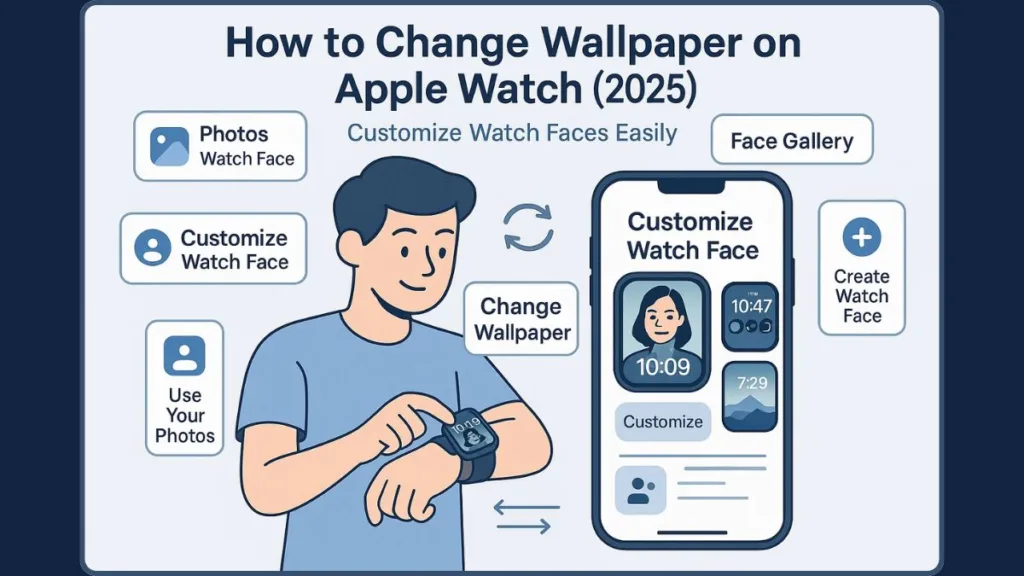
This terminology gap is the biggest reason users feel stuck when trying to change the background on Apple Watch or set a favorite photo as their screen. You search for Apple Watch wallpaper, but Apple’s settings talk about Watch Faces, Face Gallery, and complications—which can feel overwhelming at first.
Here’s the simple way to think about it:
- A Watch Face is the complete screen layout that shows the time, widgets, and complications like battery, activity rings, or calendar.
- What users casually call Apple Watch wallpaper is usually a photo-based Watch Face, where an image sits behind the time and icons.
So yes—you can change your Apple Watch “wallpaper.” You just do it through Watch Faces.
Once this distinction is clear, everything becomes easier: setting a photo as an Apple Watch face, switching designs, or customizing your screen to match your style takes only a few taps. This guide walks you through every method—without the confusion—so your Apple Watch finally looks the way you want it to.
By the end, you’ll know exactly how to change Apple Watch wallpaper, customize faces confidently, and avoid the common mistakes that trip most users up.
What You Need Before Changing Apple Watch Wallpaper
Before you try to change wallpaper on Apple Watch, it helps to make sure a few basics are in place. This avoids sync issues, missing faces, or photos not showing up later.
Here’s what you’ll need:
- An Apple Watch paired with an iPhone: Wallpaper and Watch Face changes rely on the connection between both devices.
- The Watch app on your iPhone: This is where most Apple Watch face customization happens, including adding photo backgrounds and browsing the Face Gallery.
- Access to the Photos app: If you plan to set a photo as your Apple Watch wallpaper, the image must be saved in your Photos library.
- A supported watchOS version: Newer versions like watchOS 10 or watchOS 11 slightly change how face switching and gestures work.
- A compatible Apple Watch model: Custom faces and photo wallpapers work across Series models, SE, and Ultra, though options may vary slightly.
Quick tip: If your Apple Watch isn’t syncing faces properly, opening the Watch app and letting it sync in the background often fixes the issue before you even start.
Apple Watch Face vs Wallpaper: What’s the Real Difference?
This is where most confusion comes from—so let’s clear it up cleanly.
An Apple Watch Face is the entire screen experience. It controls:
- The time style
- Complications (battery, activity, weather, calendar)
- Colors, layouts, and sometimes widgets
What users usually call Apple Watch wallpaper is actually a photo-based Watch Face.
Here’s the practical difference:
- A Watch Face is functional and customizable.
- A Wallpaper (photo background) is visual and personal.
When you set an image as your background, the photo appears behind the time and icons. This looks great for pets, portraits, or aesthetic images—but it comes with fewer customization options than traditional faces.
That’s why Apple doesn’t separate “wallpaper” and “home screen” like on iPhone. On Apple Watch:
- There’s one screen
- One Watch Face
- One background at a time
Understanding this distinction makes it much easier to:
- Change background on Apple Watch
- Choose between photo faces, portrait faces, or classic designs
- Avoid expecting features that simply don’t exist on watchOS
Once you know that wallpaper = a type of Watch Face, the rest of the customization process becomes straightforward—and far less frustrating.
How to Change Apple Watch Background: Wallpapers, Faces & Photos
How to Change Wallpaper on Apple Watch Directly (Without iPhone)
Change the Watch Face Directly From Your Wrist
If your iPhone isn’t nearby, you can still change wallpaper on Apple Watch directly using only the watch. This method is designed for speed and convenience, making it ideal when you want a quick visual refresh without opening any apps.
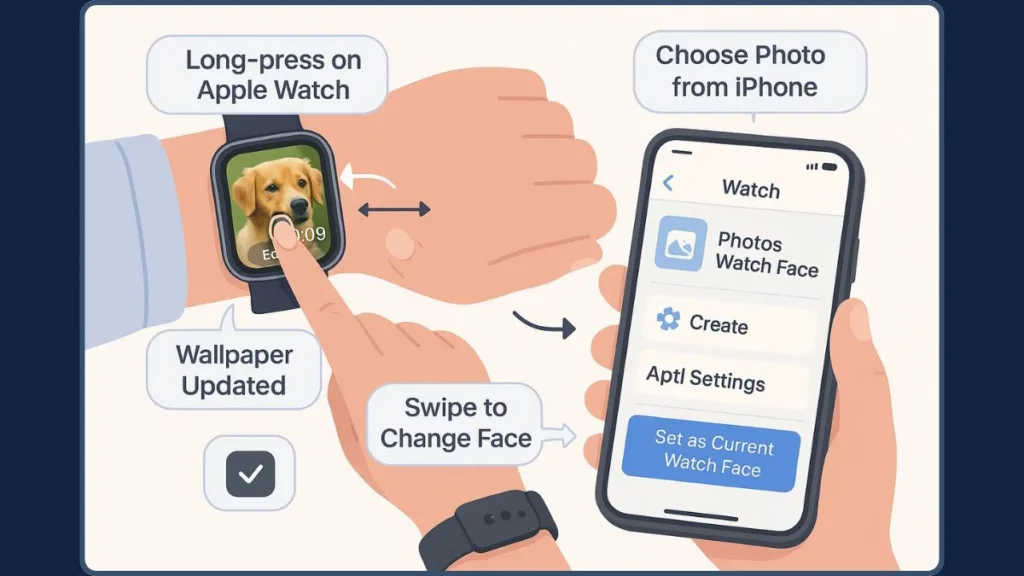
Wake your Apple Watch by raising your wrist or tapping the screen. Once the display is active, long-press anywhere on the current screen. This opens the Watch Face selector, Apple’s built-in interface for managing faces.
Switch Between Existing Watch Faces
After the selector appears, swipe left or right to browse through the watch faces you already have saved. Each swipe previews a different face, letting you quickly compare styles, colors, and layouts. When you find the face you want, simply tap it to set it instantly as your active background.
Edit or Add a New Watch Face
Tap Edit on a selected face to fine-tune available options. Depending on the face, you may be able to adjust colors, layout, or complications like battery level or activity rings.
If you want something entirely new, swipe all the way to the end of the selector and tap the ➕ Add option. This opens Apple’s face creation flow, where you can choose from supported Watch Face styles already available on your device.
Important Note for watchOS 10 and watchOS 11
On newer versions like watchOS 10 and watchOS 11, Apple added a setting that can disable quick swiping between faces. If Swipe to Switch Watch Face is turned off, horizontal swiping won’t work—but the long-press method will still let you change faces reliably.
This on-watch method doesn’t allow adding new photos, but it remains the fastest way to switch Apple Watch backgrounds that are already set up.
How to Set a Photo as Apple Watch Wallpaper (Photos App Method)
Create a Watch Face Using the Photos App
When users search how to set photo as Apple Watch wallpaper, this is the method they usually need. It’s simple, officially supported, and works consistently across Apple Watch models.
Open the Photos app on your iPhone and select the image you want to use. Tap the Share sheet, then choose Create Watch Face. Apple will ask you to select a face type—either Photos or Kaleidoscope. Tap Add, and the image is instantly sent to your Apple Watch as a new Watch Face.
Why This Method Is the Most Reliable
This approach works smoothly because it doesn’t require manual syncing. The Watch app handles everything automatically in the background. It’s ideal for using pets, family photos, travel memories, or motivational quotes as an Apple Watch background.
This method also supports Live Photos, as long as a Key Photo is set and your watchOS version supports motion. When compatible, the image animates subtly when you raise your wrist, adding personality without hurting readability.
Photos vs Kaleidoscope Watch Face
The Photos face keeps your image clean and readable, making it perfect for everyday use. The Kaleidoscope face transforms the same image into an animated, artistic pattern using Apple’s built-in effects. Both are official Watch Faces, but they deliver very different visual styles.
This remains the most stable way to set a photo as an Apple Watch face on Series models, SE, and Ultra.
How to Put Multiple Pictures on Apple Watch Face
Set Up a Rotating Photo Watch Face
If you don’t want to stick to a single image, Apple Watch allows you to use multiple pictures on one Watch Face that rotate automatically. This is perfect if you want variety without manually switching faces.
Start in the Photos app on your iPhone. Select several images, then tap the heart icon to add them to Favorites or organize them into a custom album. Next, open the Watch app, go to Face Gallery, choose Photos, select Favorites or your chosen album, and tap Add.
How Photo Rotation Works
Once set, your Apple Watch will cycle through multiple images automatically. The image usually changes when you raise your wrist, tap the screen, or wake the display from sleep. Apple handles this rotation intelligently so it feels natural rather than distracting.
Best Practices for Multi-Photo Watch Faces
Photos with a clear central subject work best and reduce awkward cropping on the small screen. Overly busy images can make the time harder to read, especially when complications are enabled. Keeping photo orientation consistent—portrait or landscape—also helps ensure smoother transitions.
This method uses Apple’s native photo rotation system, making it more battery-efficient and stable than third-party slideshow-style faces.
Best Places to Get Apple Watch Wallpapers (Free & Stylish)
Finding great Apple Watch wallpaper photos that look good behind the time and complications doesn’t have to be hard. The key is choosing sources that offer images optimized for small screens, proper scaling, and clean composition—so your Watch Face stays readable and stylish.
There are several reliable options online, ranging from Apple’s own tools to popular third-party platforms that focus specifically on Apple Watch wallpapers.
Official Face Gallery and Apple Resources
The Face Gallery inside the Watch app is Apple’s official and safest place to explore new looks. While Apple doesn’t label them as “wallpapers,” many faces—such as Photos, Portrait watch face, and other curated designs—work exactly like backgrounds with strong visual appeal.
These faces are designed by Apple, updated regularly, and optimized for Series models, SE, and Ultra. They also work smoothly with notifications and features like Always On Display, which helps maintain clarity even when the screen is dimmed.
You can explore Apple’s official guidance.
Zedge: Free Apple Watch Wallpapers & Backgrounds
If you’re specifically searching for free Apple Watch wallpaper photos, Zedge is one of the most popular platforms. It offers a massive collection of images designed for smaller screens, making them ideal for photo-based Watch Faces.
You’ll find categories like minimal, aesthetic, anime, sports, cars, quotes, animals, and abstract designs. Once downloaded, these images can be easily applied using the Photos app > Create Watch Face method covered earlier.
Watch Face Apps on the App Store
There are several apps on the App Store that host large libraries of watch faces and wallpaper-style designs. These apps let you preview different styles—such as luxury, abstract, or themed looks—and then send them to your Apple Watch using the share sheet or companion app.
While these apps aren’t developed by Apple, they can be useful if you’re looking for inspiration beyond the default Face Gallery.
Online Watch Face Communities
Online communities and galleries also share downloadable Watch Faces and wallpaper designs created by enthusiasts. These collections often include sports themes, anime art, logos, and creative illustrations that aren’t available in Apple’s official gallery.
These sites are especially popular with users who enjoy experimenting with unique or niche designs.
One such community hub is: https://watchfaces.co
No matter where you get your images from, make sure they’re high-resolution and center-focused so they remain sharp and readable when applied as a Watch Face.
Tips to Make Your Apple Watch Wallpaper Look Perfect
Choosing a wallpaper is only part of the experience. Small adjustments can significantly improve how your Apple Watch wallpaper looks and feels during daily use.
Pick Images with a Clear Central Focus
Because the Apple Watch screen is compact, images with a strong central subject tend to work best. Whether it’s a pet, a portrait, or a scenic photo, keeping the main subject centered helps prevent it from being hidden behind the time or complications.
Mind the Display Style and Always On Behavior
On models that support Always On Display, the screen dims but continues showing essential information. Wallpapers with good contrast and simple shapes stay visible and readable even in this dimmed state.
You can manage Always On settings from Settings > Display & Brightness on your Apple Watch. Apple’s official display guidance is available.
Use Images Optimized for Watch Screens
Although Apple automatically crops and resizes photos, using images that already fit a tall portrait ratio helps avoid awkward framing. This is especially useful if your wallpaper includes text or detailed subjects you want to keep visible.
Read Community discussions for ideal image sizing.
Less Clutter Means Better Readability
Highly detailed or busy images can make it harder to read the time at a glance. For a cleaner experience, choose wallpapers with simple backgrounds, especially if you use complications like activity rings, weather, or battery level.
Experiment and Preview Before Settling
One of the biggest advantages of Apple Watch customization is how easy it is to experiment. Try different wallpapers and Watch Face styles, preview them for a day, and switch if something doesn’t feel right.
Testing a few options helps you find a balance between style, clarity, and usability, making your Apple Watch both personal and practical.
Troubleshooting: Wallpaper Not Changing or Syncing
When your Apple Watch wallpaper isn’t changing or a new Watch Face refuses to sync, it can feel frustrating—but in most cases, the cause is simple. Apple Watch relies heavily on Bluetooth, iCloud sync, and watchOS settings, so a small mismatch can stop wallpapers from updating properly. The sections below walk through the most common problems in a calm, step-by-step way.
Apple Watch Wallpaper Not Showing After Setting It
If you’ve followed the steps to set a photo or new face but nothing changes on your watch, the issue is usually related to photo source selection or incomplete syncing.
What’s usually happening
Photo-based Watch Faces don’t pull from your entire photo library automatically. Instead, they rely on Favorites or a specific album selected inside the Watch app. If the image isn’t part of that source, the wallpaper won’t appear—even though it exists on your iPhone.
What to do
Open the Watch app on your iPhone and keep it open for at least a minute. Apple Watch often completes background syncing only while the app is active. Make sure the photo is still marked as Favorite or remains inside the chosen album.
Can’t Change Apple Watch Face or Swipe Isn’t Working
If you’re unable to swipe to switch Apple Watch face, this is almost always related to a software setting rather than a hardware issue.
Why this happens
With watchOS 10 and watchOS 11, Apple introduced a setting that can disable swipe gestures between faces. This was done to reduce accidental face switching, but it caught many users off guard.
How to work around it
Even if swipe gestures are disabled, the long-press method always works. Press and hold the screen to open the Watch Face selector, then choose a face manually. If you prefer swipe switching, re-enable Swipe to Switch Watch Face in settings.
Photo Wallpaper Looks Cropped or Off-Center
If your photo wallpaper looks zoomed in or awkwardly cropped, this is expected behavior—not a bug.
Why it looks wrong
Apple Watch automatically crops photos to fit the display. Images with important details near the edges often lose those details once applied as a Watch Face.
How to fix it
Before setting the image, open it in the Photos app and adjust the crop so the main subject sits near the center. Portrait-style images usually work better than wide landscapes.
Live Photo Wallpaper Isn’t Animating
A Live Photo wallpaper appearing static is a common issue, especially after software updates.
Common reasons
Live Photos require a Key Photo and motion support from the selected Watch Face. Some faces only display Live Photos as still images, and older hardware may limit animation support.
What helps
Check that the Live Photo has motion enabled and re-add it using Create Watch Face from the Photos app. If it still doesn’t animate, try switching to a different photo-based face that supports motion.
Watch Face or Wallpaper Not Syncing From iPhone
When a Watch Face appears on your iPhone but never shows up on the watch, the issue is almost always a sync interruption.
Fast fixes that usually work
Restart both your iPhone and Apple Watch. This refreshes Bluetooth, Wi-Fi, and iCloud connections. After restarting, open the Watch app and leave it open to allow syncing to complete.
If the problem keeps coming back
As a last step, unpair and re-pair the Apple Watch. This resets face syncing while keeping your data intact, as long as iCloud backups are enabled. It’s more time-consuming, but very effective for persistent sync problems.
Still Not Working? What This Usually Means
If none of the above fixes solve the issue, the cause usually falls into one of these categories:
- The photo isn’t part of the selected album
- Swipe gestures are disabled on newer watchOS versions
- The Watch app didn’t finish syncing
- The selected face doesn’t support certain features
The good news is that Apple Watch wallpaper and face issues are software-based, not hardware failures. Once the correct setting or sync path is restored, everything usually starts working again—without repairs or replacements.
FAQ: Apple Watch Wallpaper Questions
Below are short, accurate, and search-optimized answers to the most common questions about Apple Watch wallpaper and Watch Faces, written for quick understanding and featured snippet visibility.
Can I put my own picture on my Apple Watch background?
Yes. Apple allows you to use your own photo by setting it as a Photos Watch Face. The image must be saved in your Photos app and added using Create Watch Face or selected from Favorites or an album in the Watch app.
How do I get more wallpapers for my Apple Watch?
You can add more visual styles by downloading new Watch Faces from the Face Gallery in the Watch app. For photo wallpapers, use your own images or download pictures from sites like Zedge, then apply them using the Photos face.
Why can’t I swipe to change my Apple Watch face anymore?
On watchOS 10 and watchOS 11, Apple added a setting that can disable swipe gestures. If swipe doesn’t work, use a long-press to change faces or re-enable Swipe to Switch Watch Face in settings.
How do I set a Live Photo as my Apple Watch wallpaper?
Select a Live Photo with motion enabled and a Key Photo, then use Create Watch Face from the Photos app. Animation support depends on the Watch Face type, watchOS version, and your Apple Watch model.
Can I have different wallpapers for different Watch Faces?
Yes. Each Watch Face can have its own photo or background. Switching faces instantly changes the wallpaper, layout, and complications together.
Do Apple Watch wallpapers affect battery life?
No significant impact. Static photo wallpapers use minimal power. Live Photos or rotating photo faces may use slightly more battery, but the difference is usually minor.
Why does Apple call wallpapers “Watch Faces”?
Apple uses Watch Faces to manage everything on the screen—background, time, and complications—in one system. This improves readability, performance, and battery efficiency on a small display.
Final Thoughts: Make Your Apple Watch Truly Yours
Changing the wallpaper on Apple Watch may seem like a small tweak, but it has a big impact on how personal and enjoyable your device feels.
Once you understand that Apple uses Watch Faces instead of traditional wallpapers, customization becomes simple—not confusing.
Whether you’re setting a photo as your Apple Watch background, switching between styles during the day, or fine-tuning a face to match your routine, every option is designed to work smoothly within watchOS.
You’re not locked into one look, and nothing you try is permanent.
Tip: You can always switch back to a previous Watch Face in seconds—experiment freely without worrying about messing anything up.
The best approach is to think beyond appearance.
A great Apple Watch face balances style, readability, and usefulness. Clean images make the time easier to read. Thoughtful layouts keep important information visible. Multiple faces let you switch from work to workouts to weekends instantly.
Important: A wallpaper that looks good but hides the time or complications isn’t practical. Always prioritize clarity.
Most importantly, don’t be afraid to try different setups.
Your Apple Watch is meant to adapt to you—your mood, your schedule, and your style. Once you’ve learned how to change Apple Watch wallpaper and customize faces confidently, your watch stops feeling like a default gadget and starts feeling like something that’s truly yours.
Final takeaway: The best Apple Watch wallpaper is the one that fits your day—not just your taste.
Visit Our Post Page: Blog Page