
Learn how to change your Amazon phone number on desktop or mobile, fix OTP errors, update Login & Security settings, and recover your amazon account without the old number.
Why Updating Your Amazon Phone Number Matters
Updating your Amazon phone number is one of those quick account tweaks that can save you a lot of trouble later. Whether you’ve recently switched numbers or want better control over your account security, Amazon lets you make this change smoothly on both mobile and desktop.
And the best part? It only takes a couple of minutes.
Your phone number plays a big role in how Amazon keeps your account safe — especially when sending verification codes, approving logins, or helping you recover your profile. Keeping this information fresh is a smart move for anyone who uses Amazon regularly.
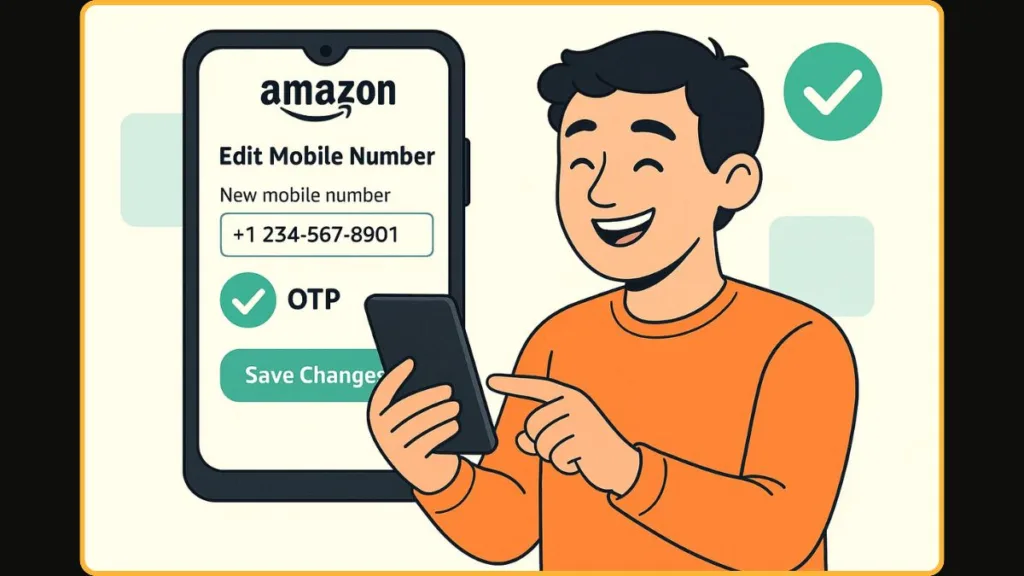
Understanding How Amazon Uses Your Phone Number for Security & Login
Amazon relies on your registered mobile number for more than basic updates.
It’s tied directly to your Login & Security settings and is essential for features like OTP (One-Time Password) checks, Two-Step Verification (2FA), and account recovery.
Whenever you sign in, update account details, or authorize a sensitive action, Amazon sends a verification code to your current number. This confirms it’s really you making the request, adding a strong layer of protection to your profile.
So when you update your number, Amazon sends a fresh OTP to your new phone number to verify ownership before finalizing the change. This keeps your account secure even if someone else knows your password.
Requirements Before You Start: What You Need Ready
Before jumping into the steps, it’s helpful to have a few things prepared. This keeps the update smooth and interruption-free:
- Access to your Amazon login (email or existing phone number).
- Your new mobile number ready to receive the OTP instantly.
- Your Amazon password, which you’ll need to confirm the update.
- A stable internet connection on the Amazon app or desktop website.
If you no longer have access to your old number, don’t worry — Amazon still offers alternative ways to verify through email or account recovery options.
How to Change Phone Number in Amazon Account on Desktop (Windows/Mac)
Updating your number on a computer is one of the easiest ways to access Amazon’s full Login & Security settings.
This method gives you a clear view of all your account details, making the update smooth and organized.
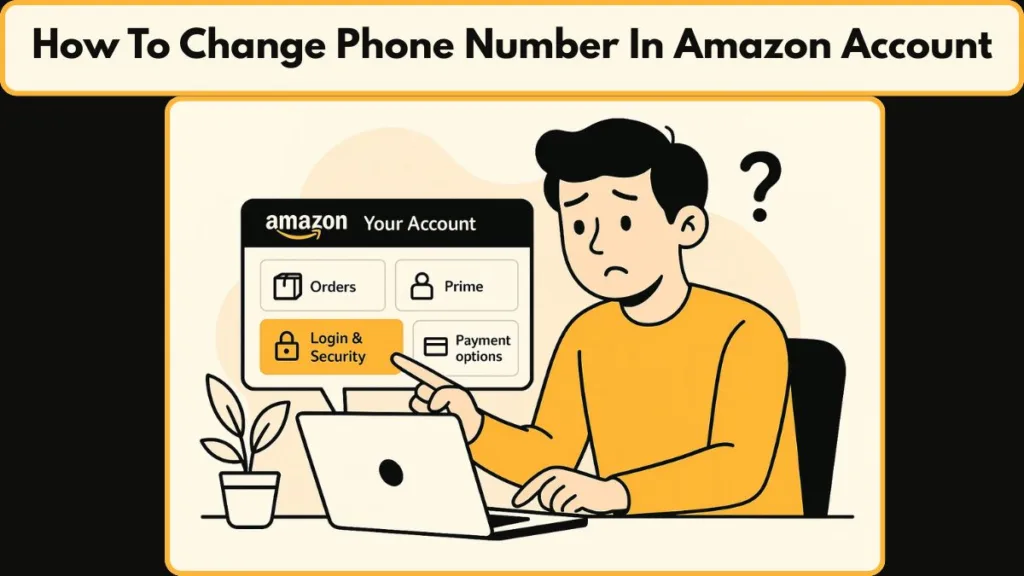
To begin, sign in to your Amazon account and click Account & Lists at the top-right corner. This menu leads you directly into the Your Account area, where all your personal settings are managed. Once there, open Login & Security, the section that stores your password, email, and mobile number.
Next to Mobile Phone Number, select Edit. This opens a page where you can choose your country code and type in your new phone number. After entering the details, select Continue. Amazon immediately sends a verification code (OTP) to your new number to confirm ownership.
Enter the OTP, type your Amazon password, and select Save Changes.
Your new number is now linked to your account and will be used for sign-in verification, security alerts, and account recovery. This entire process ensures that only you can approve changes to your profile.
How to Change Phone Number in Amazon App (Android/iOS)
If you’re using your phone, the Amazon app offers a quick and friendly way to update your number — perfect when you’re already logged in or browsing on the go.
Open the app and tap the person icon in the bottom navigation bar. At the top of the page, choose Your Account, which gives you access to all your personal settings. From here, tap Login & Security.
Next to your current phone number, select Edit. You’ll see options to pick your country code and enter your updated mobile number. Tap Continue, and Amazon will send a fast OTP to your new number.
Enter this code in the app, type your Amazon password, and tap Save Changes.
Your old number will be removed automatically, and the new one becomes your primary contact for verification codes, two-step authentication, and important account notifications. The app keeps everything simple, clean, and mobile-friendly.
How to Change Amazon Phone Number Without the Old Number
Losing access to your old phone number can feel stressful, especially when it’s tied to something important like your Amazon account. The good news: Amazon provides formal recovery methods in this case — you’re not locked out forever.
What to Do If You Don’t Have Your Old Number
- Begin by signing in using your registered email address instead of the old phone number. This helps if the phone-linked OTP isn’t reachable.
- If Amazon prompts for an OTP you can’t access, look for options like “Didn’t get the code?”, “Try another way”, or “Need help?” — often available when 2-Step Verification is enabled.
- The platform may ask for alternate verification:
- Confirmation using your account password
- Verification via your registered email
- Additional identity verification steps (especially for accounts with 2FA enabled)
In many cases, Amazon will request a scan or photo of a government-issued ID (passport, driver’s license, or other valid ID) to confirm your identity. This extra step is there to make sure only the real owner can regain access.
Once verification is successful, 2-Step Verification or OTP requirements may be temporarily disabled, allowing login with only password.
After Regaining Access
Once you’re back in:
- Navigate to Your Account > Login & Security
- Choose Edit next to Mobile Phone Number
- Enter your new mobile number
- Amazon sends a fresh OTP to verify — enter it
- Click Save Changes
After this, your new number becomes your active contact for all Amazon authentication, alerts, and recovery options.
Troubleshooting: When You Can’t Change Your Amazon Phone Number
Running into issues while updating your Amazon phone number can be frustrating — but many problems have simple and proven fixes.
OTP Not Arriving on Your New Number
If the verification code (OTP) doesn’t come through, first check that your phone has a proper network signal and that SMS reception is working. Sometimes carriers or message-delay issues cause a brief hold up.
Amazon’s help page advises that your phone number must be active and able to receive messages for OTPs to work.
If you don’t get a message within a few minutes, tap “Resend OTP” (or wait a short while before retrying) — this often resolves the issue. Also double-check you entered the correct country code and number; even a small mistake can block OTP delivery.
OTP Going to Your Old / Inactive Number
If Amazon keeps sending the code to your old number — despite entering a new one — it likely means the update was not fully confirmed. The change process requires both entering the new number and verifying it with the OTP.
To fix this, go back to Login & Security > Edit Phone Number and restart the process. Complete both steps (enter new number + verify OTP) to ensure Amazon replaces the old number with the new one properly.
Login & Security Page Unavailable / Account Locked
In some cases — especially after a password change or login from a new device — Amazon may require extra confirmation before allowing edits in Login & Security.
If you can’t access that page, Amazon may ask you to:
- Confirm your identity via registered email
- Re-enter your account password
- Use backup recovery methods (if 2-Step Verification / 2FA is enabled)
Once you complete that verification, you should regain access and be able to update your phone number.
two-Step Verification (2FA) Keeps Failing or Stalls
If you have 2FA enabled and OTPs don’t arrive at all — due to network issues or carrier restrictions — you may get stuck in a loop. In these cases, Amazon suggests using backup verification methods, if you previously set them up, or opting for account recovery.
As one helpful workaround: if you’ve used an authenticator app (instead of SMS) or a backup phone number/email during 2FA setup — that can help avoid SMS-based OTP problems altogether.
OTP Entered But Still Not Accepted / Number Change Not Saved
If you enter the OTP but still see an error, or if the number change doesn’t save:
- Ensure the OTP is entered within its valid time window — OTPs expire quickly.
- Re-enter your Amazon password correctly when prompted, because Amazon needs password confirmation to finalize security changes.
- If the problem persists, try logging in from a different browser or device, or clear your browser’s cache and cookies — browser issues can sometimes block account updates.
What to Do If Nothing Works: Use Amazon’s Official Account Recovery
If all else fails — especially when the old number is lost and OTPs won’t arrive — your best bet is to proceed with Amazon’s Account Recovery process for 2-Step Verification.
In this process:
- Amazon may ask you to upload a valid ID or respond to verification questions.
- Once identity is confirmed, 2FA/OTP restrictions may be temporarily disabled — letting you log in with just your password.
- Then you can return to Login & Security and safely add your new phone number.
FAQ
Where do I find the Login & Security section on Amazon?
On desktop: go to Account & Lists > Your Account > Login & Security. On the mobile app: tap the person icon > Your Account > Login & Security.
Can I change my Amazon phone number without the old number?
Yes, you can log in with your registered email address (instead of the old number) and then update the phone number via Login & Security.
Why is Amazon asking for a verification code I can’t receive?
If you no longer have access to the old number (where OTPs are sent), Amazon may still attempt verification there. In that case, use the “Didn’t get the code?” or account recovery option to verify via email or backup methods.
How do I update my phone number in the Amazon app?
Open the app > tap the person icon > go to Your Account > Login & Security > Edit next to phone number > enter new number > verify the OTP > tap Save Changes.
How long does it take for Amazon to update my phone number?
The update is typically instant once you enter the correct OTP and confirm with your password. Your new number becomes active immediately.
Do I need to change the phone number in my shipping addresses too?
No — updating the phone number in Login & Security doesn’t modify your shipping addresses. Those details remain separate and can be edited under Your Addresses if needed.
What if Amazon rejects the OTP I entered?
It could be because the OTP expired (they have limited validity). Request a new OTP and enter it promptly. Also ensure you’re using the correct country code and number.
Why is my new number not saving on Amazon?
Most commonly, it means the final confirmation — your Amazon password — was not entered correctly. Always re-enter your password when prompted. If that doesn’t work, try a different browser or update your app before trying again.
Conclusion: Keep Your Amazon Account Secure and Updated
Changing your Amazon phone number is a small step that makes a big difference in keeping your account safe and accessible.
With your updated number in place, you’ll receive
Verification Codes, Security Alerts, And Important Account Notifications Without Interruptions.
Whether you updated it through the desktop website, the Amazon app, or went through account recovery because you no longer had access to your old number, the key thing is that your account is now synced with your current contact info.
This ensures smoother logins, easier verification, and better control over your account’s
Overall Security Settings.
Staying on top of these details helps protect your personal information and keeps your Amazon experience worry-free.
If you ever switch numbers again, you now know exactly where to go and how to update it quickly — giving you full confidence in managing your
Login & Security Settings Anytime You Need.
Visit Our Post Page: Blog Page