
Struggling to change your Facebook group name? Learn why the edit option may not appear and follow simple, step-by-step instructions to rename your group easily on desktop, Android, and iPhone, plus fixes for common issues and restrictions.
Changing your Facebook group name might seem like a small tweak—but it can completely transform how people discover and engage with your community.
Whether your group has evolved, your niche has shifted, or the original name no longer fits, updating it can make your purpose clearer and attract the right audience.
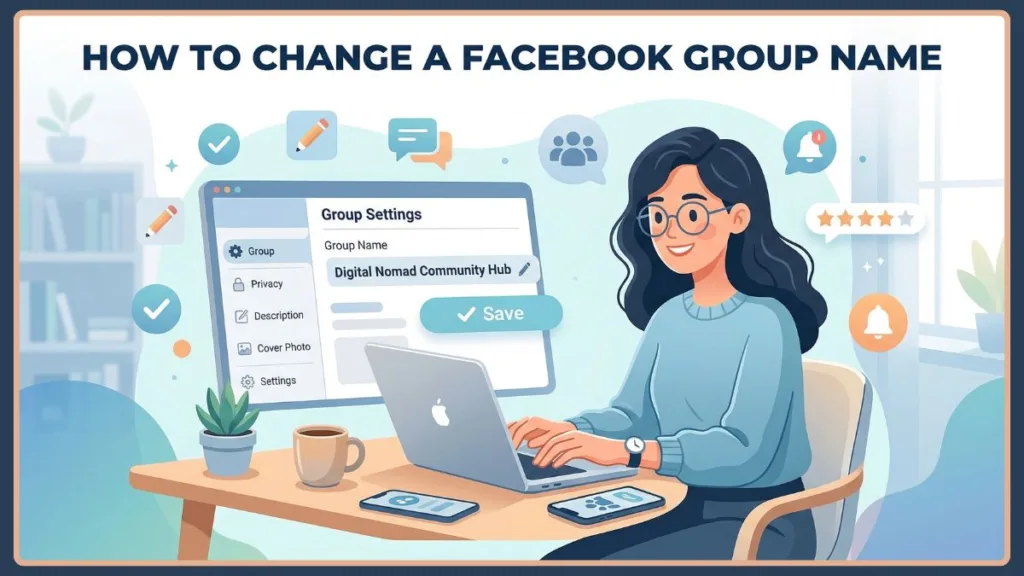
The good news? Renaming a Facebook group is simple—if you know where to look and follow the right rules.
In the sections ahead, you’ll find a step-by-step walkthrough designed to help you make this change confidently.
We’ll also cover what happens after you update the name and how to avoid common issues that slow down the process.
In 2026, Facebook’s algorithm places a high value on group engagement and relevance. A clear, searchable name not only helps current members understand your focus but also signals to Facebook’s recommendation engine exactly who to suggest your group to.
You’re in the right place—let’s make the transition smooth and stress-free.
How to Change Your Facebook Group Name Fast in 5 Simple Steps: Quick Answer
If you’re in a hurry and just need a quick refresher, here is the fastest method:
- Go to your Facebook group.
- Open Group Settings.
- Click or tap Name and Description.
- Enter your new group name.
- Click Save.
Note: You must be a group admin to make changes.
Bonus Tip: It’s always a good idea to have a backup name ready just in case your first choice triggers a manual review or violates a hidden naming policy.
How to Change Your Facebook Group Name on Mobile App (Complete Android & iPhone Instructions)
If you mostly use Facebook on your phone, you can easily rename your group in just a few taps.
The process is nearly identical on Android and iPhone.
1. Open the Facebook App and Navigate to Your Target Group
Start by opening the Facebook app and navigating to the specific group you want to edit.
You can find your groups by tapping the Menu icon (the three horizontal lines or your profile picture in the bottom right for iOS, or top right for Android) and selecting the “Groups” shortcut.
2. Access the Facebook Group Admin Tools Menu
Once you’re inside the group, look for the shield icon (Admin Tools).
This is where all of your management settings are located.
3. Navigate Directly to Your Group Settings
From the Admin Tools menu, scroll down and tap on Group Settings.
Then, select Name and Description.
4. Edit the Text Field and Save Your New Name
You’ll now see the current group name.
Tap on it, enter your new name, and hit Save.
Tip: If you don’t see the shield icon, you’re likely not an admin—only admins have the permission to change group names.
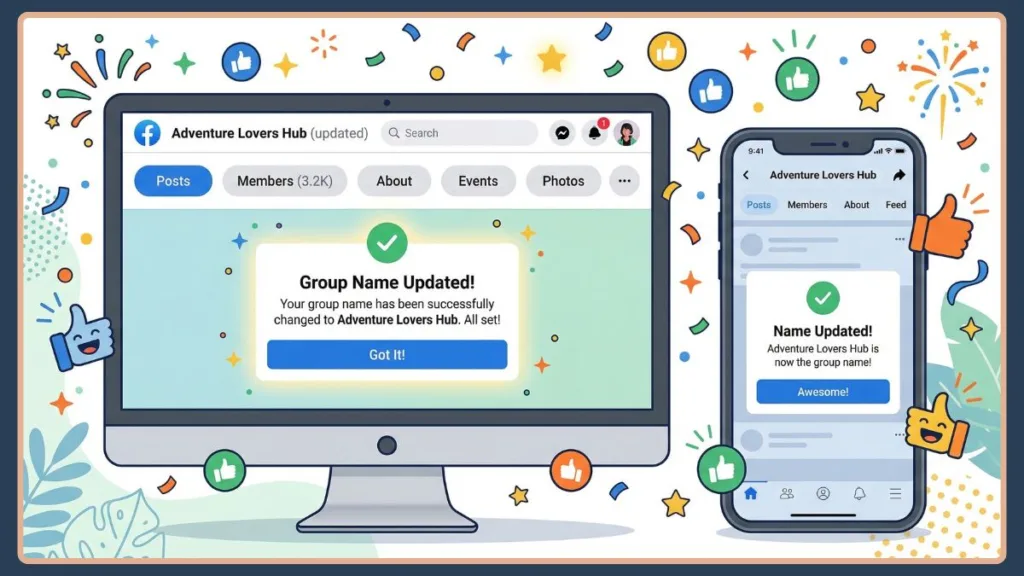
How to Change Your Facebook Group Name on Desktop: A Seamless Step-by-Step Guide
If you prefer using a laptop or desktop, the process is just as straightforward.
These steps will help you submit your request without confusion.
1. Navigate to Your Facebook Groups Feed
Go to Facebook and click on Groups from the left-hand sidebar.
Alternatively, you can type facebook.com/groups directly into your browser’s address bar to access your dedicated Groups feed instantly.
2. Open the Specific Group Settings Panel
Select the group you want to edit from your list.
Then, navigate to Group Settings on the left menu.
3. Locate the Group Name and Description Section
Inside your settings, find the Name and Description section.
Click the edit (pencil) icon next to it.
4. Enter Your New Group Name and Confirm the Change
Enter your new group name into the text field.
Click Save to confirm your changes.
Pro Tip: Desktop settings are generally easier to navigate if you manage multiple groups at once.
Key Facebook Requirements Before You Change Your Facebook Group Name (Official Rules & Limits)
Before you change your group name, it’s important to understand Facebook’s rules.
Ignoring these can lead to confusion—or even prevent you from making changes altogether. Here are the key limitations:
1. You Can Only Change the Group Name Once Every 28 Days
This rule exists to prevent spam and constant changes that could easily confuse your members.
2. You Get a 30-Minute Undo Window for Name Corrections
If you make a mistake, you can revert the name within 30 minutes.
After that window closes, you’ll need to wait the full 28 days to change it again.
3. Only Authorized Admins Can Change the Group Name
Moderators or regular members do not have the necessary permissions to edit this field.
Facebook strictly distinguishes between “Admins” (who have full control over core settings) and “Moderators” (who only manage content and member requests).
4. Large Groups (5000+ Members) May Face Manual Review Restrictions
Some large groups require manual review from Facebook or may not allow direct, instant changes.
During this manual review process, which can take anywhere from a few hours to three business days, your group will retain its old name.
Facebook does this to protect large communities from malicious takeovers or sudden, confusing shifts in topic.
5. Your New Name Must Follow Facebook’s Community Standards
Ensure your new name avoids misleading, offensive, or spammy terms.
This also means avoiding the excessive use of capital letters, special characters (like !@#$), or official Facebook trademarked terms (like “Facebook Official”).
Why You May Not See the Option to Edit Your Facebook Group Name (Common Causes & Fixes)
If you’re stuck and can’t rename your group, don’t worry—this is a very common issue.
The system blocks the name field when something doesn’t meet the required conditions. Here are the most likely reasons and how to resolve them quickly.
1. Your Current Member Role Doesn’t Allow Name Changes
Only users with Admin privileges can request a name update.
- How to fix it: Double-check your role in the group members list. If you are only a moderator or member, ask an existing admin to promote your account.
2. You Recently Changed the Name and Hit the Cooldown Limit
Facebook enforces a strict 28-day limit on group name changes.
- How to fix it: If you’ve already renamed it recently, you’ll simply need to wait for the cooldown period to expire.
3. Your Group is Too Large and Requires Manual Approval
Groups with thousands of members (typically 5000+) may have restrictions or face delays due to manual review processes.
- How to fix it: Submit the change and be prepared to wait for Facebook’s approval process rather than expecting an instant update.
4. Technical Glitches or Browser Caching Issues
Sometimes the option doesn’t appear simply because of an app bug or browser caching issue.
- How to fix it: Try updating the Facebook app, clearing your browser cache, or switching devices (from mobile to desktop) to see if the edit option appears.
If you are on a desktop, try opening Facebook in an Incognito or Private Browsing window. This bypasses any stored cookies that might be causing the interface to load incorrectly.
What Happens After You Change Your Facebook Group Name: Community Impact
Changing your group name doesn’t happen silently—Facebook automatically informs your members to ensure transparency.
Members may see:
- A notification in their daily feed.
- A note inside the group timeline about the name change.
Because of this, it’s a smart idea to prepare your members in advance.
Sudden name changes without warning can lead to members leaving the group or reporting it as spam because they don’t recognize it.
Best Practice: Post an announcement explaining why you’re changing the name. This builds trust and avoids confusion. For example, you can share the reason behind the update, ask for community feedback, and reassure members about the group’s ongoing purpose.
Expert Tips for a Smooth and Successful Facebook Group Name Change
Renaming your group is a chance to improve visibility, branding, and engagement.
A strong name can make your group easier to find and much more appealing to join.
- Keep it clear and specific: Your name should instantly tell people what your group is about.
- Make it searchable: Use keywords that people are actually likely to search for.
- Keep it short and memorable: Avoid overly long or complicated names.
- Avoid unnecessary symbols or numbers: They make your group look cluttered and harder to find.
- Match your group’s purpose: If your group has evolved over time, your name should accurately reflect that change.
- Check your competition: Search for your proposed name before saving it. If there are already five groups with the exact same name, it will be hard for new members to find yours. Try to add a unique identifier, like your brand name or location.
How to Change Your Facebook Group URL to Create a Custom Link in 2026
Did you know you can also customize your group’s web address?
This makes your group easier to share and remember.
Instead of a random string of numbers (facebook.com/groups/123456789), you can have a clean link (facebook.com/groups/yourgroupname).
Simple Steps to Change Your Facebook Group URL:
- Go to Group Settings.
- Find the Web Address section.
- Click the edit icon.
- Enter your custom URL.
- Click Save.
Important Rules for Custom Group URLs:
Your group must have less than 5000 members.
The URL must be entirely unique, use only letters, numbers, and dots, and have a minimum length of 5 characters.
Try to match your URL with your new group name for consistency.
Also, be aware that changing your custom URL will break any old links. If you have your group linked on your website, in email newsletters, or on other social media profiles, you will need to manually update those links so people don’t get a “Page Not Found” error.
Additional Facebook Group Settings You Should Update: Beyond the Name
Changing the name is just one part of optimizing your group.
To make your community look more professional and engaging, consider updating these areas as well:
- Group Description: Clearly explain what your group is about and who it is for.
- Cover Photo: Upload a relevant and eye-catching image that matches the new name.
- Tags: Add relevant keywords to improve your search visibility.
- Admin Roles: Assign trusted admins or moderators to manage growth effectively.
- Link Your Facebook Page: If your group is tied to a business, make sure your official Facebook Page is linked as an admin. This builds authority and allows you to interact with members as your brand.
Frequently Asked Questions (FAQs) About Changing a Facebook Group Name
How do I edit the title of a Facebook group?
Go to Group Settings, click on Name and Description, and update the name.
Can I rename a group on Facebook if I’m not the creator?
Yes, but only if you are an admin and haven’t changed the name in the last 28 days.
When exactly will my group name be updated?
Changes usually apply instantly, though very large groups may experience review delays.
How often can I change a Facebook group name?
You are permitted to change it once every 28 days.
Why is my Facebook group name locked or grayed out?
It could be due to recent changes, a lack of admin rights, or group size restrictions.
Can I change the group name on the Facebook mobile app?
Yes, you can easily do this using the Facebook app via Group Settings.
Does changing my group name affect my group’s search ranking on Facebook?
Yes, your group name is one of the heaviest ranking factors in Facebook’s search algorithm.
Changing it to something more relevant can boost your visibility, but changing it to something overly generic or completely unrelated to your past content may temporarily drop your search traffic while Facebook re-indexes your group.
Conclusion: Final Thoughts on Renaming Your Facebook Group Successfully
Changing your Facebook group name is more than just editing text—it’s about refining your identity and making your community more discoverable.
As long as you’re an admin and follow Facebook’s rules, the process is quick and predictable.
Whether you’re using mobile or desktop, you can update your group name confidently in just a few steps.
Take your time choosing the new name. Because you won’t be able to change it again for 28 days, ensure it reflects your group’s purpose clearly.
By combining a strong name with a custom URL and updated settings, you can create a more engaging and professional Facebook group that truly stands out.
Now, go ahead and give your community the name it deserves!
Visit Our Post Page: Blog Page