
Learn how to change your YouTube username and handle in 2026 with this step-by-step guide. Update your channel display name on PC, iPhone, or Android without affecting your Google account. Discover the 14-day rule, verification impacts, and how to refresh your branding instantly.
If you’re looking to update your YouTube identity, you’re definitely in the right place. Maybe your content style has evolved, you’re going through a full rebrand, or you just finally outgrew an old username you picked years ago. Whatever the reason, figuring out how to change the way you appear on YouTube is a surprisingly quick process. But before we dive straight into your settings, we really need to clear up the difference between your YouTube Channel Name and your YouTube Handle.
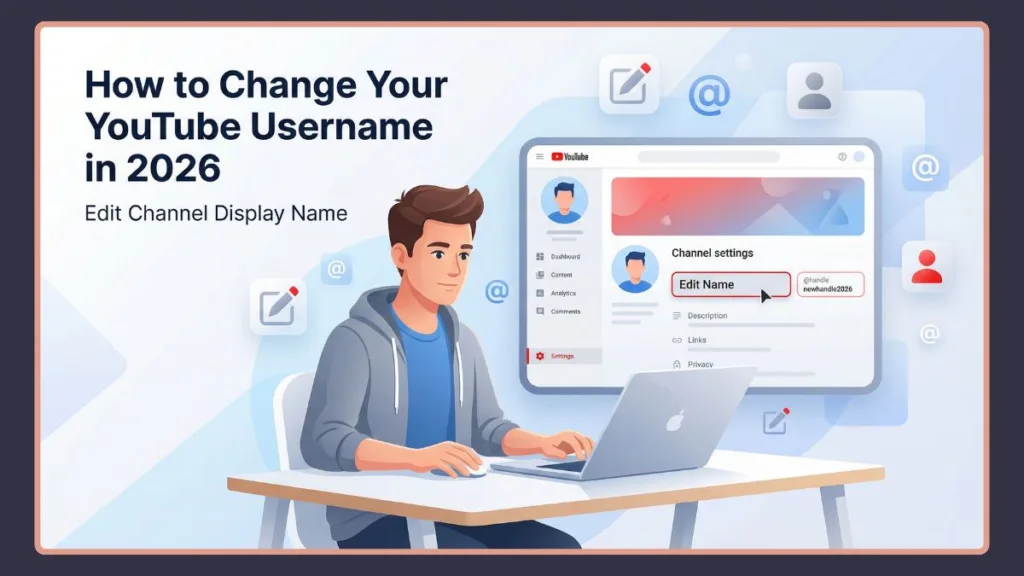
In this guide, we’re going to walk you through exactly how to change your YouTube username. We’ll cover the steps to gracefully update your handle and modify your channel name, all without messing up your Google account. You’ll learn the exact process for any device—whether you’re on a PC, iPhone, or Android—along with a few crucial rules you absolutely need to know before making the switch.
Quick Answer: You can easily change your YouTube username (both your channel name and handle) by going to:
- YouTube App > View Channel > Edit
- YouTube Studio > Customization > Basic Info
- Limit: You can only do this twice every 14 days.
YouTube Channel Name vs. YouTube Handle: What’s the Difference?
When people reach out asking how they can change their username on YouTube, they’re usually talking about one of two completely different things:
- Channel Name: Think of this as your main display name. It’s what appears in big letters on your channel page and right below your videos. It represents your broader brand, but it doesn’t actually need to be unique. In fact, multiple channels can rock the exact same channel name.
- Handle (@username): Your handle, on the other hand, is your unique identifier on the platform. It’s the name people use to tag you, what shows up when you leave a comment or chat on a live stream, and it directly dictates your YouTube URL (like
youtube.com/@yourhandle). No two channels can share the same handle.
Best Practices for Choosing the Perfect YouTube Name & Handle
Now that we’ve cleared up the difference, how do you actually pick the right one? Rebranding is a pretty big step, and choosing a new name isn’t something you want to do on a whim. Consider these best practices before you lock in a new handle:
1. Keep it Short and Memorable Your handle should be incredibly easy to spell, pronounce, and remember. If a viewer wants to tell their friend about your amazing tech tutorials or let’s plays, they shouldn’t have to spell out complex symbols. Try to avoid using underscores or strings of random numbers (like TechGuru_992) unless it plays a massive role in your brand identity.
2. Align with Your Content (Niche Keywords) If you run a cooking channel, weaving words like “Bites,” “Eats,” or “Chef” into your Channel Name can actually give your YouTube SEO a nice little boost. While your Handle should ideally be a perfect match for your Channel Name, if it’s already taken, you can use slight, relevant modifiers (think @ChefJohnOfficial or @JohnEats).
3. Check Cross-Platform Availability Before you fully commit to a new YouTube username, take a second to check if that exact same handle is open on Instagram, TikTok, and X. Keeping your branding consistent across all your social media platforms makes it infinitely easier for fans to find you. You can run your ideas through free tools like Namechk to instantly see if your desired username is up for grabs across the web.
4. Consider Long-Term Relevance Try not to box yourself in. If you name your channel “iPhone 13 Tutorials,” that name is going to feel pretty obsolete in a year. Choose something that gives your content room to breathe and naturally pivot as your interests and the market evolve over time.
How to Change Your YouTube Username on Mobile (iPhone & Android)
If you’re on the go and just want to get this done from your phone, the easiest route is through the YouTube mobile app. The steps are exactly the same whether you’re swiping on an iPhone or an Android device.
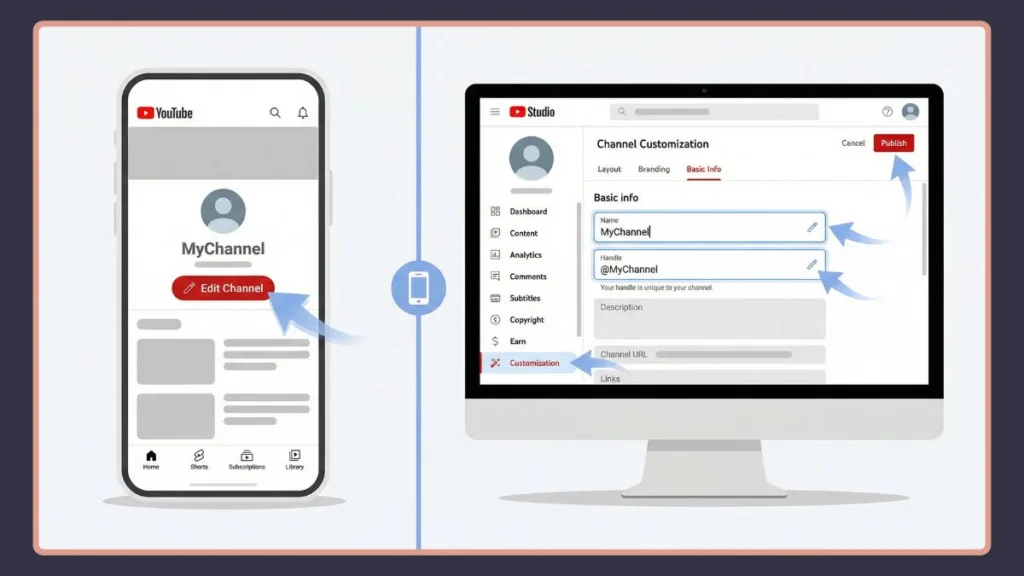
- Open up the YouTube app and tap your profile picture down in the bottom right corner of the screen.
- Tap on View Channel, which sits just beneath your current name.
- Look for the little pencil icon (Edit) next to your channel analytics and give it a tap.
- If you want to change your display name, tap the pencil icon next to Name. If you’re looking to update your @username, tap the pencil icon next to Handle.
- Type in your fresh new name or handle, and hit Save.
Note: The moment you update your handle, it will immediately change how your name appears in YouTube comments and live chats across the platform.
How to Change YouTube Username on iPad and Tablets
If you’re using an iPad or an Android tablet, the screen might look a tiny bit different depending on whether you’re holding it in portrait or landscape mode, but the core mechanics are exactly the same:
- Tap your profile picture in the bottom right (or the top right if you’re running an older app version).
- Head over to your channel page.
- Tap the Edit (Pencil) icon located on the right side of the screen, right below your channel banner.
- Tap the pencil icons next to the specific fields to update your Name or Handle.
Troubleshooting Mobile App Name Changes
Sometimes, mobile apps can be a little stubborn because of cached data. If you change your name on the app and it doesn’t seem to update right away:
- Force close the app: Just swipe the YouTube app away from your recent apps list and open it back up.
- Clear the cache (Android only): Dive into your phone’s Settings > Apps > YouTube > Storage > Clear Cache.
- Wait for server sync: Mobile networks can occasionally experience a slight delay in talking to YouTube’s global servers. Give it about 10 to 15 minutes and check again.
The Evolution of YouTube Names: Why Your Identity Matters
Before we move on to the desktop steps, it helps to understand why YouTube’s naming setup works the way it does today. Back in the early days of YouTube, you simply picked a single username, and that functioned as both your URL and your display name. As YouTube became deeply integrated with (and later separated from) Google+, the whole naming structure got a lot more complicated.
To cut down on impersonation and spam, YouTube recently rolled out YouTube Handles, which brought the platform more in line with the infrastructure of places like X (formerly Twitter), TikTok, and Instagram. Today, putting together a cohesive brand means understanding how to balance both your Display Name and your Handle. A well-chosen name not only boosts your Search Engine Optimization (SEO) but also makes your channel way easier for people to recommend.
How to Change YouTube Username on PC, Mac, or Desktop Browser
If you’re the type who prefers doing this kind of admin work on a computer or laptop browser, you can update everything directly through YouTube Studio.
- Head over to YouTube.com and click your profile picture up in the top right corner.
- Select YouTube Studio from the dropdown menu.
- Look at the left-hand navigation menu, scroll down a bit, and click on Customization.
- Click on the Basic info tab right at the top of the page.
- Here, you’ll see simple text boxes letting you edit both your Name and your Handle.
- Once everything looks good, click that blue Publish button in the top right corner to save your changes.
Alternative Methods: Changing via YouTube Studio Mobile App
A lot of creators heavily rely on the dedicated YouTube Studio App (which is totally separate from the main YouTube viewing app) to keep an eye on analytics, reply to comments, and tweak settings. You can easily update your username right from here, too:
- Open the YouTube Studio app on your iOS or Android device.
- Tap your profile picture in the top right corner.
- Tap Edit channel profile.
- You’ll see those familiar pencil icons next to your Name, Handle, and Description. Make your tweaks and save.
How to Change Your YouTube Channel URL
It’s super important to realize how changing your Handle impacts your channel’s URL. Years ago, YouTube used to offer “Custom URLs” (like youtube.com/c/YourName). Today, the whole URL system is entirely driven by your Handle. When you change your Handle using any of the steps we just outlined, your primary channel URL instantly shifts to youtube.com/@yournewhandle.
If you’re suddenly panicking about all your old links scattered across the internet—take a deep breath. YouTube is smart enough to automatically redirect traffic from your old Handle URL, and even your ancient /c/ URLs, straight to your newly updated channel page. That being said, it’s always a solid best practice to manually update the links on your own websites and social media profiles when you get a chance.
How to Change Your YouTube Username for Comments and Live Chat
If you’ve been digging around trying to find out how to change your YouTube username specifically for comments or live chat, the answer is actually incredibly simple: there is no separate comment username. YouTube uses your global Channel Name and Handle for every single interaction. By following the steps above to change your main handle and channel name, your fresh identity will automatically show up in all future comments and live chats across the entire platform.
Important Rules When Changing Your YouTube Name
Before you aggressively hit that publish button, there are a few strict YouTube policies you really need to keep in mind:
- The 14-Day Rule: YouTube puts a cap on how often you can rebrand. You are only allowed to change your name and handle twice every 14 days. If you’ve been searching for a sneaky way to change your YouTube username without waiting 14 days, the honest truth is that you can’t bypass this system policy. You just have to wait for the cooldown period to expire.
- Verification Badges: If you’ve poured your heart and soul into earning a verification checkmark, consider this a warning: your verification may be removed, and you may need to entirely reapply once your name change is complete. (Good news, though: simply changing your handle does not remove your badge).
- Google Account Linking: Back in the day, changing your YouTube name meant you were accidentally changing your entire Google Account name, too. Thankfully, that is no longer the case. You can safely change your YouTube channel name or handle without it ever affecting your Gmail or your main Google Account.
YouTube Community Guidelines for Channel Names
Just because you can change your name doesn’t mean you have free rein to change it to anything. YouTube strictly enforces its Community Guidelines when it comes to usernames. Your new name or handle will get rejected or forcefully removed if it crosses the line into any of the following:
- Impersonation: You absolutely cannot use a name or handle designed to trick viewers into thinking you are another established creator or public figure. Trying to sneakily use the handle
@MrBeastOfficial1, for example, will likely land you an account strike. - Profanity & Hate Speech: Usernames packed with slurs, severe profanity, or terms that promote violence and hatred are strictly prohibited and will get quickly flagged by YouTube’s automated systems.
- Spam & Misleading Terms: Names that are heavily loaded with misleading promotional terms or look like spammy character strings can definitely be penalized.
Post-Name Change Checklist: What to Do Next
Changing your name in the YouTube settings is honestly only half the battle. Once you hit publish, run through this quick checklist to make sure the transition is smooth for your audience:
- Update Your Channel Art & Banner: If your old channel name is visibly plastered across your banner image or profile picture, update those graphics immediately by heading over to the
Customization > Brandingtab in YouTube Studio. - Post a Community Tab Update: If you’ve got an established audience, let them know you’ve rebranded! Dropping a simple text or image post on your Community Tab explaining the new name will save a lot of subscriber confusion.
- Update Your Video Intros/Outros: Make a mental note (or go update your editing templates) to make sure you’re using your new branding in future video graphics and spoken intros.
- Change Links on Other Platforms: Hop over to your Instagram bio, X profile, TikTok link-in-bio, and personal website to make sure everything points to your new
@handle.
Frequently Asked Questions
Can I change my YouTube name without a channel?
Yep! Even if you don’t actively upload videos, your standard YouTube user profile still functions as a basic channel just for the sake of commenting and subscribing to others. You can use the exact same steps we covered above to tweak your display name and handle.
Does changing my handle change my YouTube URL?
Yes, it does. When you update your handle, your main channel URL will automatically update to match your new @handle. Fortunately, YouTube usually redirects your old custom URL to your new one automatically, so your old links won’t immediately break.
How long does it take for a new YouTube name to update everywhere?
Your new name and handle will typically update instantly right on your channel page and in any new comments you leave. However, keep in mind that it can take a few days for the changes to fully propagate across all global servers, older comments, and YouTube search results.
Top 3 YouTube Channel Name Generators for 2026
If you’re completely stuck and struggling to come up with a new name before following the steps above, leaning on an AI-powered name generator can spark some incredible inspiration. Here are three of the absolute best tools you can use right now:
- Namelix: A genuinely powerful AI generator that excels at creating short, highly brandable names. You just type in a few keywords related to your content, and it spits out polished, professional-sounding combinations.
- Namechk: While this isn’t strictly a generator, it’s an essential companion tool. Once you brainstorm a name you love, plug it into Namechk to instantly see if that exact username/handle is available across YouTube, standard web domains, and dozens of other social platforms.
- RenderForest: Well-known for video editing, their name generator tool is specifically targeted at YouTube creators. It uses keyword analysis to suggest catchy names and even offers matching logo generation on the spot.
Conclusion
Changing your YouTube username is a fantastic way to hit refresh on your brand or secure an identity that just makes more sense for your content. Take a moment to choose a name and a handle that feel right, are memorable, and genuinely reflect what you do.
Visit Our Post Page: Blog Page