
Learn how to check screen time on iPhone in 2026. Track app usage, see daily screen time, monitor pickups and notifications, and manage digital habits using Apple’s Screen Time settings.
Ever wondered how much time you actually spend on your iPhone each day? Many people estimate their phone usage, but the real numbers often tell a different story. Between social media, messaging apps, streaming, and browsing, it’s easy for hours to pass without noticing.
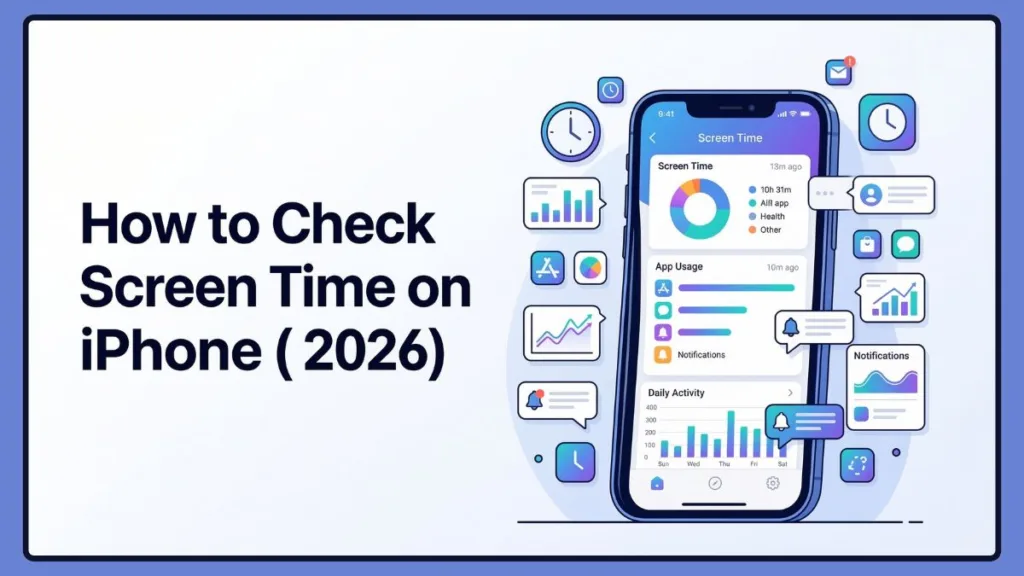
In today’s hyper-connected world, our smartphones serve as our alarm clocks, mobile offices, entertainment centers, and primary means of communication. With so much functionality packed into a single device, it is no surprise that global smartphone usage continues to rise year after year. Studies indicate that the average person checks their phone dozens, if not hundreds, of times a day, often as an unconscious reflex rather than an intentional action.
Apple introduced iPhone Screen Time to help users understand their digital habits.
This built-in feature tracks app usage, daily average screen time, device pickups, and notifications, giving you a clear overview of how you interact with your device.
In this guide, you’ll learn how to check screen time on iPhone, where to find the Screen Time settings, how to view screen time per app, and how to manage usage using tools like App Limits and Downtime.
By taking advantage of these powerful native tools, you can transition from mindlessly scrolling to intentionally managing your digital footprint, reclaiming hours of your week for offline activities, hobbies, or simply better rest.
What Is Screen Time on iPhone and How Can It Improve Your Digital Habits?
Screen Time is a built-in digital wellbeing feature in iOS that monitors how you use your device throughout the day. Once enabled, it collects detailed activity data and organizes it into an easy-to-read dashboard.
The Screen Time report includes several useful insights:
- Daily average screen time: Shows how long you use your iPhone each day.
- App and website activity: Displays how much time you spend in each app or category.
- Device pickups and notifications: Tracks how often you pick up your phone and how many notifications you receive.
- Weekly usage reports: Summarizes your activity patterns across the week.
To keep you actively informed, Apple also generates an automated notification every Sunday morning. This weekly alert provides a quick summary of whether your screen time has gone up or down compared to the previous week, allowing you to reflect on your recent habits without even opening the settings menu.
Besides tracking usage, Screen Time also offers iOS parental controls, allowing parents to monitor their child’s phone activity and set limits on specific apps.
These tools are not just about restriction; they are about fostering awareness. When users can actually visualize the hours spent scrolling through infinite feeds, they are far more likely to make proactive changes to their daily routines.
Where Is Screen Time in iPhone Settings? A Guide to Your Device’s Dashboard
If you’re trying to locate Screen Time in iPhone settings, you can find it directly inside the Settings app.
Follow this simple navigation path:
Settings → Screen Time
Alternatively, if you have trouble navigating menus, you can simply swipe down on your iPhone home screen to open the Spotlight Search bar, type in “Screen Time,” and tap the direct link to the settings page.
Inside the Screen Time menu, you’ll see several important tools including:
- Screen Time summary dashboard gives you a visual chart of your daily and weekly habits.
- App Limits allow you to restrict your daily usage for specific, distracting applications.
- Downtime settings let you schedule specific breaks away from your screen.
- Content and privacy restrictions provide comprehensive options for parental control.
This section acts as the central control panel for monitoring and managing your phone usage. It is highly recommended that you take a few minutes to explore each submenu, as Apple frequently updates these features with new iOS releases to provide even more granular control.
How to Check Screen Time on iPhone (Step-by-Step Instructions)
Checking screen time on your iPhone only takes a few seconds. Once you access the Screen Time dashboard, you’ll be able to view a full breakdown of your device activity.
Follow these steps to check screen time on iPhone.
- First, open the Settings app on your iPhone.
- Next, scroll down and tap Screen Time.
- Once the Screen Time page opens, you’ll immediately see a Screen Time summary chart showing your usage statistics.
- To view more details, tap See All Activity.
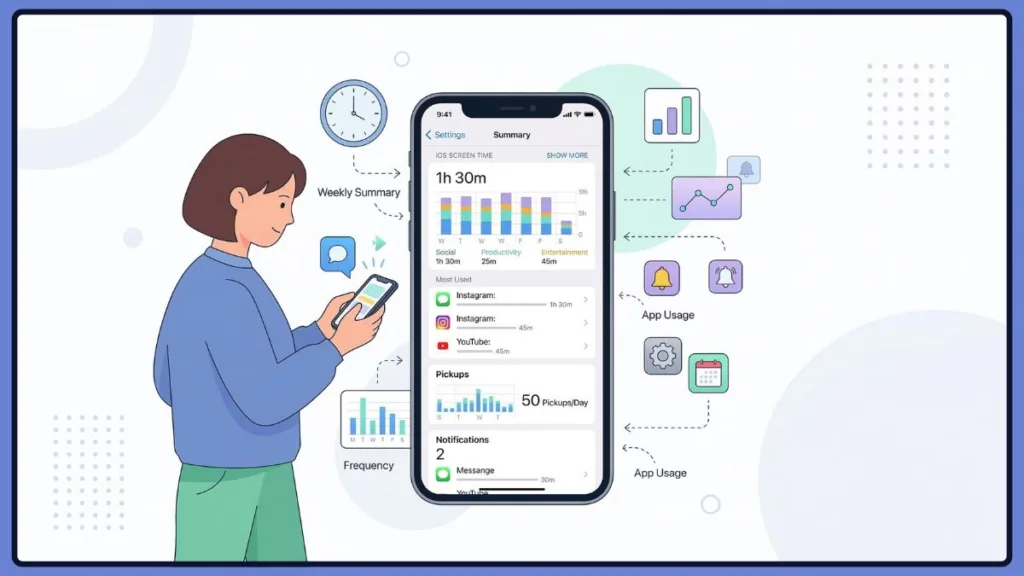
After opening the activity page, you can analyze several usage metrics such as:
- Daily average screen time helps you understand your baseline phone usage.
- Total device usage shows the cumulative hours and minutes your screen was actively illuminated.
- Most used apps ranks your applications from most time-consuming to least.
- Number of notifications received highlights which apps are constantly fighting for your attention.
- Device pickups throughout the day reveal how often you grab your phone to check for updates.
This dashboard provides a quick way to check screen time iPhone activity and understand your digital habits.
You can also use the directional arrows at the top of the “See All Activity” page to scroll backward in time, allowing you to review your statistics from previous days or weeks to see if your digital habits are improving.
How to See Screen Time Per App on iPhone to Spot Your Biggest Distractions
If you want to know exactly how much time you spend on each app, the Screen Time activity report provides a detailed breakdown.
Open the Screen Time section and tap See All Activity. From there, you can explore individual app usage.
This page displays:
- App usage time: Shows how long you spend in each app.
- Category breakdown: Groups apps into categories like social networking, entertainment, and productivity.
- Hourly activity graphs: Reveals when you use your phone the most during the day.
If you tap on a specific app within this list, iOS will open a dedicated page just for that application. Here, you can see its specific daily average, how it compares to your overall usage, and even a quick button at the very bottom to “Add Limit” directly to that single app.
You can also switch between daily and weekly reports, making it easier to track long-term usage patterns.
This feature is particularly useful if you’re trying to reduce time spent on distracting apps like social media or games. It eliminates the guesswork, forcing you to confront exactly how many hours were surrendered to a specific endless scrolling platform.
How to Turn On Screen Time on Apple Devices to Start Tracking Usage
If Screen Time isn’t enabled on your device yet, you’ll need to activate it before tracking your usage.
- Open Settings and tap Screen Time.
- Next, tap Turn On Screen Time.
- Then select Continue and choose whether the device belongs to you or a child.
Once enabled, iOS will begin tracking app and website activity, notifications, and device pickups automatically. It is important to note that Screen Time only begins collecting data from the moment it is turned on; it cannot pull historical data from before the feature was activated.
For additional security, you can also create a Screen Time passcode to prevent others from changing the settings.
This passcode is separate from your main device unlock code. Setting a distinct passcode is a great strategy even for adults trying to limit themselves, as it adds a layer of friction that makes it harder to mindlessly bypass an App Limit.
How to Check Screen Time on iPad and Mac Across Your Entire Ecosystem
Screen Time works across the entire Apple ecosystem, including iPhone, iPad, and Mac. This multi-device integration is vital because many users switch seamlessly from scrolling on their iPhone to watching videos on their iPad or browsing on their MacBook.
If you use multiple Apple devices, you can enable Share Across Devices so all activity is combined into one report.
To enable this feature:
- Open Settings → Screen Time.
- Scroll down and enable Share Across Devices.
Once activated, your iPhone and iPad screen time activity will sync, giving you a more accurate overview of your total device usage. If you are logged into your Mac with the same Apple ID, you can view this combined data by clicking the Apple logo in the top left of your Mac screen, navigating to System Settings, and clicking on Screen Time.
How to Check Your Child’s Screen Time on iPhone with iOS Parental Controls
Parents can monitor their child’s device activity using Apple ID Family Sharing and the Screen Time parental control tools.
After setting up Family Sharing, you’ll be able to view your child’s usage directly from your own iPhone.
Inside Settings → Screen Time, select your child’s name under the Family section.
From there you can:
- View their daily screen time reports to ensure they aren’t overusing their devices.
- Check app usage per category to see if they are prioritizing games over educational tools.
- Monitor device pickups and notifications to understand how often their phone distracts them.
- Set app limits and restrictions to enforce healthy digital boundaries automatically.
These iOS parental controls help families manage digital habits and keep children safe online. Apple also includes a feature called “Communication Safety” within these settings, which can automatically blur sensitive photos sent to or from a child’s device, giving parents peace of mind beyond just time management.
How to Limit App Usage Using Screen Time Features Like Downtime
Tracking screen time is helpful, but managing it is even more important. Screen Time includes several tools that allow you to limit app usage and reduce distractions.
The first feature is App Limits, which lets you set daily time limits for specific apps or categories. For example, you could limit social media apps to one hour per day. Once you hit that 60-minute mark, the app icon will darken, an hourglass symbol will appear next to it, and opening the app will present a screen informing you that your time is up.
Another useful feature is Downtime. This allows you to schedule periods where only essential apps are available. Many people use Downtime during evenings or before bed to encourage healthier routines. During Downtime, your entire phone essentially goes to sleep, dimming the icons of all non-essential applications.
To ensure you aren’t completely cut off during Downtime, iOS provides an Always Allowed section. Here, you can whitelist crucial applications like Phone, Messages, Maps, or specific authenticator apps so they remain fully functional regardless of any limits you have set.
Furthermore, you can manage Communication Limits. This specific tool allows you to dictate who you (or your child) can communicate with during allowed screen time versus during Downtime, effectively preventing late-night texting sessions while still allowing calls to immediate family members.
Screen Time also includes content and privacy restrictions, which help control downloads, in-app purchases, and website access.
Actionable Tips on How to Reduce Screen Time on iPhone Effectively
If your daily usage numbers seem higher than expected, there are several ways to reduce screen time on your iPhone.
Start by identifying apps that consume most of your time using the Screen Time activity report.
Then consider strategies such as:
- Setting daily App Limits ensures you are forced to stop scrolling once your allotted time expires.
- Turning off unnecessary notifications prevents apps from constantly vibrating and demanding your attention.
- Scheduling Downtime before bedtime helps your brain wind down and improves overall sleep quality.
- Creating phone-free periods during meals or work helps you remain present in your physical environment.
Additionally, consider using iOS Focus Modes alongside your screen time limits. Focus Modes allow you to hide specific home screen pages or silence specific contacts when you are working or sleeping, creating a heavily customized environment designed entirely around reducing digital noise.
Small adjustments like these can help improve focus, productivity, and digital wellbeing.
Troubleshooting Screen Time Issues on iPhone: Quick Sync and Passcode Fixes
Sometimes Screen Time may not behave as expected. Here are a few common issues and how to fix them.
| Issue | Solution |
| Screen Time is not updating | Try restarting your iPhone and checking for the latest iOS update. |
| Data is not syncing across devices | Make sure Share Across Devices is enabled and all devices use the same Apple ID. |
| Forgot Screen Time passcode | You can reset it using your Apple ID credentials from the Screen Time settings menu. |
If you are experiencing persistent syncing issues between your iPhone and iPad—a known bug in some recent iOS updates—the best troubleshooting step is to navigate to Settings, tap Screen Time, toggle “Share Across Devices” off, wait 30 seconds, and toggle it back on. This usually forces Apple’s iCloud servers to re-sync the usage data.
These quick fixes usually resolve most Screen Time tracking problems.
What Is a Healthy Screen Time Average for Modern Smartphone Users?
Many users ask whether their daily phone usage is normal. While usage varies from person to person, most adults spend several hours per day on their smartphones. Recent global studies have shown that average screen time can easily hover between 5 to 7 hours daily, heavily influenced by whether a person uses their phone for professional work and zoom meetings.
What matters more than the number itself is how that time is spent.
There is a vast difference between spending three hours reading an educational ebook or learning a language, versus spending three hours aggressively scrolling through short-form video content.
If screen usage interferes with work, sleep, or relationships, it may be helpful to set limits and build healthier digital habits. Excessive exposure to the blue light emitted by screens, particularly in the hours leading up to bedtime, has been clinically shown to disrupt circadian rhythms and suppress melatonin production, making intentional screen time management a critical part of physical health.
Using Screen Time regularly helps you stay aware of your usage patterns and make intentional choices about how you spend your time.
Apple Screen Time vs Digital Wellbeing: A Quick Android Comparison
Apple’s Screen Time and Android’s Digital Wellbeing serve similar purposes. Both tools track device usage and help users manage screen habits.
However, Apple’s Screen Time is deeply integrated with Family Sharing, parental controls, and app restrictions, making it especially useful for managing children’s devices. Apple’s ecosystem allows a parent to approve or deny an app limit extension directly from an iMessage prompt on their own device.
Android’s Digital Wellbeing offers similar insights but may vary slightly depending on the phone manufacturer. Google’s Android version heavily relies on tools like “Bedtime Mode,” which automatically turns the screen to grayscale to make the phone less visually stimulating at night, a feature Apple currently requires users to set up manually through accessibility settings.
Frequently Asked Questions About Managing Screen Time
How do I check Screen Time on my iPhone?
Open Settings, tap Screen Time, and view the usage summary. Tap See All Activity to see detailed reports.
How do I see Screen Time by app on iPhone?
Inside Screen Time, tap See All Activity to view how much time you spend in each individual app.
Can I see iPhone Screen Time past 7 days?
Yes. Screen Time displays both daily and weekly reports, allowing you to view activity for the past week. By scrolling back through the calendar arrows, you can typically view up to four weeks of historical data.
Does iPhone Screen Time count background apps?
Screen Time mainly tracks active app usage when the app is open on your screen. Background processes usually are not counted as active usage. For example, listening to a podcast with your phone screen off will not inflate your screen time numbers.
How do I turn off Screen Time tracking?
Open Settings → Screen Time and select Turn Off Screen Time. Doing this will immediately delete all of your historical screen time data.
Can I share Screen Time across devices?
Yes. Enable Share Across Devices in Screen Time settings to combine usage data from multiple Apple devices.
Can I lock Screen Time so I can’t ignore the limits?
Yes. When setting an App Limit, make sure you have created a Screen Time Passcode. Then, toggle on the setting that says “Block at End of Limit.” This ensures you cannot simply tap “Ignore Limit” without entering the passcode.
Conclusion: Master Your Habits by Tracking Screen Time
Understanding how to check screen time on iPhone is the first step toward building healthier digital habits. With Apple’s Screen Time feature, you can easily monitor your daily average screen time, app usage, device pickups, and notifications.
More importantly, Screen Time doesn’t just track usage—it also helps you manage it. Features like App Limits, Downtime, and parental controls allow you to create boundaries and stay in control of your digital life.
If you haven’t checked your iPhone usage recently, open your Screen Time dashboard today. You might be surprised by what you discover—and inspired to make smarter choices about how you spend your time.
Visit Our Post Page: Blog Page