
Want to clear all Facebook posts in 2026? Learn the fastest way to delete old posts in facebook. Get step-by-step guides for mobile and desktop, plus safe methods to clean your timeline without deleting your account.
If your Facebook timeline feels like a time capsule of old memories, outdated opinions, or posts you’d rather not revisit, you’re not alone. Facebook has been around for years, and as you’ve likely shared your life with billions of other users, your profile has naturally become a storage space for everything from your teenage thoughts to your professional milestones. As of 2026, Meta has centralized many of these management tools into the “Accounts Center,” making it easier to find your data but also changing the navigation paths you might be used to.

“Your online presence should reflect who you are today, not who you were a decade ago. Taking control of your timeline is the first step toward a digital fresh start.”
Over time, you might find that this content starts to feel overwhelming, irrelevant, or even damaging to your personal image. You are likely looking for ways to clear your posts without the drastic step of deleting your account—especially since your digital presence is so vital for job searches, relationships, and your personal brand. You don’t want old posts, comments, or photos resurfacing at the wrong time through memory reminders or profile visits.
The good news is that you can quickly delete all your Facebook posts, or at least remove them in bulk, using built-in tools. However, I want you to feel confident and prepared, so it’s important to understand one key limitation before you begin. In the latest 2026 interface, most of these privacy actions start in the “Meta Accounts Center,” which you can find by navigating to Settings & Privacy > Settings > See more in Accounts Center.
Can You Delete All Facebook Posts at Once in 2026?
This is likely the first question on your mind. To give you the honest answer: Facebook does not currently allow you to delete every single post with one single click through its official interface.
While that might feel frustrating, don’t worry—there are still highly effective ways for you to bulk delete your posts without spending hours scrolling. Facebook’s system is designed to give you intentional control. This means you can delete multiple posts at once in batches. Typically, you can select and delete up to fifty posts at a time using the “Manage Posts” or “Manage Activity” tools.
Key Insight: The 50-item limit is a security measure designed to prevent accidental wipes, but you can quickly repeat the process to clear hundreds of posts in just a few minutes.
By repeating these batch deletions and using filters to speed things up, you’ll find the process is much faster than doing it one by one. You may see third-party tools promising one-click deletion, but I recommend you use these with caution. Your account safety is a priority, and aggressive automation can trigger security warnings or restrictions. By using the official methods below, you stay safe and in total command.
How to Backup Your Facebook Data Safely: Securing Your Memories First
Before you hit delete, I want to make sure you feel secure. Pause for a moment and consider if there are meaningful memories, photos, or milestones you might want to keep for yourself.
Remember, once you permanently delete a post, it cannot be recovered unless you’ve archived it or downloaded it first. This is why backing up your data is your crucial first step for peace of mind. In 2026, Facebook typically takes between 1 and 24 hours to prepare your download link depending on the volume of your media.
Steps to Download Your Information
- Navigate to your Account Settings.
- Access “Your Facebook Information” or find it under “Your Information and Permissions” in the Accounts Center.
- Select “Download Your Information.”
You can choose your date range, file format, and media quality.
Pro-Tip: When choosing a format, select “HTML” if you want a human-readable version you can browse like a website, or “JSON” if you plan on importing your data into another service.
Once you request it, Facebook prepares a downloadable archive for your device. This ensures that even if you wipe your timeline, you still own your personal history. Many users find this incredibly reassuring—it gives you the freedom to move forward without losing your past. Interestingly, you’ll find similar ownership options on platforms like Google and Snapchat, highlighting how much control you truly have over your digital life today.
Method 1: How to Clear Facebook Posts Using Activity Log for Precision Control
The Activity Log is your central dashboard—it’s the most powerful way for you to manage your content. It allows you to see and control everything: posts, likes, comments, and tags.
To start your cleanup:
- Go to your profile and open Activity Log via the settings menu.
- Expand “Your Facebook Activity” and select “Posts.”
What makes this tool great for you is the filtering capability. You can filter by date, type, or interactions. For example, if you want to clear out a specific year, you can target it directly. Once you select your posts and move them to the Trash, Facebook holds them there for thirty days.
Safety Check: The 30-day Trash period is your safety net—if you make a mistake, you have a window to recover them before they are gone forever.
Note that as of 2026, you can also set an “Auto-Clear” for your search history to automatically delete entries older than 3, 7, 14, or 30 days.
Method 2: How to Delete Multiple Facebook Posts at Once Using the Manage Posts Tool
If you want a more visual way to clean your timeline fast, the Manage Posts tool is your best friend. Accessible directly from your profile, it shows your posts as thumbnails, making it easy to spot what stays and what goes.
- Filter your view: Narrow things down by date, privacy settings, or post type.
- Batch delete: Remember, you can select up to fifty posts at a time.
Steps:
- Go to your profile > Click Manage Posts > Select multiple postsClick Next → Delete Posts
Tip: This is the closest way to “delete all my Facebook post” quickly using official tools.
After selecting, you have the choice: Delete (moving them to the Trash) or Hide (removing them from public view without permanent deletion). By repeating this with different filters, you can clean your entire timeline efficiently and intentionally.
Method 3: How to Delete All Post in Facebook Using Phone: Step-by-Step for Mobile
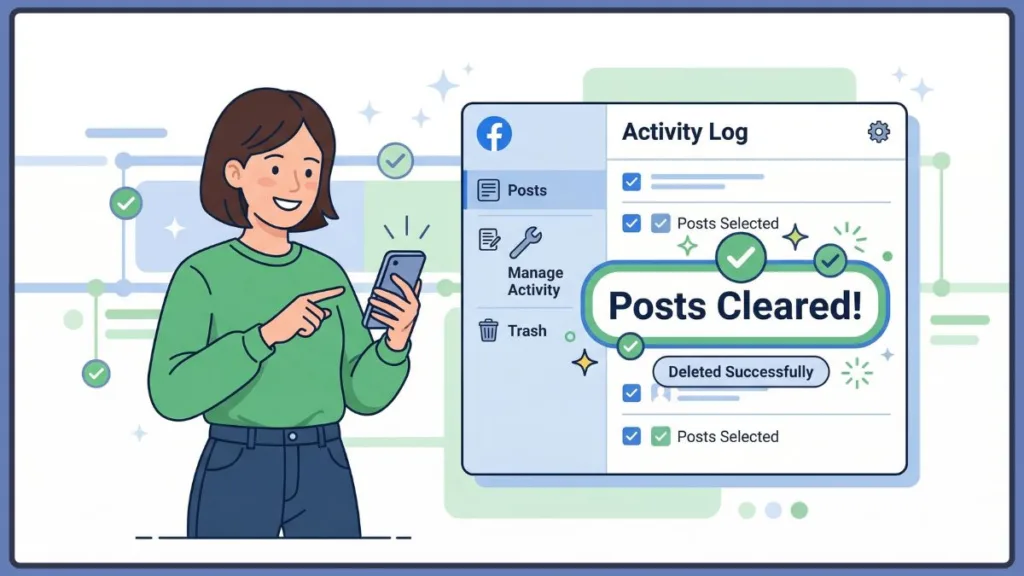
If you prefer managing your life on the go, you can use the Manage Activity feature within the mobile app.
- On Android and iPhone: Navigate to your profile, tap the settings menu (the three dots), and enter the Activity Log.
- Select “Manage Activity” to view, filter, and batch-delete your posts.
Whether you are using an Android (which often has a “Manage Posts” shortcut) or an iPhone, the functionality is consistent. You can move items to the Trash for a 30-day holding period or Archive them to keep them private but saved. The 2026 mobile app also allows you to manage “Logged Information” like your search history and location history directly within this same interface.
How to Quickly Delete All Facebook Posts Using Filters: The Secret to Efficiency
Filters are your secret weapon for efficiency. Instead of manual scrolling, you can:
- Filter by Year: Target specific phases of your life.
- Filter by Category: Focus only on photos, videos, or text updates.
“You can even filter by ‘Interactions’ to remove only your likes or comments from other people’s posts, ensuring your digital footprint is clean across the entire platform.”
Using these tools reduces your workload significantly. It turns a daunting task into a series of small, manageable wins.
How to Delete a Facebook Post Permanently and Selectively: The Manual Approach
Sometimes, you just need a surgical strike. If you have a highly sensitive or personal post, simply locate it on your timeline, open the options menu, and select Delete. It’s straightforward and ensures that specific piece of content is handled immediately.
How to Delete All Facebook Posts Using Extensions Safely: Advanced Tech Strategy:
If you have a decade of data and want to automate, you might look at extensions like Social Book Post Manager or Facebook Cleaner. These simulate your actions to delete posts based on your parameters. In 2026, ensure any extension you use is compatible with “Manifest V3,” which is the current standard for security and performance in browsers like Chrome and Edge.
A quick reassurance check: While these can be faster, they carry risks. Facebook’s security may flag the activity, and you should never share your login credentials outside of official prompts. If you choose this route, stay with trusted tools and monitor the process.
How to Remove Facebook Content Without Deleting Your History: Privacy Alternatives
You don’t always have to say “goodbye” forever. If privacy is your main goal, consider these alternatives:
- Archiving: Moves posts to a private “vault” only you can see.
- Audience Settings: Change visibility to “Only Me” to hide content instantly.
- Limit Past Posts: This is a “magic button” found in Privacy Settings that converts all your old Public or “Friends of Friends” posts to “Friends Only” in one click.
Exactly What Happens If You Delete a Post on Facebook?
To keep you feeling safe, remember that deletion isn’t instant. Your posts live in the Trash (or Recycle Bin) for thirty days. You have total freedom to change your mind during this time. After thirty days, the post and all its interactions (likes and comments) are permanently removed.
Important Reminder: Once that 30-day window closes, even Meta support cannot recover the data.
Why You Can’t Delete Some Facebook Posts
It’s important to know your limits so you don’t feel frustrated. You cannot delete posts that you did not create, such as a friend’s post that you were tagged in. For those, your power lies in removing the tag or hiding them from your timeline. Profile updates (like changing your cover photo) and shared content may also require individual handling if the bulk tool doesn’t highlight them.
How to Delete All Facebook Posts on a Business Page: Professional Brand Management:
If you manage a business page, the process is a bit more manual. In 2026, your best tool for this is the Meta Business Suite. Go to Content > Published.
- From there, you can select posts in small batches to delete or archive.
Note: Business pages do not currently support the same robust “Activity Log” bulk-delete features that personal profiles do, making Meta Business Suite the safest way to maintain professional control over your brand’s voice.
How to Delete Everything on Facebook via Full Reset: The Ultimate Fresh Start:
If you want a total clean slate, deleting your account is your only one-click option for total removal. Facebook will remove everything after a 30-day grace period. If you just need a break, Deactivating is a great middle ground—it hides your data and profile from everyone without deleting your data permanently.
Final Checklist: Expert Tips to Wipe Facebook Posts Safely and Effectively
- Review before you delete: A quick double-check prevents the loss of precious memories.
- Adjust privacy first: Change your settings to “Only Me” while you work to reduce exposure immediately.
- Check for “Off-Facebook Activity”: Use the Accounts Center to clear data that third-party apps and websites have shared with Facebook about you.
- Regular maintenance is key: A quick monthly check of your Activity Log keeps your digital home tidy.
Frequently Asked Questions: Clearing All Your Facebook Posts
How do I delete Facebook posts?
Use your Activity Log or the delete option on the post itself.
How do I bulk delete?
Use Manage Posts or Manage Activity to handle batches of 50.
How do I do this on my phone?
Use the Manage Activity feature in the Facebook app settings.
Can I delete everything at once?
No, unless you delete your entire account. For keeping the account, you must use batching.
What about Messenger?
Those are separate! Deleting a Facebook post does not delete a message you sent in a private chat. You’ll need to handle those conversations individually.
Final Thoughts: Embracing Your Digital Fresh Start
Cleaning your timeline is about more than just data—it’s about taking control of your identity. Whether you’re clearing old posts for a fresh start or just tidying up your privacy, you now have the tools to do it safely and efficiently. Your online presence evolves just like you do. Take this time to make it reflect the person you are today.
Visit Our Post Page: Blog Page