
Don’t let Amazon ruin the surprise! Learn how to clear your search history, delete browsing data, and pause tracking to keep your gift ideas secret in 2025.
Introduction: Why Clearing Your Amazon Search & Browsing History Matters
Amazon makes shopping incredibly convenient, but it also keeps track of almost everything you look at. Every product you search for or view gets added to your Amazon search history and Browsing History, which then powers those hyper-personalized suggestions on your homepage. That’s helpful—until it isn’t.
If you share your Amazon account with a partner or family member, you’ve probably experienced the classic “ruined surprise” moment. You spend time researching the perfect gift, only for Amazon to display it under “Keep Shopping For” or in your recently viewed items the next time someone logs in. Clearing your history becomes less about tidying up and more about protecting that special moment.
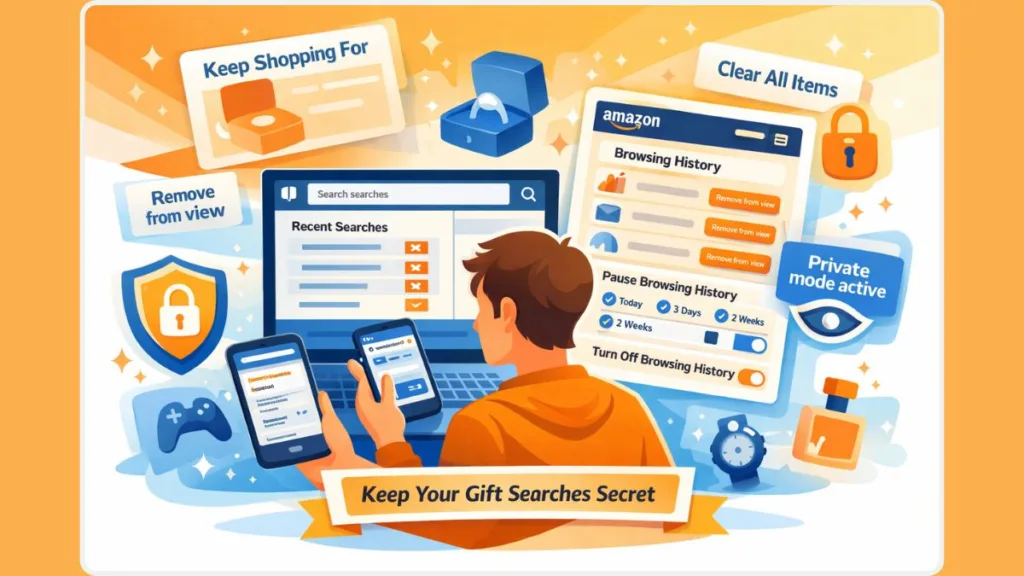
Beyond gift hiding, many users clean up their Amazon activity for privacy, to stop Amazon from tracking every item they browse, or simply to reset messy recommendations that no longer match their interests. Whether your goal is to keep purchases discreet, declutter your homepage, or reduce Amazon’s tracking, managing your search and browsing data gives you more control over your shopping experience.
This guide walks you through how to clear Amazon search history and browsing history on both desktop and mobile—plus how to pause or completely turn off Browsing History when you want a fresh start.
What Is Amazon Search History vs. Browsing History? (And Why Both Show Up in Recommendations)
Understanding Your Amazon Search History
Amazon saves every keyword or phrase you type into the search bar. This search history influences your search suggestions and can easily reveal what you’ve been looking for—especially if you share your account with family members.
What Amazon Stores in Your Browsing History
Your Browsing History includes the product pages you actually open. Even a quick look at an item adds it to this list, which Amazon uses to shape your homepage recommendations, recently viewed items, and “Keep Shopping For” categories.
Why Both Histories Affect Your Recommendations
Because Amazon uses both your search history and viewed items to personalize your experience, a single product can appear in multiple areas of your account. This is why surprises get exposed and why clearing or disabling search history and Browsing History is essential when you want privacy, cleaner suggestions, or a fresh start.
How to Clear Amazon Search History on Desktop (Remove Search Bar Suggestions & Viewed Items)
Clearing your Amazon activity on a computer gives you more control over what appears in your search suggestions, homepage recommendations, and Browsing History.
Since Amazon stores each activity type separately, it’s important to clean both areas for complete privacy—especially when hiding gift ideas or resetting your recommendations.
Delete Recent Amazon Search Bar Suggestions on Desktop
Amazon saves every phrase you type into the search bar, which can expose your browsing intentions the moment someone clicks into your account. Removing these entries keeps your searches discreet and prevents related suggestions from popping up.
Steps to delete search terms:
- Open Amazon.com and log in.
- Click inside the search bar at the top.
- A dropdown of your recent searches will appear.
- Click the “X” icon next to any search you want to remove.
Each search keyword disappears instantly. This clears only your typed search history, so you’ll still need to clean your Browsing History to remove viewed items that show up elsewhere on Amazon.
Remove Individual Items From Amazon Browsing History on Desktop
Your Browsing History includes product pages you opened—intentionally or accidentally. These items feed directly into “Keep Shopping For,” Recently Viewed, and personalized recommendations. Removing specific items is a great way to hide single products without deleting everything.
To remove individual viewed items:
- Hover over Account & Lists.
- Click Browsing History from the dropdown.
- Find the product you want to hide.
- Select “Remove from view” beneath it.
Amazon will briefly show a Removed label before the item disappears, giving you a subtle but effective way to clean up your viewed list without resetting your entire history.
Clear Your Entire Amazon Browsing History on Desktop (Complete Reset)
If your browsing list is long or your recommendations feel off-track, a full reset can help. This option wipes out every product you’ve viewed and clears the data Amazon uses to personalize your homepage.
To remove all browsing history:
- Open your Browsing History page.
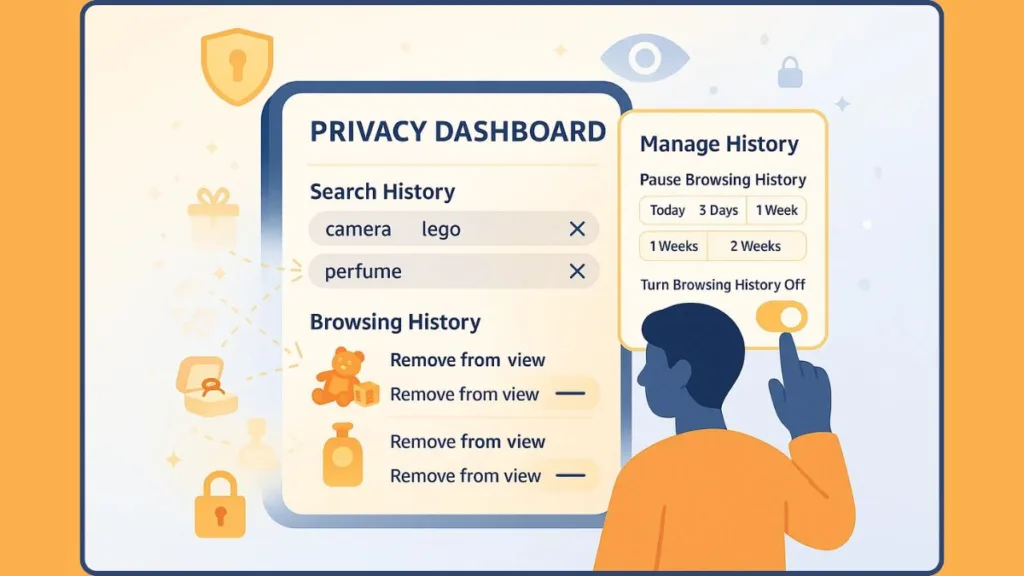
- Click the gear icon on the right to access Manage History.
- Select “Remove all items from view.”
- Confirm if prompted.
Within seconds, your entire browsing record disappears. This is especially useful when hiding all evidence of gift shopping or when you want Amazon to stop basing recommendations on old viewing habits.
Why a Full Desktop Cleanup Matters
Clearing both your search bar suggestions and Browsing History ensures none of your recent activity—whether searches, clicks, or product views—shows up where others might see it. It also helps reset your homepage recommendations, improving privacy and giving you a clean slate anytime you need one.
How to Clear Amazon Search History on Mobile App (iPhone & Android)
The Amazon app makes it easy to shop on the go, but it also keeps a detailed record of everything you search for and every product page you open.
If you share your phone with family members, or if someone else occasionally uses your Amazon app, clearing this history becomes essential—especially when you’re trying to hide a gift or protect your privacy.
Since the app’s layout works slightly differently from the desktop version, you’ll want to follow the steps for both search bar history and Browsing History to fully reset your activity.
Deleting Amazon Search Bar History on iPhone & Android
Your mobile search history includes every term you’ve typed into the Amazon app’s search bar. These entries often appear instantly when you tap the search bar, making them easy for others to spot.
To clear them:
- Open the Amazon app on your iPhone or Android device.
- Tap the search bar at the top of the screen.
- After a short pause, you’ll see your recent searches appear below the bar.
- Next to each keyword, tap the “X” icon to remove it.
Each deleted entry disappears immediately. This step clears typed searches, which is especially helpful when you’ve been researching gifts, looking up sensitive items, or reviewing products you don’t want others to know about.
However, this doesn’t erase the items you actually clicked on, which appear in your Browsing History—so continue with the next steps for a full cleanup.
Clearing Amazon Browsing History in the Mobile App
Your Browsing History in the app shows every product page you’ve opened, even briefly. These items feed into categories like “Keep Shopping For”, personalized recommendations, and related product suggestions—any of which can reveal what you’ve been searching for.
To remove items individually:
- Open the Amazon app.
- Tap the Profile icon at the bottom of the screen.
- Scroll to find Browsing History or View your browsing history (interface may vary slightly).
- You’ll see a list of your viewed products.
- Tap Remove from view under each item you want to hide.
This option is ideal when you want to hide a few specific products while keeping others that help Amazon refine your recommendations.
Removing All Items From Amazon Browsing History on Mobile
For a complete reset—especially if you’ve been researching several gifts or want a clean recommendation slate—you can delete everything at once.
Follow these steps:
- Go to Profile > Browsing History.
- Look for the gear icon in the top-right corner (or a downward arrow for some app versions).
- Tap it to open Manage History.
- Select Remove all items from view.
- When Amazon asks for confirmation, tap Remove all items from view again.
All of your viewed items will disappear instantly, and your homepage will begin refreshing with more general recommendations.
Clearing both your search bar history and Browsing History in the Amazon app ensures that sensitive searches, gift ideas, and personal browsing patterns stay private—even if someone else uses your phone or shares your Amazon account.
How to Pause or Turn Off Amazon Browsing History (Stop Amazon From Tracking Viewed Items)
Clearing your history hides what you’ve already viewed, but it doesn’t stop Amazon from tracking what you look at next. If you want more long-term control over your privacy, or you’re actively searching for gifts and don’t want anything new showing up on your homepage.
Amazon gives you two powerful tools: Pause Browsing History and Turn Off Browsing History. Both options work on desktop and mobile, and each serves a different purpose depending on how much you want to limit Amazon’s tracking.
Why Pausing Amazon Browsing History Is Useful for Short-Term Privacy
Pausing your history temporarily stops Amazon from recording the items you view. This is perfect when you’re in the middle of gift shopping and don’t want those products appearing across:
- “Keep Shopping For”
- Recently Viewed
- Inspired by your browsing history
- Personalized recommendations
The pause option is flexible, letting you choose a specific time range. Amazon offers four choices:
- Today
- 3 days
- 1 week
- 2 weeks
This lets you browse freely for a short period without worrying about anything being saved. Once the time expires, Amazon automatically resumes tracking unless you manually enable or disable it again.
How to Pause Amazon Browsing History on Desktop
- Go to Amazon.com and open your Browsing History page.
- Click the gear icon at the top-right corner to open the Manage History panel.
- Under Pause History, select a time frame that suits your needs.
- Amazon will confirm that your browsing activity is paused immediately.
During this pause, no new product pages will be added to your history or used for recommendations. Your existing history remains untouched unless you clear it manually.
How to Pause Amazon Browsing History on the App (iPhone & Android)
- Open the Amazon app on your phone.
- Tap the Profile icon at the bottom.
- Select Browsing History or View your browsing history.
- Tap the gear icon at the top-right corner.
- Choose how long you want to pause tracking.
This gives you the flexibility to browse discreetly on mobile without leaving a digital trail behind.
What Turning Off Amazon Browsing History Does for Full-Time Privacy
Disabling your Browsing History goes further than pausing—it completely prevents Amazon from logging any new viewed items. This is the best option if you want full privacy or if you regularly share your Amazon account and never want your browsing activity displayed.
When Browsing History is turned off:
- No new items appear in your viewed list.
- Amazon no longer uses browsing activity to personalize recommendations.
- Your homepage becomes more neutral and less targeted.
- Only your order history (which you can hide separately) influences suggestions.
This setting stays off until you manually turn it back on.
How to Turn Off Browsing History on Desktop
- Open the Browsing History page on Amazon.
- Click the gear icon to access Manage History.
- Select More settings, usually found at the bottom of the menu.
- Toggle off Browsing History.
Once disabled, the toggle will switch from a checkmark to a minus symbol, confirming that tracking is completely turned off.
How to Turn Off Browsing History on the Amazon App
- Open the Amazon app and tap the Profile icon.
- Go to Browsing History.
- Tap the gear icon to enter History settings.
- Select More settings.
- Turn off the Browsing History toggle.
From this moment on, Amazon will not log any product pages you open through the app.
Pausing or turning off your Browsing History is one of the most effective ways to keep your searches private—especially during holidays, birthdays, and anniversaries when you’re actively looking up gifts. It also helps reduce clutter and stops Amazon from building recommendations based on a single accidental click.
How to Clear or Edit the “Keep Shopping For” Section on Amazon
The “Keep Shopping For” section appears on your Amazon homepage and inside the mobile app, and it’s one of the easiest places for someone to accidentally discover what you’ve been browsing. Amazon builds this section from your recent searches, viewed items, and browsing patterns, grouping them into categories like skincare, gaming accessories, kitchen tools, or gift-related items.
Why the “Keep Shopping For” Panel Can Reveal Your Shopping Activity
If you’ve been researching a surprise gift—or if you simply want to clean up cluttered recommendations—editing this section is essential. Unlike your Browsing History, which focuses on individual product pages, “Keep Shopping For” is driven by categories, making it important to remove entire groups that reveal what you’ve been viewing.
Where “Keep Shopping For” Appears Across Amazon
This section typically shows up in three places:
- On the Amazon homepage, under personalized recommendations
- Inside the Profile tab on the mobile app
- Under personalized content alongside your browsing and search activity
Because these item groups are shown prominently, they can easily reveal the theme of your recent browsing—such as jewelry, gadgets, or children’s toys—spoiling gift surprises or exposing personal shopping habits. Clearing it gives you a cleaner, more private Amazon experience.
How to Edit or Remove Categories in the Amazon App
The mobile app gives you direct control over these categories, allowing you to remove anything you don’t want displayed.
To clean up or hide specific categories:
- Open the Amazon app on your iPhone or Android device.
- Tap the Profile icon at the bottom of the screen.
- Scroll to the Keep Shopping For section.
- Tap Edit next to this section.
- You’ll see tiles representing each category Amazon thinks you’re interested in.
- Tap the “X” next to any category you want to remove.
- Select Done to save your changes.
Once removed, these categories will disappear immediately, and Amazon will stop showing related recommendations in that group unless you browse similar products again.
How Desktop Users Can Refresh or Reset “Keep Shopping For”
While the desktop interface doesn’t always show a dedicated “Edit” option like the mobile app, you can influence this section by managing related activity:
- Clearing your Browsing History
- Removing specific product views
- Turning off Browsing History tracking
- Editing recommendations on your homepage
Amazon refreshes the “Keep Shopping For” section based on your active browsing signals. When those signals disappear, the categories tied to them fade out over time. This is especially helpful when you want to reset your shopping interest patterns or clean up categories that no longer apply.
Why Clearing This Section Protects Gifts and Privacy
The “Keep Shopping For” section is one of Amazon’s most revealing features because it groups multiple viewed items into easy-to-recognize categories. Even if you delete your individual browsing entries, someone glancing at these categories can still guess what you’ve been shopping for.
Editing or clearing this section helps:
- Prevent gift spoilers
- Remove outdated or irrelevant categories
- Reset Amazon’s personalized suggestions
- Reduce clutter and distractions
- Maintain privacy when sharing an account or device
Cleaning up the “Keep Shopping For” panel is a simple but powerful step in controlling what Amazon shows to anyone who logs into or uses your account. When combined with clearing your search history and Browsing History, it gives you a fuller, more private shopping experience.
Extra Privacy Tips: Browse Amazon Without Leaving a Digital Trail
Clearing or disabling your Amazon search history and Browsing History gives you solid control over what appears inside your account, but there are moments when you need an extra privacy layer—especially when shopping for gifts, handling sensitive purchases, or simply keeping your browsing habits discreet.
Amazon’s tracking goes beyond just viewed items, so understanding how to minimize your digital trace helps you stay one step ahead.
Below are several practical, real-world privacy strategies that work across desktop, mobile, and smart devices.
Incognito & Private Browsing: What They Hide and What They Don’t
Opening Amazon in Incognito Mode (Chrome), Private Browsing (Safari), or InPrivate Mode (Edge) prevents your device from saving:
- Local browsing history
- Cookies
- Autofilled searches
- Logins (after you close the window)
This helps protect your activity from people who share your device. However, it’s important to understand its limits:
- Amazon will still track your browsing activity if you log in.
- Viewed items and searches will still appear under Browsing History, Keep Shopping For, and recommendations.
- It only hides activity locally—not from Amazon.
To browse without Amazon logging anything, don’t log in or combine this method with paused/disabled Browsing History inside your account.
Using a VPN to Mask Amazon Activity From Your Internet Provider
A VPN (Virtual Private Network) adds an additional privacy layer by encrypting your internet connection. While this doesn’t prevent Amazon from tracking your activity, it does prevent your ISP (internet service provider) from seeing:
- Which Amazon pages you visit
- What you search for
- What products you click
A VPN also masks your IP address, which limits how much location data Amazon can attach to your account. This is useful for:
- Gift shopping during the holidays
- Browsing categories you want to keep private
- Preventing ISP-level monitoring of online purchases
If someone else in your household shares your Wi-Fi, a VPN keeps your Amazon browsing invisible to them—provided they don’t access your account.
Deleting Alexa Voice Search History to Protect Hidden Queries
If you use Alexa devices at home, your voice commands—especially product-related queries—may be saved separately from your Amazon search history.
This history includes:
- “Alexa, find me a smartwatch.”
- “Alexa, reorder vitamins.”
- “Alexa, show gift ideas for kids.”
Alexa saves these recordings under Alexa Privacy, and they can appear as part of your shopping behavior.
To delete them:
- Open the Alexa app.
- Tap More (the three-line menu).
- Select Alexa Privacy.
- Choose Review Voice History.
- Filter by date, device, or profile.
- Delete entries individually or tap Delete all recordings.
Removing Alexa voice data ensures your voice commands don’t influence Amazon recommendations—or accidentally reveal upcoming gift ideas.
Logging Out on Shared Devices to Keep Your Activity Private
If you share a computer, tablet, or smart TV, staying logged into Amazon gives others instant access to:
- Your Browsing History
- Your search history
- Your recommendation panels
- Your private purchase lists
To protect your privacy:
- Log out after each session
- Disable browser password saving
- Clear cookies if needed
This ensures no one can pull up your Amazon activity simply by opening the browser.
Using Separate Amazon Profiles for Cleaner, More Private Browsing
Amazon Household allows multiple users to share Prime benefits without sharing the same browsing history. While not everyone uses this feature, it’s one of the most effective ways to keep:
- Gift ideas
- Product research
- Recommendations
- Shopping categories
separate and private.
Setting up separate profiles helps prevent accidental discovery of surprises—especially in homes where multiple people regularly use the same account.
Together, these privacy tools—Incognito Mode, VPNs, Alexa history cleanup, careful logins, and profile separation—help you browse Amazon with confidence. When paired with clearing and disabling your Browsing History, they create a strong shield against accidental exposure of your shopping activity.
How Clearing Amazon History Affects Recommendations (Reset or Improve Product Suggestions)
Amazon’s recommendations are powered by a mix of signals—your search history, Browsing History, orders, ratings, and even lists you interact with. When you clear or disable parts of your activity, it changes how Amazon understands your shopping preferences. This can be incredibly helpful when you want to reset your homepage, stop irrelevant suggestions, or remove traces of sensitive or gift-related browsing.
Here’s a deeper look at how each action influences what you see across Amazon.
How Clearing Browsing History Resets Homepage Suggestions
Your Browsing History is one of Amazon’s strongest personalization sources. Every product you click—even out of curiosity—feeds into sections like:
- Inspired by your browsing history
- Keep Shopping For
- Recently viewed items
- More items to consider
When you remove items individually or clear the entire history:
- Recommendations tied to those items gradually disappear.
- Amazon stops suggesting similar categories.
- Gift-related products fade from your homepage sooner.
- Your homepage becomes more neutral or broad.
This is especially useful when Amazon keeps pushing categories you’re no longer interested in or ones you only explored briefly.
How Clearing Search Bar History Affects Autofill Suggestions
Deleting your search bar history affects what appears when you begin typing. This removes:
- Keywords that hint at past shopping
- Gift searches you don’t want others to see
- Autofill suggestions that no longer match your interests
While clearing search history doesn’t directly impact Amazon’s recommendation engine, it removes visible clues that appear instantly when someone taps the search bar on your device or shared account.
Why Turning Off Browsing History Has the Biggest Overall Impact
The strongest way to reshape or protect your Amazon recommendations is to turn off Browsing History entirely. When disabled:
- Amazon stops tracking all new product views
- Viewed items won’t feed into future recommendations
- Homepage suggestions refresh more slowly
- Only order history influences what Amazon shows you
- Sensitive gift searches stay completely hidden
This gives you a clean slate moving forward and ensures that nothing you view during a browsing session reappears unexpectedly on shared screens.
How Pausing Browsing History Offers Temporary Privacy
Pausing your history for a day, three days, a week, or two weeks acts like a temporary privacy shield. During the pause:
- Viewed items won’t be added to your history
- Recommendations won’t update based on current browsing
- Your homepage stays stable rather than shifting
This is ideal during holidays, birthdays, or anniversaries, when you want temporary protection without permanently altering your Amazon settings.
Why Recommendations May Still Appear After Clearing History
Even after clearing everything, you may still notice a few old suggestions. That’s because Amazon also uses:
- Past purchases
- Wish list items
- Saved for later items
- Ratings and reviews
- Your shopping habits over time
- Popular items within your demographic
If you want to fully reset recommendation patterns, you may also need to adjust or hide parts of your order history, edit your lists, or disable personalized ads under Amazon’s privacy settings.
How Clearing History Improves Relevance and Reduces Clutter
If your homepage feels cluttered, chaotic, or filled with unrelated items, clearing your history can dramatically improve what Amazon suggests. A cleaner profile helps Amazon focus on:
- Categories you shop most
- Brands you prefer
- Recurring product types (e.g., household essentials)
- Items similar to recent purchases
This creates a more relevant and enjoyable shopping experience, free from outdated or incorrect suggestions.
Managing your Amazon history—whether you clear it, pause it, or turn it off—gives you meaningful control over what appears on your homepage and recommended lists. It keeps surprises hidden, resets cluttered categories, and helps Amazon deliver suggestions that actually match what you want to see.
FAQs: Amazon Search History, Browsing History & “Manage History” Settings Explained
Can I permanently delete my Amazon browsing history?
Yes. Selecting “Remove all items from view” clears everything from your visible history. Amazon may still retain some backend data for fraud prevention, but nothing appears in your account.
Does clearing browsing history stop Amazon recommendations?
It removes recommendations based on past viewed items, but Amazon will continue suggesting products unless you turn off Browsing History entirely.
Where is the “Manage History” button on the Amazon app?
Open the app > Profile > Browsing History > tap the gear icon. This opens Manage History, where you can remove items or turn tracking off.
Why can’t I find my Amazon search history?
Amazon often updates the interface. Currently, search history appears inside the search bar as recent keywords and inside Browsing History for viewed items.
Does clearing Amazon history also delete my Google or Chrome history?
No. Amazon history is stored in your Amazon account. Your browser history must be cleared separately if you want to remove traces of Amazon pages visited.
Can family members see my Amazon browsing activity?
Yes—if they have access to your logged-in Amazon account or your device. Clearing your history, disabling tracking, and logging out after use keeps your activity private.
Conclusion: Take Control of Your Amazon Search History & Keep Your Gifts (and Privacy) Safe
Managing your Amazon search history and Browsing History gives you more control over what shows up on your homepage, what Amazon recommends, and what others might see when they use your shared account. Whether you’re hiding a surprise gift, cleaning up cluttered suggestions, or reducing how much Amazon tracks, clearing or disabling your history makes your shopping experience more private and more personal.
Clearing or disabling Browsing History protects your privacy and keeps sensitive items out of sight.
With the right steps—removing viewed items, deleting old searches, pausing or turning off history, and tidying up sections like “Keep Shopping For”—you can browse freely without worrying about spoiling surprises or revealing sensitive items.
Small updates like removing viewed items or pausing history can instantly prevent accidental gift spoilers.
These quick updates help you keep your account organized, protect your privacy, and shape smarter, more relevant recommendations.
Taking a moment to manage your history ensures your Amazon account reflects what you want to see while keeping your activity hidden from anyone else sharing the device or account.
A little history management goes a long way toward maintaining a private, clutter-free Amazon experience.
Visit Our Post Page: Blog Page