
Want Microsoft Edge to delete cookies automatically on exit? Learn how to clear cookies when Edge closes, keep important sites logged in, and fix common issues.
If you want Microsoft Edge to automatically clear cookies every time you close the browser, this guide shows exactly how to set it up, what the settings mean, how to keep exceptions, and how to troubleshoot when things don’t work as expected.
This isn’t about manually clearing cookies once in a while — it’s about making Edge auto-delete cookies on exit so your browsing data isn’t stored long-term without your consent.
What “Delete Cookies on Exit” Actually Does
When Edge deletes cookies on exit, it automatically removes cookies and other site data every time you close the browser window. This cleans up:
- Session cookies (logins and session tokens)
- Tracking data
- Site preferences stored in cookies
Important: This won’t affect data stored in the cloud via sync unless you clear that data separately.
How to Enable “Delete Cookies on Exit” in Microsoft Edge
Using Edge Settings (Simple and User-Level)
- Open Microsoft Edge.
- Click the three-dot Settings and more menu.
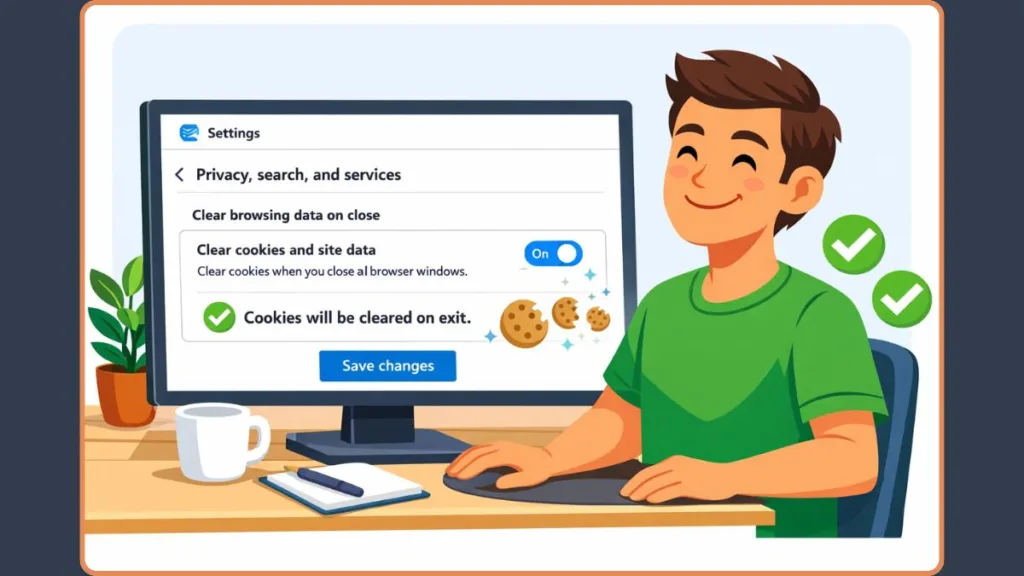
- Go to Settings > Privacy, search, and services.
- Scroll to Clear browsing data.
- Click Choose what to clear every time you close the browser.
- Toggle Cookies and other site data to On.
Once enabled, Edge will automatically remove cookies and site data when you exit the browser.
Note: This setting is per profile and only affects the current user unless enforced via policies or registry.
How to Keep Cookies for Specific Websites
If you want Edge to delete most cookies on exit but retain cookies for trusted sites (e.g., your email or banking site), you can set exceptions:
- Go to Settings > Privacy, search, and services.
- Click Choose what to clear every time you close the browser.
- Under Cookies and other site data, toggle it on.
- Click Add under Don’t clear these sites.
- Enter the domain(s) you want to exclude from deletion.
This allows cookies for those domains to persist across sessions.
Note: Some recent versions have user reports that exceptions may not always persist due to UI changes or bugs.
Clear Cookies on Exit Without Removing Passwords or Logins
Edge’s “clear on close” feature focuses on cookies and site data — it does not automatically delete saved passwords or form data unless you explicitly choose those options under the settings. So if you only toggle Cookies and other site data, your saved passwords and autofill info should remain intact.
If you do want passwords to stay cached even when other browsing data is cleared, policies like PasswordDeleteOnBrowserCloseEnabled may need configuration via enterprise tools.
When “Clear Cookies on Exit” Doesn’t Work: Fixes That Actually Help
Some users encounter issues where Edge doesn’t clear cookies even after enabling the setting. Try these:
- Update Edge: Ensure you’re on the latest version.
- Verify Settings: Double-check that Cookies and other site data is toggled on under the correct menu.
- Manually Clear Once: Go to Clear browsing data now (Settings > Privacy, search, and services) and clear cookies manually to reset state.
- Extensions or Profiles: Disable cookie-management extensions or test in a different Edge profile.
- Disable Startup Boost (Critical Fix): Go to Settings > System and performance. Turn off Startup Boost and Continue running background extensions and apps when Microsoft Edge is closed. If these are enabled, Edge continues running in the background and never truly “closes,” so the on-exit cookie deletion trigger never fires.
Manual clearing works independently of the exit setting, which can help verify whether auto-clear is being applied.
Advanced Options: Policies and Registry (For Admins)
If you need to enforce cookie deletion on exit across multiple devices (for example, work or shared computers), you can use:
Group Policy / ADMX
ClearBrowsingDataOnExit forces Edge to clear data on exit.
SaveCookiesOnExit allows cookie exceptions.
PasswordDeleteOnBrowserCloseEnabled controls password removal.
Registry (Windows)
Registry path:HKEY_LOCAL_MACHINE\SOFTWARE\Policies\Microsoft\Edge\ClearBrowsingDataOnExit
- Set value to
1to enforce clearing on exit. - Set value to
0to disable enforced behavior.
Editing the registry incorrectly can cause system issues — always back up before making changes.
Privacy Trade-Offs: Should You Enable Cookie Deletion on Exit?
Enable it if you want:
- Better privacy on shared or public devices
- Reduced tracking between sessions
- A clean browser state every time you start Edge
Avoid it if you want:
- Persistent logins on most websites
- Long-term site preferences saved
- Faster reloads based on stored cookies
Understanding this trade-off helps you choose settings that fit how you actually use Edge.
FAQ
Does Microsoft Edge clear cookies automatically when closed?
Only if you enable Cookies and other site data under Choose what to clear every time you close the browser.
Can I keep certain cookies while clearing others on exit?
Yes. Add specific domains under Don’t clear these sites in the same settings panel.
Why doesn’t Edge clear cookies even after I enable it?
In many cases, Startup Boost or background apps keep Edge running, which prevents the exit trigger from firing.
Will this delete my saved passwords?
No. Passwords are only removed if you explicitly enable password deletion. Cookie clearing and password storage are controlled separately.
Official Microsoft Resources
Microsoft Edge Cookie Management: Covers how Edge handles cookies, site data, and clear-on-exit behavior.
ClearBrowsingDataOnExit Policy: Official documentation for enforcing cookie deletion on exit via policy.
SaveCookiesOnExit Policy: Explains how exceptions work when clearing cookies automatically.
Edge System & Performance Settings: Documents Startup Boost and background app behavior that affects “on exit” clearing.
Visit Our Post Page: Blog Page