
Want to delete your watched video history on Facebook? Learn how to clear Facebook Watch history step by step on mobile and desktop to reset recommendations and regain control of your feed.
Why Your Facebook Watch Feed Feels Outdated and Hard to Control
Is your Facebook Watch feed full of videos you don’t care about anymore? We’ve all been there. Facebook remembers what you watch—and keeps serving more of it long after your interests have changed. One random tap today can shape your feed for weeks.
The good news is that you can clear Facebook Watch history, refresh recommendations, and regain control in just a few minutes.
This guide walks you through a step-by-step cleanup on mobile and desktop, explains why history sometimes won’t clear completely, and shows how to actively reset the video recommendations algorithm so your Watch tab starts working for you again.
What Facebook Watch History Actually Controls (And Why It Matters)
How Facebook Uses Your Video Viewing Activity
Your Facebook video history directly influences what appears in the Watch tab every time you open the app. Every viewed clip—whether you watched it fully, skipped halfway, or opened it by accident—feeds data into Facebook’s video recommendations algorithm. Over time, this creates a loop where the platform keeps showing similar content, even if you’re no longer interested.
Why Clearing Watch History Improves Recommendations and Privacy
Clearing your Watch history acts like a digital spring cleaning. It reduces irrelevant recommendations, helps refresh your Watch feed, and improves privacy by limiting how much of your past viewing behavior continues to shape your experience. Many users assume this only affects the Watch tab, but it also subtly influences suggested videos across the main feed.
Watch History vs Search History vs Reels History
It’s also important to understand that Watch history, video search history, and Reels history are related but not identical. Facebook stores watch data inside the Activity log, often under Videos you’ve watched or within Logged actions and other activity, depending on the app version and platform. Clearing one type of history does not always clear the others, which is why some recommendations can linger.
How to Clear Facebook Watch History on Mobile (iPhone & Android)
Step-by-Step: Clearing Facebook Watch History on the Mobile App
This is the fastest and most commonly used method to delete Facebook Watch history using the mobile app, whether you’re on iPhone or Android.
Start by opening the Facebook app on your phone. Tap the Menu icon (☰)—usually located at the bottom-right on iPhone and the top-right on Android. From there, open Settings & privacy, then tap Settings. Scroll until you see Activity log and open it. Inside the Activity log, locate Logged actions and other activity, then select Videos you’ve watched. You’ll now see a chronological list of videos linked to your account. At the top of this section, tap Clear video watch history, then confirm when prompted.
What to Do If “Videos You’ve Watched” Is Missing
Once completed, your FB Watch history mobile app data is cleared, and future recommendations will begin adjusting based on new activity.
If you don’t immediately see Videos you’ve watched, don’t panic. On some app versions, the Activity log uses swipeable filters instead of a visible list. Swiping horizontally or scrolling further down usually reveals it. Keeping the Facebook app updated also helps ensure the option appears correctly. This same process applies whether you’re looking for how to clear Facebook Watch history on iPhone or how to clear Facebook Watch history on Android.
How to Clear Facebook Watch History on Desktop (PC & Mac)
Step-by-Step: Clearing Watch History on Facebook Web
If you prefer managing your settings on a larger screen, you can clear your Watch history just as easily on desktop.
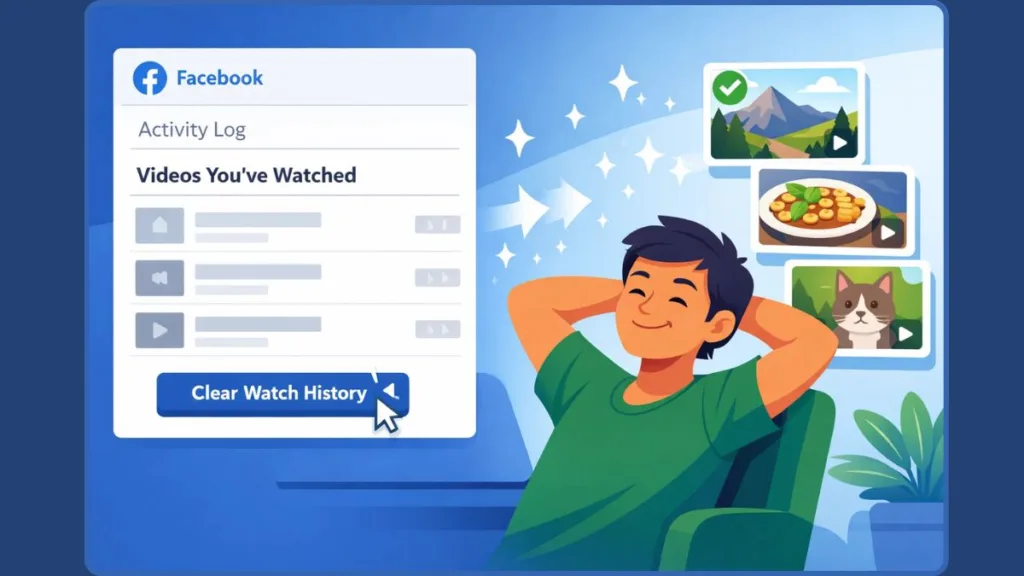
Begin by visiting Facebook.com and logging into your account. Click your Profile picture in the top-right corner, then select Settings & privacy, followed by Settings. In the settings menu, open Activity log, which may appear under Your Facebook Information depending on your layout. On the left-hand side, expand Logged actions and other activity, then click Videos you’ve watched. At the top of the list, select Clear video watch history and confirm the action.
This completes clear Facebook Watch history desktop, giving you the same level of control without using the mobile app.
How to Remove Individual Videos You’ve Watched on Facebook
When You Don’t Want to Clear Everything
Sometimes you don’t want a full reset—you just want to clean up a few accidental clicks. Facebook allows you to remove videos you’ve watched on Facebook one at a time.
Inside Activity log > Videos you’ve watched, each entry has a three-dot menu beside it. Selecting this menu lets you Delete or Remove from history for that specific video.
This option works on both mobile and desktop and is useful for fine-tuning your Watch feed without wiping everything.
That said, if your recommendations feel completely off, a full clear is usually more effective than deleting individual entries one by one.
Why Watched Videos Still Show After You Clear History
Common Reasons Facebook Watch History Doesn’t Fully Reset
This is one of the most frustrating parts of managing Facebook Watch—and you’re not imagining it.
In many cases, the Watch tab and Activity log don’t sync instantly. You may clear your history successfully, yet still see familiar videos appear temporarily. Cached data on your device can also cause older recommendations to linger until the app refreshes. Logging out, closing the app, and reopening it often helps speed this up.
Additionally, Facebook treats some content types differently. Reels history, for example, may not fully clear when you delete standard Watch history. Facebook can also retain internal engagement signals for recommendation tuning, even after visible history is removed. What to expect is a gradual reduction in influence rather than an instant wipe across every surface.
How to Actually Reset Facebook Video Recommendations
Going Beyond Deletion to Retrain the Algorithm
Deleting history is step one. Training the algorithm is step two—and this is where most users stop too early.
After clearing your Facebook Watch history, actively interact with content you do want to see. Mark irrelevant videos as Not interested, hide specific topics, and remove outdated interests where possible. Watching a few videos aligned with your current preferences helps the system relearn faster.
Think of this as learning how to manage video activity, not just deleting old data. The more intentional your interactions, the faster your Watch feed improves.
Can People See Your Facebook Watch History?
Understanding the Privacy of Facebook Watch Activity
Short answer: No.
Your Facebook Watch history is private and visible only to you through the Activity log. Friends, followers, and profile visitors cannot see what you’ve watched.
However, Facebook itself still stores this information unless you clear it. For additional peace of mind, reviewing Privacy settings and tools or running a Facebook privacy checkup can help you understand how your activity is handled.
Frequently Asked Questions
Clearing and Managing Facebook Watch History FAQs
How do I clear my Facebook Watch history on my phone?
You can do this by opening the Facebook app, navigating to Settings & privacy, selecting Activity log, opening Videos you’ve watched, and tapping Clear video watch history.
Can I delete individual videos from my Facebook Watch history?
Yes. Each video entry in the Activity log has a three-dot menu that lets you remove it without clearing everything.
How do I reset my Facebook video recommendations?
Clear your Watch history, clear video search history if needed, and actively mark unwanted videos as Not interested while watching content you prefer.
Why is my Facebook Watch history still showing after I cleared it?
Sync delays, cached data, and separate handling of Reels can cause videos to appear temporarily. Refreshing the app usually helps.
Does clearing Watch history delete my saved videos?
No. Saved videos are stored separately and remain untouched.
Clean History, Better Feed, More Control
Take Back Control of Your Facebook Watch Experience
Clearing your Facebook Watch history isn’t just about deletion—it’s about digital autonomy. With a few deliberate steps, you can clean your watch data, reset recommendations, and stop Facebook from serving content that no longer fits your interests.
Whether you’re on mobile or desktop, you’re fully in charge. Clean the history, retrain the algorithm, and enjoy a Watch feed that finally feels relevant again.
Visit Our Post Page: Blog Page