
Want to connect a PS5 controller to iPhone? Learn how to easily pair the DualSense on iOS via Bluetooth, fix pairing issues, check iOS compatibility, and play iPhone games with console-quality control in minutes.
Can You Use a PS5 Controller on iPhone?
Yes—you absolutely can use a PS5 controller on iPhone, and when it’s set up correctly, it changes the way mobile games feel. Pairing the DualSense wireless controller gives you console-quality precision, smoother movement, and better control than touch inputs ever could. Think of it as bridging Sony’s controller mastery with Apple’s mobile performance, turning your iPhone into a portable gaming console powerhouse.
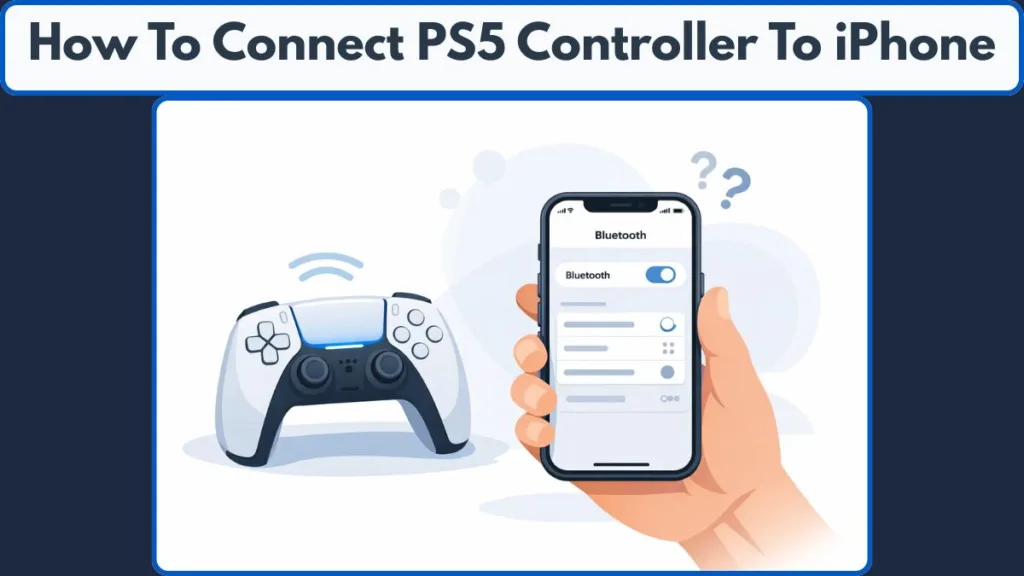
If tech setups sometimes feel finicky, don’t worry. Linking a PS5 controller to iPhone only takes a moment when done right, and once paired, it works across supported games and services like PS Remote Play. Apple officially supports the PlayStation 5 DualSense and DualSense Edge wireless controllers with Bluetooth pairing, making this a reliable way to elevate your mobile gaming experience.
PS5 Controller iPhone Compatibility (Before You Start)
Before you pair a PS5 controller with iPhone, it helps to check a few basics so everything connects smoothly—no trial and error.
- iOS Requirement: Your iPhone must be running iOS 14.5 or later. Apple added native support for the PS5 DualSense starting with this update, making it the baseline for PS5 controller iOS compatibility.
- Controller Support: Both the standard DualSense and the premium PS5 DualSense Edge are supported and appear as DualSense Wireless Controller during pairing.
- Connection Method: You can connect PS5 controller to iPhone using Bluetooth or a USB-C cable that supports data transfer. For most players, Bluetooth offers the smoothest, most seamless experience.
- Device Reach: Once paired, the controller also works with iPad, Apple TV, Mac, and within PS Remote Play, reinforcing that seamless integration across Apple devices.
With these checks in place, you’re ready to move on—confidently—knowing your iPhone and DualSense are set up to work together smoothly.
How to Put PS5 Controller in Pairing Mode
To link a PS5 controller to iPhone, the controller must first be discoverable. This step puts your DualSense wireless controller into pairing mode, allowing iOS to detect it over Bluetooth.
Here’s the quick, no-stress way to do it:
- Make sure the controller is not connected to your PS5.
- Press and hold the Create button and the PS button at the same time.
- Keep holding until the light bar starts flashing blue.
That flashing blue light is your signal—the controller is now in discoverable mode and ready to pair. Apple’s official pairing instructions confirm that for PS5 DualSense and DualSense Edge, you press the PS + Create buttons together to enter this mode.
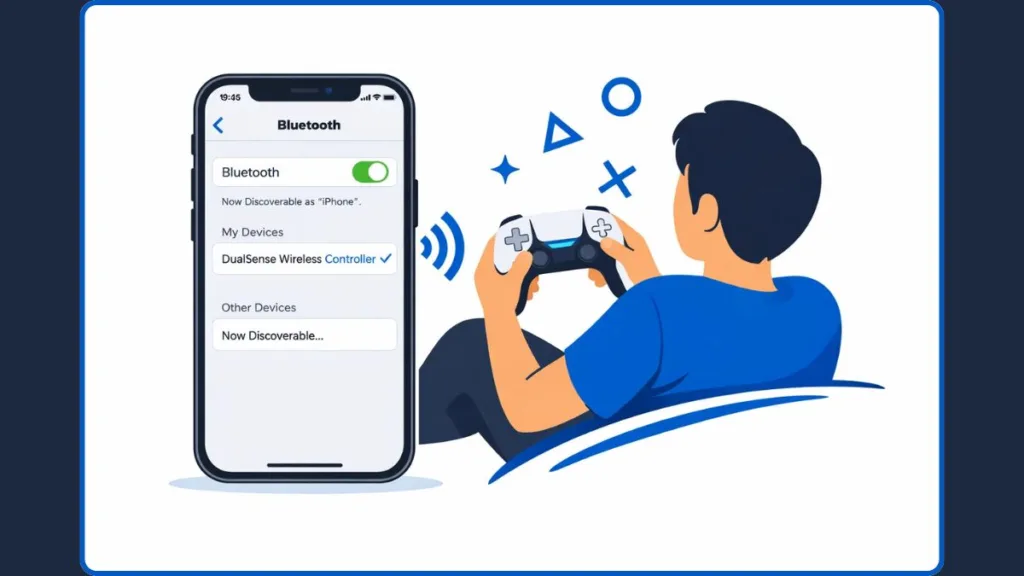
If it doesn’t blink on the first try, release both buttons and repeat. It usually takes just a few seconds to enter pairing mode blink successfully. The controller should then show up as DualSense Wireless Controller in your iPhone’s Bluetooth list.
How to Connect PS5 Controller to iPhone via Bluetooth (Recommended)
This is the most reliable way to connect DualSense to iOS and get a smooth, console-like experience on your phone.
Follow these steps:
- Open the iPhone Settings app.
- Tap Bluetooth to open the Bluetooth settings menu.
- Make sure Bluetooth is turned on.
- Look for DualSense Wireless Controller under available devices.
- Tap it to complete the connection.
Once connected, the controller will stop flashing and stay lit, confirming the PS5 controller iPhone Bluetooth pairing is complete. From here, you can play iPhone games with a PS5 controller, jump into Apple Arcade controller games, or use PS Remote Play for full console access on your phone.
This wireless method keeps audio stable, avoids connection quirks, and lets you enjoy features like haptic feedback and adaptive triggers in supported games—exactly how the DualSense is meant to feel.
PS5 Controller Not Showing Up on iPhone Bluetooth? (Fixes)
If your PS5 controller isn’t showing up in iPhone Bluetooth, don’t panic. This usually comes down to a small pairing hiccup, not a hardware issue.
Try these quick fixes in order:
- Restart Bluetooth: Turn Bluetooth off and back on from the iPhone settings app.
- Re-enter pairing mode: Press and hold the Create button + PS button again until the light bar flashes blue.
- Move away from other devices: Unpair the controller from nearby consoles or computers—it can only pair with one device at a time.
- Restart your iPhone: A fresh reboot clears many connection conflicts quickly.
- Ensure controller has charge: A low battery can prevent successful discovery.
- Repeat the pairing sequence: Sometimes a second attempt makes the DualSense Wireless Controller appear under Bluetooth > Other Devices.
Once the controller appears, tap it to connect. Most pairing issues are resolved in under a minute, letting you get back to console-quality gaming on your iPhone—smooth, responsive, and frustration-free.
Play iPhone Games With PS5 Controller (What Works Best)
Once you connect the PS5 controller to iPhone, the real fun begins. Not every mobile game supports controllers, but when one does, the DualSense wireless controller instantly delivers tighter movement, better camera control, and a more console-like feel.
Here’s where the experience shines:
- Many top titles on the App Store are built to work with external controllers—from action builders to strategic adventures—so you can jump right into games that feel natural with physical controls.
- Apple Arcade controller games like Crossy Road Castle, Warped Kart Racers, and SpongeBob: Patty Pursuit are especially well-optimized for controller input, making gameplay smoother and more responsive.
- Popular shooters such as Call of Duty®: Mobile also support external controllers, allowing you to replace touch inputs with analog sticks and buttons for better accuracy.
Because iOS supports PS5 controller iPhone Bluetooth pairing, once connected, most compatible games recognize the DualSense wireless controller automatically—no extra configuration needed.
This wireless setup keeps your screen clean and your thumbs off cramped touch controls. It’s a major step toward console-quality gaming on the go, effectively turning your iPhone into a compact gaming console.
Using PS5 Controller With PS Remote Play on iPhone
If you want to go beyond native mobile games, PS Remote Play on iPhone is where the Sony–Apple integration really clicks. With your PS5 controller iPhone Bluetooth connection already active, Remote Play streams your console directly to your phone.
Here’s how it fits together:
- The official PS Remote Play app lets you stream PS5 games to your iPhone over Wi-Fi or mobile data.
- When your DualSense wireless controller is paired with your iPhone, Remote Play detects it instantly, so controls feel just like playing on your TV.
- This setup can also preserve advanced features—like adaptive triggers in supported games—bringing more of that authentic PS5 feel to mobile play.
This isn’t just about convenience. With PS Remote Play and a connected DualSense, your iPhone becomes a true handheld extension of your PS5—powerful, responsive, and surprisingly immersive. It’s the clearest example of how a single controller can seamlessly bridge two ecosystems and keep your gaming experience consistent wherever you are.
PS5 Controller Not Showing Up on iPhone Bluetooth? (Fixes)
If your PS5 controller isn’t showing up on iPhone Bluetooth, take a breath—this is one of the most common hiccups, and it’s usually quick to fix. iOS pairing can be picky, especially if the controller was recently connected to another device.
Work through these fixes in order:
- Toggle Bluetooth: Open the iPhone Settings app, turn Bluetooth off, wait a few seconds, then turn it back on.
- Force pairing mode again: Hold the Create button + PS button until the light bar flashes blue, putting your controller back in discoverable mode.
- Check nearby devices: The controller can only pair with one device at a time—moving away from or disconnecting other devices can help it show up.
- Restart your iPhone: A quick reboot often clears Bluetooth cache issues that keep devices from appearing.
- Check controller battery: Make sure your DualSense has enough charge, as very low battery levels can prevent Bluetooth discovery.
Once you see DualSense Wireless Controller under available devices, tap it to reconnect. In most cases, these steps resolve the issue in under a minute and get you back to smooth, console-style gaming on iPhone.
How to Reset PS5 Controller for iPhone Pairing
If pairing keeps failing, a full reset can help when the PS5 controller won’t pair with iPhone due to stored connections or sync conflicts.
Here’s how to reset it safely:
- Turn the controller off and disconnect it from all devices.
- On the back of the controller, locate the small reset hole near the Sony logo.
- Use a pin or paperclip to press and hold for 5 seconds to reset the controller.
- After resetting, re-enter pairing mode with the Create + PS buttons until the light bar flashes blue.
- Go back to the Bluetooth settings menu on your iPhone and pair the controller again.
Resetting clears old device links and gives iOS a clean slate to recognize the controller—especially helpful if you’ve switched between platforms frequently.
How to Disconnect PS5 Controller From iPhone
When you’re done gaming, disconnecting properly prevents unwanted auto-connections later and keeps your Bluetooth list tidy.
To disconnect:
- Open Settings > Bluetooth on your iPhone.
- Find DualSense Wireless Controller in the list.
- Tap the ⓘ icon, then select Disconnect or Forget This Device.
Choosing Forget This Device is especially useful if you plan to reconnect the controller to a PS5, Mac, or another Apple device later. It removes the old pairing record and avoids confusion the next time you want to sync a PS5 controller to iPhone.
Handled this way, your controller stays flexible—ready to move smoothly between Sony and Apple ecosystems without friction.
Bluetooth vs Wired: Which Is Better for iPhone Gaming?
When deciding how to connect a PS5 controller to iPhone, both methods work—but they deliver very different experiences. Here’s a clear, side-by-side table to help you choose what works best for your playstyle:
| Feature | Bluetooth (Recommended) | Wired (USB-C) |
|---|---|---|
| Setup | Fast, wireless pairing | Plug-and-play |
| Audio Output | Stable through iPhone speakers or headphones | Audio may reroute unexpectedly |
| Portability | Fully wireless and travel-friendly | Limited by cable |
| Controller Features | Haptic feedback & adaptive triggers supported | Supported, but behavior may vary |
| Charging While Playing | ❌ | ✅ |
| Best For | Apple Arcade, COD Mobile, everyday gaming | Emergency charging or short sessions |
Bottom line: For most players, PS5 controller iPhone Bluetooth pairing delivers the smoothest and most consistent experience—especially if audio stability and mobility matter to you.
Frequently Asked Questions
Does a PS5 controller work on iPhone?
Yes. Apple officially supports the DualSense wireless controller on iPhone.
What iOS version do I need?
You need iOS 14.5 or later.
Why won’t my PS5 controller connect to iPhone?
This is usually a pairing conflict—re-enter pairing mode or reset the controller.
Can I use a PS5 controller for games like Genshin Impact or Roblox?
Support depends on the game. Some offer full controller support, others limited.
How do I disconnect the controller?
Go to Settings → Bluetooth, tap DualSense Wireless Controller, then choose Disconnect or Forget This Device.
Conclusion: Best Way to Connect DualSense to iPhone
If you want the most reliable, no-friction setup, Bluetooth is the best way to connect DualSense to iPhone. It keeps audio intact, works seamlessly with supported games, and instantly turns your iPhone into a portable, console-style gaming device.
Whether you’re jumping into Apple Arcade, competing in mobile shooters, or streaming your console with PS Remote Play, pairing a PS5 controller with iPhone creates a smooth, modern bridge between Sony’s precision hardware and Apple’s mobile ecosystem—clean, powerful, and ready to play anywhere.
Visit Our Post Page: Blog Page