
Learn how to copy your Facebook profile link on PC fast. Find your profile URL in the address bar and share a clean, shareable Facebook profile link in seconds.
Why You Might Need Your Facebook Profile Link
Need to share your profile for a job application, a freelance client, or a professional introduction?
On paper, copying a Facebook profile link sounds simple. In reality, Facebook’s desktop interface changes often, and important things are rarely labeled clearly.
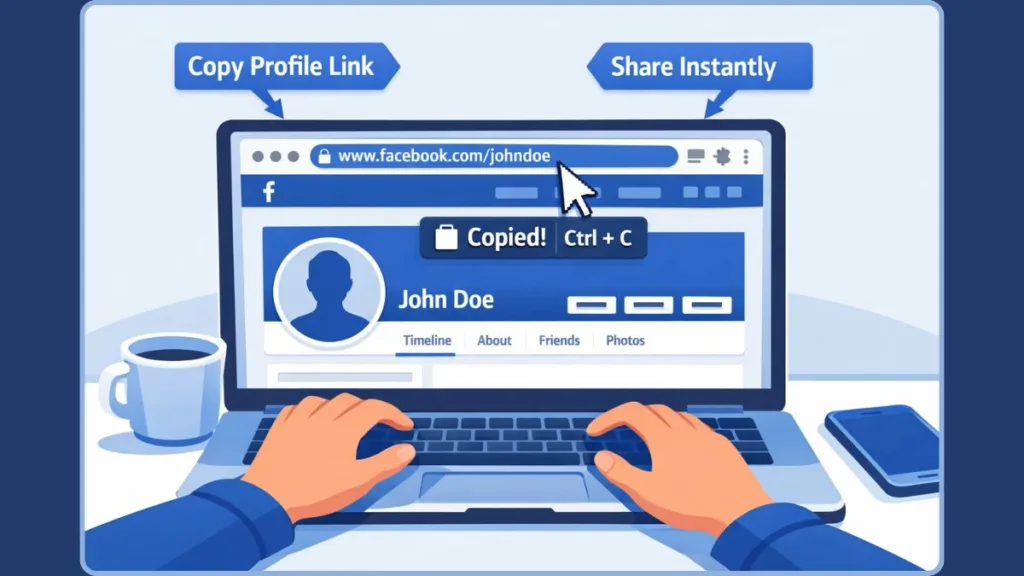
That’s why searches for how to copy Facebook profile link on PC keep increasing.
Most people need their profile link to:
- Add it to a resume, portfolio, or email signature
- Share it via WhatsApp, Telegram, or Slack
- Include it in a business bio, creator profile, or contact page
- Send a clean link instead of explaining “search my name”
Here’s the key thing to know upfront:
On a PC or laptop, Facebook does not provide a visible “Copy Profile Link” button by default.
Instead, the platform relies on something more basic—and more reliable: the browser address bar.
Once you understand this, copying your Facebook profile link on desktop becomes a 10-second task, not a guessing game.
No digging through settings. No trial and error. Just a direct copy-and-share action.
What a Facebook Profile Link Actually Is (Quick Explanation)
A Facebook profile link is the direct URL that opens your personal profile page in any web browser.
Anyone with this link can view your profile based on your privacy settings.
On Facebook, profile links generally appear in one of two formats:
- A username-based URL
(for example, facebook.com/yourname) - A numeric ID URL
(a longer link with numbers instead of a name)
This difference is normal.
Facebook assigns numeric IDs automatically, and usernames are optional. If you haven’t set a custom username, Facebook simply uses the ID version.
Important to know:
- Both URLs are valid
- Both open the same profile
- Both are safe to share
If the link opens your profile when pasted into a browser, it is the correct Facebook profile link—no matter how it looks.
The Fastest Way to Copy Your Facebook Profile Link on PC
If you’re using a desktop or laptop, this is the fastest and most reliable way to copy your Facebook profile link.
It works because Facebook always displays your profile URL in the browser—even when the interface changes.
No menus to hunt for.
No settings to open.
Just a clean copy-from-the-address-bar method that works every time.
Step-by-Step: Copy Your Profile Link from the Address Bar
- Open Facebook in any desktop browser and log in to your account.
- Click your Profile Picture or Name to open your profile page.
- Look at the Address Bar at the top of the browser window.
- Click once inside the address bar to highlight the full URL.
- Press Ctrl + C on your keyboard to copy the link.
The moment you do this, your Facebook profile link is stored in your clipboard and ready to paste anywhere.
Why this method always works
- Facebook must load your profile through a direct URL
- The address bar shows the exact link others need
- Browser-based copying doesn’t depend on Facebook buttons or UI labels
Quick verification tip:
Paste the copied link into a new browser tab and press Enter.
If your profile opens, you’ve copied the correct Facebook profile link.
This method works on Windows PCs, across Chrome, Microsoft Edge, Firefox, and other modern browsers. If you’re looking for how to copy Facebook profile link on PC, this is the method Facebook itself relies on—quietly and consistently.
How to Copy Someone Else’s Facebook Profile Link on PC
Copying another person’s Facebook profile link on a computer follows the same principle, which often surprises users.
There’s no special “copy profile” option required.
If you can open their profile, you can copy their link.
Steps to copy someone else’s profile link:
- Use the Search Bar at the top of Facebook to find the person.
- Click their name to open their Profile Page.
- Move to the browser’s Address Bar.
- Click to highlight the URL and press Ctrl + C.
That URL now points directly to their Facebook profile.
Important things to know
- The link may show a username or a numeric ID
- Both formats are official and valid
- If the profile is visible to you, the link is shareable
- Private profiles still have links, but visibility depends on privacy settings
This method works for:
- Friends
- Public profiles
- Creators and professionals
- People you’ve just searched for
If you’re sharing a colleague’s profile, saving a contact, or sending a link through email or chat, this is the most dependable way to copy a Facebook profile link on PC—no guesswork involved.
Can’t Find the Link? Here’s Why Facebook Makes It Confusing
If copying a Facebook profile link on PC feels harder than it should, that frustration is common—and understandable.
Facebook’s desktop interface prioritizes content viewing, not link sharing, which causes users to second-guess simple actions.
Here’s where people usually get stuck—and why each concern has a simple explanation.
“I can’t find a Copy Link button on PC”
You’re not missing anything.
On desktop browsers, Facebook does not provide a visible Copy Profile Link button for personal profiles. That option is mainly designed for the mobile app, where touch actions require on-screen buttons.
On PC, Facebook relies on standard browser behavior:
- Your profile opens via a direct URL
- That URL appears automatically in the Address Bar
- Copying it is handled by the browser, not Facebook’s UI
This approach is intentional. Browser-level copying is:
- Faster
- More consistent across updates
- Less likely to break when Facebook changes layouts
Once you know this, the missing button stops being a problem.
“The link looks long or strange—did I copy the wrong one?”
This is another very common worry, especially for first-time users.
When you copy a Facebook profile link on PC, it may appear as:
- A username-based URL (short and readable), or
- A numeric ID URL (longer, with numbers)
Both formats are official, valid, and generated by Facebook itself.
Important clarification:
The format of the link does not affect functionality.
If the link:
- Starts with https://www.facebook.com/
- Opens the correct profile in a new tab
Then it is the correct Facebook profile link, regardless of how it looks.
“Do I need to change any settings before copying the link?”
No changes are required.
You do not need to:
- Enable profile sharing
- Adjust visibility options
- Turn on any permissions
Every Facebook profile has a permanent URL by default.
Privacy settings only determine what viewers can see after clicking the link, not whether the link exists or works.
In other words:
- Copying the link = always allowed
- Viewing the content = controlled by privacy settings
“Why does this feel easier on mobile than on desktop?”
Because mobile and desktop are designed for different interaction styles.
On mobile:
- Facebook adds Copy Link buttons
- Menus guide the action visually
- Touch-based UX needs explicit options
On PC:
- Browsers already support URL selection
- Keyboard shortcuts like Ctrl + C are standard
- The address bar is always visible
Desktop copying feels harder only until you realize that the browser is doing the work, not Facebook.
The one rule that removes all confusion
If your profile page is open and you can see a URL in the address bar, you already have the correct link.
No hidden menus.
No extra tools.
Just copy > paste > share.
Once this clicks, copying a Facebook profile link on PC becomes a habit, not a hurdle—and you’ll never look for a button again.
Username URL vs ID URL: Which Facebook Link Should You Share?
Here’s the reassuring truth: It doesn’t matter which format your Facebook profile link takes—as long as it opens your profile when someone clicks it.
On Facebook, there are two official ways your profile URL can appear:
- A username URL like
facebook.com/yourname— clean, easy to remember, and great for sharing. - A numeric ID URL like
facebook.com/profile.php?id=123456789— assigned automatically if you haven’t created a custom username.
Both are valid, functional, and recognized by Facebook. They take users directly to your profile page—no extra steps, no redirect issues.
So what’s the actual difference?
- A username is part of your public profile and helps make your URL look nicer and more personal.
- A numeric ID is automatically tied to your account and appears when you haven’t set a custom username (or sometimes when someone else’s chosen username is already taken).
Practical point: If you ever want your link to be more brandable or easier to share, you can set a custom username in your Facebook settings—but you don’t have to.
Rule of thumb: If the URL opens your profile on a PC browser, it’s the correct Facebook profile link—period.
FAQ: Copying Facebook Profile Links on PC
Where is my Facebook profile link on PC?
Your Facebook profile link is shown in the Address Bar when your profile is open in a browser tab. That’s the URL you copy. You won’t find a dedicated “copy link” button on the desktop site.
Can I copy my Facebook profile link without the mobile app?
Absolutely. On a PC, you simply open your profile in a browser and copy the URL from the address bar. This is often faster and more consistent than using the mobile app.
Why does my Facebook profile link look different from someone else’s?
Some people choose a custom username, which makes their URL easy to read, like facebook.com/janedoe. Others may still have a numeric ID URL like facebook.com/profile.php?id=987654321—and both are completely normal.
Does copying my profile link change my privacy?
No. Copying your profile URL doesn’t affect your privacy settings. Those settings only control what people see after they click the link, not whether the link itself exists.
Can I copy a Facebook profile link from any browser on PC?
Yes. This method works on all modern desktop browsers—including Chrome, Microsoft Edge, and Firefox—because it relies on standard browser behavior, not hidden buttons or menus.
Final Takeaway: If You See Your Profile, You Can Copy the Link
Copying your Facebook profile link on PC is simpler than many users expect.
You don’t need:
- Special menu options
- App-style buttons
- Hidden features
All you need is: Your profile open in a browser > Select the URL in the address bar > Copy it
Once you remember that Facebook puts your profile link right in the browser’s address bar, copying and sharing becomes a quick, confident task you can do again and again—even when the Facebook interface gets updated.
That’s the 60-second solution to how to copy Facebook profile link on PC.