
Learn how to delay send an email in Outlook with our complete 2026 guide. Master scheduling, setting a 1-minute buffer, and using the “send later” feature on Windows, Web, and Mobile to ensure perfect timing every time.
To help you get the most out of your professional communications, mastering the timing of your messages is essential. Whether you’re trying to look like an early bird or just want to avoid an “attachment disaster,” this guide is your deep dive into how to delay send an email in Outlook.
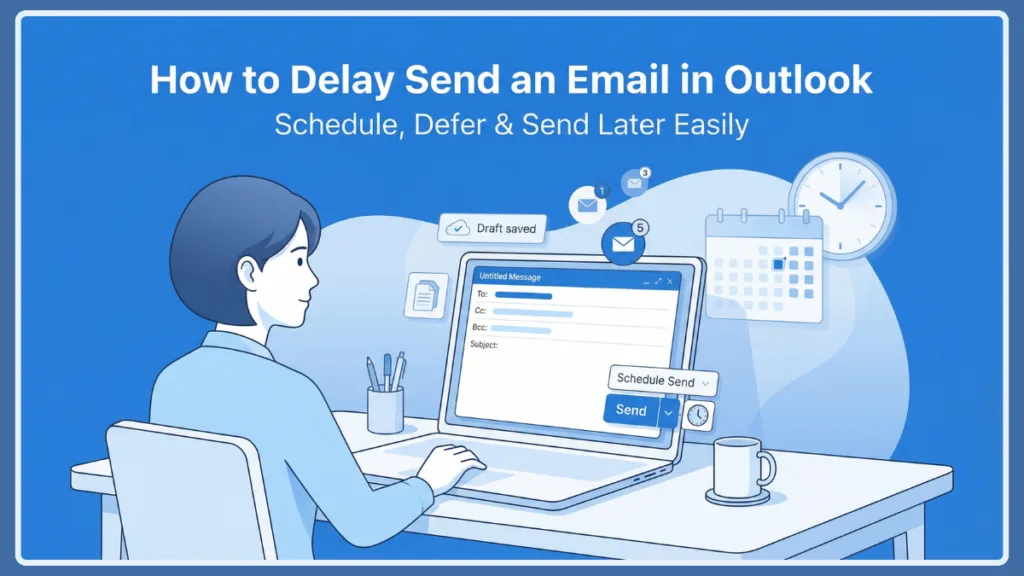
We’ll cover every version of the platform—from the classic desktop application to the modern web and mobile interfaces—to ensure you have total control over your inbox.
Strategic Importance of Delaying and Scheduling Emails
In today’s fast-paced digital environment, the ability to pause before sending email acts as a critical safety net for your professional reputation. We have all experienced that split-second “oops” moment: you hit send, only to realize the file you mentioned is still sitting on your desktop. Beyond just error prevention, Outlook delayed email delivery ensures your message arrives when your recipient is most likely to engage with it, which is a lifesaver when you are working across global time zones.
By learning how to delay email delivery in Outlook, you can draft responses at your convenience—even if you’re a night owl working at 2:00 AM—and ensure they land at the top of your boss’s inbox at 9:00 AM sharp. This doesn’t just preserve your professional boundaries; it also significantly increases the likelihood of getting a prompt response.
How to Schedule an Email in Outlook 365 (Single Message)
If you are a power user of the premium Outlook 365 desktop suite, the “Delay Delivery” feature is going to be your primary tool for one-off scheduling. This feature is specifically designed for those high-stakes messages that need to go out at a very specific future date and time.
Step 1: Compose Your Message
Start by opening a new email window. Fill in your recipient’s address, craft a clear subject line, and write the body of your message. If you are wondering, “How do I delay the sending of a single email message?” this is the first step—treat it like a normal email until you’re ready to set the timer.
Step 2: Access the Delay Delivery Properties
Look at the top ribbon and navigate to the Options tab. Within the More Options group, you will see a button labeled Delay Delivery. Clicking this will launch the Properties dialog box, which is where the magic happens for delay delivery Outlook email tasks.
Step 3: Set Your Specific Delivery Time
Under the Delivery options section, you will see a checkbox for Do not deliver before. Make sure this is checked! You can then use the date and time pickers to specify exactly when you want the email to leave your Outbox. Once you have it set, simply click Close.
Step 4: Finalize and Send
Now, click the Send button in the main message window. Instead of disappearing instantly into your “Sent Items,” the email will move to your Outbox folder and wait patiently.
Pro Tip: For this desktop method to work, Outlook must remain open and running at the scheduled time. If you turn off your computer or close the app, the email will stay in the Outbox until the next time you launch Outlook.
How to Schedule an Email in Outlook No Drop Down?
A lot of users get frustrated when they see tutorials showing a “Schedule Send” button that they simply don’t have. If you are asking, “Why is there no schedule send option in Outlook?” it is likely because you are using the Classic Ribbon layout or an older version of the desktop software.
In the classic view, the feature isn’t a button on the send icon; it is always tucked away in the Options > Delay Delivery menu. If you prefer the modern dropdown interface, you may want to try the New Outlook toggle in the top-right corner of your app, which makes the desktop experience feel much more like the web version.
How to Set a 1 or 2-Minute Delay in Outlook for All Emails
Sometimes the goal isn’t to send an email tomorrow morning; it’s just to have a small “undo” window for every message. This is exactly how to add a send delay in Outlook that applies to every single note you draft.
Creating the Universal Delay Rule
This process uses the Rules Wizard to create a mandatory pause for your outgoing mail.
- On the Home tab, click Rules and select Manage Rules & Alerts.
- Click New Rule and select Apply rule on messages I send (this is under the “Start from a blank rule” section).
- Click Next without selecting any conditions. Outlook will ask if you want this to apply to every message; click Yes.
- In the actions list, check the box for defer delivery by a number of minutes.
- In the “Step 2” box at the bottom, click the underlined text “a number of”.
- Enter your desired duration. Most users find that a 1 minute delay or a 2 minute delay is the perfect “sweet spot.”
- Click OK, then Finish.
Now, every time you hit Send, the email will sit in your Outbox for that minute or two. This is how to delay sending email in Outlook by 1 minute effectively, giving you that vital window to open the Outbox and fix a mistake before it’s too late.
How to Delay Send an Email in Outlook App (Mobile and Web)
If you use Outlook.com, the Outlook Web App (OWA), or the Mobile App, you’ll find the experience is often even smoother because these versions rely on server-side processing.
Scheduling on the Web
When you are using Outlook in a browser, the Schedule send feature is usually found right on the Send button. Click the dropdown arrow next to the word “Send” and choose Schedule send. You can pick a suggested time or set a Custom time. Because this happens on Microsoft’s servers, your email will send even if you turn your laptop off and go to the beach.
How to Delay Send an Email in Outlook App (iOS & Android)
The mobile app is a powerhouse for productivity on the go. To schedule a message from your phone:
- Compose your email as usual.
- Tap the three dots next to the send icon (or long-press the send icon in some versions).
- Select Schedule Send.
- Choose your time and you’re good to go!
Note: This mobile feature usually requires an Exchange account or a Microsoft 365 subscription. If you are using a basic personal account synced to the app, you might find the scheduling option is missing.
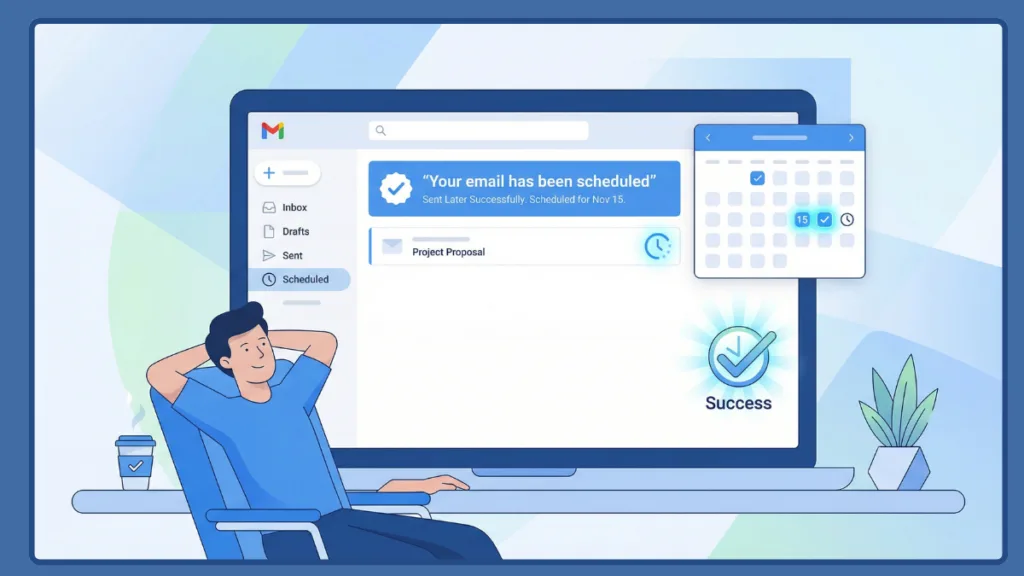
Troubleshooting: Schedule Send Outlook Not Showing
If you’ve followed the steps but the Schedule send Outlook not showing error is still haunting you, don’t worry. Check these three things:
Account Type
Are you using a POP or IMAP account? Older email protocols often don’t support the server-side magic needed for scheduling.
Outlook Version
Are you still using the “Classic” Outlook look? As we mentioned earlier, you’ll need to use the Delay Delivery path in the Options tab instead of looking for a dropdown.
Updates
Check for updates! In 2026, Microsoft is constantly moving these toggles during UI refreshes, so being on the latest version is key.
Advanced Automation: Recurring Emails and Third-Party Tools
Outlook is great for one-off delays, but it doesn’t actually have a built-in way to send recurring emails (like that same report you have to send every Friday). For this, power users often look for a specialized service or add-in.
Kutools for Outlook
A popular choice is Kutools for Outlook. It offers a “Schedule Auto Send” feature that lets you set up recurring messages on a daily, weekly, or monthly schedule. It’s a total game-changer for administrative tasks that need to happen like clockwork without you thinking about them.
Managing Your Scheduled Messages
Once you’ve set up your Outlook delivery delayed message, you might need to find it again to make a change.
In Desktop Outlook
Your message will be waiting in the Outbox. To edit it, just double-click it. Keep in mind that this moves the email back into a “Draft” state, so you’ll need to re-verify your Delay Delivery settings before hitting send again.
In Outlook Web/Mac
These are usually kept in the Drafts folder and are clearly labeled with their scheduled time. You can simply click “Cancel Send” to turn it back into a regular draft.
Tracking and Organizing
To keep an eye on everything, you can actually add a custom column to your Outbox. Right-click the column headers, select Field Chooser, and drag the Defer Until field into your view. This lets you see exactly when every message is set to fly out.
Frequently Asked Questions
How long can I delay sending emails in Outlook?
If you are using the automatic rule-based delay, the maximum is 120 minutes. However, for a single message using “Delay Delivery,” you can technically set the date years into the future!
Will my email send if my computer is off?
It depends. If you used the Desktop app, then no—Outlook needs to be open. But if you used the Web version or Mobile app with an Exchange account, yes, the server handles it for you.
Can the recipient tell the email was scheduled?
Not at all. The recipient will see the time the email was actually sent as the “Received” time. It looks exactly like any other email.
How to delay sending email in Outlook by 1 minute?
As we covered, the best way is to set up a Send Rule with a 1-minute deferral. It is the ultimate “safety net” for anyone who sends a lot of emails.
Useful Resources
To further enhance your mastery of Outlook’s timing and automation features, it is highly recommended to consult the official documentation and trusted technical resources. These links provide the most up-to-date instructions directly from the developers and the broader IT community.
Official Microsoft Support Documentation
Delay or schedule sending email messages in Outlook for Windows: The definitive guide for desktop users on setting up “Do not deliver before” parameters.
Schedule send for Outlook on the web: Official steps for using the server-side scheduling features in your browser.
Manage email messages by using rules: Detailed documentation on how to build complex rules, including the “defer delivery” action for a universal send buffer.
Technical & Community Resources
Microsoft Community Hub – Outlook: A high-level forum where IT professionals and power users discuss troubleshooting for features like “Schedule Send” and the latest UI updates.
Outlook Settings & Customization Guide: The main portal for all Outlook configurations, helpful for troubleshooting why certain buttons may be missing in your specific build.
Visit Our Post Page: Blog Page