
Need to delete a payment method? Learn how to delete a credit card from Amazon in 2026 and remove saved payment methods quickly on any device.
When you shop on Amazon, saving your credit or debit card makes checkout incredibly fast. Whether you’re ordering groceries via Amazon Fresh, buying the latest electronics, or managing digital subscriptions like Prime Video, those saved payment options let you fly through purchases.
But sometimes you just want that card gone. Leaving unused payment methods online can be a risk you don’t need to take.
You might be cleaning up because your card expired, or maybe you’re switching banks. Perhaps you had a data breach scare on another site and want to lock things down, or you’re just tired of Amazon defaulting to your business card for personal stuff.
Whatever drives you, deleting that card gives you full control over your Amazon Wallet and keeps your money safer.
Here is exactly how to remove a credit card from the Amazon app on iPhone and Android, and how to do it on your desktop. We’ll also cover why Amazon sometimes blocks you from deleting a card (and how to fix it), how to swap your default payment method, and what happens to your Amazon Pay balances when you do.
How to Remove a Credit Card from the Amazon App: Mobile Walkthrough
Since you probably do most of your shopping on your phone, the app is the fastest place to handle this. The steps are quick, but pay attention to the confirmation screens so the deletion actually sticks.
Note: These steps apply to the standard Amazon Shopping app found on the Apple App Store and Google Play Store.
iPhone Guide: Delete a Saved Credit Card from the Amazon iOS App
If you are on an iPhone or iPad, getting to your wallet takes just a few taps.
First, open the Amazon app and make sure you’re signed in. Tap the Account Icon (the person icon) at the bottom of the screen, then select Your Account.
Scroll down until you see Your Payments—this is your Amazon Wallet. You will see every payment option you’ve ever saved, including credit cards, Venmo links, and bank accounts.
Tap the specific card you want to dump, then hit Edit (sometimes labeled Edit payment settings).
From there, just tap Remove from Wallet and hit Confirm removal when it asks if you’re sure.
Once you confirm, that card is gone instantly.
Pro Tip: If you use Apple Pay for other apps, don’t worry—removing a card from Amazon does not touch your Apple Wallet.
Remove a Credit or Debit Card from the Amazon Android App:Android Guide
On Android, the process is just as simple, whether you use a Samsung, Pixel, or any other device.
Launch the Amazon app and tap the Profile Icon at the bottom. Head into Your Account and tap Your Payments.
Find the credit or debit card you want to get rid of, select it, and tap Edit in the top corner.
Scroll down to find Remove from Wallet, tap it, and then hit Confirm.
Amazon will show you a message confirming the card is deleted. This happens immediately and syncs across every device where you use Amazon.
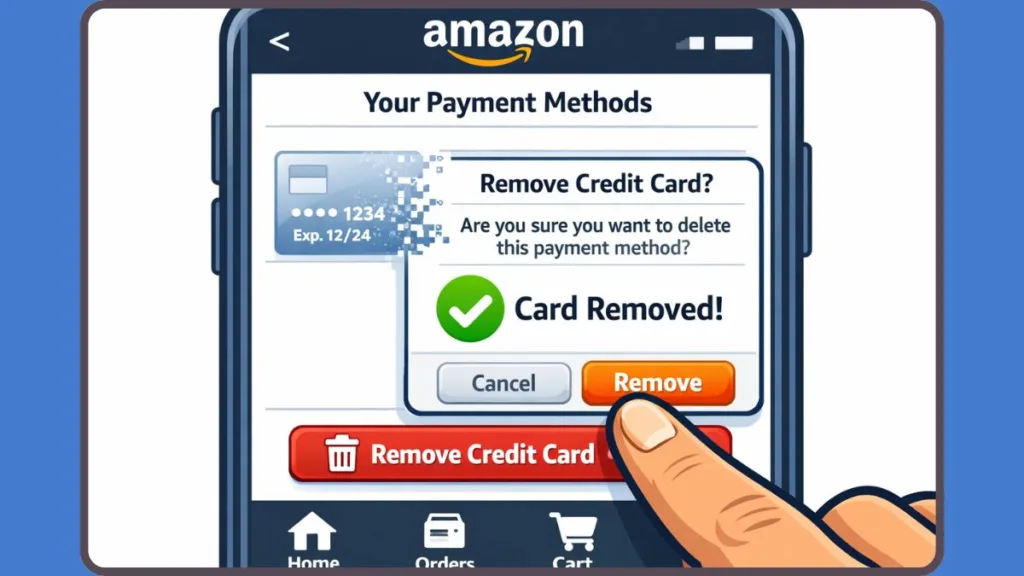
How to Delete a Payment Method on Amazon Desktop (PC & Mac)
If you prefer using a computer—maybe you’re already downloading tax invoices or managing orders on your Windows PC, Mac, or Chromebook—you can clean up your wallet right from the browser.
Desktop Step-by-Step: Remove a Card from Amazon Wallet
Open your browser (Chrome, Safari, Edge, etc.) and head to Amazon.com. Log in, then hover over Accounts & Lists in the top-right corner and click Your Account.
Click Your Payments to open up your Amazon Wallet.
Click on the card you want to remove to expand its details, choose Edit, and then click Remove from Wallet.
You’ll get a final prompt; just click Confirm Remove to finish the job.
Your credit card details are now completely wiped from your account. This is a smart move if you’re on a shared or public computer and want to make sure nobody else can access your payment options.
Solved: Why Can’t I Remove My Card from Amazon? (5 Common Fixes)
If you’re searching “why can’t I remove my card from Amazon”, you aren’t the only one. Amazon often locks a card to your account to prevent payments from failing. Here is why that happens and how you can get around it.
Reason 1: You Have Active Subscriptions Linked to the Card
If your card is paying for active subscriptions, Amazon locks it so your service doesn’t get cut off.
This applies to Amazon Prime, Audible credits, Kindle Unlimited, Comixology, Prime Video Channels (like HBO or Starz), and even Subscribe & Save deliveries. You simply can’t delete the card while the billing cycle relies on it.
What you should do: You need to swap the payment method for those subscriptions first. Go to “Memberships & Subscriptions” in your account, assign a new card to the service, and then go back to Your Payments to delete the old one.
Reason 2: The Card Is Set as Your Default Payment Method
Amazon requires a default payment method for things like 1-Click Ordering and instant downloads. You can’t delete your default card because Amazon needs a fallback for instant purchases.
What you should do: Add a different card or bank account and set that one as the default. Once the “Default” tag is moved, you can delete the old card. If you don’t have another card, you might need to link a checking account or use a reloadable gift card balance.
Reason 3: You Have Pending or Unshipped Orders
If you have an order open that hasn’t shipped yet—including Pre-orders for video games or books—Amazon might block you from removing the card because the charge hasn’t finalized.
What you should do: Wait for the item to ship. Alternatively, go to “Your Orders,” click “View Order Details,” and select “Change Payment Method” for that specific order. Once the order isn’t tied to the card, you can delete it.
Reason 4: It’s the Only Payment Method You Have (and You Have Prime)
If you have an active Amazon Prime membership, Amazon generally won’t let you have zero cards on file. You must have a valid way to pay for your renewal.
What you should do: Add a backup payment method first, then delete the unwanted card. If you really want zero cards on file, you effectively have to cancel your Prime membership first.
Reason 5: It’s Linked to Amazon Pay or Auto-Reload
If you use this card for Amazon Pay (on other retail sites or donation platforms) or have Gift Card Auto-Reload set up, Amazon disables deletion to stop those transactions from failing.
What you should do: Turn off auto-reload or update your Amazon Pay settings to a different card.
How to Change or Remove the Default Payment Method on Amazon: Managing Defaults
If the “Delete” button is missing, your card is likely set as the default payment option. This is the card Amazon grabs automatically when you click “Buy Now”.
To fix this, go to Your Payments and add a new card (or select a different existing one). Choose Set as default.
Now, go back to the card you actually want to remove. Select Remove from Wallet and confirm.
This keeps your checkout smooth while giving you control. This is huge if you share an Amazon Household account and want to stop accidental charges landing on the wrong card.
How to Delete an Expired Credit Card from Amazon: Digital Housekeeping
Amazon doesn’t automatically delete expired cards. They just sit there, causing confusion and leading to declined payments or shipping delays if you accidentally select them.
To clear them out, open Your Payments and select the expired card. Tap Edit, choose Remove from Wallet, and confirm.
Important tip: If you just got a new card from your bank with a new expiration date but the same card number, you don’t need to delete and re-add it. Just select Edit payment settings and update the date. It saves you from typing in the 16-digit number all over again.
Safety Checklist: Important Things to Know Before Deleting a Card
Before you hit delete, keep a few things in mind to avoid payment disruptions.
First, deleting a card does NOT cancel active orders; it just stops you from using it for future ones.
Second, you really should have a backup payment method if you use critical services like AWS (Amazon Web Services) or Prime.
Third, remember that subscriptions don’t cancel themselves just because you deleted the card.
Also, removing a card wipes it from Amazon Pay, so you won’t be able to use it on other sites that use your Amazon login.
Finally, if you just moved, you can simply edit the billing address rather than deleting the card entirely.
Note: Managing your saved cards is a basic layer of financial protection that helps prevent fraud and accidental charges.
FAQ: Amazon Payment Removal
Why is there no delete button for my card on Amazon?
The button is likely missing because the card is tied to a subscription, a pending order, or is set as your default. Amazon hides the option to prevent service interruption.
How do I remove a credit card from Amazon in 2026?
Go to Your Payments, click Edit on the card, select Remove from Wallet, and then Confirm removal. It works the same way on both desktop and mobile.
Can I remove all payment methods from Amazon?
Usually, no. If you have Amazon Prime, Amazon requires at least one card on file. To have zero cards, you would basically need to downgrade to a standard account without recurring memberships.
How to delete a saved card on Amazon without buying anything?
You don’t need to buy anything to fix your settings. Just go to Amazon Wallet in your account and remove it. This is a great step for a digital detox or security cleanup.
How to remove a card from Amazon guest checkout?
Cards used in guest checkout aren’t saved to an Amazon account. If you see your info popping up, it’s likely your browser’s “Autofill” feature. Check your Chrome or Safari settings to clear that data, as it isn’t stored on Amazon’s servers.
Final Thoughts: Take Control of Your Amazon Payment Methods
Now that you know how to delete a credit card from Amazon, you can manage your payment options with confidence, lower your security risks, and stop using the wrong card by mistake.
Whether you’re on the iPhone app, Android, or desktop, the process is fast once you know where Amazon Wallet hides.
Make a habit of reviewing your saved cards, clearing out the expired ones, and keeping a secure backup payment method ready.
If it still won’t delete, check that troubleshooting section again—it solves almost every issue people run into in 2026.
Visit Our Post Page: Blog Page