
Can’t find the delete button on Facebook? Learn how to delete a Facebook page in 2026, fix missing options, and switch profiles with this step-by-step guide.
Managing a digital presence on Facebook has become second nature for millions of creators and business owners globally. It’s a process that should be fast and convenient, yet it often feels filled with endless menus. But sometimes, brand pivots or personal privacy matter more than keeping a digital footprint active. Whether you’re closing a business, moving on from a project, or simply wish to keep your profile history private, learning how to delete a Facebook Page can help you maintain control over your online presence.
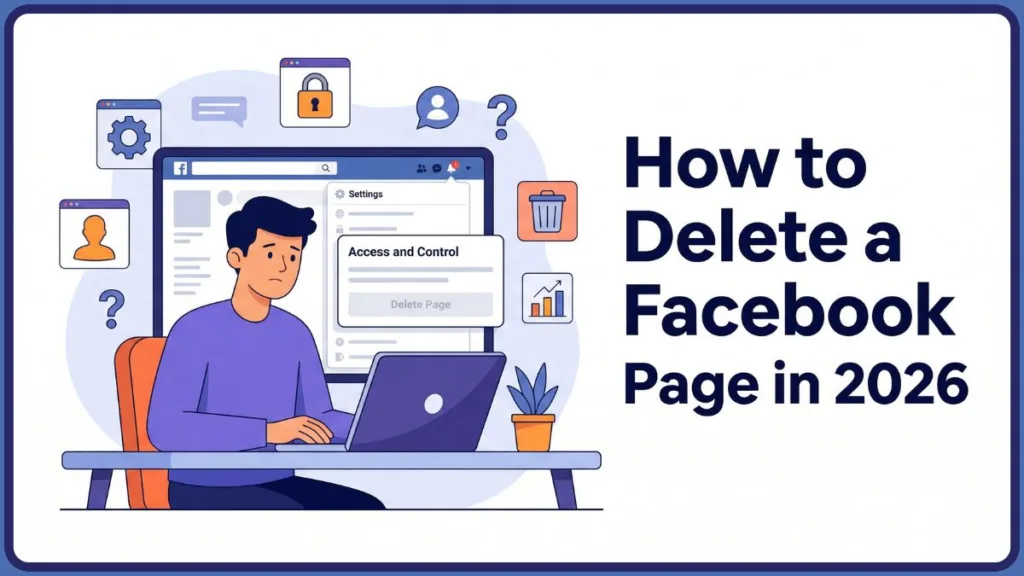
In 2026, Facebook (Meta) has finalized a major change—the “New Pages Experience” has now completely replaced the old “Classic” layout across all accounts. This shift has left countless users searching for the “Delete” button, as the traditional settings paths have been quietly moved into the Meta Accounts Center or the Access and Control menu.
Fortunately, there are still reliable methods to delete, deactivate, or manage your Pages. Let’s explore these options in detail and walk through every step to safeguard your digital real estate.
Why You Might Want to Delete or Deactivate a Page
There’s nothing wrong with wanting to clean up your account—especially when your Facebook profile manages multiple “ghost” pages from past ventures. While Facebook doesn’t allow you to “instantly” vanish a page without a waiting period, there are smart ways to minimize its visibility immediately.
Common reasons to remove a Facebook Page:
- Business Pivots: Your ramen shop closed, or your handmade jewelry brand has evolved into something new.
- Privacy Concerns: You want to separate your personal identity from old public profiles.
- Management Clutter: You have “side pages” created years ago that are now gathering irrelevant notifications.
- Account Safety: Reducing the number of active assets reduces the “attack surface” if your account is ever compromised.
- Surprise Branding: You’re launching a secret project and need to scrub old evidence before the reveal.
Regardless of your reason, Facebook offers tools like Permanent Deletion, Deactivation, and Unpublishing to help you stay in control of your account’s visibility.
Can You Still Delete Pages on Facebook in 2026?
For years, the “Remove Page” button in General Settings was a simple yet powerful tool. However, as of late 2025, Meta moved these functions deep into the internal “profile switching” system.
Official Meta Strategy Statement:
“Starting in 2026, Facebook Pages operate as secondary profiles. To access administrative settings including deletion, users must actively switch their session into the Page profile.”
This means:
- You cannot delete a Page while viewing your personal settings.
- In the 2026 UI, the “Access and Control” menu is context-sensitive; it only appears once the Page profile is active.
- The 30-day grace period remains the global standard before data is purged.
- Full Control Required: You must have the highest level of administrative access; “Task access” or “Editor” roles are no longer sufficient to trigger a deletion.
How to Delete a Facebook Page Using Desktop
If your account is on the New Pages Experience (which 99% are in 2026), here is the specific path to permanent deletion.
Step-by-Step Guide to Deletion
- Sign in to Facebook on a desktop browser using your personal account.
- Click your Profile Icon (top right) and select “See all profiles.”
- Choose the Page you want to delete. This will refresh your interface to “act as” the Page—look for the profile picture change in the top right.
- Once the interface switches, click the Page Icon > Settings & privacy > Settings.
- On the left menu, click Privacy, then click Facebook Page Information.
- Locate Deactivation and deletion and click View.
- Select Delete Page and click Continue.
- Pro Tip: You will be prompted to download your information (photos, posts) or transfer a copy. We strongly recommend doing this before the final confirm.
- Enter your personal Facebook password to confirm the final request and click Continue.
Key Points to Remember
- Deletion hides the Page immediately from the public.
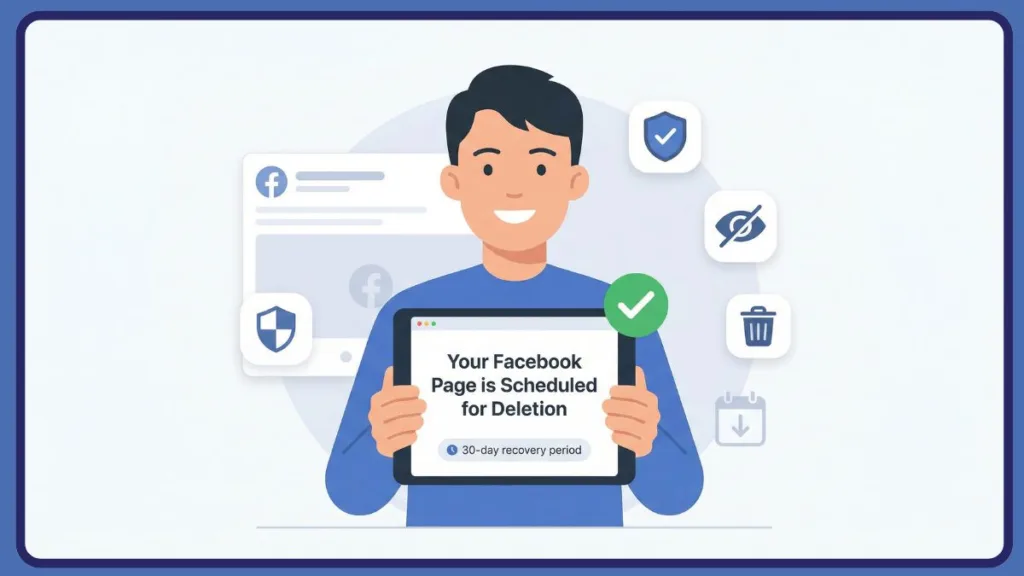
- You have exactly 30 days to log back in and cancel the request.
- After 30 days, Meta begins a background purge that can take up to 90 days to fully clear from their backup systems.
How to Delete a Page from the Facebook App (2026)
The mobile experience is slightly more nested and requires the “Profile Switcher” icon (represented by two arrows or your Page picture).
- Open the Facebook app and tap your Profile/Menu icon.
- Tap the down arrow or the switcher icon next to your name and switch to the Page profile.
- Tap Menu (three lines) and select the Gear icon (Settings) at the top.
- Tap Page Settings > scroll down to the Facebook Page Information section.
- Tap Access and Control > Deactivation and deletion.
- Select Delete Page, tap Continue, and follow the security prompts.
- Signal for Success: You will often be automatically signed out or returned to your main profile once the request is submitted.
How to Hide Pages Without the “Delete” Button
If the “Access and Control” button is missing from your account or you are facing a UI glitch, there is a manual way to do it via the Meta Accounts Center, which is Meta’s unified dashboard for 2026.
Manual Method via Accounts Center
- Log in to your Facebook account.
- Navigate to Settings & Privacy > Settings > Account Center.
- Select Personal Details > Account Ownership and Control.
- Tap Deactivation or deletion and select the specific Page from the list of assets.
- Choose Delete account (Page) and click Continue.
Notes About This Method
- This is the “backdoor” fix for users on “Classic” pages that haven’t fully migrated.
- It works across both Desktop and Mobile browsers using the “Desktop Site” mode.
- If your account is restricted, you may need to complete a Two-Factor Authentication (2FA) check here.
How to Delete a Business Page Managed by Meta Business Suite
If your Page is tied to a professional Meta Business Portfolio (formerly Business Manager), the standard “Delete” button might be grayed out or entirely hidden.
How to Release and Delete a Business Page
- Visit business.facebook.com/settings and log in.
- Go to Accounts > Pages.
- Check for “Primary Page” Status: You cannot remove a Page if it is set as the “Primary Page” of your business. Go to Business Info, assign a different Page as primary, then return.
- Select the Page and click Remove in the top right to release it from the Business Manager.
- Once released, the Page reverts to a “Standard Page,” and you can follow the Desktop steps above to delete it permanently.
Additional Ways to Protect Your Facebook Privacy
Even if you aren’t ready to delete, you can take control of your account visibility using these strategies:
- Unpublish Your Page: This hides the Page from search and followers without starting the 30-day deletion clock. Go to Settings > Privacy > Page Setup and look for Page Visibility.
- Clear Page History: Manually delete sensitive posts or “Hide from Timeline” before initiating the 30-day purge.
- Unlink Instagram/WhatsApp: Go to the Meta Accounts Center and remove the connection between your Page and other apps to prevent sync errors during the deletion process.
- Settle Ad Balances: Facebook will block deletion if you have an unsettled bill or active campaigns. Pay all outstanding invoices in the Meta Ads Manager first.
Delete vs. Deactivate Facebook Page (2026 Comparison)
| Feature | Delete | Deactivate (Unpublish) |
| Permanent | ✅ Yes (after 30 days) | ❌ No |
| Recoverable | 30 days only | Anytime |
| Visible to Public | ❌ No | ❌ No |
| Retains Content | ❌ No | ✅ Yes |
| Primary Purpose | Ending the Page forever | Taking a temporary break |
Frequently Asked Questions (FAQ)
Q1: Why can’t I see the “Access and Control” option?
A: You are likely viewing settings as your personal profile. You must switch to the Page profile first (Step 0) using the profile switcher icon for this menu to appear.
Q2: Why is my “Remove” or “Delete” button grayed out?
A: This usually happens because the Page is set as the Primary Page in your Meta Business Suite. You must change the primary page in Business Settings before you can remove or delete it.
Q3: Can I delete a Facebook Page I didn’t create?
A: Only if you have been granted “Full Control” permissions by the owner. If a Page is pretending to be you/your business and you lack access, use the “Find Support or Report” option via the three dots on the rogue Page.
Q4: Does deleting a Page delete my linked Instagram?
A: No. Your Instagram account will remain active, but the connection will be broken. We recommend unlinking them in the Accounts Center manually first to ensure your Instagram bio doesn’t point to a broken link.
Q5: How long does the 30-day grace period actually take?
A: Once you confirm, the Page is hidden immediately. It takes exactly 30 days to become unrecoverable. During this time, a countdown will often appear in your Settings > Your Facebook Information tab.
Q6: Can I recover a deleted Page?
A: Yes, if it is within the 30-day window. Log into your personal profile, go to Settings > Your Facebook Information > Reactivation, and click restore. You will be automatically switched into the Page profile upon reactivation.
Visit Our Post Page: Blog Page