
Want to secure your Amazon account or remove expired cards in 2026? Learn how to delete a payment method on Amazon using simple steps. From removing saved credit cards to changing default payments and managing Amazon Pay. Stay in control of your digital wallet today.
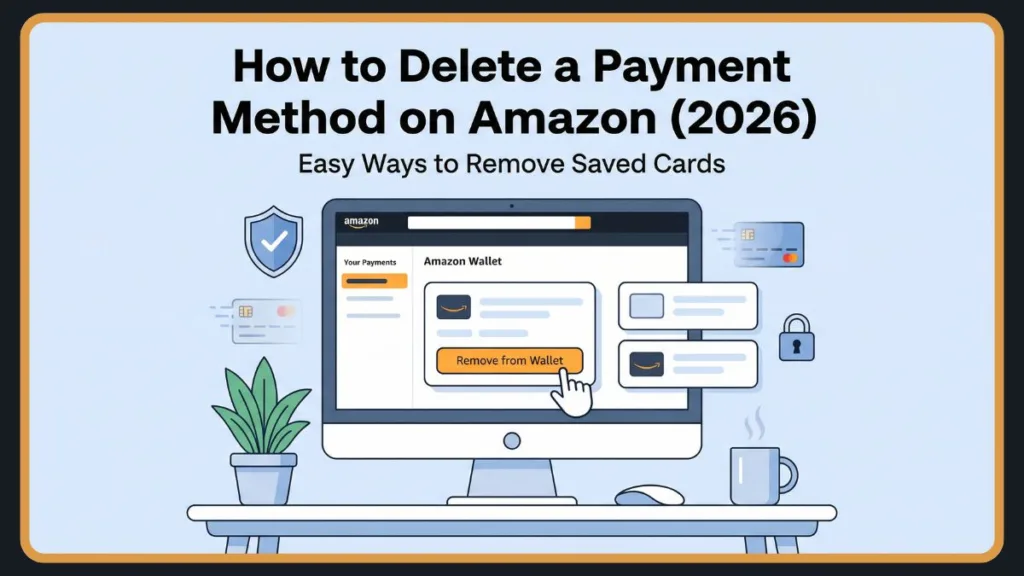
Amazon makes checkout incredibly easy—but that convenience can become a problem when your account is filled with expired or unused cards. Whether you’re cleaning up your wallet or improving security, knowing how to delete a payment method on Amazon is essential.
Why You Might Want to Remove a Payment Method on Amazon
Amazon makes it incredibly convenient to check out with stored cards, but there are several strategic and security-based reasons to clean up your account. Managing your billing settings on Amazon regularly is a smart habit for any frequent shopper.
Common Reasons for Removing a Card
- Delete Expired Card: If a credit or debit card has reached its expiration date, Amazon will not automatically delete it for you. Learning how to delete an expired card from an Amazon account keeps your payment portal organized and prevents checkout errors.
- Switch Banks or Close Accounts: If you have recently changed financial institutions, you will want to unlink a debit card from Amazon India, the US, the UK, or wherever you shop, to ensure you don’t accidentally charge a closed account.
- Reduce Digital Clutter: It is easy to accumulate multiple payment options over the years. Taking time to remove a billing method on Amazon streamlines your checkout process so you always select the right payment source.
- Security Concerns: Storing multiple payment methods increases your risk if your account is ever compromised. Removing unused cards helps protect your financial data and overall account security.
- Stop Unwanted Billing: If you share an account or want to ensure a specific card is not charged for recurring fees, you may need to delete a payment source from Amazon Prime or other active subscriptions.
Is It Safe to Keep Saved Payment Methods?
- Pros: The biggest advantage is convenience. Keeping a saved payment method allows for faster checkout, especially if you utilize Amazon’s “1-Click settings”.
- Cons: The primary drawback is the security risk. If your account is hacked or someone gains access to your shared devices, they could make unauthorized purchases using your stored cards.
- Best Practice: Only keep one or two active cards on file, and regularly manage payment methods on Amazon to ensure your financial data is up to date and secure.
Things to Know Before You Delete a Payment Method
Before you rush to clear out your payment portal, there are a few technical details regarding how Amazon processes payments and subscriptions. Understanding these rules reduces friction and prevents unexpected account holds.
- Amazon may require at least one active payment method: If you use certain features or digital services, the platform may prevent you from deleting your very last card until a new one is added.
- Removing a card does NOT cancel subscriptions: Deleting your billing details will not automatically cancel your Amazon Prime, Kindle Unlimited, or Subscribe & Save deliveries. You must manage active subscriptions separately.
- Open orders will still use the existing billing method: If you just purchased an item that hasn’t shipped yet, deleting the card will not change the payment method for that specific pending order.
- Your Backup payment may still be charged: If your primary payment fails, Amazon relies on backup payment methods to fulfill orders.
- You may need to change your default payment on Amazon first: You cannot delete a card if it is currently set as the default for your account or digital purchases.
Pro Tip: Always set a new default payment method before deleting your old card to avoid checkout errors and subscription interruptions.
Deletion Methods Overview
| Method | Device | Difficulty |
| Desktop Website | PC / Mac | Easy |
| Mobile App | iPhone / Android | Very Easy |
| Mobile Browser | Smartphone / Tablet | Easy |
How to Delete Payment Method on Amazon (Desktop Website)
Many shoppers prefer managing their finances on a larger screen. If you are using a Windows PC or a Mac, removing your credit card from the Amazon desktop site is a highly intuitive process.
Path: “Accounts & Lists” → “Your Account” → “Your Payments”
Steps to Remove a Credit Card on Amazon Desktop:
- Go to the Amazon website and log into your account.
- In the top right corner, hover over “Accounts & Lists” and click to open your account settings.
- Select “Your Payments“ to manage your payment options.
- Under the saved payment methods section, choose the specific credit or debit card you want to delete.
- Click “Edit” to open the card’s details.
- In the lower-left corner of the prompt, select “Remove from Wallet”.
- Confirm removal when the final warning box appears by clicking “Confirm Remove”.
Result: You will see a green success message confirming that the card has been successfully removed. You have successfully learned how to remove a credit card from your Amazon account, unlink payment from an Amazon account, and remove a billing method on Amazon via desktop.
How to Delete Payment Method on Amazon App (iPhone & Android)
For those who shop on the go, the Amazon mobile app offers full control over your payment settings. The steps to delete a payment method on the Amazon app are virtually identical whether you are wondering how to remove a payment method from Amazon on an iPhone or an Android device.
Path: “Profile Icon” → “Your Account” → “Your Payments”
Steps to Delete a Payment Method on the Amazon Mobile App:
- Open the Amazon app on your iOS or Android smartphone.
- Tap the profile icon (the person silhouette) at the bottom of the screen, then tap “Your Account”.
- Scroll down to the payments section and tap “Your Payments“.
- Select the credit or debit card you wish to unlink.
- Tap “Edit” in the top right corner, then scroll to the bottom and tap “Remove from Wallet”.
- Tap “Confirm” to finalize the deletion.
This quick process ensures you can seamlessly delete your card on Amazon mobile or troubleshoot how to remove an Amazon billing option on an iPhone in seconds.
How to Remove Payment Method from Amazon (Mobile Browser)
Not everyone wants to keep the Amazon app installed on their phone. If you prefer to shop using Chrome, Safari, or Firefox on your smartphone, you can still easily manage your finances.
Path: “Account Name” → “See All” → “Your Payments”
Steps to Remove a Card via Mobile Browser:
- Open Amazon.com in your mobile browser and log in.
- Tap your name in the upper right corner to access your account settings.
- Next to the “Your Account” header, tap “See All”, then scroll down and select “Your Payments“.
- Select the card you want to delete.
- Tap “Edit”, scroll to the bottom, and tap “Remove from Wallet”.
- “Confirm” the removal.
This is the best method if you are looking into how to unlink a saved card before checkout on Amazon without downloading extra software, effectively letting you remove a payment source on Amazon mobile via the web.
How to Remove Payment Method from Amazon Pay (India & Global)
Amazon Pay operates slightly differently than the standard retail checkout, acting as a comprehensive payment gateway for third-party merchants, utility bills, and global transfers. If you need to clean up your Amazon Pay profile, follow these steps.
Steps to Delete an Amazon Pay Method:
- Navigate to the “Amazon Pay“ dashboard from your main account menu.
- Open your payment settings on Amazon.
- Select the specific credit card or bank account you wish to remove.
- Click “Remove” or “Delete” and confirm the action.
Whether you need to remove a bank account on Amazon, initiate an Amazon Pay delete card request, or figure out how to unlink a billing method from an Amazon Pay merchant, managing it directly through the Amazon Pay dashboard is the required route. If you are managing alternative funds instead of standard bank accounts, you might also find it helpful to know how to check an Amazon gift card balance without redeeming it.
Why Won’t Amazon Let You Remove a Payment Method? (Troubleshooting & Fixes)
Sometimes, the removal button is greyed out, or you receive an error message. If you are wondering, “Why can’t I delete a payment method on Amazon?”, it usually boils down to one of these four common account conflicts.
- Issue 1: It is your Default Payment Method
- Fix: You cannot delete the primary card on file. You must change the default payment on Amazon to a different card first, and then you can unlink the old one.
- Issue 2: Active Subscriptions are Tied to the Card
- Fix: If the card is linked to Prime, Kindle, or AWS, you must update your payment settings on Amazon for those specific active subscriptions before the system will allow you to delete the card.
- Issue 3: It is your Only Payment Method
- Fix: Depending on your regional account settings, Amazon may require at least one valid card on file. Add a new card first before attempting to remove the old one. If you don’t want to use a traditional bank card, you can easily add a Visa gift card to Amazon to satisfy this requirement.
- Issue 4: Pending Orders or Refunds
- Fix: If you have an order that hasn’t shipped, or you are waiting on a return credit, the card is locked. Wait for the transaction to clear, or update the order payment details. Once the dust settles, you can safely delete the card after a refund on Amazon.
How to Change Default Payment Method on Amazon
If your primary card has expired or you simply want to use a card with better cashback rewards for your everyday shopping, updating your default status is crucial.
Steps to Change Your Default Payment on Amazon:
- Go to “Your Payments“ in your account settings.
- Select the new card you want to prioritize.
- Click “Edit”, then check the box that says “Set as default payment method”.
- Click “Save” to lock in your changes.
Setting a new default payment method prevents checkout delays and ensures your preferred card is always charged first.
Backup Payment Methods & Amazon Prime Billing
Amazon utilizes a system called Backup Payment Methods to ensure you never miss a delivery or lose access to Prime if your primary card declines due to expiration, fraud locks, or insufficient funds.
What You Need to Know:
- A backup payment ensures uninterrupted order completion and seamless digital service renewals.
- It is automatically used if your primary payment fails, which can sometimes result in surprise charges on a card you didn’t intend to use.
- This heavily affects Amazon Prime billing and Subscribe & Save orders.
Actions You Can Take:
- You can manually disable the backup payment feature entirely within your payment settings.
- Alternatively, review your portal and selectively unlink unwanted backup cards so that Amazon only has permission to charge the specific accounts you actively manage and monitor.
Security Tips for Amazon Payment Settings
Keeping your financial data secure should be a top priority. Practicing good digital hygiene with your Amazon account prevents unauthorized access and protects your money.
- Remove unused cards regularly: Don’t let old debit cards or closed credit accounts linger in your profile.
- Enable Two-Factor Authentication (2FA): Add an extra layer of security to your Amazon account so that even if someone gets your password, they cannot log in and use your saved cards.
- Monitor transactions: Keep a close eye on your bank statements and cross-reference them with your Amazon order history. If you ever need official documentation for your purchases, you can easily learn how to get a receipt from Amazon for your records.
- Avoid storing cards on shared devices: If you use a family computer or a shared tablet, consider turning off 1-Click ordering and requiring a password for every purchase.
- Keep your digital portal secure: Treat your Amazon account with the same caution you would your physical wallet. Limit the financial data you store online.
FAQ
Q1: How do I remove a payment method from Amazon?
Go to “Your Account”, select “Your Payments”, click on the card you wish to delete, hit “Edit”, and choose “Remove from Wallet”.
Q2: Can I delete a card from the Amazon app?
Yes. Open the app, tap the profile icon, go to “Your Payments“, select your card, tap “Edit”, and choose “Remove from Wallet”.
Q3: Why won’t Amazon let me remove my payment method?
Amazon will block removal if the card is set as your default payment, is currently linked to active subscriptions (like Prime), or is attached to a pending order that has not yet shipped.
Q4: How do I remove an Amazon Pay balance or merchant-specific cards?
To manage these, you must navigate specifically to your Amazon Pay settings dashboard, select the linked bank account or card, and click “Delete”.
Q5: Will removing a payment method cancel my subscriptions?
No. Unlinking a card does not cancel Amazon Prime or other services. You must cancel or update subscription billing directly in your subscription settings.
Q6: How do I change my default payment method on Amazon?
Navigate to “Your Payments“, click on the card you want to use, select “Edit”, and check the box labeled “Set as default payment method”.
Q7: How do I remove a saved card from Amazon on a desktop?
Log into Amazon.com, hover over “Accounts & Lists”, click “Your Payments”, select the card, click “Edit”, and press “Remove from Wallet”.
Q8: How do I remove a saved card from Amazon on mobile?
Open the Amazon app, navigate to “Your Account“ > “Your Payments”, tap the specific card, select “Edit”, and hit “Remove from Wallet”.
Q9: What happens to open orders if I delete my credit card on Amazon?
Your open orders are not canceled. However, if the deleted card was meant to be charged when the item ships, the order may stall until you provide a new, valid payment method.
Conclusion
Deleting a payment method on Amazon is a quick and seamless process once you know where to look. Whether you are cleaning up expired cards, switching banks, or simply locking down your digital security, you can easily manage your billing methods across the desktop site, the mobile app, and Amazon Pay.
Always remember to regularly review your saved payment methods on Amazon to keep your account clean, safe, and up to date. By taking a few minutes to remove old cards and assign proper default and backup settings, you guarantee a secure and frictionless shopping experience every time you check out.
Visit Our Post Page: Blog Page