
Worried about losing your main profile? Follow this practical, step-by-step guide on how to delete single Instagram account safely without losing your other profiles.
We have all been there. You created a secondary account years ago for a hobby, a side hustle, or just for fun, and now it is time to clean up your digital footprint. But when you look at how your accounts are connected, panic sets in. If you have multiple Instagram accounts delete one without making a mistake becomes a highly stressful task. No one wants to accidentally wipe out their primary, personal profile!
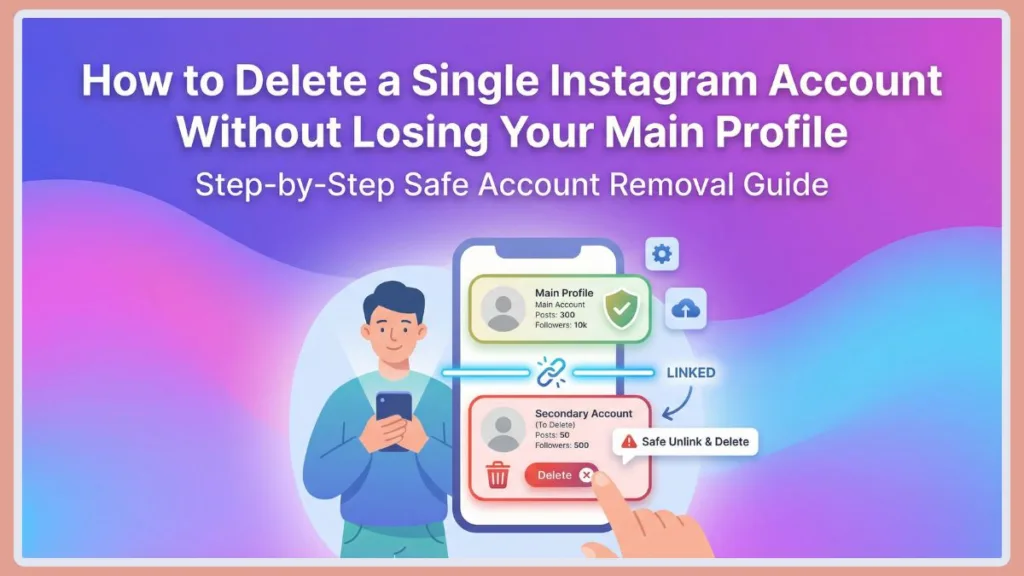
If you are wondering exactly how to delete single Instagram account safely, you are in the right place. This guide will walk you through the exact, step-by-step process to separate your profiles and erase the one you no longer need, ensuring your main account stays completely untouched.
Let’s dive into this practical, foolproof method.
Understanding Meta’s Accounts Center: Why Are Your Accounts Linked?
Before we start deleting anything, it is highly practical to understand exactly why your accounts are tangled up in the first place. A few years ago, Meta (the parent company of Facebook, Instagram, and WhatsApp) introduced the Accounts Center. The primary goal of this feature was convenience. Meta wanted to create a seamless Single Sign-On (SSO) experience where logging into one app automatically verified your identity across all their platforms.
If you created a second Instagram account while logged into your first one, Instagram likely grouped them together under the same Meta Accounts Center umbrella. This allowed you to seamlessly double-tap the profile icon in the bottom right corner of your screen to switch between your personal feed, your business page, or your private meme account.
While this shared login infrastructure is incredibly convenient for daily use, it is the exact reason why deleting an account feels so dangerous. When profiles share a single set of login credentials, hitting “delete” feels like you might be deleting the master key to your entire digital life. The solution, which we will cover in depth, relies on intentionally breaking this convenient link before taking any permanent action.
The Essential Pre-Requisite: Downloading Your Instagram Data
Whenever you are preparing to permanently erase a digital asset, the most responsible first step is to back up your data. Even if you think you no longer need anything from that old secondary account, you might regret losing a specific photo, a meaningful direct message (DM) conversation, or a list of connections months down the line.
Instagram provides a built-in tool to export your entire account history. This archive will include your photos, videos, comments, profile information, and search history.
How to Request Your Instagram Data Backup
You should initiate this process a few days before you plan to delete the account, as Meta can take up to 30 days to compile the file (though it usually takes only a few hours).
- Open the Instagram app and ensure you are logged into the specific secondary account you plan to delete.
- Tap the three horizontal lines in the top right corner to open the menu.
- Tap on Your activity.
- Scroll all the way to the bottom and tap Download your information.
- Tap Request a download.
- Important: Select the specific secondary profile you want the data for. Do not select all your profiles unless you want a massive file containing everything.
- Choose your format. Meta will ask if you want an HTML file (best for easily viewing in a web browser) or a JSON file (best if you plan to import this data into another service or database). For most users, HTML is the most practical choice.
- Choose your media quality (High, Medium, or Low) and the date range (select “All time” for a complete backup).
- Tap Submit Request.
Once your file is ready, you will receive an email. Download the ZIP file to your computer or upload it directly to a secure cloud storage service like Google Drive, Dropbox, or Microsoft OneDrive. Once safely stored, you are ready to proceed with the deletion process.
Pre-Deletion Cleanup: Emails and Meta Connections
Before you hit any delete buttons, we need to untangle your digital web. This ensures that no crossed wires cause you to lose data or lock up an email address you might want to use later.
- Free Up Your Email Address: If you want to use the email associated with your secondary account in the future, you must remove email from Instagram account before you delete the profile. Go to your settings, swap the current email with a temporary or dummy email address, and verify it. Now your primary email is free to use elsewhere.
- Sever the Social Ties: It is highly recommended to disconnect facebook account from Instagram and remove meta account from Instagram for the profile you plan to delete. This guarantees that your broader Meta ecosystem (like your main Facebook page) remains isolated from the deletion process.
Managing and Revoking Third-Party App Connections
In addition to Meta’s own connections, your secondary account might be linked to external third-party applications. If this was a creator or business account, you likely authorized scheduling tools, analytics dashboards, or design software.
Before deleting the account, it is a smart security practice to manually revoke access to these tools. This prevents any background API calls from failing or causing errors in your other software environments.
- Go back to Settings and activity.
- Scroll down to the Your app and media section and tap on Website permissions.
- Tap on Apps and websites.
- Here, you will see a list of Active, Expired, and Removed connections. Look at the Active list. You might see services like Hootsuite, Buffer, Later, Sprout Social, Canva, or Linktree.
- Tap on each active service and select Remove to revoke its access to your Instagram data.
Step 1: Unlink Your Profiles in the Accounts Center
This is your ultimate safety net. To ensure you only delete the account you intend to, you need to separate your logins so they don’t share the same space in the Accounts Center.
Here is exactly how to do it:
- Open the Instagram app and navigate to the profile you want to keep.
- Tap the three horizontal lines (the hamburger menu) in the top right corner.
- Tap on Settings and activity.
- At the very top, tap on Accounts Center.
- Scroll down to the Account settings section and tap Accounts.
- You will see a list of all your connected profiles. Find the secondary account you want to get rid of and tap the Remove button next to it.
- Follow the prompts to remove Instagram account from center.
Note: If you want to stop the old account from appearing on your login screen entirely, you can also log out of it and choose to remove user from Instagram account directly from your app’s login page.
Troubleshooting: What If You Forgot the Password for the Linked Account?
When accounts have been linked via Single Sign-On for years, it is incredibly common to forget the original password for the secondary account. You will need a distinct password to authorize the permanent deletion of the account later on.
If you unlinked the account in Step 1 but realize you don’t know the password to log back into it independently, do not panic.
- Go to the Instagram login screen.
- Enter the username of the secondary account.
- Tap Forgot password?
- Instagram will send a login link or a reset code to the email address or phone number associated with that specific account (which is why checking your email settings in the Pre-Deletion Cleanup phase was so important).
- Follow the link to create a brand new, unique password. We highly recommend using a secure password manager like Bitwarden, 1Password, or LastPass to generate and store this temporary password, ensuring you don’t lose it during the final deletion steps.
Deactivation vs. Deletion: Which One Do You Actually Need?
Before taking the final, irreversible step, it is worth pausing to consider if permanent deletion is truly the right solution for your needs. Meta offers two distinct paths for getting rid of an account, and choosing the wrong one can lead to unnecessary regret.
Temporary Deactivation: Deactivating your account is essentially putting it into a deep freeze. When you deactivate your secondary profile:
- Your profile, photos, comments, and likes will be completely hidden from the public and your followers.
- The account will not appear in search results.
- To the outside world, it looks exactly as if the account has been deleted.
- The major benefit: You can reverse this at any time. If you decide six months from now that you actually want to revive your old hobby page, all you have to do is log back in, and everything is instantly restored exactly as you left it.
Permanent Deletion: Deletion is the nuclear option.
- Once the process is finalized, your profile, photos, videos, comments, likes, and followers are permanently and irreversibly removed from Instagram’s servers.
- The major drawback: You can never sign up again using the exact same username, nor can you add that username to another account. The digital real estate of that specific handle is retired forever.
If you are absolutely certain you want the data gone forever, proceed to Step 2. If you are even slightly hesitant, choose deactivation instead.
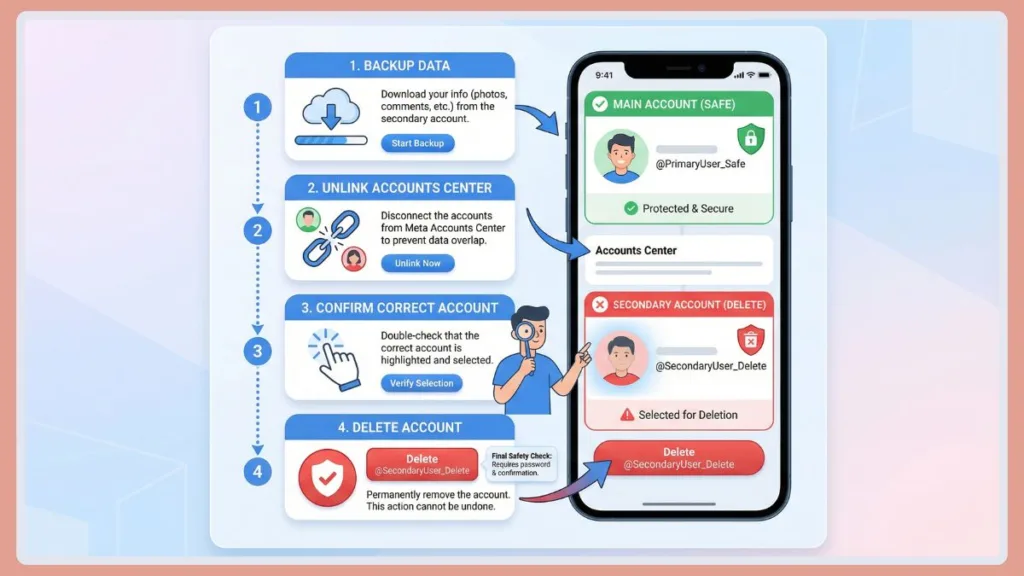
Step 2: How to Permanently Delete Second Instagram Account
Now that your accounts are safely separated, it is time for the main event.
Crucial Check: Look at the profile picture in the bottom right corner of your app. Ensure you are currently logged into the specific account you want to erase.
- Tap the three horizontal lines in the top right corner.
- Tap Settings and activity, then open the Accounts Center.
- Scroll down and tap on Personal details.
- Select Account ownership and control.
- Tap on Deactivation or deletion.
- Select the account you want to delete.
- Choose the option to Delete account (make sure you don’t select the temporary deactivation option by mistake) and tap Continue.
- Enter your password to confirm and delete Instagram account permanently.
Whether you need to remove old Instagram account from your college days or delete additional Instagram account you made for a defunct business, these steps will initiate the process. Meta gives you a 30-day grace period where your account is hidden before they erase the data entirely.
Need to clean house further? If you need to delete multiple Instagram accounts, delete linked Instagram account permanently, you simply need to repeat this exact process from Step 1 for each separate login you wish to remove.
Special Considerations for Business and Creator Accounts
If the secondary account you just scheduled for deletion was a Professional, Creator, or Business account, there are a few extra ripples in the digital pond you should be aware of.
Business accounts are often deeply integrated into the Meta Business Suite. If you used this account to run Instagram Ads, boost posts, or sell physical products via Instagram Shopping, deleting the account will halt all of these activities immediately.
Furthermore, if your Instagram Business account was linked to a specific Facebook Business Page, the Facebook Page will remain active (as they are technically separate entities), but it will lose all cross-posting functionality. Any active ad campaigns running on Instagram via the Meta Ads Manager will be paused, and you will still be responsible for any outstanding billing balances accrued before the deletion date. Ensure you check your Meta Ads Manager billing dashboard to settle any final payments to avoid unexpected charges to your credit card on file.
The 30-Day Grace Period: What Happens After You Click Delete?
When you complete Step 2 and enter your password for the final time, your account is not actually vaporized instantly. Meta implements a mandatory 30-day grace period.
This is an excellent safety feature designed to protect users from impulsive decisions or malicious hackers attempting to destroy an account.
During these 30 days:
- Your account enters a state of digital limbo.
- It is completely invisible to other users on the platform. Your handle will not show up in searches, your tags will disappear from other people’s photos, and your direct messages will no longer display your profile picture to the recipients.
- Meta retains all your data on their backend servers.
How to Cancel the Deletion: If you experience a change of heart on day 15, saving your account is incredibly simple. All you have to do is open the Instagram app or go to the Instagram website and log in using the username and password for that specific account. A prompt will appear asking if you want to “Keep Account.” Tapping this button instantly cancels the deletion request and restores your profile to its fully active state.
If you do absolutely nothing, on day 31, the deletion becomes permanent. Meta states that it may take up to 90 days for all fragments of your data to be entirely purged from their backup systems and disaster recovery storage, but from a user perspective, the account is gone forever after day 30.
Alternatives to Deleting Your Secondary Instagram Account
If navigating menus and risking permanent data loss feels too extreme, there are several highly practical alternatives to decluttering your Instagram experience without hitting the delete button.
- The Massive Archive: Instead of deleting the account, you can simply remove all public-facing content. Instagram allows you to archive posts, Reels, and Stories. Archiving removes the content from your public grid but saves it privately in your account settings. You can archive every single post, leaving a blank profile.
- Go Private: If you have a public creator account that you no longer want strangers finding, switch the account type to Personal and toggle on the “Private Account” setting. You can then bulk-remove followers you no longer want to share your life with. This allows you to keep the account as a private digital scrapbook.
- The Hand-Off: If your secondary account is a business page, a niche meme page, or a community organization profile that has gained a following, consider handing it over rather than destroying it. You can change the login email and password and give the credentials to an employee, a friend, or a successor.
Frequently Asked Questions (FAQ)
I have two Instagram accounts delete one safely?
Yes! The absolute safest way to handle this is to follow Step 1 above. By unlinking them in the Accounts Center first, you create a barrier between the two profiles. Once they are separated and have their own unique passwords, you can safely delete the secondary one.
Does deleting Facebook delete Instagram?
No, it does not, provided you follow the right steps. As long as you only select the specific Instagram profile within the Account ownership and control menu, your Facebook profile will remain perfectly safe.
Can I transfer followers from my deleted account to my main one?
No, there is no tool or feature provided by Instagram that allows you to migrate or transfer followers, following lists, or content from one account to another. If you delete a secondary account, those specific connections are lost. The best practice is to make a final post on the secondary account before deleting it, directing your audience to follow your primary handle.
What happens to direct messages (DMs) when an account is deleted?
When your account is permanently deleted, your side of the conversation is removed from your end, but the messages you sent will still remain in the inboxes of the people you sent them to. However, your profile picture will be replaced with a generic placeholder, and your name will typically display as “Instagrammer” rather than your old username. They will not be able to reply to that thread.
How do I manage my remaining Instagram accounts securely moving forward?
Once you have successfully decluttered your digital space, keeping your remaining primary account secure should be a top priority. Always enable Two-Factor Authentication (2FA) via an authenticator app (like Google Authenticator or Authy) rather than relying solely on SMS text messages. Ensure your primary email address attached to the account is also secured with a strong, unique password, as your email is the master key to recovering any social media profile.
Official Meta & Instagram Support Resources
If you want extra peace of mind before taking permanent action, it is always a practical choice to review the official documentation. Meta updates their app interface frequently, so these links are great to keep handy.
Here are the direct links to Instagram’s official help pages, covering everything we discussed in this guide:
- Delete Your Instagram Account: The direct, up-to-date documentation covering the permanent deletion process, the 30-day grace period, and exactly what happens to your backend data.
- Add or Remove Accounts from Accounts Center: Meta’s official instructions on how to safely manage and unlink connected profiles. This is the perfect official reference for our Step 1 safety net.
- Download a Copy of Your Information: The official guide detailing exactly how to request a complete ZIP file backup of your photos, comments, and profile information before hitting delete.
- Temporarily Deactivate Your Instagram Account: The official support page for users who decide that putting their secondary account in a “deep freeze” is a much better choice than permanent deletion.
Visit Our Post Page: Blog Page