
Learn how to delete stickers on iPhone iOS 26 with simple steps. Remove iMessage, emoji keyboard, and custom stickers to clear clutter and organize your sticker library.
Stickers have become a fun way to personalize conversations on the iPhone. With newer iOS updates, Apple made it easy to create Live Photo stickers, Memoji stickers, and third-party sticker packs that work across Messages and other apps.
While this feature adds creativity to chats, it can also lead to a cluttered sticker drawer and crowded emoji keyboard.
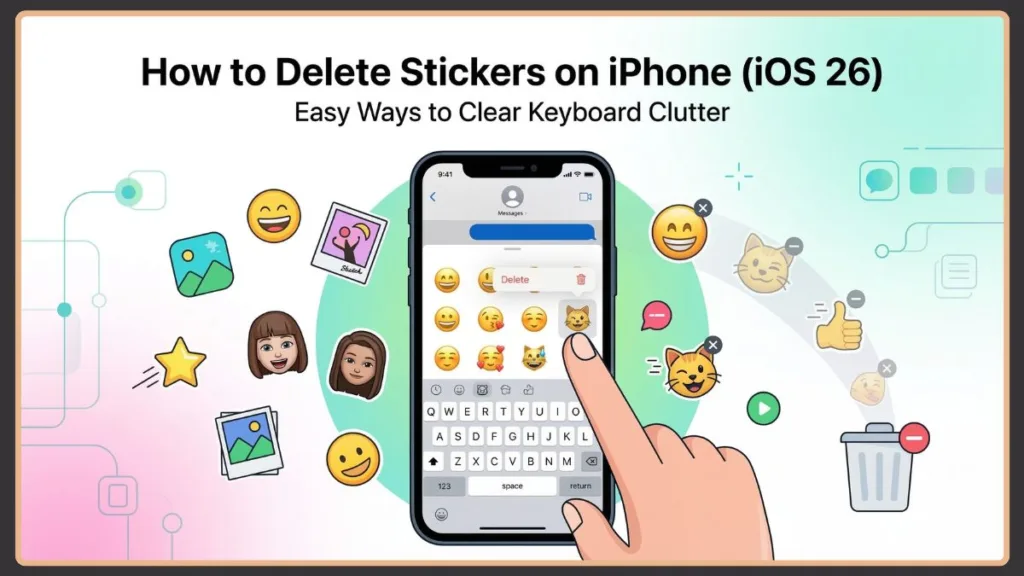
If your sticker library is full or you simply want to remove unused stickers, iOS 26 provides several ways to manage them. Depending on the type of sticker you’re dealing with—custom stickers, keyboard stickers, sticker packs, or message overlays—the removal steps may vary.
In this guide, you’ll learn how to delete stickers on iPhone iOS 26, remove custom stickers from iMessage, clear stickers from the emoji keyboard, delete sticker packs, and even disable the sticker drawer entirely if you prefer a cleaner messaging experience. Whether you want to clear sticker history in iMessage, remove stickers from the iPhone keyboard, or simply organize your sticker library, the sections below walk through every method available in iOS 26.
Modern iOS versions introduced several new sticker capabilities, including Live Photo sticker extraction, cross-app sticker support, and improved sticker drawer management in the Messages app.
Note: Because stickers now appear across multiple areas of the system—Messages, the emoji keyboard, and supported third-party apps—understanding where stickers are stored and how they behave helps you manage them effectively.
Why You Might Want to Delete Stickers on iPhone to Clear the Sticker Library and Improve Messaging Performance
Before diving into the steps, it helps to understand why many users choose to remove stickers from their devices. Stickers are designed to make conversations expressive, but they can also become overwhelming if you install many sticker apps or frequently create custom stickers from photos.
Reduce Sticker Drawer Clutter in the Messages App
Over time, your iPhone may collect dozens or even hundreds of stickers from different apps. These stickers appear inside the sticker drawer in the Messages app and also inside the emoji keyboard sticker panel.
Scrolling through an overloaded sticker drawer can make it difficult to locate the sticker you actually want to send. A cluttered sticker library slows down navigation in the Messages app and emoji keyboard.
Tip: Removing unused stickers helps keep your iMessage sticker library clean and organized, making it easier to find the stickers you enjoy using most.
In many cases, users accumulate stickers without realizing it. Installing messaging apps, keyboard extensions, and social media apps often adds additional sticker packs automatically, which then appear in the Messages sticker drawer.
Free Up Storage Space by Removing Unused Sticker Packs
Sticker packs and custom stickers may seem small, but they can take up noticeable storage space over time.
Some sticker packs consume 10–50 MB of storage, especially when they include animated graphics or high-resolution images. If you install many sticker apps from the App Store, the total storage used by stickers can add up quickly.
Deleting unused packs can help free up space for apps, photos, and videos.
Steps to check how much storage sticker apps use:
- Open the Settings app.
- Navigate to General > iPhone Storage.
Note: This section shows which apps are consuming the most storage, including apps that contain sticker packs.
Improve Messaging Performance and Keyboard Speed
Too many sticker packs can affect how quickly the Messages app loads and how smoothly the emoji keyboard opens.
Removing unnecessary stickers can improve:
- message loading speed
- emoji keyboard responsiveness
- scrolling performance inside the sticker drawer
- overall messaging experience
Large sticker collections may also increase the time it takes for iMessage to load the sticker suggestion panel, especially when switching between conversations.
Protect Privacy When Using Custom Photo Stickers
If you created stickers using personal photos, you may want to remove them to keep your device more private.
Custom stickers made from photos are often synced across devices using the same Apple ID. Removing them ensures those images are not accidentally shared or accessed by others who use your phone.
This is especially important if you created stickers from:
- family photos
- private images
- work-related images
- screenshots containing sensitive information
Types of Stickers You Can Delete on iPhone iOS 26 (Custom Stickers, Memoji Stickers, and Third-Party Sticker Packs)
Not all stickers behave the same way on iPhone. Different sticker types are stored in different locations, which is why deletion methods vary.
Understanding the sticker categories makes it easier to manage your sticker library in iOS 26.
Custom Photo Stickers (Live Photo Stickers)
These stickers are created directly from photos or Live Photos. Apple introduced Live Photo stickers to allow users to turn images into interactive stickers that can be used in Messages.
Live Photo stickers often include animated motion effects, which makes them more dynamic than static emoji or image stickers. They are stored inside the iMessage sticker library and can be deleted individually or removed in bulk.
Memoji and Genmoji Stickers
Memoji stickers are generated from your personal avatar. These appear automatically in the emoji keyboard and Messages sticker drawer.
Memoji stickers allow users to send expressive reactions that match their personalized character. While some built-in Memoji stickers cannot be removed individually, custom Memoji characters can be deleted from your Memoji collection.
Third-Party Sticker Packs from the App Store
Apps from the App Store often include sticker packs. These packs appear in the Messages sticker drawer and can be removed by uninstalling the sticker app or disabling the pack in the sticker settings.
Examples include:
- animated emoji sticker apps
- cartoon sticker packs
- meme sticker apps
- branded sticker packs
Many of these apps also sync their stickers with messaging platforms like WhatsApp or Messenger.
Message Stickers and Sticker Reactions in Conversations
Stickers can also be placed on top of messages or photos in conversations. These are sometimes called sticker overlays or reactions.
Note: Removing these stickers behaves differently because deleting them only removes the sticker from your view of the conversation, not from the other participant’s device.
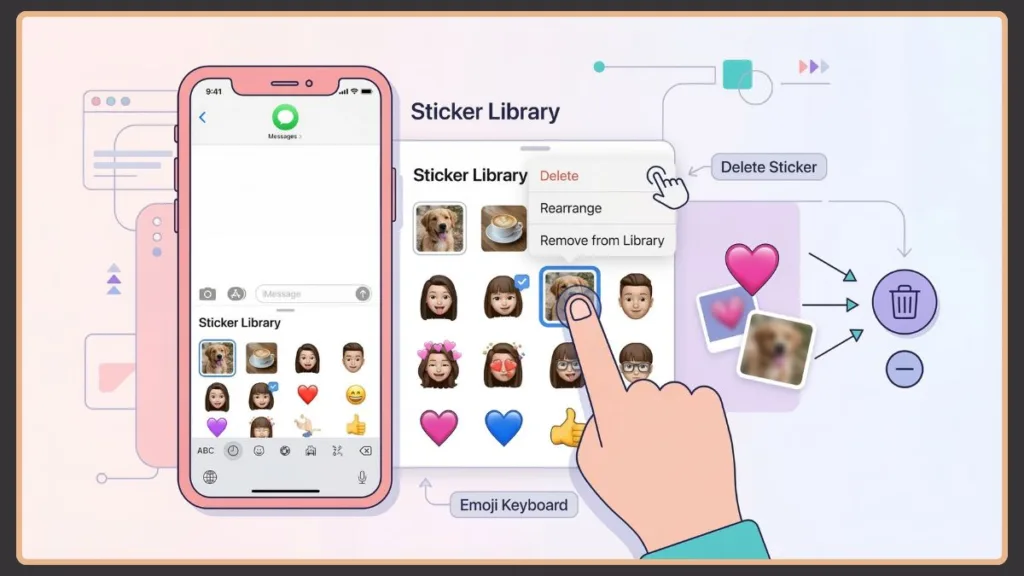
How to Delete Custom Stickers in iMessage Using the Sticker Library in the Messages App
Custom stickers are stored in the iMessage sticker library, which can be accessed from the Messages app.
Steps to remove them:
- Open the Messages app on your iPhone.
- Open any conversation.
- Tap the Plus (+) icon next to the text field.
- Select Stickers to open the sticker drawer.
- Locate the sticker you want to remove.
- Tap and hold the sticker until a menu appears.
- Tap Delete.
Once you delete a sticker, it disappears instantly from your sticker library.
Note: If you use iCloud syncing for Messages, the deletion will also apply to other Apple devices signed in with the same Apple ID. This ensures your sticker library stays consistent across iPhone, iPad, and Mac.
Tip: Avoid deleting stickers from the Recent tab, because this section only displays recently used stickers and does not allow permanent removal.
How Do I Delete Custom Stickers I Created from Photos on iPhone (Remove Live Photo Stickers)
Custom stickers made from photos are called Live Photo stickers. These are often created by long-pressing a photo in the Photos app and selecting the sticker option.
Because these stickers are saved inside the Messages sticker library, they can be removed using the same long-press deletion method.
Steps to remove them:
- Open the Messages app.
- Tap the Plus (+) icon.
- Select Stickers.
- Navigate to your custom sticker collection.
- Tap and hold the sticker you created.
- Select Delete from the pop-up menu.
Removing the sticker deletes it from your sticker library, but the original photo remains in the Photos app. This means you can always recreate the sticker again later if needed.
Additionally, Live Photo stickers may appear across all Apple devices connected to the same Apple ID, so removing them from one device will remove them from others as well.
How to Delete Multiple Stickers at Once on iPhone Using Bulk Delete and Rearrange Mode
If you have a large collection of stickers, deleting them one by one can be time-consuming. iOS allows you to remove multiple stickers using Rearrange mode, which is designed to manage your sticker library quickly.
Steps to bulk delete stickers:
- Open Messages.
- Tap the Plus (+) icon.
- Select Stickers.
- Tap and hold any sticker.
- Choose Rearrange from the menu.
- Tap the minus (–) icon next to each sticker you want to delete.
- Exit the edit mode when finished.
Tip: This method is the fastest way to clean up a large sticker library and remove several stickers in seconds. Bulk deletion is particularly useful if you have created dozens of custom stickers and want to quickly reset your sticker library.
How to Remove Emoji Stickers from iPhone Keyboard and Clear Stickers from the Emoji Panel
Many stickers appear directly inside the emoji keyboard, especially those created from photos or generated from Memoji avatars.
Steps to remove these stickers:
- Open any app that allows typing.
- Tap the Emoji keyboard icon.
- Tap the Stickers icon inside the keyboard.
- Switch away from the Recent tab.
- Tap and hold the sticker you want to delete.
- Tap Delete.
If the delete option does not appear, make sure you press the sticker without dragging it.
Note: This method works across apps such as Messages, Instagram, and WhatsApp because the emoji keyboard shares the same sticker library. It also allows users to remove stickers without opening the Messages app.
How to Delete Stickers from iPhone Keyboard Settings and Turn Off the Sticker Drawer in iOS 26
If you prefer not to see stickers on your keyboard at all, you can disable them completely.
Steps to turn off the sticker drawer:
- Open Settings.
- Navigate to General > Keyboard.
- Scroll down to the Stickers option.
- Turn the toggle off.
Once disabled, the sticker drawer will no longer appear in the emoji keyboard. This is useful if you rarely use stickers and prefer a simpler keyboard layout. Disabling stickers can also prevent accidental sticker reactions while typing.
How to Delete Sticker Packs on iPhone from the Messages Sticker Drawer
Third-party sticker packs often come bundled with apps. These packs appear in the sticker drawer but cannot be edited individually. Instead, you must remove the entire pack.
Steps to delete sticker packs:
- Open Messages.
- Tap the Plus (+) icon.
- Select Stickers.
- Scroll through the sticker packs.
- Tap Edit.
- Tap Edit again in the corner.
- Tap the minus (–) icon next to the sticker pack.
- Tap Delete.
Alternatively, you can disable the pack without deleting it completely. Disabling a sticker pack hides it from the sticker drawer but keeps the app installed.
Note: If you uninstall the sticker app entirely, all stickers associated with that app will disappear from the Messages sticker drawer.
How to Remove Stickers from Messages or Photos in iMessage Conversations
Sometimes stickers are placed on top of a message bubble or photo. Removing these works differently than deleting stickers from your library.
Steps to remove conversation stickers:
- Open the Messages conversation.
- Locate the message or photo with the sticker.
- Press and hold the message bubble, not the sticker itself.
- Tap More.
- Select Sticker Details.
- Tap the delete option.
Removing a sticker from a message only removes it from your screen. Other people in the conversation will still see it. This behavior exists because iMessage synchronizes messages across devices.
How to Turn Off the Sticker Drawer in iOS 26 to Hide Stickers from the Emoji Keyboard
If you rarely use stickers, you can disable them entirely.
Steps to hide stickers:
- Open Settings.
- Navigate to General > Keyboard.
- Turn Stickers off.
With this setting disabled, the sticker drawer will no longer appear when using the emoji keyboard.
Why Won’t My iPhone Stickers Delete? (Common Fixes for Sticker Removal Problems)
Some users encounter issues when trying to remove stickers. Here are common reasons and fixes.
Using the Recent Tab Instead of the Sticker Library
The Recent stickers section only displays frequently used stickers and does not allow deletion. Switch to the custom sticker tab instead.
iCloud Sync Issues Causing Stickers to Reappear
If stickers reappear after deletion, iCloud syncing may be restoring them. Try restarting the Messages app or temporarily disabling Messages in iCloud.
System Stickers Cannot Be Removed
Certain stickers are part of the iOS system and cannot be deleted, including:
- default emoji stickers
- built-in Memoji reactions
Tips to Manage Your iPhone Sticker Library and Keep the Sticker Drawer Organized
Keeping your sticker library organized makes messaging easier. Consider these tips:
- Remove Unused Sticker Packs Regularly: Review sticker packs every few months and delete the ones you no longer use.
- Avoid Creating Too Many Custom Stickers: Custom stickers made from photos can quickly fill your sticker drawer.
- Keep Only a Few Favorite Packs: Most users only use a handful of stickers regularly. Keeping 5–10 sticker packs is usually enough.
- Disable Stickers If You Don’t Use Them: Turning off stickers entirely can simplify your keyboard and prevent accidental sticker reactions.
FAQ
How do I remove custom stickers from my iPhone keyboard?
Open the emoji keyboard, go to the sticker section, tap and hold the sticker you want to remove, and tap Delete.
Can I completely turn off the sticker drawer on iOS 26?
Yes. Navigate to Settings > General > Keyboard and disable the Stickers option.
Does deleting a sticker remove it from past messages?
No. Previously sent stickers remain visible in old conversations.
How do I delete stickers I made from my own photos?
Open the Messages sticker drawer, tap and hold the sticker, and select Delete.
Why are my deleted stickers still showing in frequently used?
The Recent tab automatically stores frequently used stickers, even if they are no longer in your library. These items eventually disappear as you use new stickers.
Do deleted stickers free up storage on iPhone?
Yes. Removing sticker packs or sticker apps can free up storage, especially if you installed multiple third-party sticker packs.
Summary: Managing and Deleting Stickers on iPhone iOS 26
Deleting stickers on an iPhone is simple once you know where they are stored. Whether you want to remove custom stickers, delete sticker packs, or disable the sticker drawer entirely, iOS provides several ways to manage your sticker collection.
The most important methods include:
- deleting custom stickers from the Messages sticker library
- removing stickers from the emoji keyboard
- deleting third-party sticker packs
- removing sticker overlays from messages
- disabling the sticker drawer in keyboard settings
Conclusion: Keep Your iPhone Sticker Library Clean and Organized
Stickers make conversations more expressive, but too many can quickly clutter your iPhone’s messaging experience. By regularly managing your sticker library, you can keep your Messages app organized and easy to navigate.
Now that you know how to delete stickers on iPhone iOS 26, you can remove unwanted stickers, clean up your keyboard, and keep only the sticker packs you truly enjoy using.
Tip: Experiment with these settings to discover combinations that enhance your messaging efficiency. Your sticker library can now be a true extension of your workflow!
Visit Our Post Page: Blog Page